
SuperComplete is a AI Text Formatter and Free Agentic Coding for txt, http, xml, yaml, markdown, latex, tex etc in Visual Studio Code
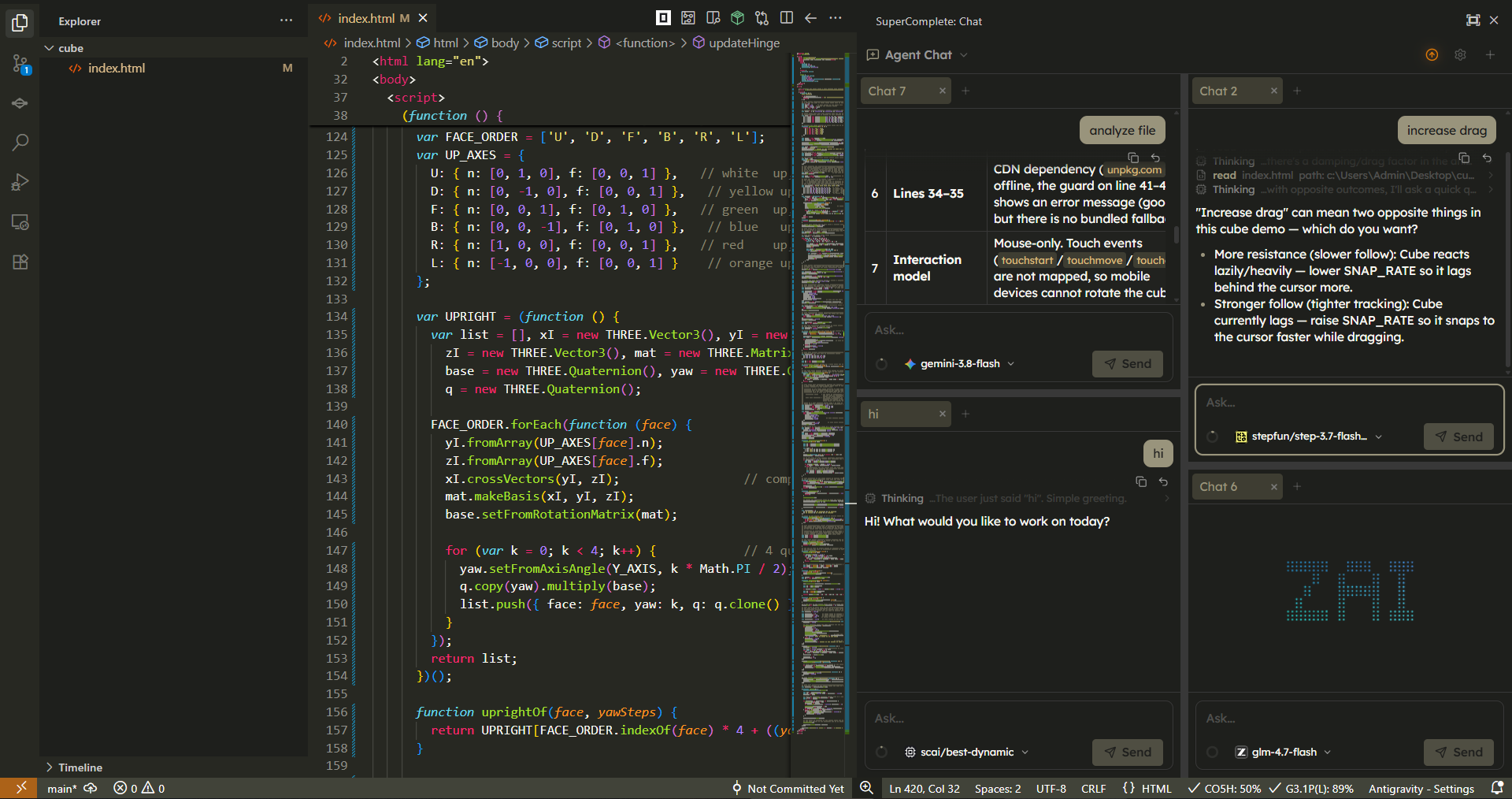
🚀 Key Features
- Full Document Formatting: Format entire documents with AI using the "SuperComplete: Format Document With AI" command
- Code Style Enhancement: Improves code readability and follows best practices
- Any File Type: Works with any file type, including Python, JavaScript, HTML, CSS, Plain Text etc.
2. Context-Aware Next Edit Autocomplete [Beta Version v0.0.X] [October 2025]
- Real-time Suggestions: Provides intelligent code completions as you type
- Context Understanding: Analyzes surrounding code to provide relevant suggestions
- Hint Text Display: Shows completions as subtle hint text that can be accepted with Tab
- Smart Caching: Caches completions to improve performance and reduce API calls
3. AI-Powered Code Completion
- Intelligent Code Generation: Generates code completions based on context
- Start/Stop Control: Toggle code completion on/off as needed
- Cursor Position Triggering: Automatically triggers suggestions when cursor position changes
- Ghost Text Display: Shows completions as ghost text that can be accepted or rejected
4. Agentic Coding Chat Interface
- Integrated Chat Panel: Accessible through the sidebar with a dedicated chat view
- Codebase Context: Chat understands your current workspace structure
- Tool Integration: Can interact with tools
- Agent Mode: Advanced mode that can perform actions on your codebase
5. Model Context Protocol (MCP) Integration
- Extensible Tool Ecosystem: Connect external MCP servers (stdio, SSE, HTTP) to give your AI agent custom tools, browser automation, database access, and more
- Interoperable Configuration: Compatible with standard Claude Desktop / Cursor
servers.json (mcpServers) format
- Built-in Management Panel: Connect, disconnect, and monitor server status and discover tools in real time
6. Custom Agent Skills
- Domain-Specific Workflows: Teach the AI specialized procedures, coding standards, and deployment pipelines using markdown
SKILL.md files
- Automatic Discovery: Discovers workspace and global skills dynamically with zero manual configuration
7. Cytoscape Graph Visualization
- Directory Tree Visualization: Automatically generate Cytoscape graphs from your project structure
- Interactive Graph Navigation: Visualize your codebase as an interactive graph
- Graph Customization: Style nodes based on file types (workspace, directories, files)
⚙️ Requirements
- Internet connection for AI API access [It's Free]
📦 Installation
From VS Code Marketplace
- Open VS Code
- Go to Extensions (
Ctrl+Shift+X)
- Search for "SuperComplete"
- Click Install
🖥️ Usage
Context-Aware Next Edit Autocomplete
As you type in any text file, SuperComplete will provide inline suggestions:
function calculateSum(a, b) {
  // Hint text appears here: return a + b;
}
AI-Powered Code Completion
- Use the "SuperComplete: Toggle Code Completion" command to enable/disable
- Position your cursor where you want code completion
- Wait for 300ms to see suggestions appear as ghost text
- Press
Tab to accept the suggestion or Escape to cancel
Example:
// Position cursor after the semicolon and wait for completion
const greeting = "Hello";

// Position cursor inside the function and wait for completion
function calculateSum(a, b) {
  // AI-generated completion will appear here
}
- Open any document
- Press
Ctrl+Shift+P to open command palette
- Type "SuperComplete: Format Document With AI"
- Watch as your document gets intelligently formatted
Agentic Coding Chat Interface
- Click on the SuperComplete icon in the sidebar
- Start chatting with the AI about your codebase
- Use Agent mode for advanced file operations
Model Context Protocol (MCP) Integration
SuperComplete connects to external tools and environments via standard MCP:
- Configure Servers: Open the Settings tab in SuperComplete and navigate to the MCP section, or directly edit
.supercomplete/mcp/servers.json in your workspace root:
{
  "mcpServers": {
    "brave-devtools": {
      "command": "npx",
      "args": ["-y", "@modelcontextprotocol/server-puppeteer"]
    },
    "filesystem": {
      "command": "npx",
      "args": ["-y", "@modelcontextprotocol/server-filesystem", "/path/to/workspace"]
    }
  }
}
- Manage in Settings: Connect, disconnect, and monitor server status and discovered tools in the UI. Click the direct edit button to open your configuration file.
- Automatic Agent Discovery: The agent receives live awareness of connected MCP servers and their available tools, invoking them as needed for external operations (e.g. browser screenshots, DOM automation, and filesystem lookups).
Custom Agent Skills
Skills allow you to extend the agent with custom playbooks, coding rules, and domain-specific knowledge:
- Create a skill directory under
.supercomplete/skills/<skill-name>/ or .gemini/skills/<skill-name>/.
- Add a
SKILL.md file with standard YAML frontmatter:
---
name: deploy-preview
description: Build and verify the application bundle before deployment
---

# Deploy Preview Workflow
1. Run `npm test` to ensure all tests pass.
2. Run `npm run build` to create the production distribution.
3. Check output bundle size and log results.
- SuperComplete automatically indexes your skills and surfaces them to the agent during relevant tasks.
Cytoscape Graph Functions
The RealtimeAIManager now includes functions to generate and set initial graphs from directory structures:
generateInitialGraphFromDirectory(): Creates a Cytoscape graph from the workspace directory treesetInitialDirectoryGraph(): Generates and sets the current graph to the directory-based structurereset(): Clears all persisted data including graphs, suggestions, and analysis history
For more details, see Initial Graph Functions Documentation.
License
This project is licensed under the MIT License - see the LICENSE file for details.
| |



