Overview Version History Q & A Rating & Review
Promptshot
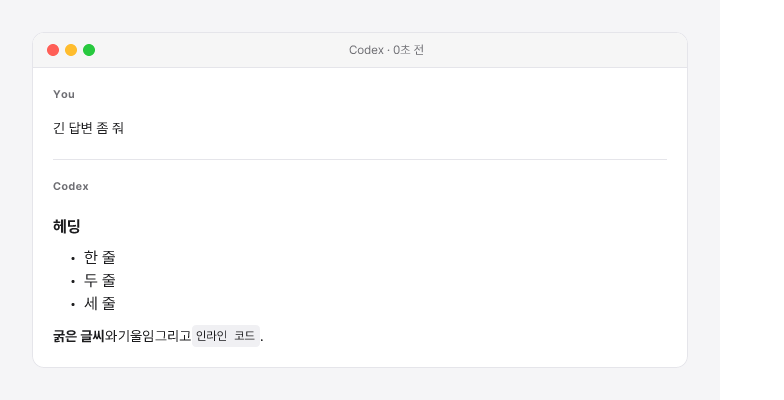
Capture VS Code's AI chat (Codex / Claude Code) as a beautiful PNG or clean markdown — one keystroke, ready to paste into Slack or email.
Usage
Install from VS Code Marketplace.
While using Codex or Claude Code in VS Code, press Ctrl+Alt+PCmd+Alt+P
The image lands on your clipboard and saves to ~/Pictures/Promptshot/. Paste it anywhere.
For markdown instead, run Promptshot: Capture as Markdown from the command palette.
Commands
Command
Keybinding
Promptshot: Capture Last Exchange
Ctrl+Alt+P / Cmd+Alt+P
Promptshot: Capture as Markdown
Ctrl+Alt+Shift+P / Cmd+Alt+Shift+P
Promptshot: Pick Session…
—
Promptshot: Choose Theme…
—
Promptshot: Open Last Capture
—
Pick Session… lets you choose an older session (not just the most recent) and pick image or markdown output.
Settings
Setting
Default
What it does
promptshot.thememac-lightmac-light or mac-dark
promptshot.sourceautoauto, codex, or claude-code — pin a source if auto picks the wrong one
promptshot.outputDir~/Pictures/PromptshotWhere PNGs are saved
promptshot.width720Image width in pixels
Advanced : promptshot.maxHeight (4000), promptshot.includeTools (false), promptshot.includeSystem (false).
Troubleshooting
Capturing the wrong session?
Promptshot picks whichever AI session was most recently active. If you have multiple Codex / Claude Code sessions running, set promptshot.source to lock to one.
License
MIT