SUMR
Product engineering control center for contract-first AI workflows.
SUMR connects product context, agent instructions, API contracts, event contracts,
and delivery workflows inside your workspace. Use it to keep AI agents aligned
with your team standards, sync Playbook resources, check Mission context, and run
Kontract workflows for OpenAPI and AsyncAPI without breaking focus.
What SUMR helps you do
- Align AI agents with the repository — sync Playbook resources so agents and
engineers follow the same standards, workflows, and product rules.
- Work contract-first — inspect and run Kontract actions for OpenAPI and
AsyncAPI schema changes from one place.
- Keep delivery context close — check Mission status before changing code,
reviewing contracts, or handing work to an agent.
- Run trusted CLI actions — execute approved SUMR workflows through the
configured
sumr.cliPath and the integrated terminal.
- Reduce context switching — connect product intent, contract boundaries,
agent behavior, and implementation work in a single workspace flow.
Built for
Product engineering teams working with OpenAPI, AsyncAPI, API contracts, event
contracts, AI coding agents, AI agent workflows, Playbook instructions, Mission
delivery context, Kontract generation, and SUMR CLI workflows.
Preview
Keep project context beside contract files
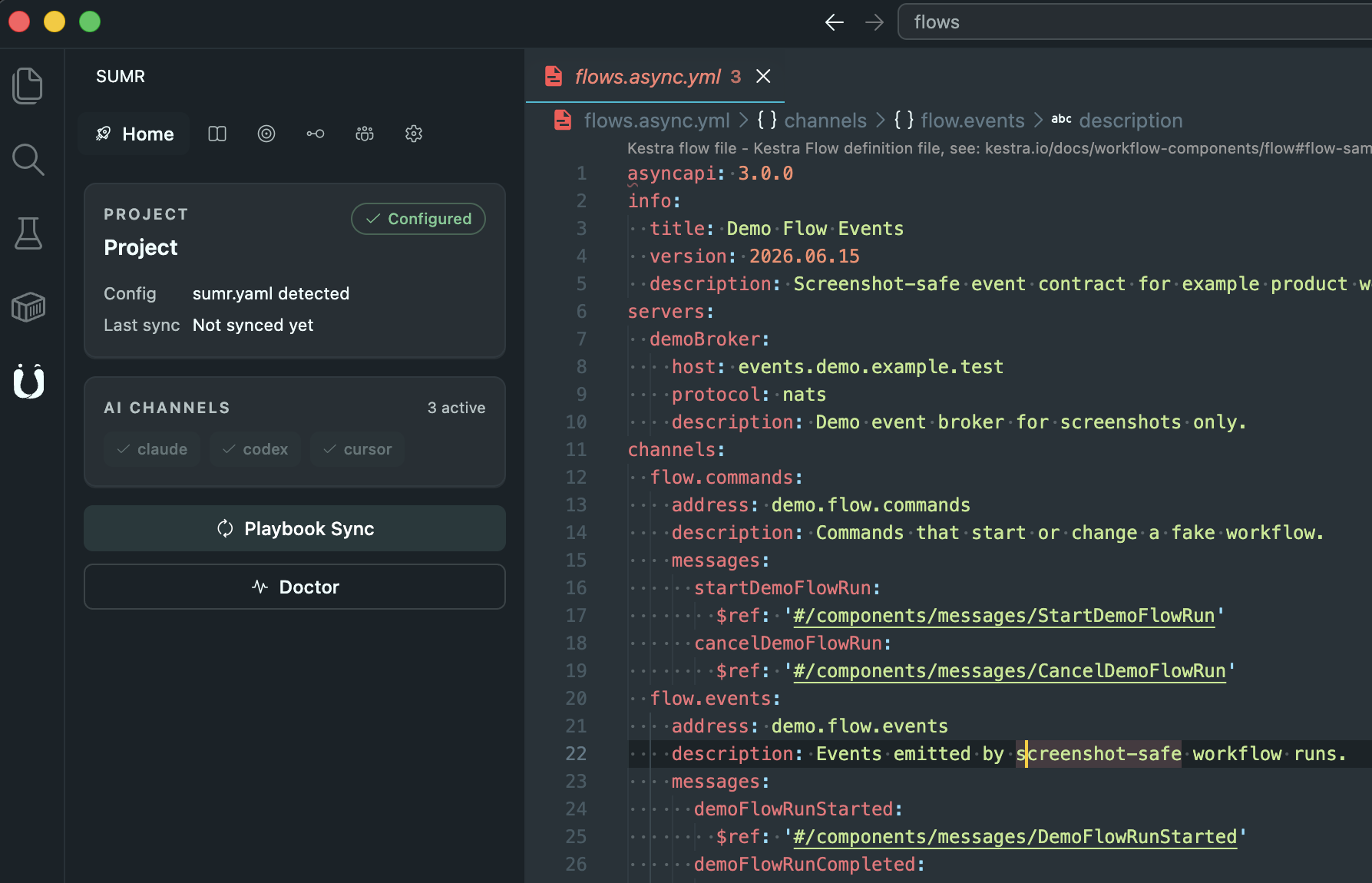
The Home view shows project configuration, active AI channels, sync status, and
quick actions next to the contract file you are already editing.
Sync Playbook resources by channel
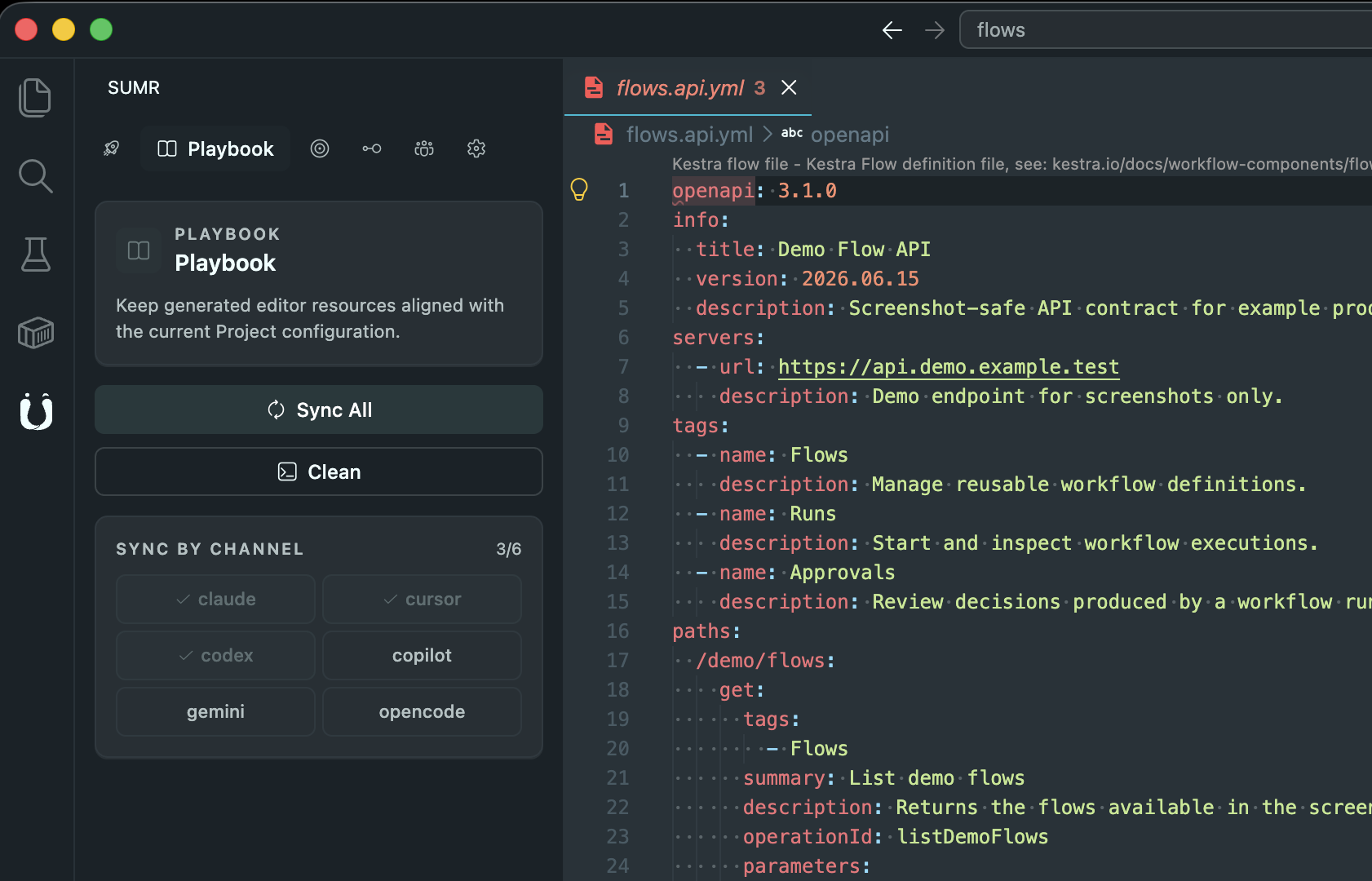
Playbook actions refresh generated editor resources for every configured channel
or for one AI coding assistant at a time.
Keep Mission context close
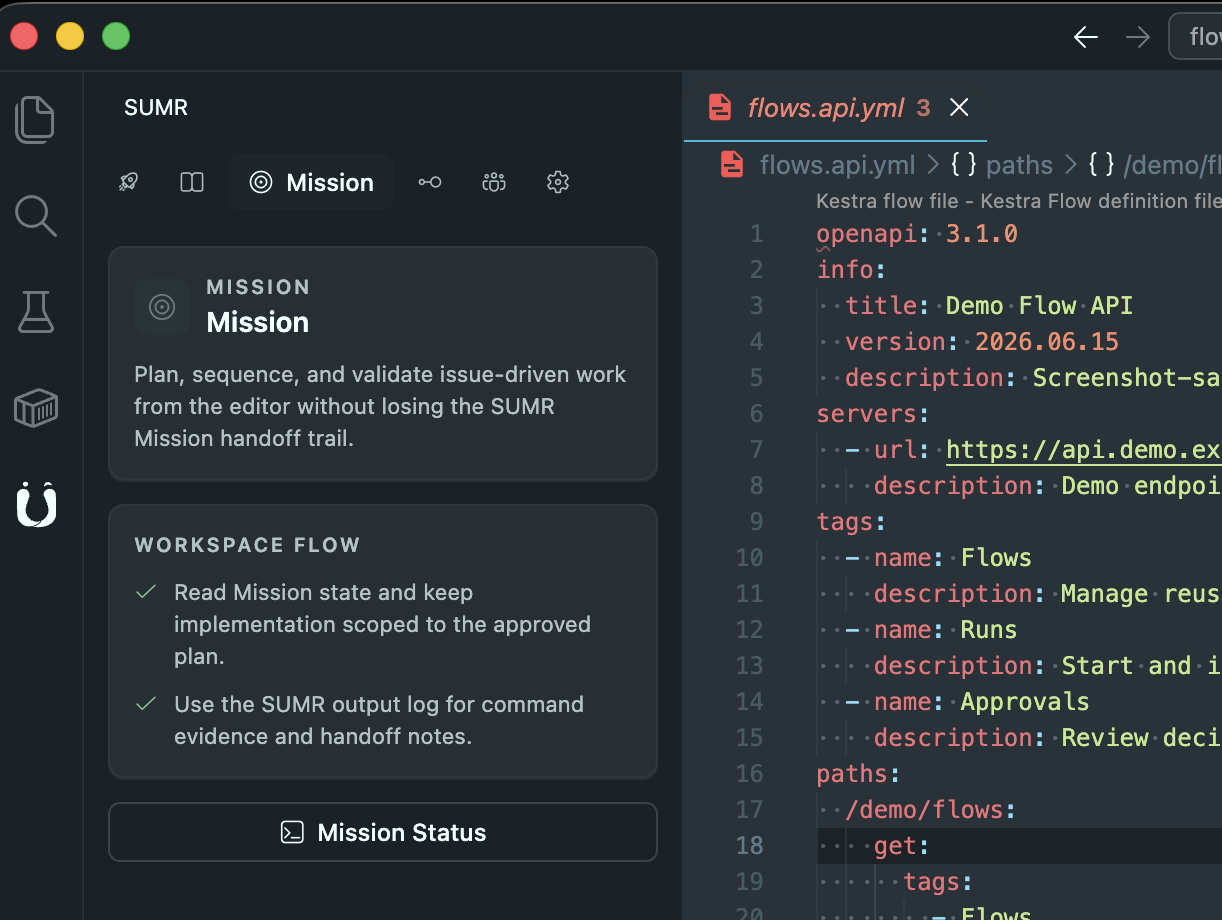
Mission keeps issue-driven work visible while you plan, sequence, and validate
implementation changes.
Inspect OpenAPI and AsyncAPI contracts
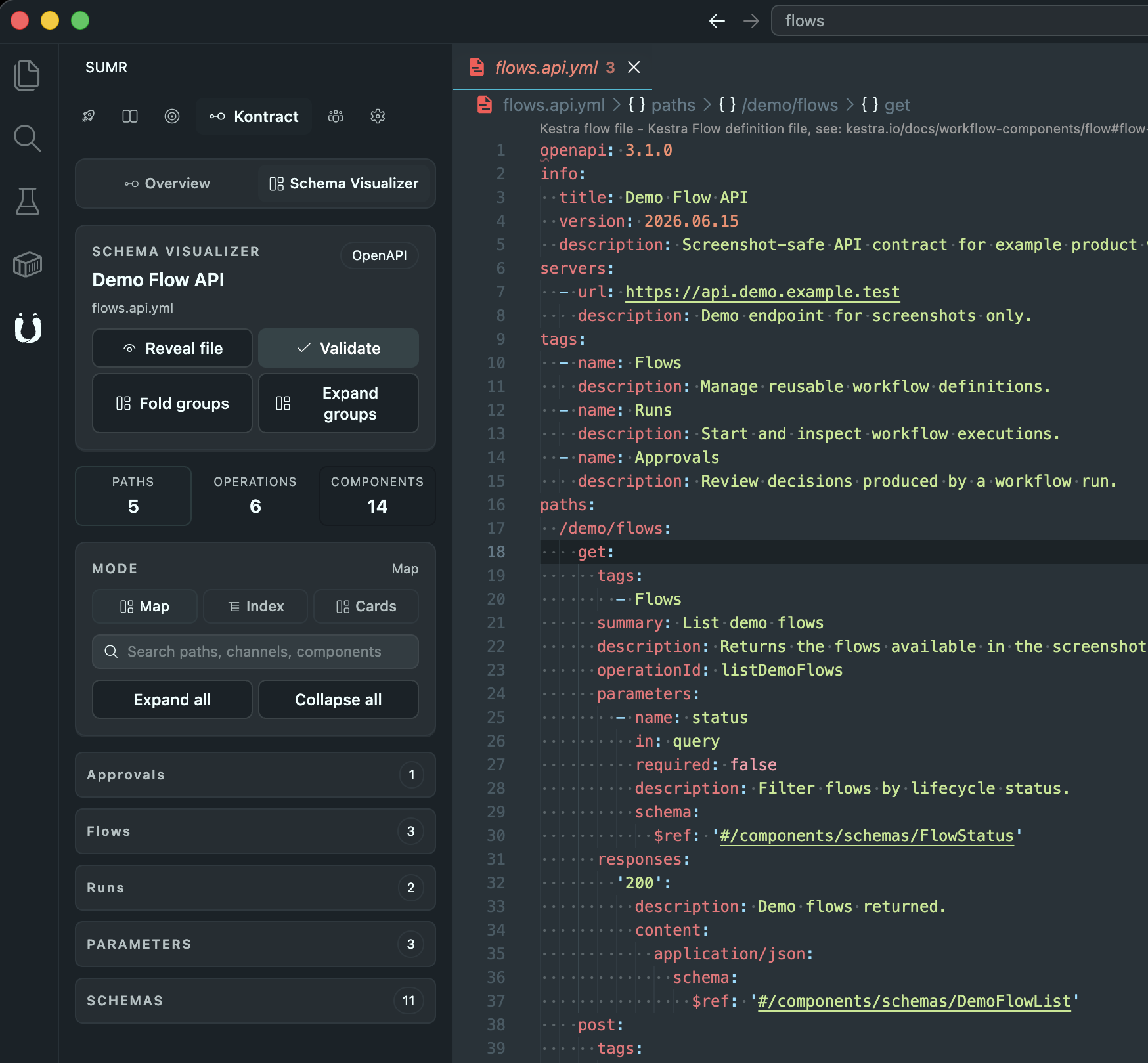
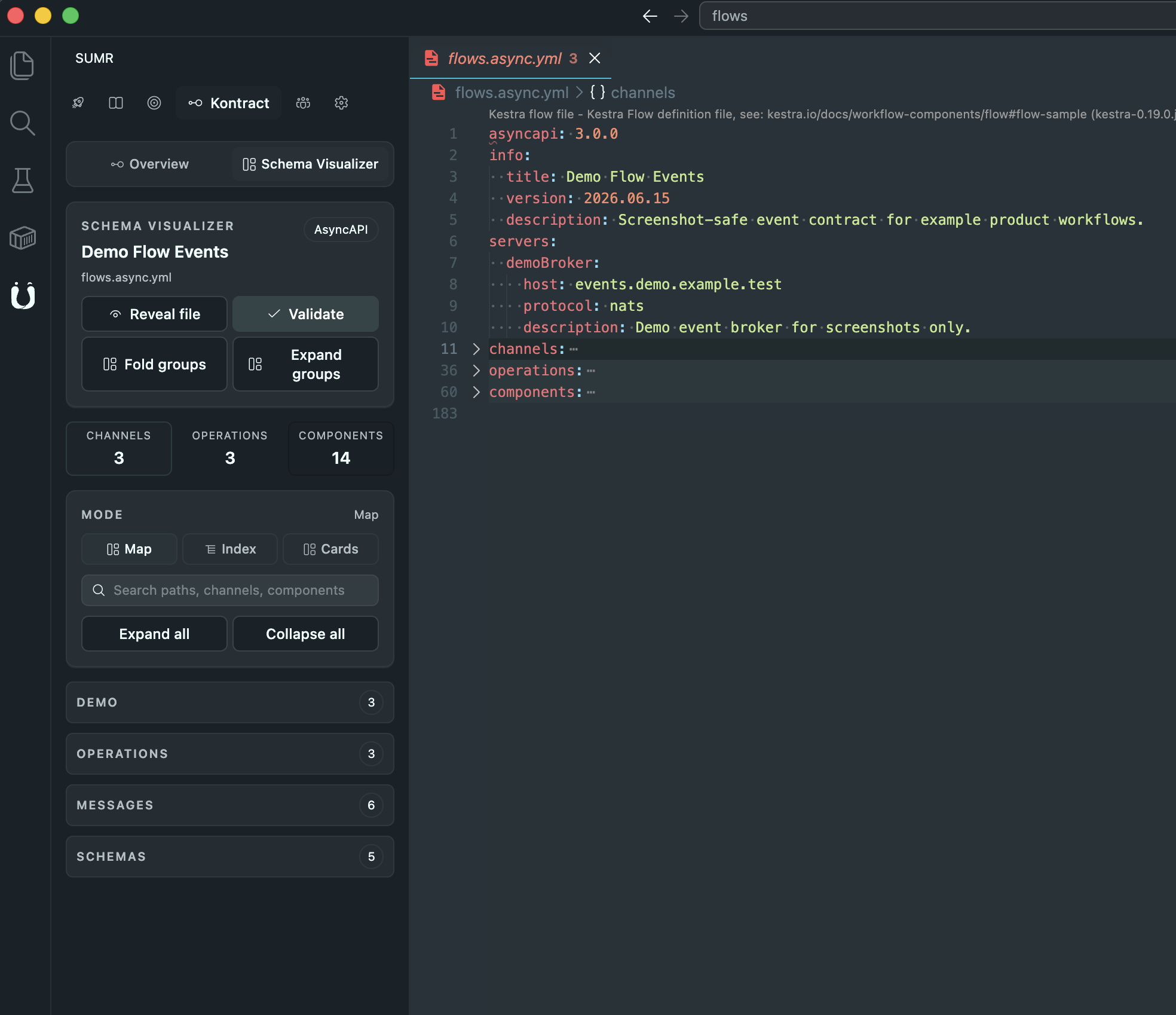
Kontract turns OpenAPI and AsyncAPI files into navigable maps with validation,
group controls, search, and reveal actions.
Sign in when cloud workflows need it
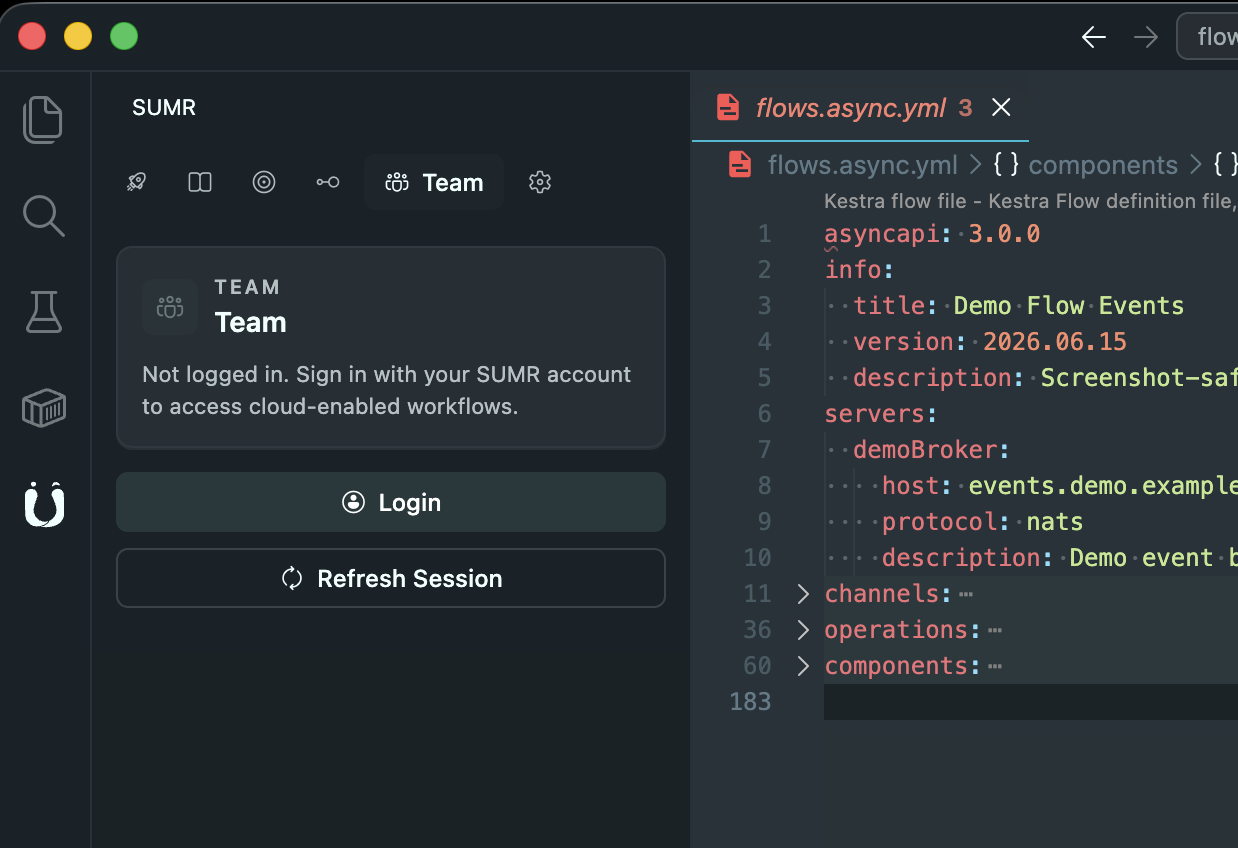
Team login uses native editor authentication and secure secret storage for
cloud-enabled SUMR workflows.
Core workflows
- Playbook sync — refresh AI resources for the whole workspace or for a
selected channel.
- Mission status — open delivery context for the active workspace.
- Kontract validation and generation — validate, generate, fold, expand, and
inspect API and event contract groups.
- Schema visualizer — explore OpenAPI and AsyncAPI outlines with map, index,
and card views.
- Team login — authenticate with native editor authentication and secure
secret storage.
- Doctor checks — run workspace diagnostics before deeper investigation.
Getting started
- Install SUMR.
- Install the SUMR CLI from the SUMR CLI install guide.
- Open a SUMR-enabled workspace.
- Run SUMR: Open Panel from the Command Palette.
- Run SUMR: Check CLI if the sidebar reports that the CLI is missing.
- Sign in from the sidebar footer when team actions require authentication.
- Run Playbook, Mission, Kontract, or Doctor actions from the SUMR panel.
The default CLI command is _sumr. Change it with sumr.cliPath if your SUMR
CLI is installed somewhere else.
Commands
| Command |
What it does |
SUMR: Open Panel |
Opens the SUMR panel. |
SUMR: Playbook Sync |
Syncs Playbook resources for the workspace. |
SUMR: Playbook Sync by Channel |
Syncs a selected Playbook channel. |
SUMR: Playbook Clean |
Cleans generated Playbook resources. |
SUMR: Mission Status |
Opens current Mission delivery context. |
SUMR: Current Account |
Refreshes the current SUMR team identity. |
SUMR: Kontract Validate |
Validates Kontract schemas. |
SUMR: Kontract Generate |
Generates Kontract outputs. |
SUMR: Doctor |
Runs SUMR workspace diagnostics. |
SUMR: Init |
Starts SUMR initialization for a workspace. |
SUMR: Show Output Log |
Opens the SUMR output channel. |
SUMR: Check CLI |
Checks whether the local SUMR CLI is available. |
SUMR: Open CLI Install Guide |
Opens the HTTPS SUMR CLI setup guide. |
SUMR: Open Settings |
Opens native editor settings filtered to SUMR. |
Settings
| Setting |
Default |
Description |
sumr.cliPath |
_sumr |
Path or command used to run the SUMR CLI. |
sumr.authStage |
Auto |
SUMR login environment. Auto follows the packaged release stage. |
sumr.autoSyncOnOpen |
false |
Automatically sync Playbook resources when opening a workspace. |
sumr.showStatusBar |
true |
Shows the SUMR quick-action status bar item. |
sumr.enableRegionHighlight |
true |
Highlights //#region and //#endregion blocks. |
Requirements
- SUMR CLI installed locally and available through
sumr.cliPath.
- A SUMR workspace for project-specific Playbook, Mission, and Kontract actions.
SUMR does not auto-install the CLI. If the CLI is missing, the sidebar shows
setup steps, a Check again action, native settings, and the HTTPS
SUMR CLI install guide.
Security and workspace trust
SUMR limits automatic CLI execution in untrusted workspaces. Authentication uses
native editor authentication and secure secret storage; access and refresh tokens
are not exposed to the SUMR panel. CLI checks use a safe --version probe and
do not run installer scripts.
Support
Report issues through the repository issue tracker:
https://github.com/SUMRco/Plugin-Vscode/issues
License
SUMR is distributed under the license included with this extension. See
LICENSE for details.

