Syntax highlighting for linker scripts in Visual Studio Code
This is an extension that adds syntax highlighting for linker scripts to Visual Studio Code. The extension supports the syntax of scripts for GNU ld. It recognizes the file name extensions .ld and .lds for linker scripts.
The extension works well with many standard themes. But you can adjust colors and other text attributes via standard configuration functionality in Visual Studio Code's settings.json file. See section Customization below.
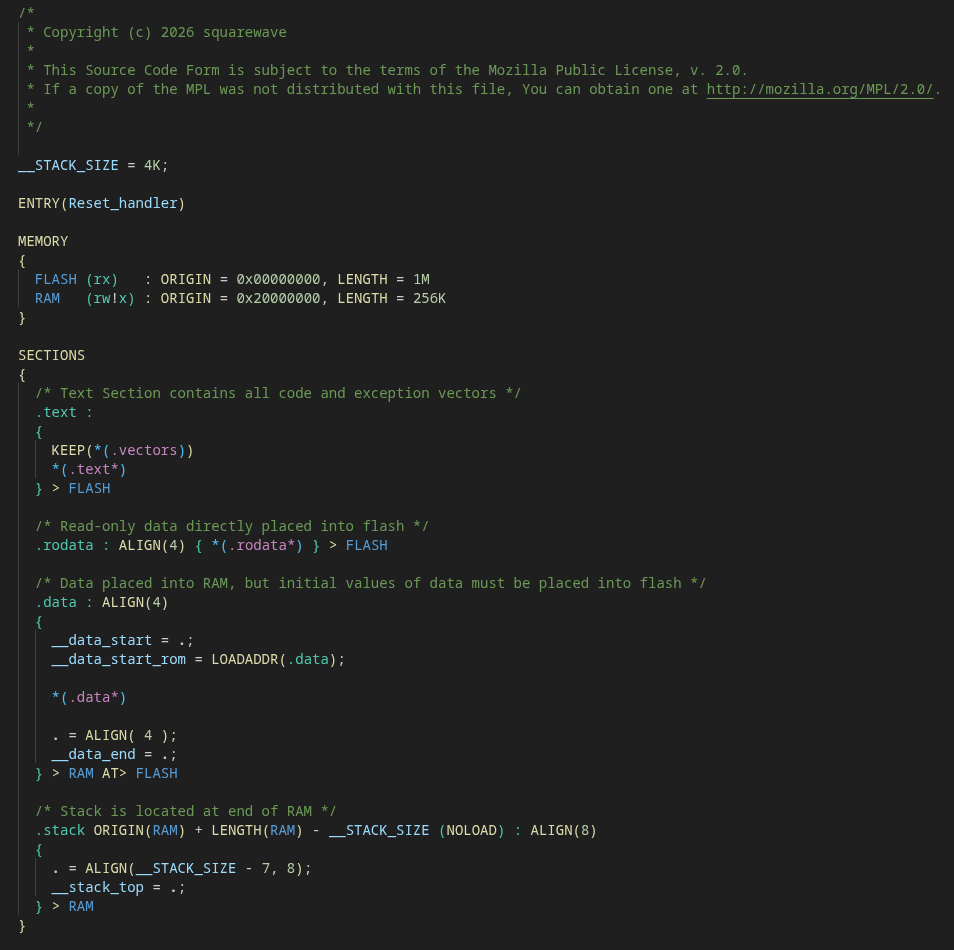
The following screenshot shows an example linker script with the Dark Modern theme. For an example with the Dark 2026 theme see here.
Installation
You can install the extension from the VS Code Extension Marketplace or from a .vsix file.
Install from Extension Marketplace
To install the extension from within VS Code open the Extensions view via Ctrl-Shift-x or by clicking on the Extensions icon in the Activity Bar on the side of VS Code. Then search for linker script.
Also see Extension Marketplace in the VS Code documentation.
Install from .vsix file
Download the .vsix file from here. Then install it either from within VS Code or on the command line.
From within VS Code open the Command Palette via Ctrl-Shift-p and execute the command Extensions: Install from VSIX....
On the command line execute the following command:
code --install-extension path-to-vsix-file
Also see Install from a VSIX in the VS Code documentation.
Customization
You can use configuration in a settings.json file to change colors and other properties of the respective syntax elements (tokens). Also see Theming and Syntax colors in the VS Code documentation.
This settings.json file contains the example configurations that are mentioned in the next section for the standard themes
- Light Modern
- Dark Modern
- Light 2026
- Dark 2026
- Default High Contrast
- Default High Contrast Light
Just merge this file into your user settings if you want to use them (see Settings JSON file).
Examples
Excluded memory region attributes and excluded input section flags can be displayed in a dedicated color, e.g., in red. And maybe the '!' should be rendered in bold face to make it slighly more visible:
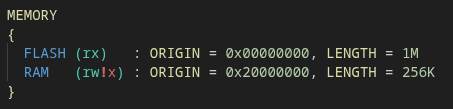
This can be achieved with the following settings. The color to choose depends on the active theme. The following settings work for the Dark Modern theme:
{
    "editor.tokenColorCustomizations": {
        "[Dark Modern]" : {
            "textMateRules": [
                {
                    // display excluded memory region attributes and input section flags in red
                    "scope": "source.excluded",
                    "settings": {
                        "foreground": "#D16969"
                    }
                },
                {
                    // render the '!' for excluding memory region attributes and input section flags in bold face
                    "scope": "source.excluded.operator",
                    "settings": {
                        "fontStyle": "bold"
                    }
                },
            ]
        }
    }
}
In this example the scope source.excluded addresses
- any excluded memory region attributes and input section flags (both have scope
source.excluded.ld)
- the '!' used to exclude the attributes and flags (scopes
source.excluded.operator.memory-region.ld and source.excluded.operator.section-flag.ld)
The scope source.excluded.operator addresses the '!' for the attributes and for the flags to add the font style bold to the red color set with the previous rule.
The scope key does not only accept a single string but also an array of strings. For example, for the Dark 2026 theme you may want to increase the contrast between colors for symbols and for file names and constants. You could do this, for instance, by changing the color of file names and constants to the same color that is used in the Dark Modern theme:
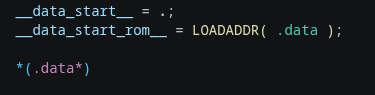
This can be implemented with the following settings using an array of scopes:
{
    "editor.tokenColorCustomizations": {
        "[Dark 2026]" : {
            "textMateRules": [
                {
                    // select a darker color for constants and file names to increase the contrast to symbols
                    "scope": ["source.constant.ld", "source.file"],
                    "settings": {
                        "foreground": "#4FC1FF"
                    }
                },
            ]
        },
    }
}
In this example the scope source.constant.ld addresses the constants, and the sope source.file addresses all file names and patterns:
- include files used in the INCLUDE command (scope
source.file.include.ld)
- input files used in the INPUT command (scope
source.file.input.ld)
- the output file used in the OUTPUT command (scope
source.file.output.ld)
- input file (patterns) used in output sections (scope
source.file.pattern.ld)
Tokens can have multiple scopes assigned simultaneously. It could be useful to set properties of a scope only in the context of a parent scope. In that case the parent scope and the child scope have to be specified in the settings, separated by a space character. For example, the scope "source.keyword.entry.ld source.symbol.ld" would address the symbol name in the ENTRY command. Note the space character in the scope specifier. This is similar to CSS descendent selectors. VS Code supports descendent selectors when evaluating the scope keys. Here it means that properties of source.symbol.ld would be changed only when the symbol has source.keyword.entry.ld as parent scope (i.e., only within the ENTRY command).
There are many more scopes/tokens available. Use VS Code's Scope inspector to find out what scopes are assigned to what tokens. Also see Textmate tokens and scopes for more information about how scopes work.
Known Restrictions
The different syntax elements (tokens) are recognized via regular expressions. Sometimes it is necessary to read some additional characters in order to distinguish different tokens that could occur in the current context. A regular expression is matched against just one line of code. That means that the additional characters must be available in the same line as the respective token to be recognized. Because of this some tokens are recognized only after the addtional characters have been entered. And this creates the following restrictions that must be met for the extension to properly identify the different tokens:
- A memory region, its optional type, and the colon must be on the same line.
- The memory region and its type are recognized as such only after the colon has been entered.
- In assignments the symbol name that gets a value assigned and the assignment operator ('=', '+=', etc.) must be on the same line.
- The symbol is recognized as such only after the assignment operator has been entered.
- The opening parenthesis and the following type identifier of an output section type must be on the same line.
License
Copyright (c) 2026 squarewave
This project is released under the MPL-2.0.

