Syntax Highlighting for Arm AssemblyArm assembly syntax support for Visual Studio Code Installation Launch VS Code Quick Open ( Ctrl+P), paste the following command, and press enter.Copied to clipboard |

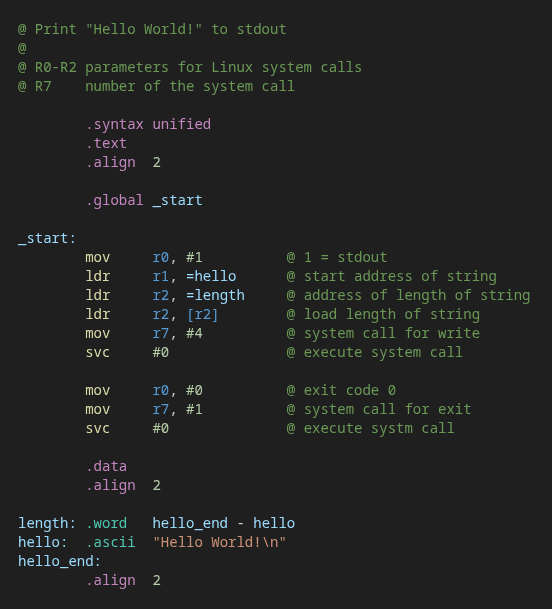
Syntax highlighting for Arm® assembly in Visual Studio CodeThis is an extension that adds syntax highlighting for the Arm assembly language to Visual Studio Code. The extension supports the ARMv7-A, -R and -M instruction sets, including Thumb2 as well as advanded SIMD and floating point instructions. It supports the ARM Unified Assembler Language (UAL), and it does not (fully) support Armv8 or AArch64 instruction sets. The extension supports syntax and most directives of GNU as. It works well with many standard themes. But you can adjust colors and other text attributes via standard configuration functionality in Visual Studio Code's The following screenshot shows an example source code with the Dark Modern theme. For an example with the Dark 2026 theme see here.
The extension is derived from Dan Underwood's extension Arm Assembly. InstallationYou can install the extension from the VS Code Extension Marketplace or from a Install from Extension MarketplaceTo install the extension from within VS Code open the Extensions view via Also see Extension Marketplace in the VS Code documentation. Install from .vsix fileDownload the From within VS Code open the Command Palette via On the command line execute the following command: Also see Install from a VSIX in the VS Code documentation. CustomizationYou can use configuration in a This settings.json file contains the example configurations that are mentioned in the next section (and a few more) for the standard themes
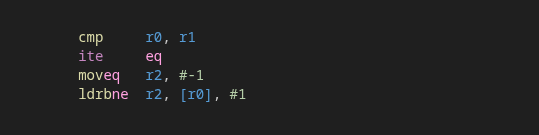
It also contains adjustments for the Visual Studio Light and Dark themes to work better with this extension. Just merge this file into your user settings if you want to use them (see Settings JSON file). ExamplesThe examples in this section show the Dark Modern theme. In mnemonics that contain condition codes for conditional execution you can highlight the condition codes to visually separate them from the original instructions:
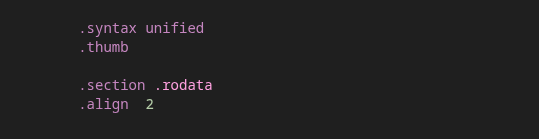
This can be achieved with the following settings (also see Settings JSON file): If you are used to unicolored conditional branch instructions (like This changes the color of condition codes except those in the context of branch instructions. In this example the color of the latter is set to the same color as regular mnemonics. Tokens can have multiple scopes assigned simultaneously. In this example the condition code of the branch instruction has the scope The scope key does not only accept a single string but also an array of strings. The following example defines the same color for the condition codes and for section names to make them stick out a bit:
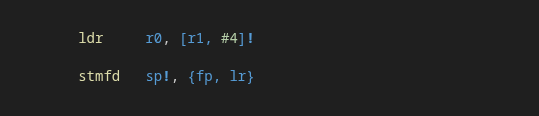
There are some more scopes/tokens available. For example, the '!' in addressing modes with write-back has an own scope. A possible use is to render the '!' with different properties, e.g., as bold face to make it slighly more visible. So, it may be less likely to be missed:
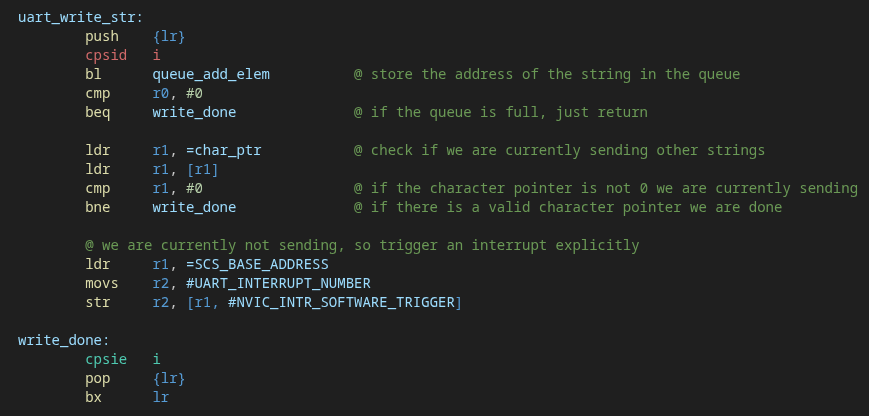
You can display interrupt enable instructions, for example, in green and interrupt disable instructions in red to emphasize their respective functionality:
Use VS Code's Scope inspector to find out what scopes are assigned to what tokens. Also see Textmate tokens and scopes for more information about how scopes work. LicenseThis project is released under the MIT License. |