Sockless NuGet Package Manager
The Visual Studio "Manage NuGet Packages" experience, right inside VS Code.
Browse, install, update and consolidate NuGet packages from a fast, visual UI —
no more hand-editing .csproj files or memorising dotnet add package flags.
Tabbed Browse / Installed / Updates / Consolidate, multi-feed search, a real
dependency tree, and a built-in supply-chain guardrail that keeps risky brand-new
versions out of your projects.
Why you'll like it
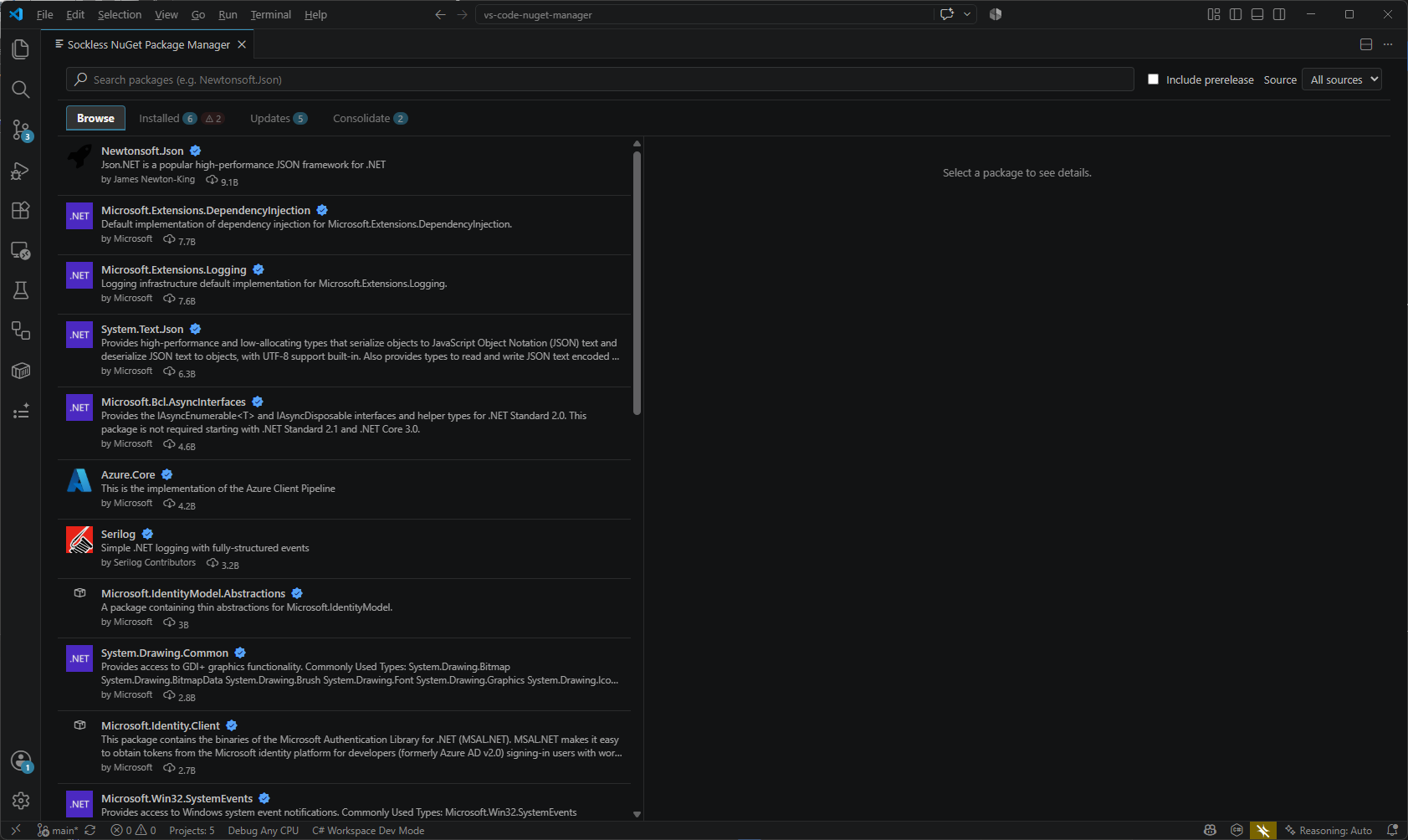
- It feels like Visual Studio. The same four-tab layout, the same details
pane, per-project checkboxes for install / update / uninstall — but native to
VS Code and the
dotnet CLI.
- Search every feed at once. nuget.org and your private authenticated feeds
together, with prerelease toggle, download counts, verified-owner badges and
package icons.
- Versions sorted the way NuGet actually resolves them. Four-part versions,
prerelease precedence,
10.0.0 above 9.0.1, 2.0.0 above 2.0.0-beta — not
naive string or SemVer sorting that puts the wrong version at the top.
- See what's really installed. Direct and transitive packages, with a
resolved dependency tree showing which direct reference pulls in each
transitive one.
- Catch vulnerabilities early. Deprecation and vulnerability advisories are
surfaced inline — and vulnerable transitive packages are always flagged, even
when the transitive view is collapsed.
- Stay safe from supply-chain attacks. Versions published in the last few
days are held back from Update All and the default selection, so a
compromised release can't slip in during its highest-risk window.
- Pin versions you don't want moving. Pin writes NuGet exact-version
syntax (
[1.2.3]) into the project — or Directory.Packages.props under CPM —
so dotnet restore can't float it and Update All leaves it alone. Pinning
never hides a vulnerability: a pinned package with an advisory is still flagged,
loudly.
- Central Package Management, handled. CPM is detected automatically —
versions go to
Directory.Packages.props, projects keep bare
<PackageReference> entries. One click converts a classic solution to CPM:
versions move into a new Directory.Packages.props, conflicts consolidate to the
highest version, and every bump is reported.
- Safe writes. Uses the
dotnet CLI when the .NET SDK is available;
otherwise edits project files directly while preserving your formatting.
Features in depth
Browse & install
Search across all your configured feeds (or narrow to one), toggle prerelease,
then tick the projects you want and hit Install — one package into many
projects in a single click.
Installed — with the real dependency tree
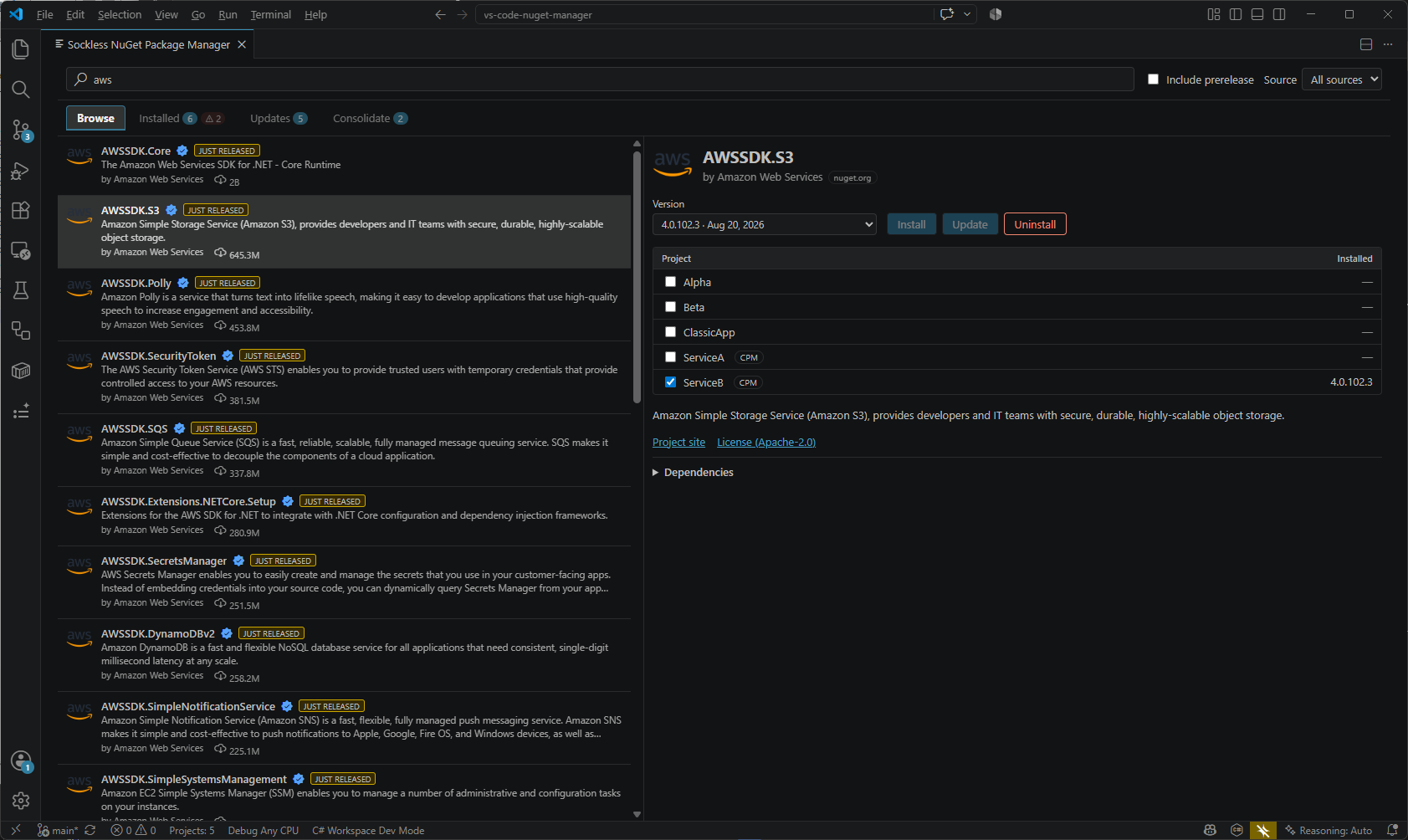
Everything referenced in the workspace, with package icons and an Include
transitive toggle that expands the resolved graph. Deprecation and vulnerability
badges appear right where you need them, and the details pane shows exactly which
of your direct packages brought a transitive dependency along.
Updates — one click, or all at once
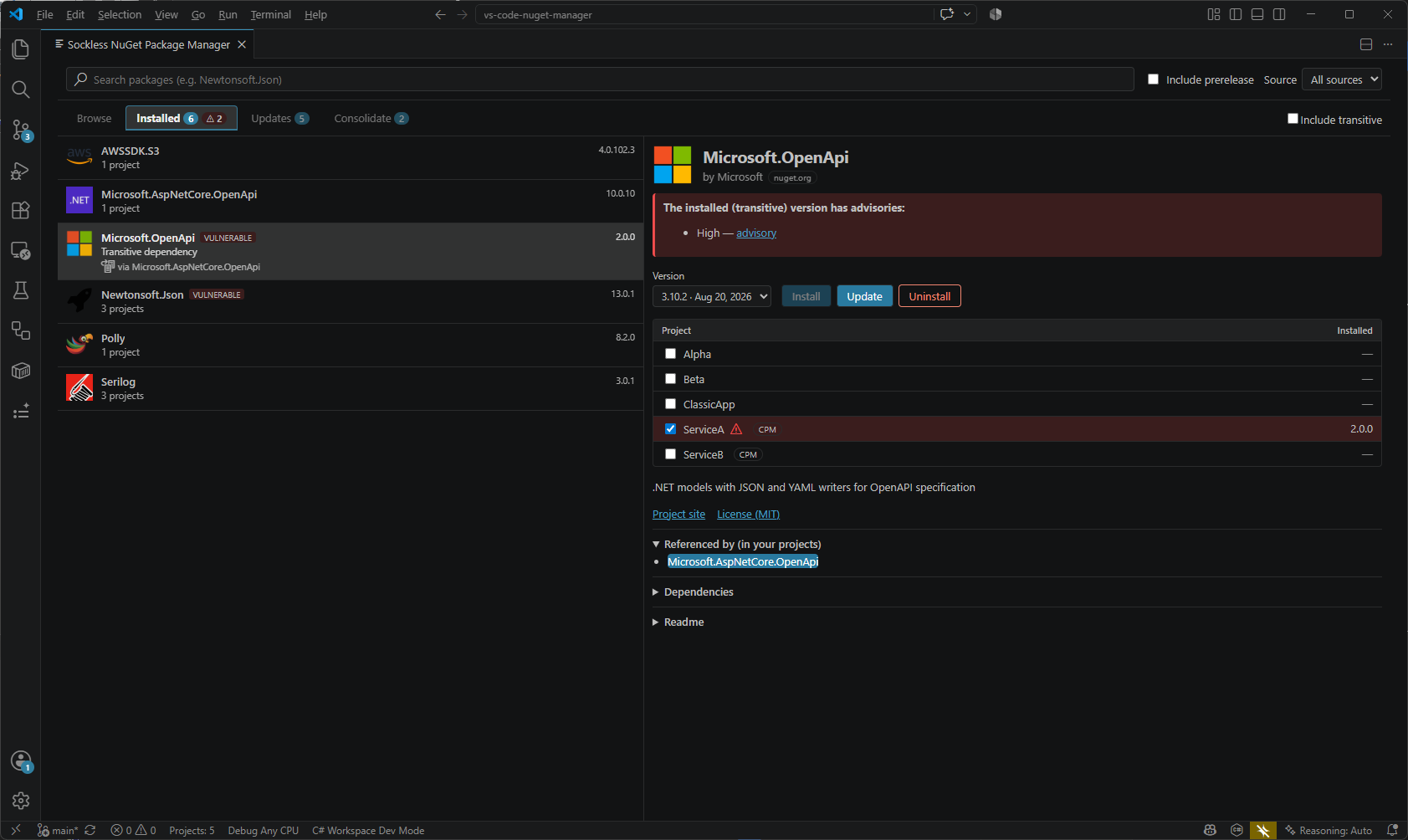
Every package with a newer version available, with Update All for the whole
workspace. Freshly published versions are called out and excluded from the bulk
update until they've had time to prove themselves, and pinned packages are left
untouched — the toast tells you what was held back and why.
Pin a version
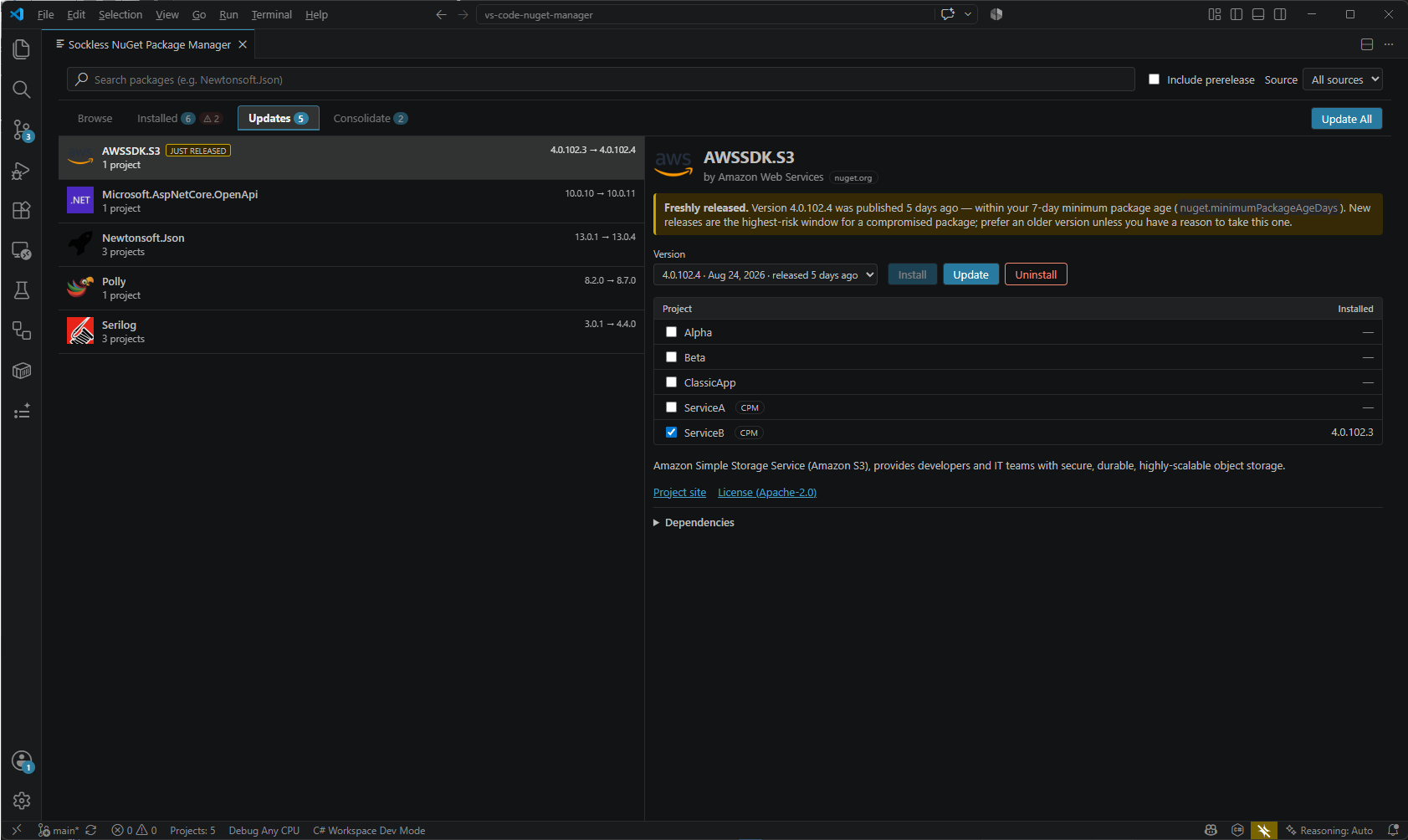
Select the projects and hit Pin to lock the package at its current version
using NuGet's exact-version range ([1.2.3]). Pinned packages show a pinned
badge, are skipped by Update All, and are not offered as the default upgrade
target — updating one manually keeps the pin on the new version. Unpin removes
the lock. Vulnerability and deprecation checks run on pinned packages exactly as
on any other, and a pinned package with a known advisory gets a prominent
"pinned & vulnerable" callout.
Convert to Central Package Management
When the workspace has classic projects, the Installed tab shows a Convert
to CPM… button. It works on the solution (or folder) the manager was opened
from: it creates a single Directory.Packages.props next to the .sln (or an
existing one, enabled in place), moves every PackageReference version into a
<PackageVersion> item, and strips the versions from the projects. Where the
same package is referenced at different versions the highest one wins; a
confirmation prompt lists every bump before anything is written, and any other
classic projects under that folder are pulled in too so they stay buildable.
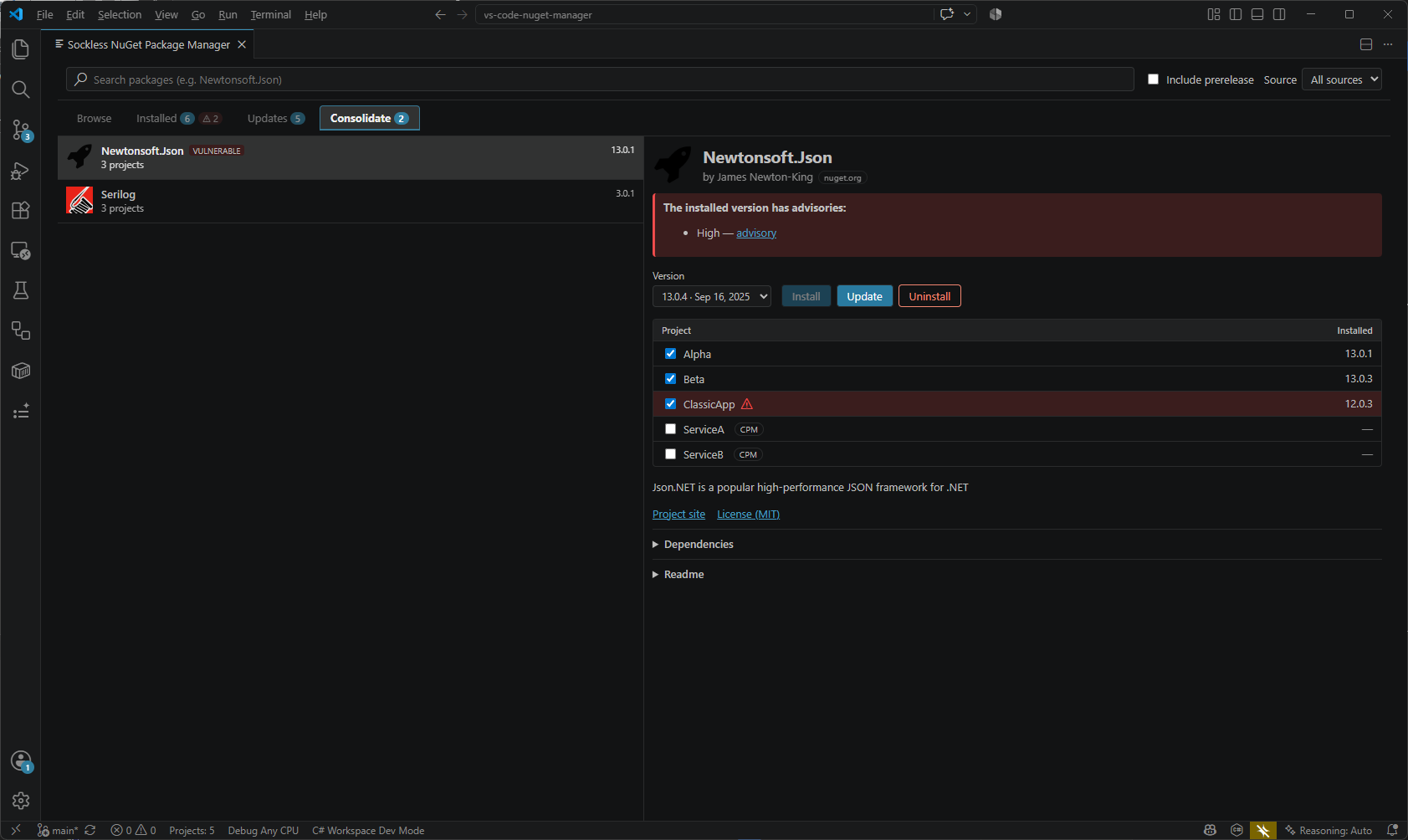
Consolidate — one version everywhere
Find packages referenced at different versions across your projects and align
them on a single version in one step.
Getting started
- Install the extension.
- Open a workspace that contains a
.csproj, .fsproj or .vbproj.
- Run Manage NuGet Packages… from the Command Palette — or click the package
icon in the editor title bar, or right-click in the Explorer, on a project
file, a solution (
.sln / .slnx), or a Directory.Packages.props.
How you open it sets the initial project selection: from a single project only
that project is preselected; from a solution or Directory.Packages.props, every
project it governs; from the Command Palette, all projects. A select all / none
checkbox in the project list lets you adjust it.
Private feeds are picked up automatically from your solution / user / machine
nuget.config. Credentials for authenticated feeds are stored in VS Code
SecretStorage.
Settings
| Setting |
Default |
Description |
nuget.defaultIncludePrerelease |
false |
Include prerelease packages in search results by default. |
nuget.additionalSources |
[] |
Extra { "name", "url" } feeds to query, merged with any discovered nuget.config sources. |
nuget.dotnetPath |
dotnet |
Path to the dotnet executable. |
nuget.autoRestore |
true |
Run dotnet restore automatically after a change. |
nuget.minimumPackageAgeDays |
7 |
Days a version must be public before it is trusted. Newer versions are flagged and held back from Update All and the default selection. Set to 0 to disable. |
Requirements
- VS Code 1.90 or newer.
- The .NET SDK is recommended (used for safe installs and
dotnet restore). The
extension still works without it by editing project files directly.
Contributing
npm install
npm run watch      # esbuild in watch mode (extension + webview)
npm run test:unit  # version sorting, nuget.config parsing, csproj edits
Press F5 to launch the Extension Development Host against
sample-workspace/, then run Manage NuGet Packages….
Building the VSIX
npm install
npm run vsix
This runs the production esbuild bundle (via the vscode:prepublish hook) and
writes vs-code-nuget-manager-<version>.vsix to the repo root. Install it locally
with code --install-extension vs-code-nuget-manager-<version>.vsix or
Extensions view → ··· → Install from VSIX….
Other targets:
npm run vsix:prerelease – packs with --pre-release for the Marketplace
pre-release channel.npx vsce publish – publishes to the Marketplace (needs a publisher PAT; set
VSCE_PAT or run vsce login sockless-coding first).npx ovsx publish vs-code-nuget-manager-<version>.vsix -p <token> – publishes
to Open VSX.
Bump version in package.json before packaging a release.
Architecture
License
MIT

