Speak Claude - Voice to Text for VS Code
🎤 Voice-to-text extension for VS Code and Claude Code using local WhisperX transcription. Privacy-first, runs entirely on your machine!
Want to skip the local setup? Try Speak Claw — our cloud-powered version. No Docker, no WhisperX, no local transcription service. Just install, add your API token, and start speaking. Get Speak Claw →
Quick Start (self-hosted):
- Install this extension from VS Code Marketplace
- Clone the repo:
git clone https://github.com/SlyCreator/speak-claude.git
- Run WhisperX:
cd speak-claude && docker-compose up -d
- Press
Cmd+Shift+C anywhere in VS Code to dictate!
Features
- 🎤 Voice Recording: Press
Cmd+Shift+C (Mac) or Ctrl+Shift+C (Windows/Linux) to start/stop recording
- 🤖 WhisperX Integration: Uses your local WhisperX service for high-quality transcription
- 💬 Works Everywhere: Inserts text into any VS Code editor, terminal, or input field (including Claude Code chat)
- ⚙️ Configurable: Set WhisperX URL, language, and diarization options
Prerequisites
⚠️ IMPORTANT: This extension requires the WhisperX service to be running locally. You must clone the repository and set up WhisperX before using this extension.
1. Clone the Repository
First, clone the Speak Claude repository to get the WhisperX service:
git clone https://github.com/SlyCreator/speak-claude.git
cd speak-claude
2. Set Up WhisperX Service
Option A: Docker (Recommended)
docker-compose up -d
The service will start at http://localhost:48001
Option B: Manual Python Setup
cd whisperx-service
pip install -r requirements.txt
pip install whisperx
uvicorn main:app --host 0.0.0.0 --port 48001
3. Install SoX (Sound eXchange)
The extension uses SoX for audio recording. Install it:
macOS:
brew install sox
Ubuntu/Debian:
sudo apt-get install sox libsox-fmt-all
Windows:
Download from SoX SourceForge
Installation
Install from VS Code Marketplace (Recommended)
- Open VS Code
- Go to Extensions (
Cmd+Shift+X or Ctrl+Shift+X)
- Search for "Speak Claude"
- Click Install
Or install via command line:
code --install-extension slycreator.speak-claude
After Installation
Make sure you have:
- ✅ Cloned the repository (see Prerequisites above)
- ✅ WhisperX service running at
http://localhost:48001
- ✅ SoX installed on your system
Then press Cmd+Shift+C to start using voice input!
Usage
Two Ways to Start Recording
Option 1: Keyboard Shortcut (Recommended)
- Press
Cmd+Shift+C (Mac) or Ctrl+Shift+C (Windows/Linux)
Option 2: Status Bar Button
- Click the "Speak Claude" button in the status bar (bottom-right corner of VS Code)
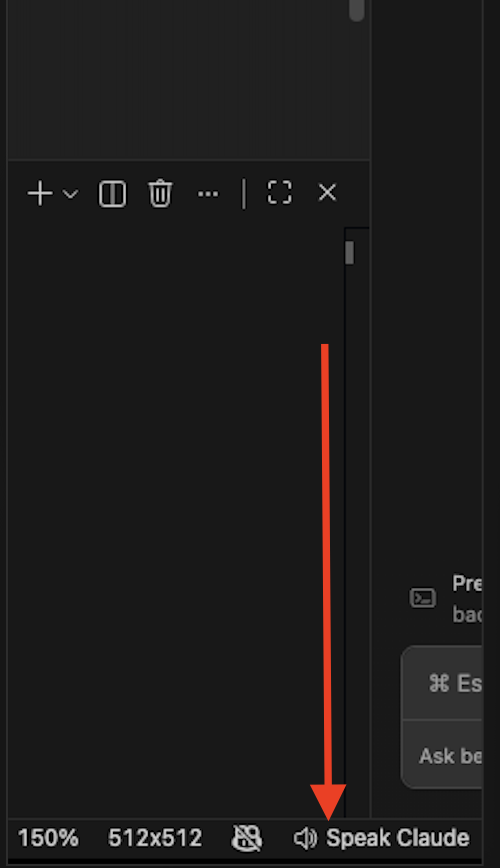
Basic Usage
Start Recording: Use keyboard shortcut or click status bar button
- Status bar will show "🎤 Recording..."
Speak: Say what you want to transcribe
Stop Recording: Press the shortcut again or click the status bar button
- Extension sends audio to WhisperX
- Transcribed text appears at cursor position
Using with Claude Code
- Open Claude Code chat (
Esc to focus input)
- Start recording (keyboard or status bar button)
- Speak your prompt
- Stop recording
- Text appears in Claude Code input
Configuration
Open VS Code settings (Cmd+,) and search for "Voice to Text":
- WhisperX URL: Default is
http://localhost:48001
- Language: Language code (e.g.,
en, es). Leave empty for auto-detection.
- Diarization: Enable speaker labels (requires HF_TOKEN in WhisperX service)
Or edit .vscode/settings.json:
{
  "voiceToText.whisperxUrl": "http://localhost:48001",
  "voiceToText.language": "en",
  "voiceToText.diarization": false
}
Troubleshooting
"sox not found"
Install SoX (see Prerequisites above).
"WhisperX service is not running"
Start the WhisperX service:
cd whisperx-service
uvicorn main:app --port 48001
"No speech detected"
- Speak closer to the microphone
- Check system microphone permissions
- Ensure microphone is not muted
"Transcription failed: timeout"
The audio file might be too long. Try shorter recordings (under 30 seconds).
How It Works
- Recording: Uses SoX to capture audio from your default microphone
- File: Saves as 16kHz mono WAV file (optimized for speech)
- Upload: Sends to WhisperX
/transcribe endpoint
- Response: Gets transcript text
- Insertion: Inserts text at cursor position or copies to clipboard
Keyboard Shortcuts
| Command |
Mac |
Windows/Linux |
| Start/Stop Recording |
Cmd+Shift+C |
Ctrl+Shift+C |
Commands
Open Command Palette (Cmd+Shift+P / Ctrl+Shift+P):
- Voice to Text: Start Recording - Start/stop voice recording
Requirements
- VS Code 1.85.0 or higher
- Node.js (for development)
- SoX (for audio recording)
- WhisperX service running on localhost:48001
License
MIT
Credits
Built for the MeetingMind AI project. Uses WhisperX for transcription.

