
v0 UI Generator (Preview)Bring a design specialist to your AI workflow. 12 MCP tools connect v0 to Claude Code, GitHub Copilot, and any MCP-compatible agent — for design consultation, component generation, and iterative refinement. Free during preview. Installation Launch VS Code Quick Open ( Ctrl+P), paste the following command, and press enter.Copied to clipboard |

Built with ☕, 🐈⬛, and far too many oklch values. v0 UI GeneratorBring a design specialist to your project. Generate, iterate, and consult on UI right in your editor — using your favourite AI assistant, powered by v0, delivered through MCP. 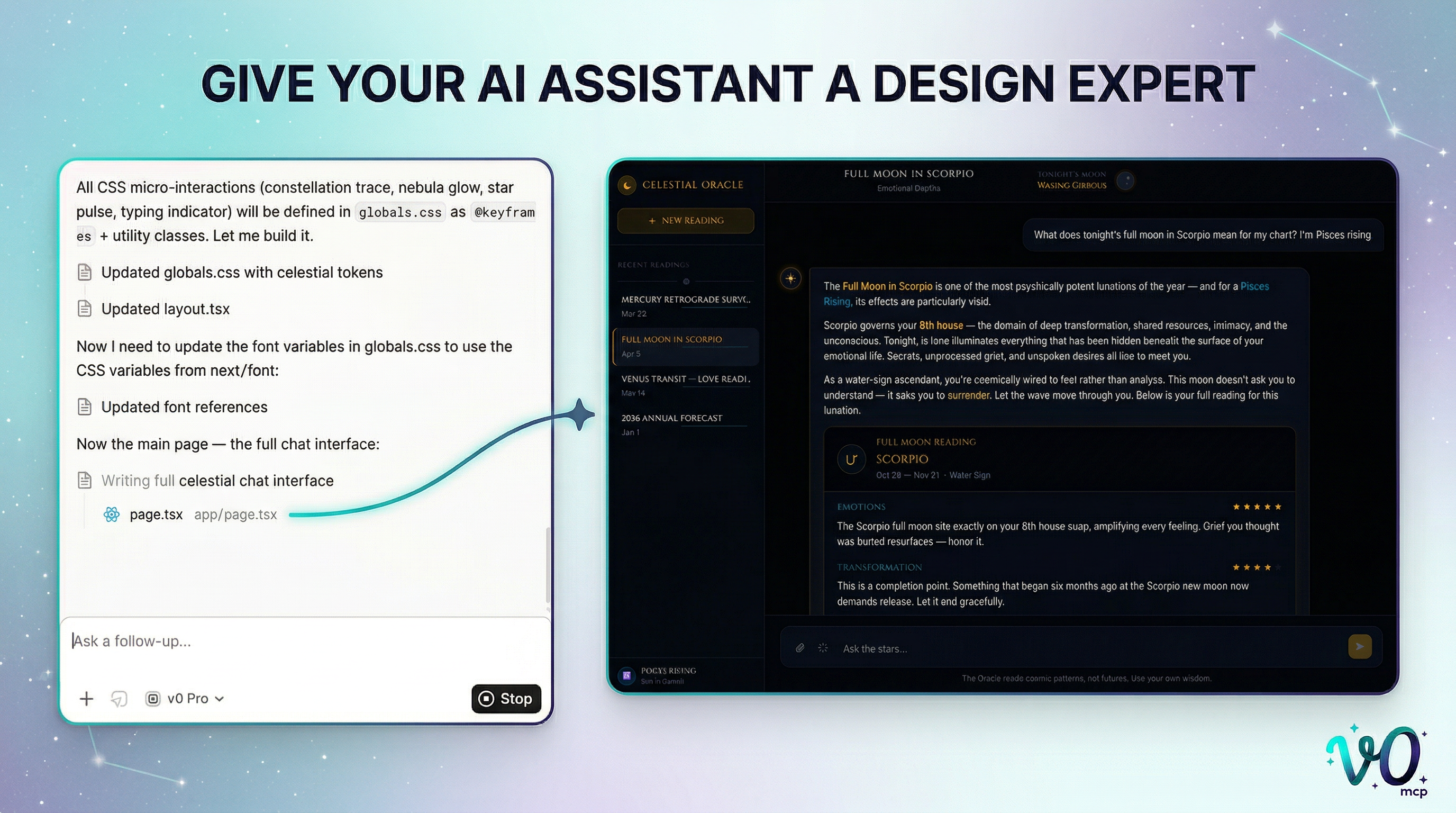
What this doesYour AI coding assistant is great at logic, architecture, and implementation. It is not always great at visual design. v0 is. v0 UI Generator gives MCP-compatible assistants 12 tools for UI generation, design consultation, iterative refinement, project management, and deployment diagnostics. Your assistant can send v0 the right design context, receive generated React/TSX or design guidance, then adapt the result to your codebase conventions. Claude Code is supported through the standalone MCP server. GitHub Copilot and other VS Code assistants can use the VS Code extension path. Other MCP-compatible tools can launch the npm package directly. ⚇ Agent in the loopThe real power is in how your assistant and v0 work together. Your assistant reads your code — the design tokens, the surface colors, the existing patterns — and gives v0 the context it needs. v0 comes back with expert design recommendations. Your assistant adapts them to your codebase conventions and applies the changes. One conversation, three capabilities working together. 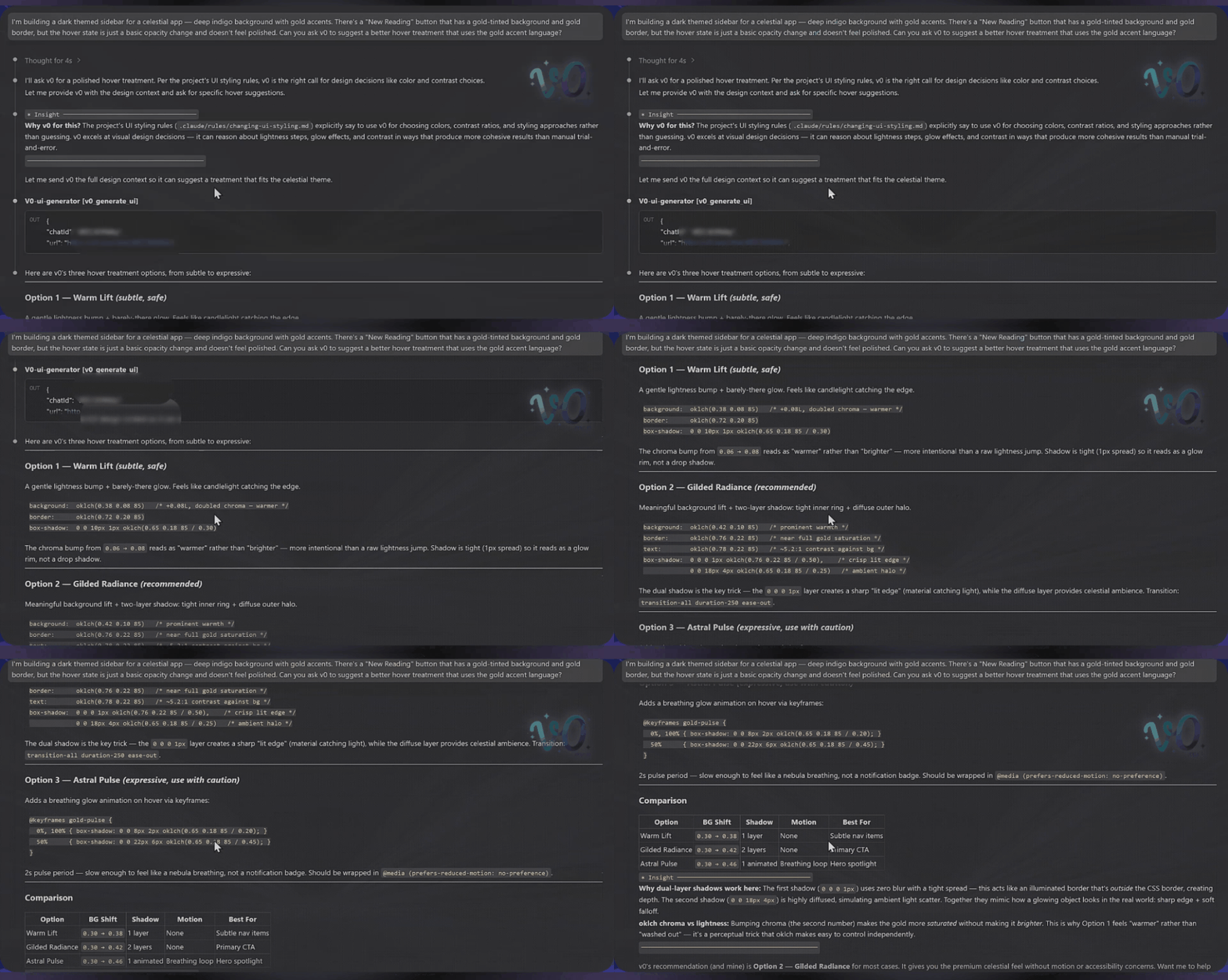
✨ Two modes of working❧ Design consultationTell your assistant what feels wrong — "the hover states feel invisible" or "this button doesn't match the rest of the UI." It reads your code, sends v0 the design context, and v0 comes back with specific fixes: oklch values, className snippets, multiple options ranked from subtle to expressive, and the rationale behind each choice. "Why do my hover states disappear in dark mode?" "Is this button accessible on this surface?" "Give me three options for this card's focus state — subtle to bold." 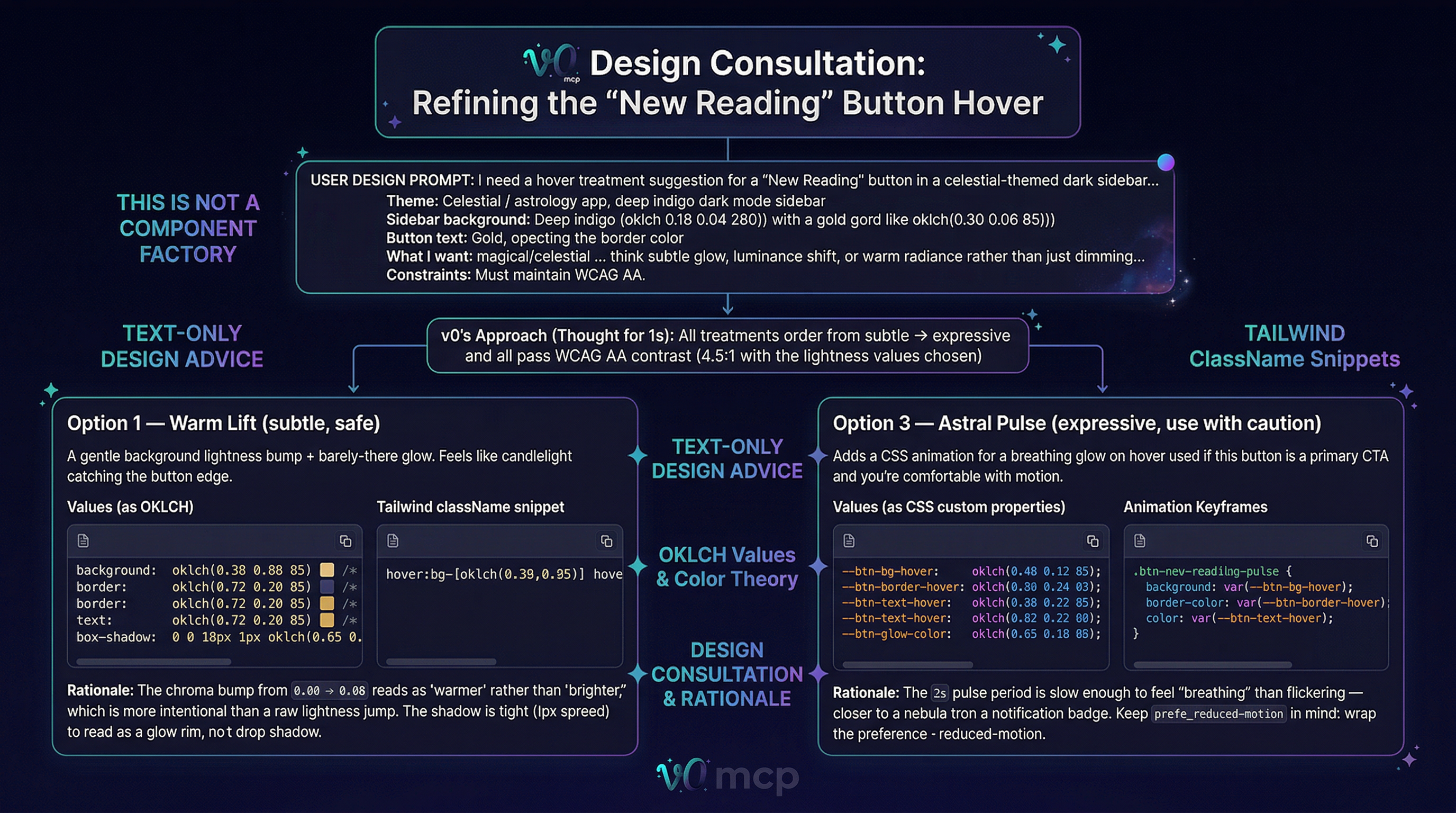
✧ Component generationDescribe what you want in natural language. v0 generates production-ready React/TSX. Your assistant refines it with follow-up messages, extracts the files, and adapts them to your codebase patterns. Perfect for: scaffolding new components, building themed interfaces, generating design system lookbooks, prototyping layouts. 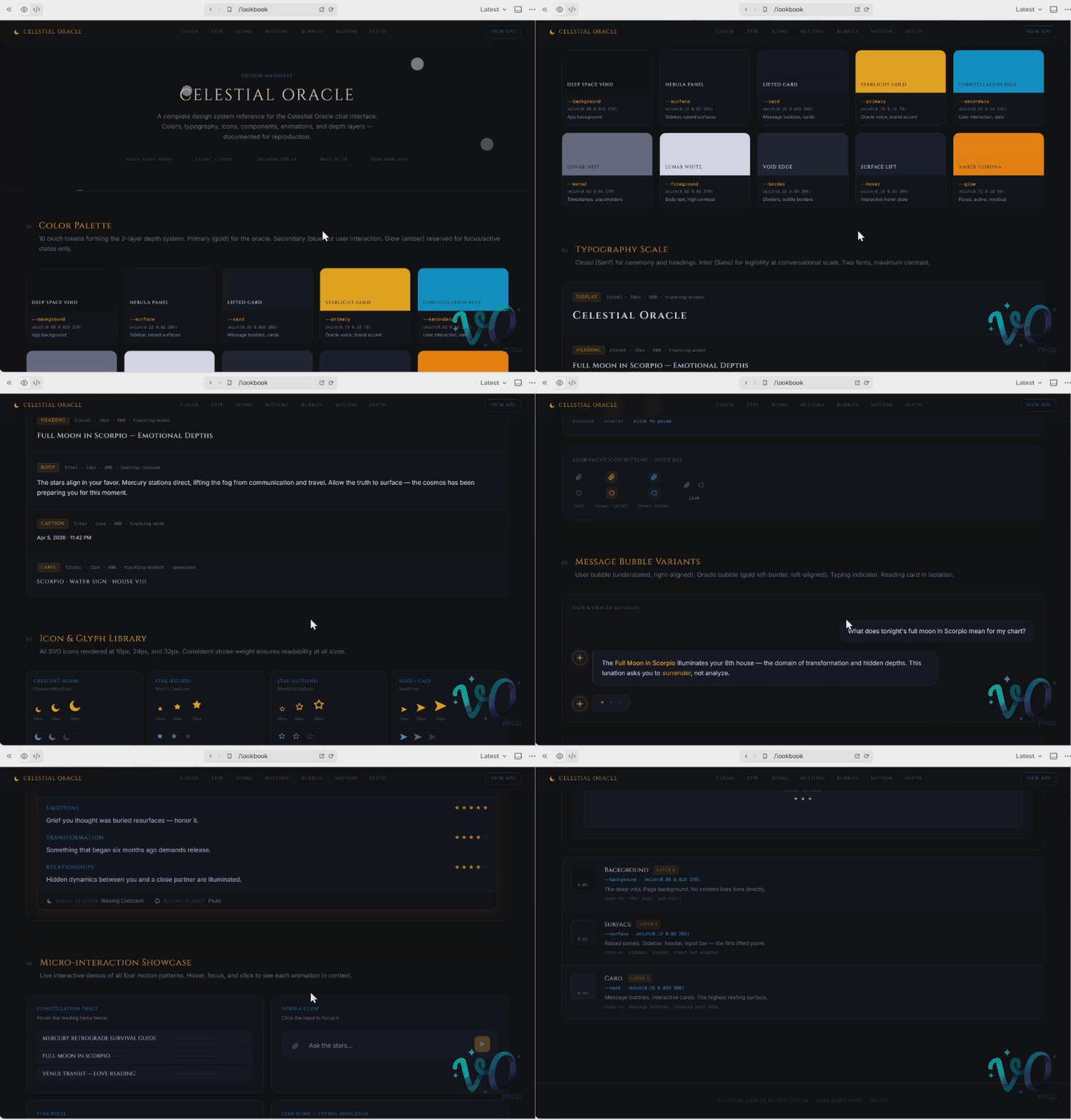
↻ Iterative by designv0 conversations persist across tool calls. Ask for a color palette, refine it with your constraints, generate a full interface, then iterate on the details — each message builds on the last. v0 learns your design language as the conversation progresses. First pass not quite right? Send v0 your design system principles and it adjusts. Getting close but the shadows feel too heavy? Refine again. The conversation keeps its context so you're building on progress, not starting over. Real workflow example:
✻ Use cases
Getting startedOption A — VS Code extensionUse this path for GitHub Copilot and other VS Code assistants that consume VS Code MCP server definitions. Requirements
Setup
Option B — Standalone npm MCP serverUse this path for Claude Code, other MCP-compatible CLIs, IDEs, and agent runtimes. Requirements
Generic MCP command Configure your MCP client to launch that command with Claude Code example Restart your client session and verify with ⌘ 12 MCP tools
Model selection
Omit Built with
LicenseMIT |



