PaneCrew
A grid of live terminal panes across a multi-root VS Code workspace, paired
with a file explorer that automatically follows whichever pane currently has
focus.
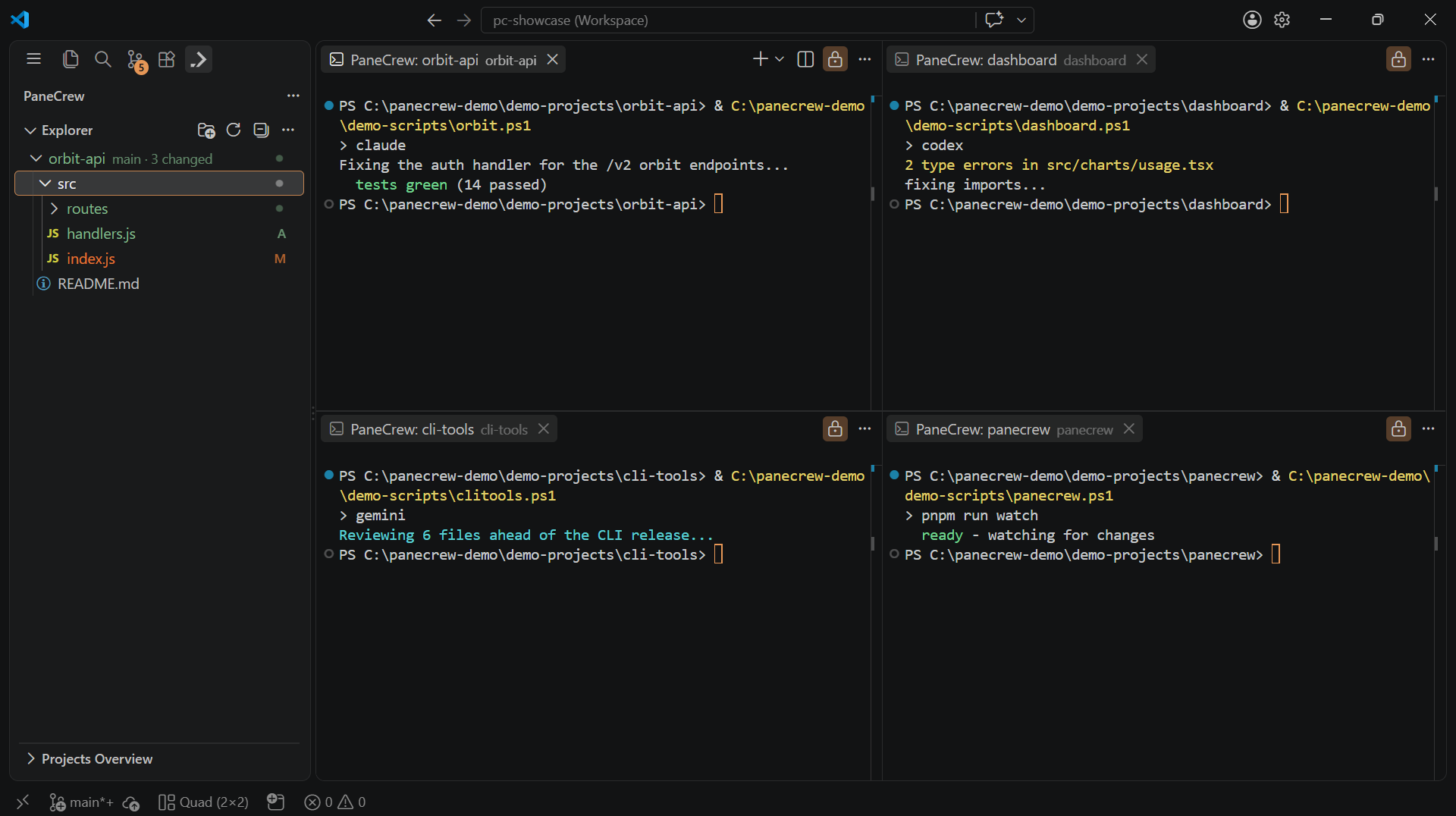
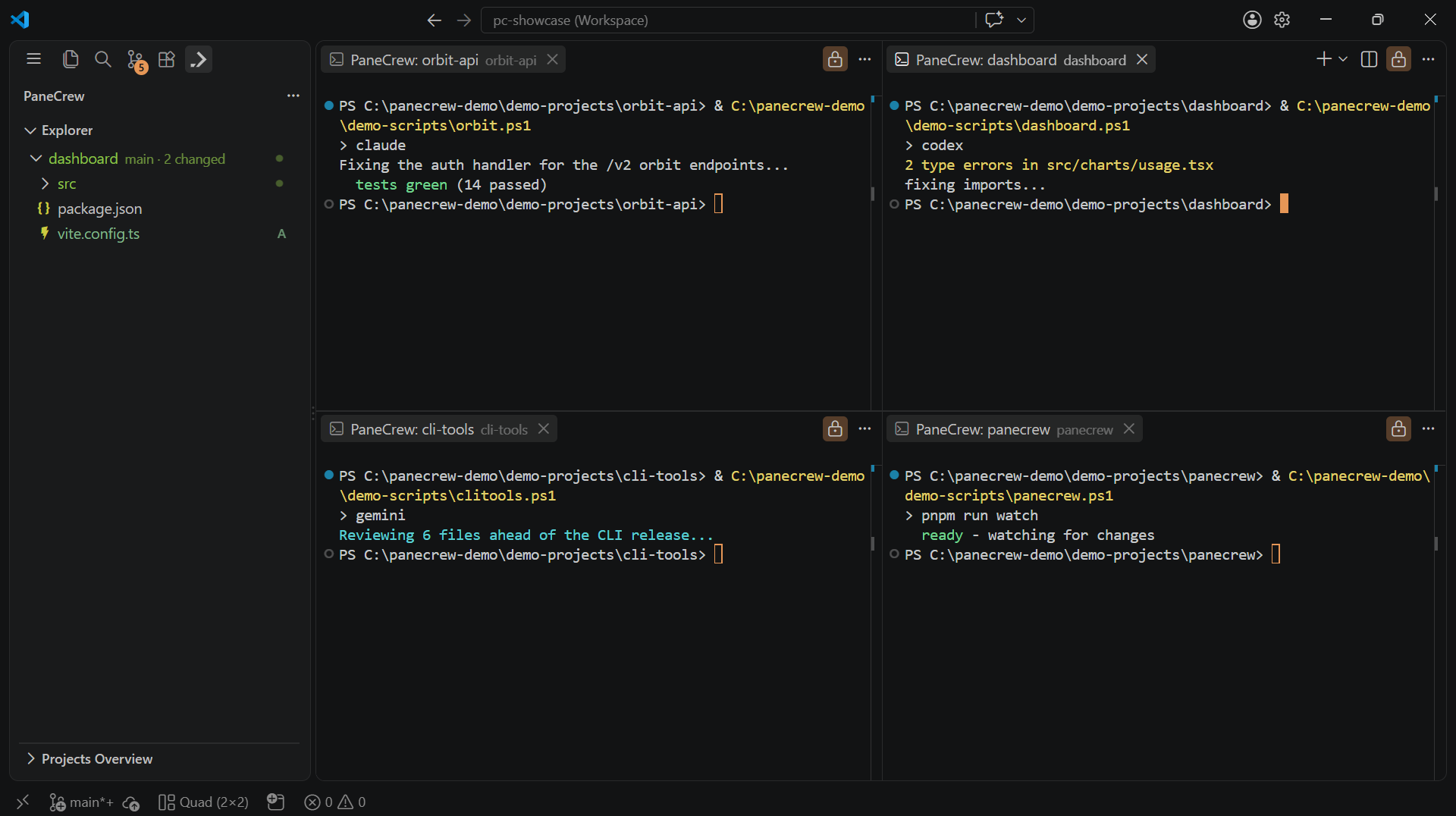
The explorer follows whichever pane has focus — click into the "dashboard" project and it switches automatically:
What it does
PaneCrew turns VS Code into a grid of simultaneously visible terminal panes —
one per project — instead of a tab-switcher. Each pane is anchored to a
workspace folder in a multi-root workspace, arranged via VS Code's own
editor-group layout. A dedicated PaneCrew explorer in the activity bar shows
exactly one project's file tree at a time — whichever project owns the
terminal or editor tab you're currently focused on, switching automatically
as your focus moves — PaneCrew's signature feature, and (per this project's
own research) a gap even VS Code's built-in Explorer doesn't close on its
own.
Tool-agnostic by design: PaneCrew hosts any CLI tool in its terminals — shells,
Claude Code, Codex, Gemini CLI, GitHub Copilot CLI, OpenCode, or anything
else — it makes no assumptions about what's running inside a pane.
Install
From the Marketplace: search for "PaneCrew" in the
Extensions view, or run:
ext install silvio-lindstedt.panecrew
From a .vsix file:
code --install-extension panecrew-0.1.2.vsix
Or via the Extensions view: ··· menu → "Install from VSIX…".
Features
- Terminal grid:
PaneCrew: Open Project Grid… and PaneCrew: Add Folder to Grid… add a workspace folder and give it its own terminal, arranged
automatically via VS Code's editor-group layout (single, split, 2×2 quad,
three- and four-across rows, and 2-over-1/1-over-2 layouts).
- Focus-following explorer: switch terminals or editor tabs and the
PaneCrew explorer (activity bar → PaneCrew icon) reveals the owning
project automatically.
- Git status decorations: modified/added/untracked/deleted files and
folders are badged and colored in the explorer, based on
git status
per workspace-folder root.
- Search in folder: right-click a folder in the PaneCrew explorer →
"PaneCrew: Search in Folder…" to open VS Code's native Find in Files
scoped to that folder.
- Session persistence: reopening a workspace restores its last grid
layout and pane-to-folder assignments automatically.
- Grid presets:
PaneCrew: Save Current Grid as Preset… /
PaneCrew: Load Grid Preset… — named layouts, reusable across workspaces.
- Two color themes: "PaneCrew Dark" and "PaneCrew Light", offered once on
first activation (opt-in, never applied silently) and available anytime via
PaneCrew: Set PaneCrew Theme….
- Terminal links: URLs and absolute file paths printed in a terminal
become clickable.
- Compact Look:
PaneCrew: Apply Compact Look hides secondary chrome
(status bar, minimap by default), collapses the window menu bar, clears the
title bar's layout-picker icons and the Copilot sign-in / "Open in Agents
Window" icons, closes the Chat/Copilot secondary side bar, and moves the
activity bar above the explorer to make room for more panes. The
activity bar always stays reachable — Compact Look never fully hides it,
only relocates it. Restore the previous look with
PaneCrew: Restore Default VS Code Look.
- Onboarding walkthrough: "Get started with PaneCrew" in the Welcome
view walks through opening a grid, touring the explorer, applying the
theme, and Compact Look.
- Rate PaneCrew / Give Feedback: after real usage, PaneCrew asks once
whether you're enjoying it — happy to rate on the Marketplace or star on
GitHub, not happy to leave feedback via a GitHub issue instead. Never asked
more than once every couple of weeks, and never again once you've
responded. Run it anytime via
PaneCrew: Rate PaneCrew / Give Feedback….
Settings
| Setting |
Default |
Description |
panecrew.grid.defaultColumns |
2 |
Default column count for a new project grid. |
panecrew.grid.defaultRows |
2 |
Default row count for a new project grid. |
panecrew.grid.defaultProjectsFolder |
"" |
Folder the file picker opens in for "Open Project Grid…", "Add Folder to Grid…", and "Open Project in New Window…". Empty means VS Code's own default location. Set it with a folder picker via the PaneCrew: Set Default Projects Folder… command instead of typing a path here. |
panecrew.compactLook.hideStatusBar |
true |
Whether Compact Look hides the status bar. |
panecrew.compactLook.hideMinimap |
true |
Whether Compact Look hides the editor minimap. |
panecrew.git.showDecorations |
true |
Show git status badges/colors in the PaneCrew explorer. |
panecrew.attentionAutopilot.autoAdvance |
false |
When you clear the Needs-Attention queue's current front entry by focusing that pane yourself, automatically jump to and maximize the next queued pane. |
Compact Look never fully hides the activity bar, regardless of settings — it
relocates to a row above the explorer instead of being hidden, by design.
FAQ
Does it work on Windows and Linux, or just macOS?
Any OS VS Code itself runs on — PaneCrew has no native, platform-specific code.
Does it work with a single-folder workspace, or do I need multi-root?
The grid needs at least one workspace folder to anchor a pane to; add more
folders (File: Add Folder to Workspace…) to grid multiple projects side by
side. A single-folder workspace works too — you just get a one-pane grid.
Is it free?
Yes — MIT-licensed and free on the Marketplace, no paid tier.
Which CLI tools does it support?
Any of them. PaneCrew's terminals are plain VS Code terminals — Claude Code, Codex, Gemini CLI, GitHub Copilot CLI, OpenCode, a plain shell, or anything else that runs in a terminal.
Where do I report a bug or ask a question?
GitHub Issues — pick the
"Bug report" or "Question" template.
Development
pnpm install
pnpm --filter panecrew --dir apps/extension run compile
pnpm --filter panecrew --dir apps/extension run watch — incremental build.
pnpm --filter panecrew --dir apps/extension run test:unit — vitest unit
tests for every pure-logic module (grid state, terminal link detection,
onboarding state, session state, git status parsing, the
grid→layout translation).
pnpm --filter panecrew --dir apps/extension run test:integration — a
@vscode/test-electron smoke test that activates the extension inside a
real VS Code host and asserts commands/views are registered.
Press F5 in VS Code (with apps/extension open) to launch an Extension
Development Host.
License
MIT — see LICENSE.

