Maven Run Configurations

IntelliJ-style Maven run configurations in the bottom panel (next to Terminal) for VS Code and Cursor.

Work with named Maven runs the way many teams already do in IntelliJ IDEA: goals, working directory, profiles, and the right Java / Maven install—then execute in the integrated terminal with JAVA_HOME and PATH set correctly.
Run Configs panel
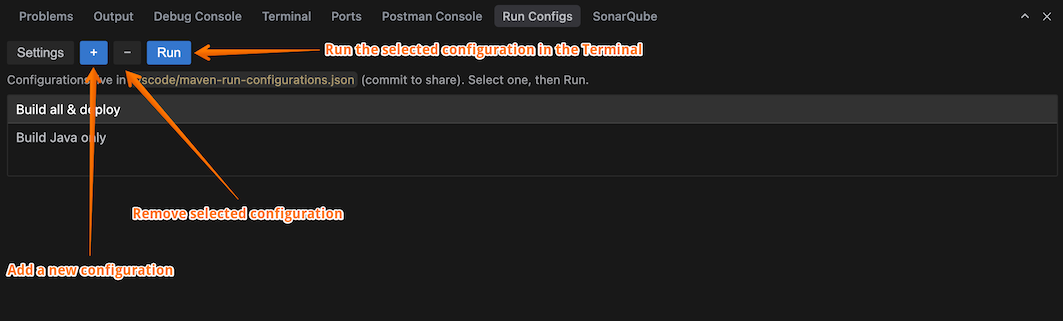
Open the bottom panel and choose Run Configs → Run Configurations. You get a small toolbar (Settings, add +, remove −, Run) and a list of saved definitions. Click an entry to select it; double-click to edit.
The screenshot below shows the extension in the lower IDE area next to Terminal, with two configured entries in the list.
Features
Named run definitions
Each configuration has a display name, Maven goals (for example clean install), working directory, optional Maven profiles, and optional overrides for Java home and Maven home.
Edit dialog
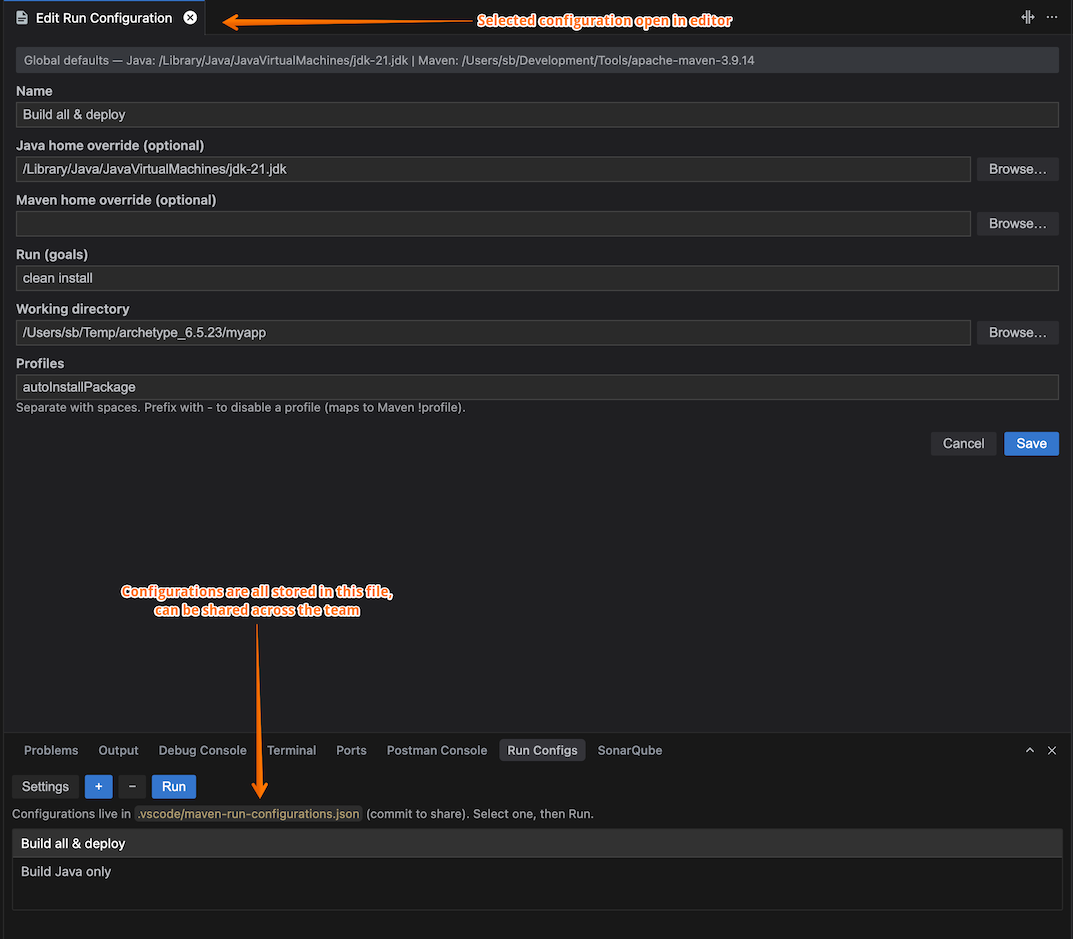
Adding or editing opens a dedicated dialog: you see global defaults, can override Java/Maven per configuration, type paths or use Browse… for folders, then Save or Cancel.
Default Java & Maven paths
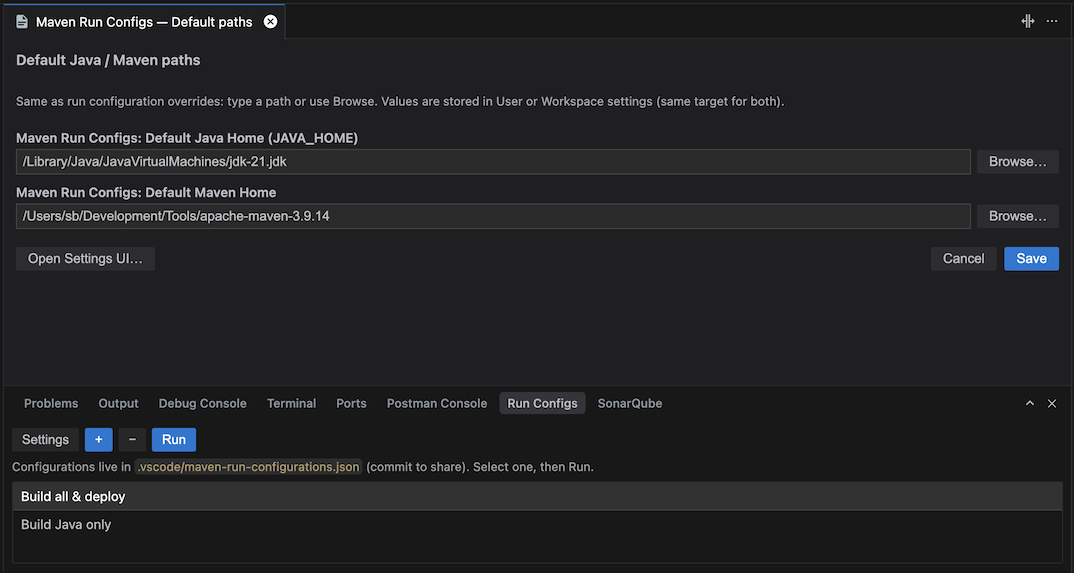
Settings in the panel opens the default paths dialog (same text + Browse… pattern as in the run configuration editor). Values are written to extension settings (User or Workspace, depending on what is already in use). You can also open the full VS Code settings UI from that dialog.
Team sharing
Run definitions are stored in .vscode/maven-run-configurations.json in the first workspace folder. Commit that file so colleagues get the same list. The last selected configuration is kept locally in workspace state (not in the JSON file).
Integrated terminal
Run creates a terminal named Maven: <name>, sets cwd, JAVA_HOME, and prepends the chosen Maven bin directory to PATH, then sends the mvn … command line (including -P for profiles when specified).
Requirements
Before using this extension, you need:
- VS Code or Cursor with a version compatible with
engines.vscode in package.json (see that file for the current minimum).
- A folder workspace (not only loose files): the extension uses the first root folder for
.vscode/maven-run-configurations.json and for resolving relative paths when you pick folders.
- JDK and Apache Maven installations on disk, or paths your team agrees on in the shared JSON (absolute paths are machine-specific—plan accordingly).
Quick Start
1. Install the extension
- From a VSIX: Extensions → … → Install from VSIX…
- From source: clone this repo, run
npm install and npm run compile, then Run Extension (F5) from the Run and Debug view.
2. Set default Java and Maven (recommended)
- Open Run Configs in the bottom panel.
- Click Settings.
- Enter or browse to your JDK/JRE root (
JAVA_HOME) and Maven installation root (MAVEN_HOME): the unpacked Apache Maven folder that contains bin/mvn (macOS/Linux) or bin/mvn.cmd (Windows)—for example …/Tools/apache-maven-3.8.8. The extension does not auto-correct Maven paths the way it can for macOS JDK bundles; see Maven install root below.
- Click Save.
You can still override these paths on individual run configurations.
3. Create a run configuration
- Click + in the panel toolbar.
- Fill Name, Run (goals), Working directory, and optionally Profiles.
- Use Browse… where helpful; Save.
4. Run
Select the configuration in the list and click Run. Output appears in the integrated terminal.
Extension settings
Access via File → Preferences → Settings → search Maven Run Configurations (or open the extension’s settings filter from the dialog):
mavenRunConfigs.defaultJavaHome — default JDK/JRE root (JAVA_HOME) when a run configuration does not override it.mavenRunConfigs.defaultMavenHome — default Maven install root when a run configuration does not override it.
The settings UI also offers links to open the default paths dialog and quick browse-only commands for each field.
Commands
Access via Command Palette (Ctrl+Shift+P / Cmd+Shift+P):
- Maven Run Configs: Open Settings — opens VS Code settings filtered to this extension.
- Edit default Java / Maven paths… — opens the global defaults webview dialog.
- Browse for default Java home (JAVA_HOME) / Browse for default Maven home — folder picker that writes the corresponding setting.
Shared configuration file
Path (first workspace folder):
.vscode/maven-run-configurations.json
Shape:
{
  "version": 1,
  "configurations": [
    {
      "id": "…",
      "name": "…",
      "goals": "clean install",
      "workingDirectory": "/absolute/path",
      "profiles": "",
      "javaHomeOverride": null,
      "mavenHomeOverride": null
    }
  ]
}
If the file is edited outside the IDE (for example after git pull), the extension reloads the list when the file changes.
Troubleshooting
Panel is empty after clone
- Ensure you opened a folder that contains
.vscode/maven-run-configurations.json, or create a configuration with + to generate the file.
“Open a folder in the workspace” when saving
- The extension cannot write the JSON file without a workspace folder. Use File → Open Folder….
Maven or Java not found when running
- Check default paths in settings or overrides on the configuration.
- On Windows, Maven must resolve to
mvn.cmd under <mavenHome>/bin.
JDK path (JAVA_HOME) by OS
macOS: In Settings or Browse, prefer the bundle folder (e.g. jdk-11.jdk under /Library/Java/JavaVirtualMachines/), not only Contents or Home alone. The extension normalizes to Contents/Home when it finds Contents/Home/bin/java. You can also set javaHomeOverride to …/jdk-11.jdk/Contents/Home in the JSON.
Linux: Use the directory that contains bin/java, often under /usr/lib/jvm/ (e.g. java-17-openjdk-amd64 or java-11-openjdk—exact names depend on your distro and package).
Windows: Use the JDK install root that contains bin\java.exe (e.g. C:\Program Files\Java\jdk-17 or C:\Program Files\Eclipse Adoptium\jdk-17.x-hotspot). Do not set JAVA_HOME to bin alone.
Maven install root (MAVEN_HOME / M2_HOME)
- Point at the Apache Maven distribution root: the directory that contains
bin, conf, and lib, with bin/mvn (macOS/Linux) or bin/mvn.cmd (Windows) inside it. Do not set this to the bin folder alone.
- No auto-detection: unlike
JAVA_HOME on macOS (.jdk → Contents/Home), Maven home is used as entered (after path.resolve); the extension only verifies that the mvn launcher exists. A path such as /Users/you/Development/Tools/apache-maven-3.8.8 is the right shape if that folder is the top level of the unpacked archive.
- macOS / Linux: e.g.
~/Tools/apache-maven-3.9.6, /opt/apache-maven-3.8.8, or another layout your team uses, as long as bin/mvn is there.
- Windows: e.g.
C:\Tools\apache-maven-3.9.6 (root with bin\mvn.cmd).
Wrong Java/Maven in the terminal
After a run, the terminal prints --- Maven Run Configs ---, then the configured JAVA_HOME, Maven script: (full path to mvn), MAVEN_HOME/M2_HOME: (install root), then java -version, mvn -version, and the goals. Those lines reflect the same environment as the final mvn goals command (diagnostics use fixed strings from the extension, not $JAVA_HOME from your shell profile—see code in mavenTerminal.ts).
Runs do not leave JAVA_HOME / PATH / MAVEN_HOME changed in your interactive shell: on macOS/Linux the extension writes a short-lived shell script under the OS temp directory, runs sh /path/to/script.sh, then deletes it. That avoids pasting a very long one-liner (which terminals often truncate). Inside the script, export applies only to that sh process. On Windows the extension still uses a one-off cmd.exe /c batch with setlocal … endlocal. The integrated terminal is created without custom env overrides.
If the printed versions do not match your overrides, see JDK path (JAVA_HOME) by OS, Maven install root, and path overrides above.
Profiles behave unexpectedly
- Profiles are entered as space-separated tokens; a leading
- on a token maps to Maven’s “disable profile” style in the generated -P list.
Development
From the repository root:
npm install
npm run compile    # typecheck + esbuild bundle
npm run watch      # parallel typecheck watch + esbuild watch
npm run lint
npm run vsix       # production build + package VSIX
Marketplace icon
The package expects a 128×128 PNG at images/icon.png. After changing the icon, publish a new version so marketplace / Open VSX can serve the updated image.
License
Copyright © 2026 Siegfried-Thor Bolz. Licensed under the MIT License — see LICENSE in this repository.

