BurpSense for Cursor
Burp Suite Integration for VS Code and Cursor
Bridge the gap between security testing in Burp Suite and your development environment. Map Burp findings directly to source code lines with inline diagnostics, full advisories, and persistent annotations.
Fork and upstream
BurpSense for Cursor is a fork of the original BurpSense by Arqsz (TheArqsz/BurpSense; Marketplace arqsz.burpsense). Siegfried-Thor Bolz maintains this fork (siegfriedbolz/BurpSense) so the extension and bridge stay aligned with Cursor 3 (reference: Cursor 3.3.30, VS Code engine 1.105.1) and Burp Suite v2026 (reference: v2026.4.2), including Montoya montoya-api 2026.4 for the Java bridge. VS Code 1.105+ and newer 1.x releases remain supported via engines.vscode ^1.105.0.
Use current updates of Cursor, VS Code, and Burp for the best-supported experience.
Features
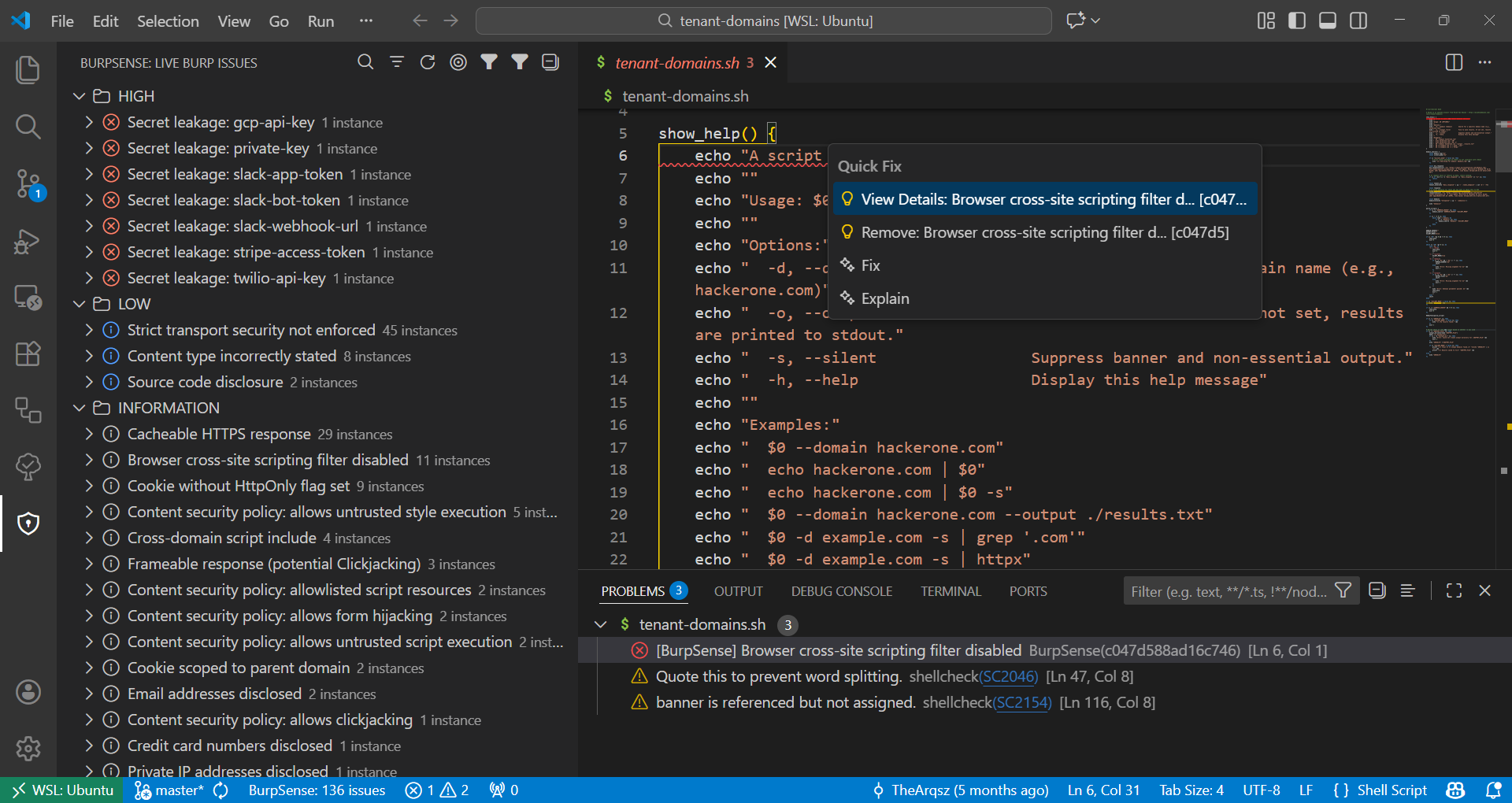
Live Issue Browser
Browse Burp Suite scan results directly in VS Code. Issues are organized by severity with lazy loading for responsive performance even with hundreds of findings.
Code Mapping
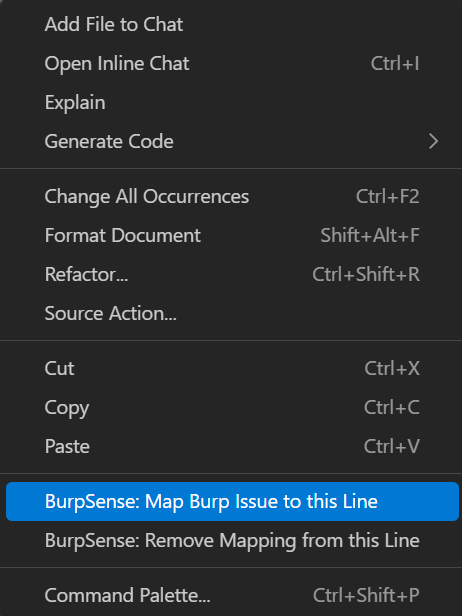
Map security issues to specific lines of code. Right-click any line and select "Map Burp Issue to this Line" to create persistent annotations.
Smart Suggestions
The extension analyzes code context and suggests relevant issues. SQL keywords? Get SQL injection issues first. File operations? See path traversal findings prioritized.
Problems Integration
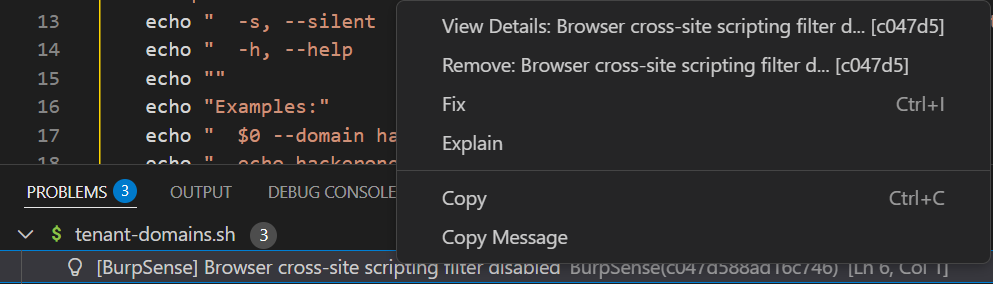
Mapped issues appear as diagnostics in VS Code's Problems panel with appropriate severity indicators. Click any diagnostic to view full details.
Detailed Advisories
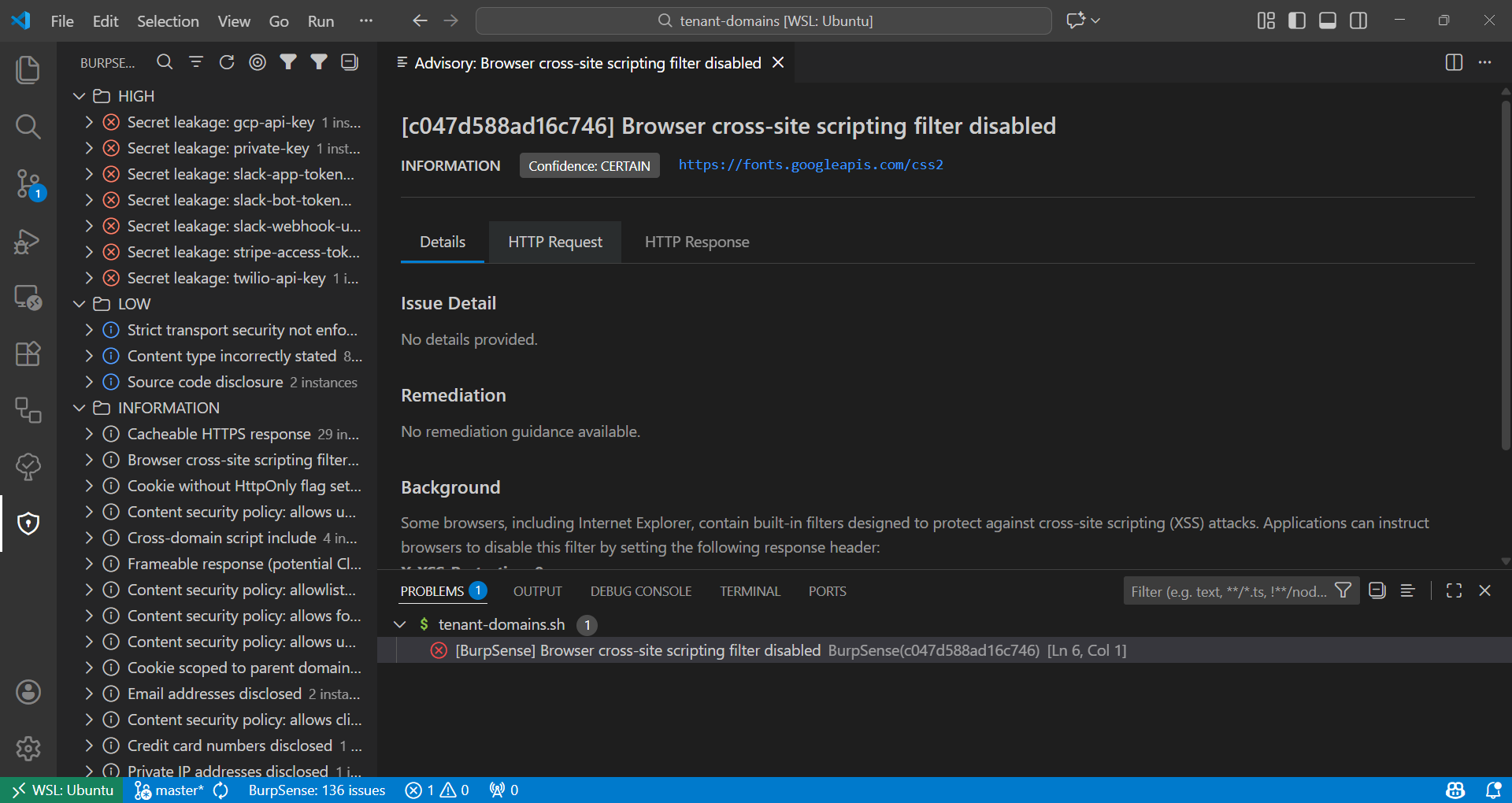
View complete issue details including description, remediation advice and full HTTP request/response data.
Drift Detection
When you refactor code, BurpSense automatically tracks line movements and adjusts mappings. No manual updates needed for typical code reorganization.

Real-time Sync
WebSocket-based live updates keep your issue list current as Burp discovers new vulnerabilities. Differential sync minimizes network overhead.
Powerful Filtering
- Search by issue name, URL or ID
- Filter by minimum severity (High/Medium/Low/Information)
- Filter by confidence level (Certain/Firm/Tentative)
- Show only in-scope issues
- Quick filter presets for common scenarios
Team Collaboration
Mappings are stored in .burpsense/mappings.json and can be committed to version control. Share security findings with your entire team.
Requirements
Before using this extension, you need:
- Cursor 3 (reference: 3.3.30, engine 1.105.1) or VS Code 1.105+ — the extension declares
engines.vscode ^1.105.0.
- Burp Suite v2026.4.2 (or the same 2026.4 line; Professional or Community) with the Montoya extension API. The bridge JAR is compiled against
montoya-api 2026.4 from Maven Central.
- BurpSense Bridge - A Burp extension that exposes scan results via REST API
Manual smoke check in Burp (after installing the bridge)
- Extensions shows the extension loaded without errors; open the BurpSense Bridge Settings suite tab.
- Start the bridge, then call
GET http://<host>:<port>/health (or your configured bind address) and confirm a success response.
- With scan issues present in the site map, call
GET http://<host>:<port>/issues (with your API key header if configured) and confirm JSON. Optionally open a WebSocket to the bridge URL and confirm the client connects.
Automated coverage: mvn verify under burp-bridge/ runs integration tests (HTTP + WebSocket + issue payloads) against a mocked MontoyaApi.
Quick Start
1. Install the Bridge in Burp Suite
- Download
burpsense-bridge-*.jar from releases
- In Burp Suite, go to Extensions > Add
- Select the downloaded JAR file
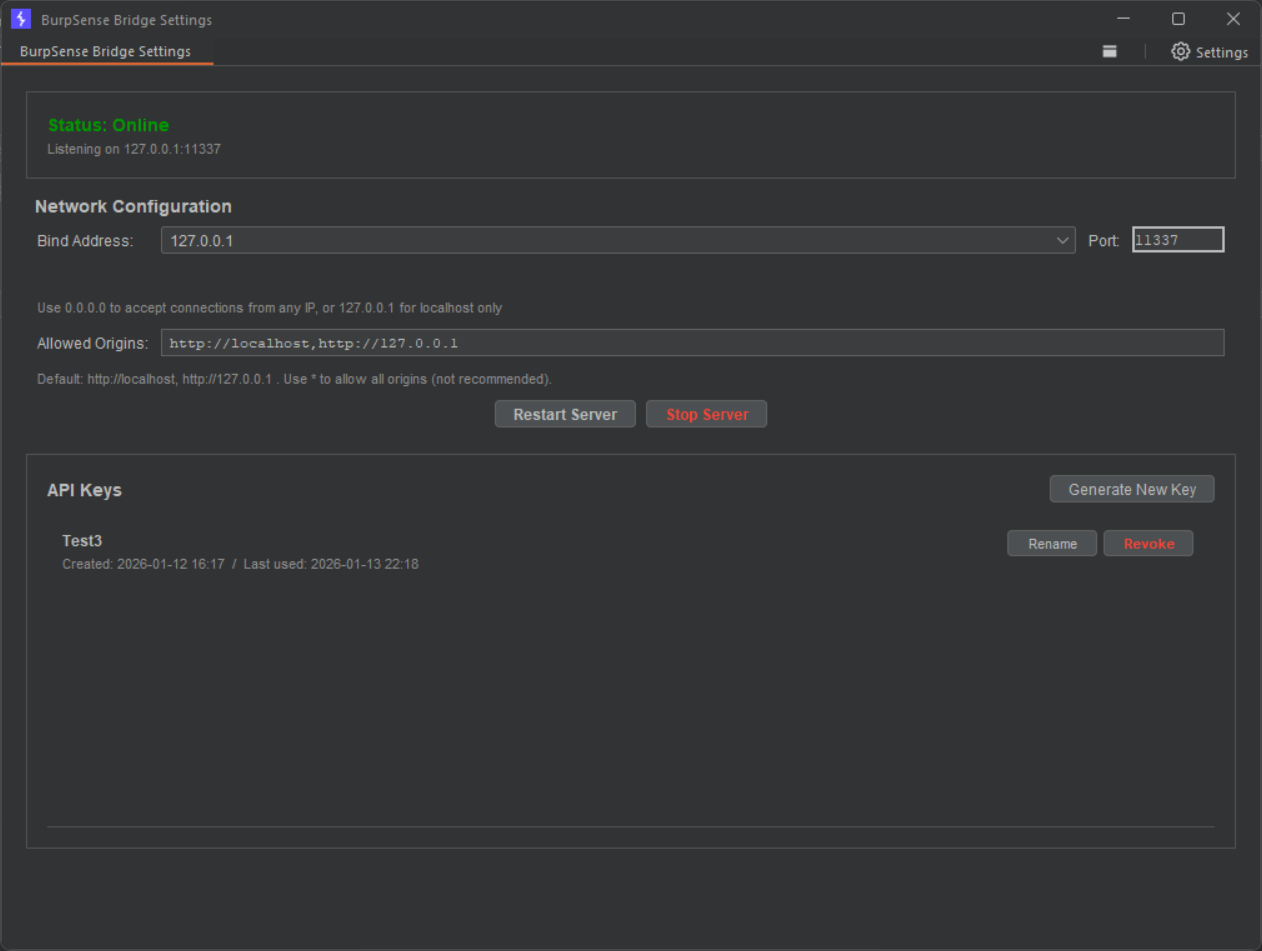
- Navigate to the BurpSense Bridge Settings tab
2. Start the Bridge Server
- In the Bridge Settings tab, click "Generate New Key"
- Copy the API token
- Click "Start Server" (default:
127.0.0.1:1337)
3. Connect VS Code
- Open Command Palette (
Ctrl+Shift+P or Cmd+Shift+P)
- Run
BurpSense: Set API Token
- Paste the token from step 2
Check the status bar at the bottom - you should see BurpSense: Connected [X issues]
4. Start Mapping
- Open any source file
- Position cursor on a vulnerable line
- Right-click >
BurpSense: Map Burp Issue to this Line
- Select the relevant issue from the dropdown
The issue now appears in the Problems panel and has a squiggly underline in the editor!
Extension Settings
Access via File > Preferences > Settings > BurpSense for Cursor:
burpsense-cursor.bridgeIp: Bridge server IP address (default: 127.0.0.1)burpsense-cursor.bridgePort: Bridge server port (default: 1337)burpsense-cursor.inScopeOnly: Show only in-scope issues (default: true)burpsense-cursor.minSeverity: Minimum severity filter (default: INFORMATION)burpsense-cursor.minConfidence: Minimum confidence filter (default: TENTATIVE)burpsense-cursor.showDriftNotifications: Notify when mappings auto-adjust (default: true)burpsense-cursor.confirmMappingDeletion: Confirm before removing mappings (default: true)burpsense-cursor.autoCleanOrphanedMappings: Auto-remove mappings when files deleted (default: false)burpsense-cursor.logLevel: Logging verbosity (default: info)
Commands
Access via Command Palette (Ctrl+Shift+P or Cmd+Shift+P):
Connection:
BurpSense: Set API Token - Configure bridge authenticationBurpSense: Connect to Bridge - Manually connectBurpSense: Disconnect from Bridge - Manually disconnectBurpSense: Check Connection - Test bridge connectivity
Mapping:
BurpSense: Map Burp Issue to this Line - Create mapping at cursorBurpSense: Remove Mapping from this Line - Delete mapping at cursorBurpSense: Remove multiple Mappings - Bulk mapping removalBurpSense: Export Mappings - Save to external JSON fileBurpSense: Import Mappings - Load from external JSON file
Viewing:
BurpSense: Refresh Issues - Force refresh from bridgeBurpSense: Search Issues - Text search across all issuesBurpSense: Quick Filter Preset - Apply common filter combinationsBurpSense: Show Logs - Open output panel for troubleshooting
Troubleshooting
"Not Connected" in status bar
- Verify Burp Suite is running
- Check bridge extension is loaded in Burp (Extensions tab)
- Ensure server is started (Bridge Settings tab)
- Verify API token matches
- Check for port conflicts (default is
1337)
Click the status bar for quick diagnostics and troubleshooting options.
Issues not showing
- Verify issues exist in Burp's Target > Site map
- Check filter settings (severity, confidence, scope)
- Try refreshing (toolbar refresh button)
- Check Output panel:
BurpSense: Show Logs
Mappings not appearing
- Ensure file paths are relative to workspace root
- Check
.burpsense/mappings.json for correct paths
- Verify workspace is opened correctly (not just loose files)
Security & Privacy
- All communication should happen over localhost (127.0.0.1)
- API tokens are stored in VS Code's secure secret storage
- No data is sent to external servers
- Mappings contain only file paths, line numbers, and issue IDs
Marketplace icon
The registry expects a 128×128 PNG (images/icon.png in this package). The search / list thumbnail in Cursor comes from Open VSX / Visual Studio Marketplace metadata, not from a locally built VSIX alone. After changing the icon, publish a new version with your CI or ovsx publish / Marketplace upload so the store can serve the updated image (you may need to reload Cursor once).
Credits
- Arqsz — original BurpSense (TheArqsz/BurpSense).
- Siegfried-Thor Bolz — fork maintainer: Cursor 3 / Burp Suite v2026 compatibility, packaging (
npm run vsix), and documentation in this fork.
License
MIT - See LICENSE

