Git Staged Stats(暂存行数/注释占比)
提交前先看一眼:这次 git add 了多少行,其中注释占多少。
Show staged added lines and comment ratio in the status bar.
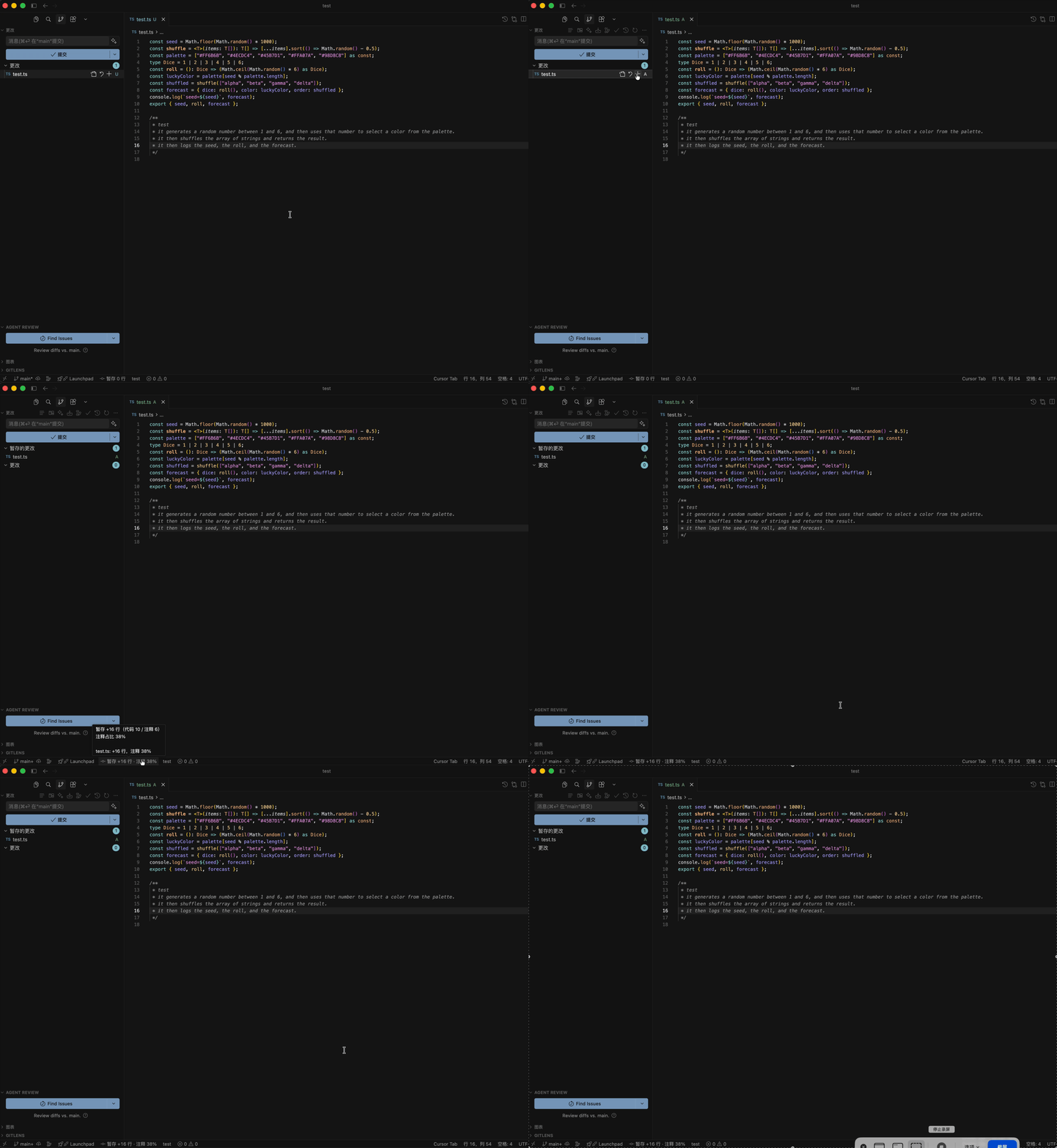
安装后,左下角会显示例如:暂存 +128 行 · 注释 23%。注释占比达到设置的标准比例(默认 40%)时,状态栏会变成黄色。
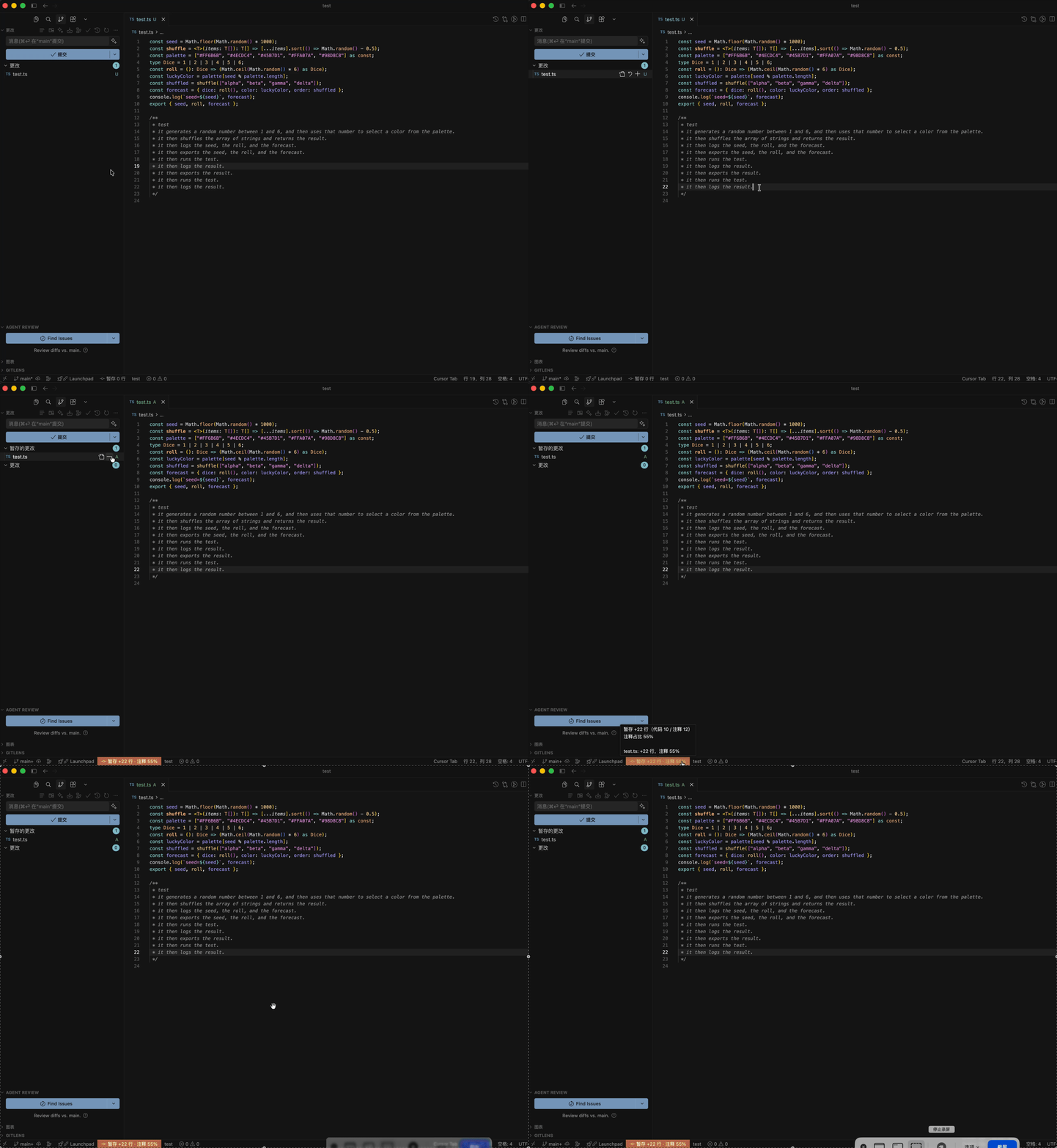
怎么用
- 在 VS Code / Cursor 扩展商店搜 Git Staged Stats
- 打开任意 Git 仓库
git add 一些文件- 看左下角状态栏
点击状态栏可打开按文件明细。
命令面板:
Git Staged Stats: 显示明细Git Staged Stats: 刷新
和 Git Line Diff Counter 的差别
Git Line Diff Counter 会显示暂存/未暂存的 +N/-M 行数。
Git Staged Stats 额外回答另一个问题:这次暂存里,有多少是注释。
|
Git Line Diff Counter |
Git Staged Stats |
| 暂存行数 |
有 |
有 |
| 未暂存行数 |
有 |
无(只看暂存区) |
| 注释占比 |
无 |
有 |
| 注释过高警告 |
无 |
状态栏变黄 |
适合在提交前检查「是不是注释注水了」,而不是统计整个仓库有多少行代码。
统计规则
- 只看暂存区,不看未暂存改动
+N 行 是 unified diff 里的非空 + 行(新增,以及修改后的新行)- 空行不计入行数和占比
- 行尾注释仍算代码,例如
foo(); // note
- Markdown、lock 文件、图片等会跳过
- 字符串里的
// 不会当成注释
设置
在 设置 里搜 Git Staged Stats,或写入 settings.json:
{
  "gitStagedStats.warnCommentPercent": 40,
  "gitStagedStats.ignoreFileTypes": ["json", ".svg", "*.lock"],
  "gitStagedStats.hideWhenEmpty": false
}
gitStagedStats.warnCommentPercent:标准注释比例(%)。达到或超过该值时,状态栏变黄(默认 40)gitStagedStats.ignoreFileTypes:不参与计算的文件类型。可填扩展名(json、.svg)、文件名或 glob(*.generated.ts、**/dist/**)gitStagedStats.hideWhenEmpty:暂存区为空时隐藏状态栏(默认 false)
| |

