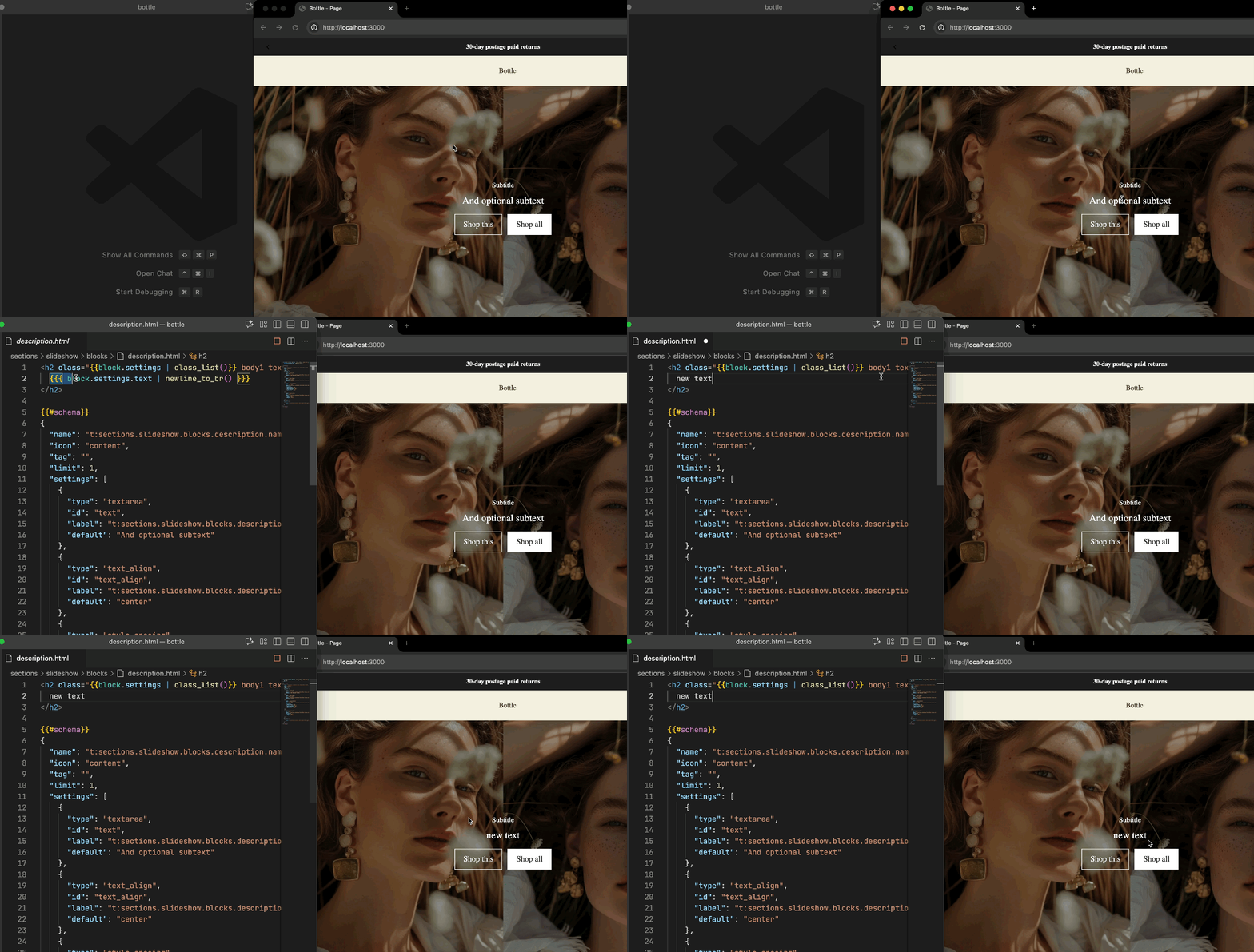
The Shopline Developer Plugin is a Visual Studio Code (VS Code) extension specifically designed for developers by SHOPLINE. It offers features such as theme syntax checking, code highlighting, code folding, code suggestions, code snippet completion, local preview, and more, aiming to provide a more efficient and convenient development experience for developers.
Installation
Search for Shopline Developer Plugin in the VS Code extension Marketplace to install the plugin.
Uninstallation
Search for Shopline Developer Plugin in the VS Code extension Marketplace to uninstall the plugin.
Features of the VS Code developer plugin
Code highlighting
Sline syntax highlighting
Files with the suffix .html are automatically recognized as Sline syntax and are highlighted, with the syntax highlighting colors being related to the theme configured in VS Code.
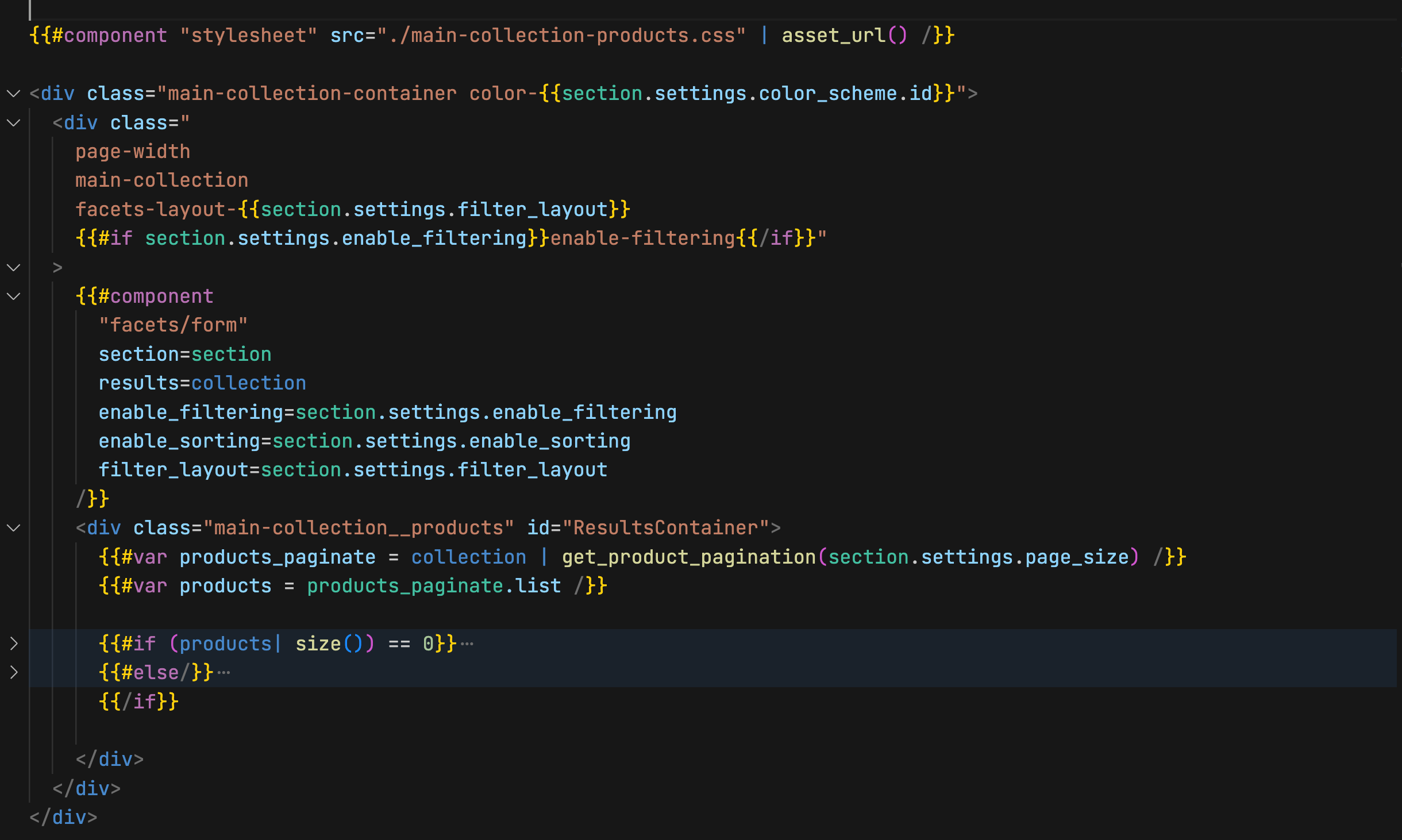
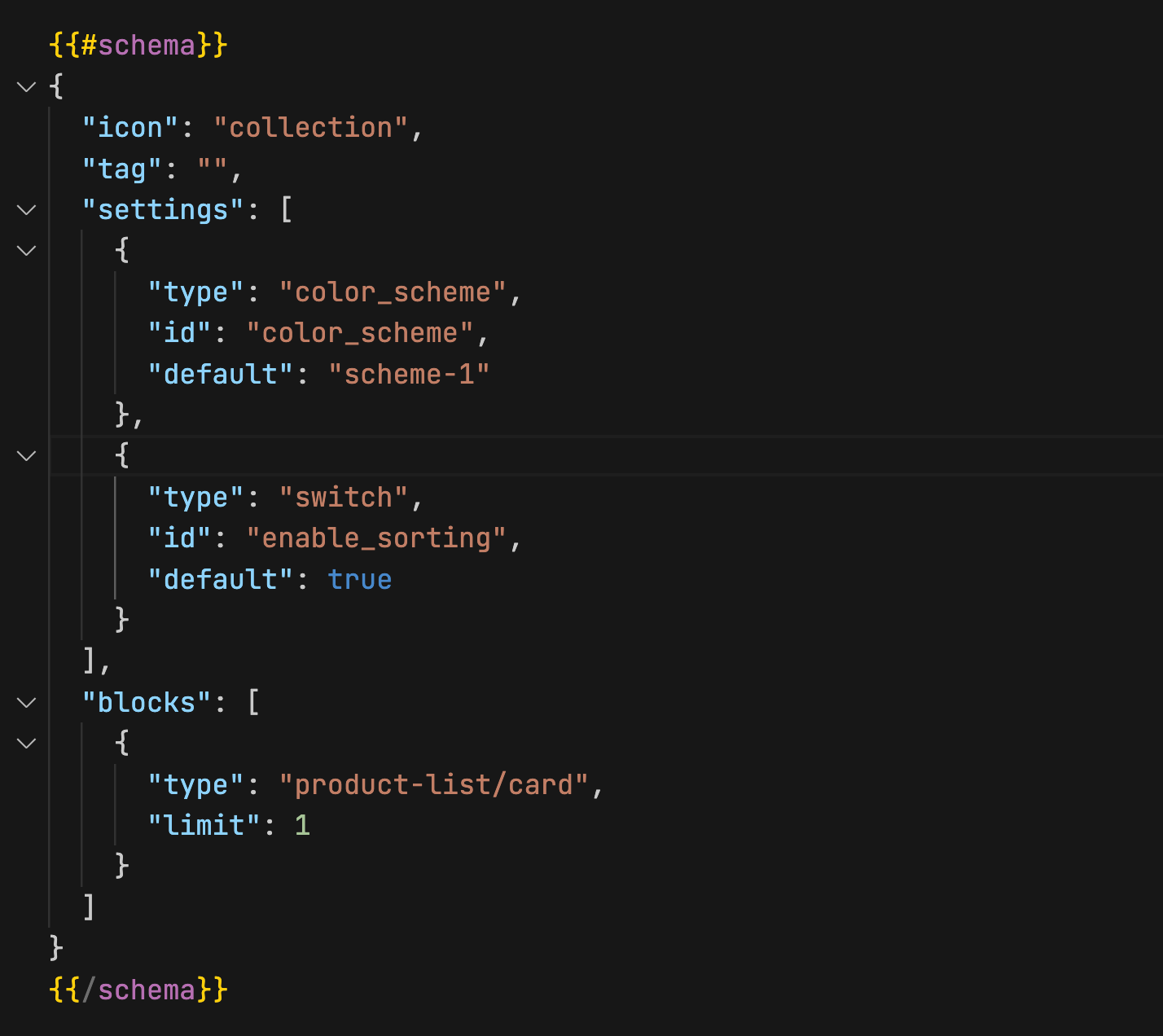
Schema syntax highlighting
The following shows an example of schema syntax highlighting:
Code suggestions
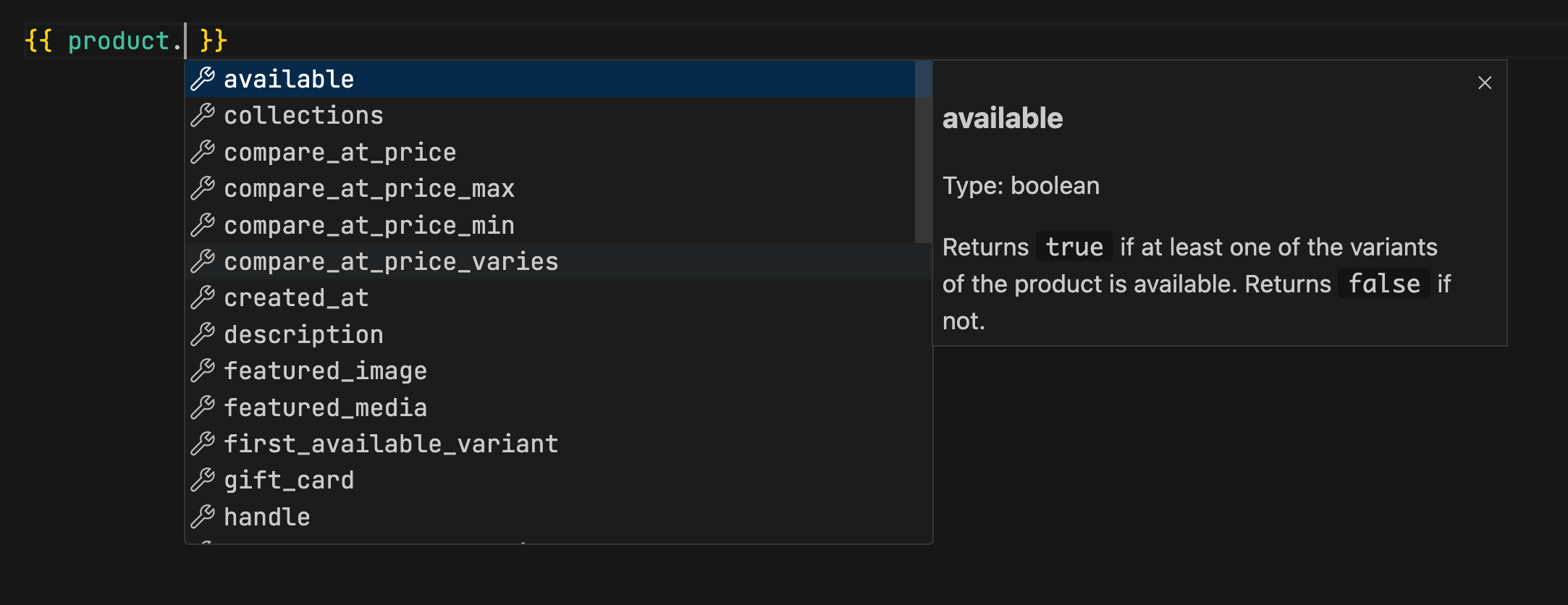
Object suggestions
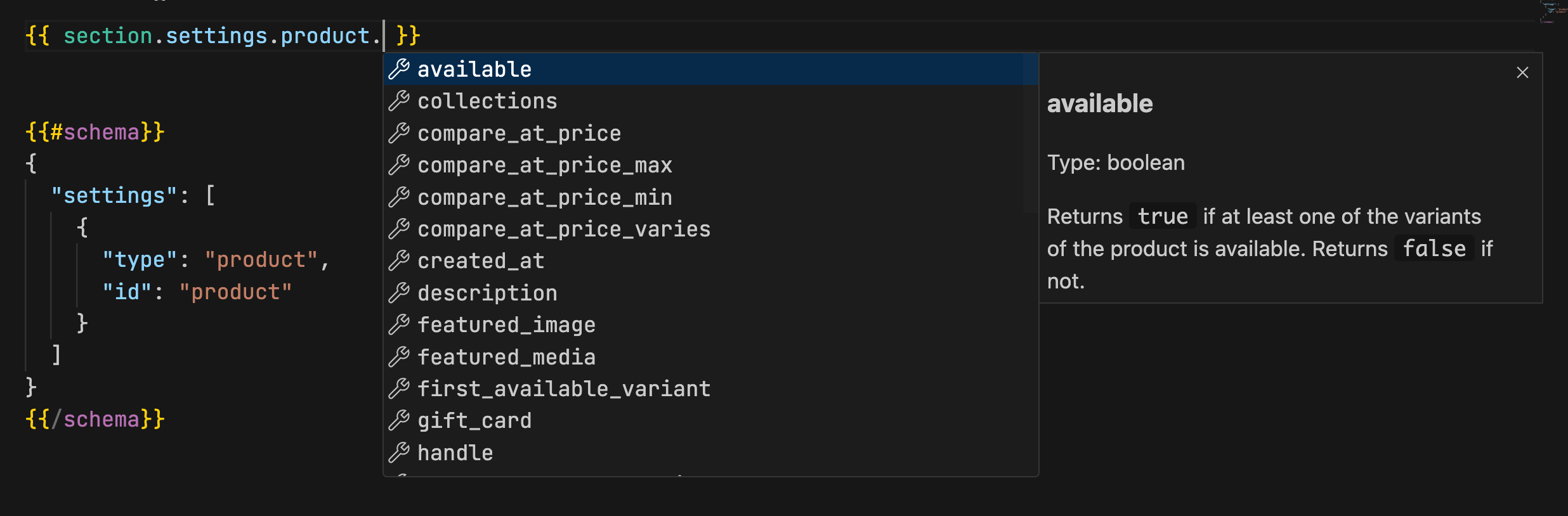
When developing any .html file, if you input any object, its properties will be suggested and displayed for selection. For example, the properties of a product object are shown as follows:
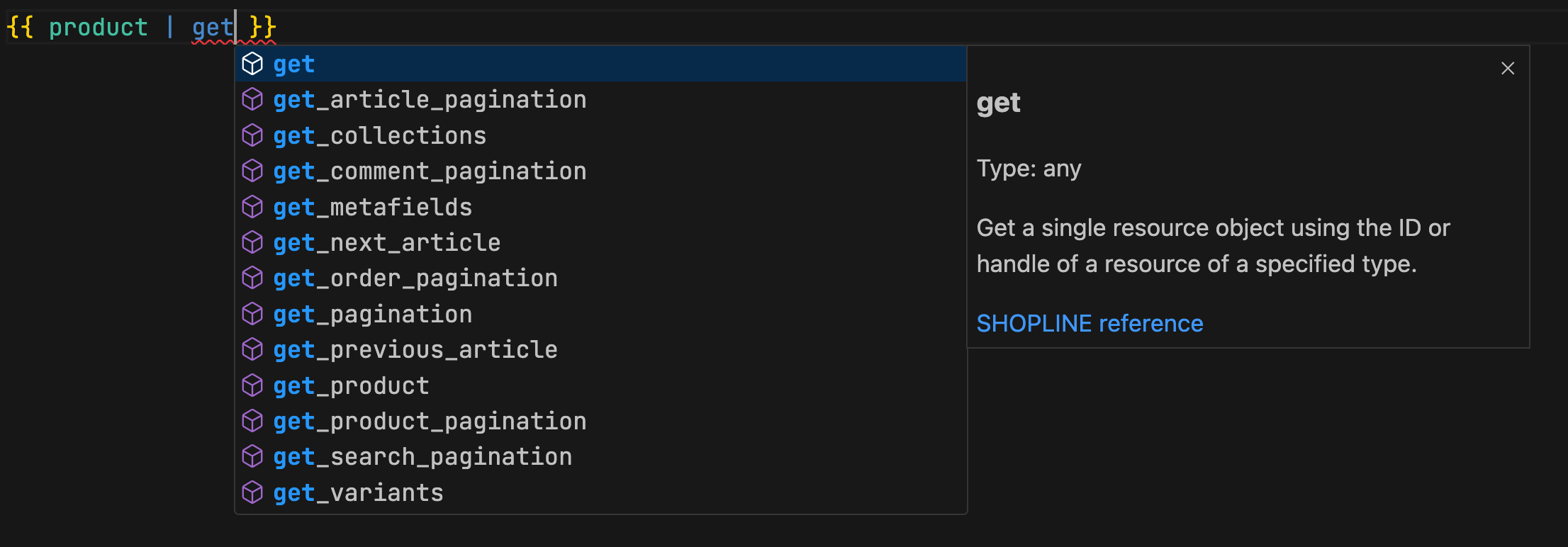
Filter suggestions
When developing any .html file, if the current line of code contains {{ |, then the characters entered afterwards will match the relevant filters for selection.
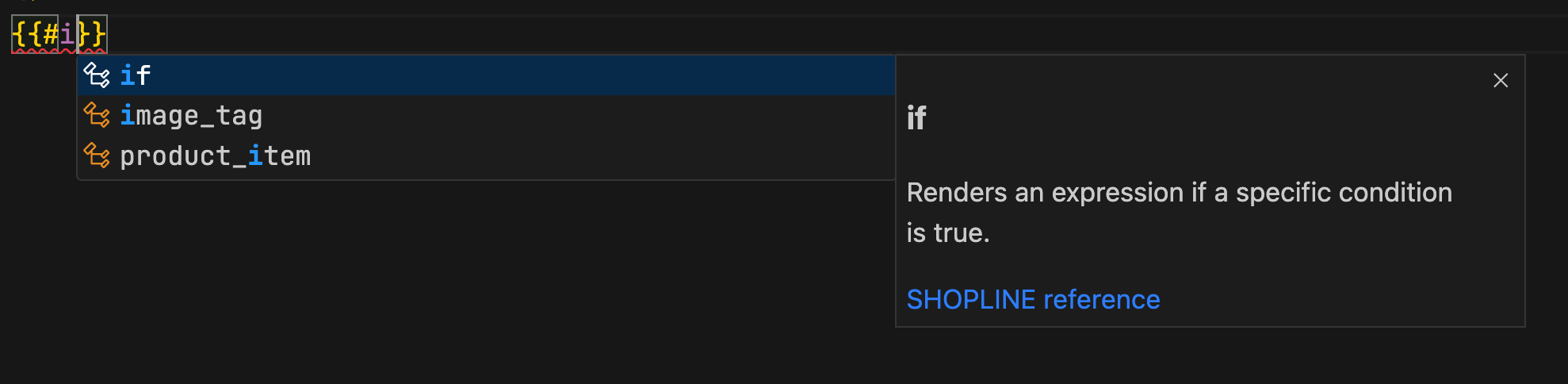
Tag suggestions
When developing any .html file, if the current line of code contains {{#, then the characters entered afterwards will match the relevant tags for selection.
Schema code suggestions
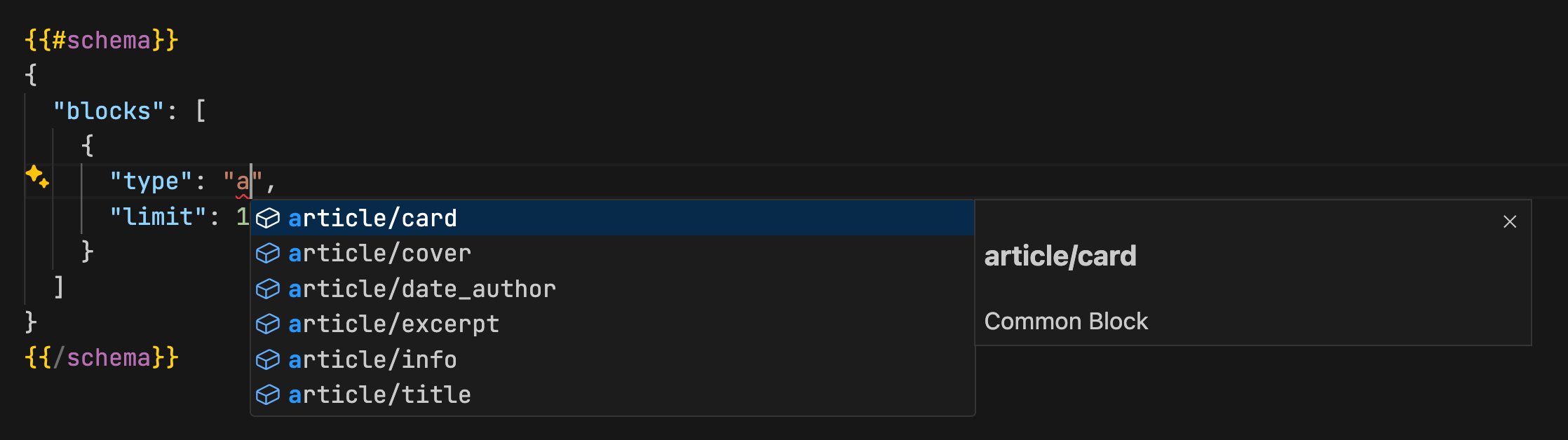
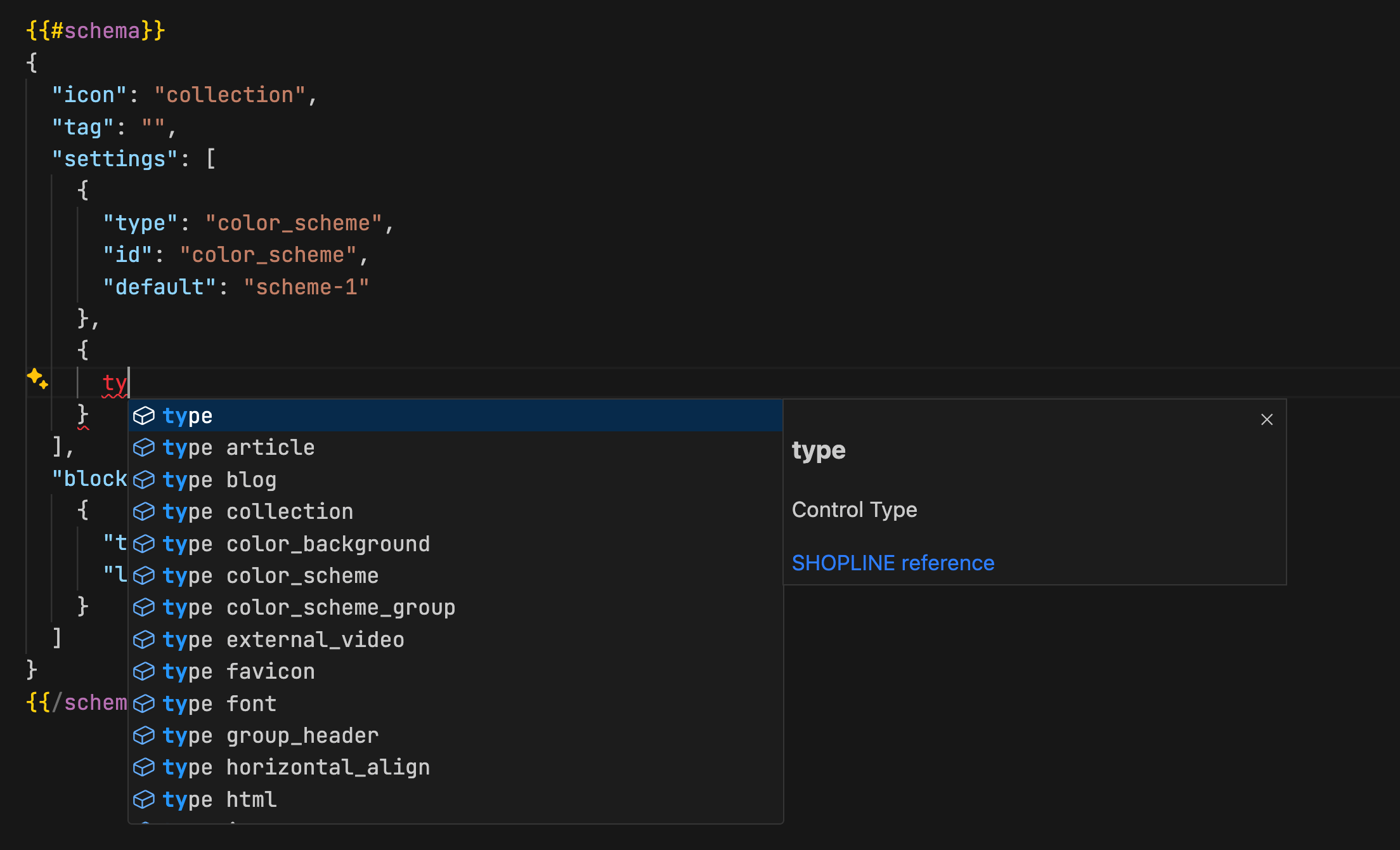
When writing schema configurations, entering type will trigger preset code suggestions for all control types.
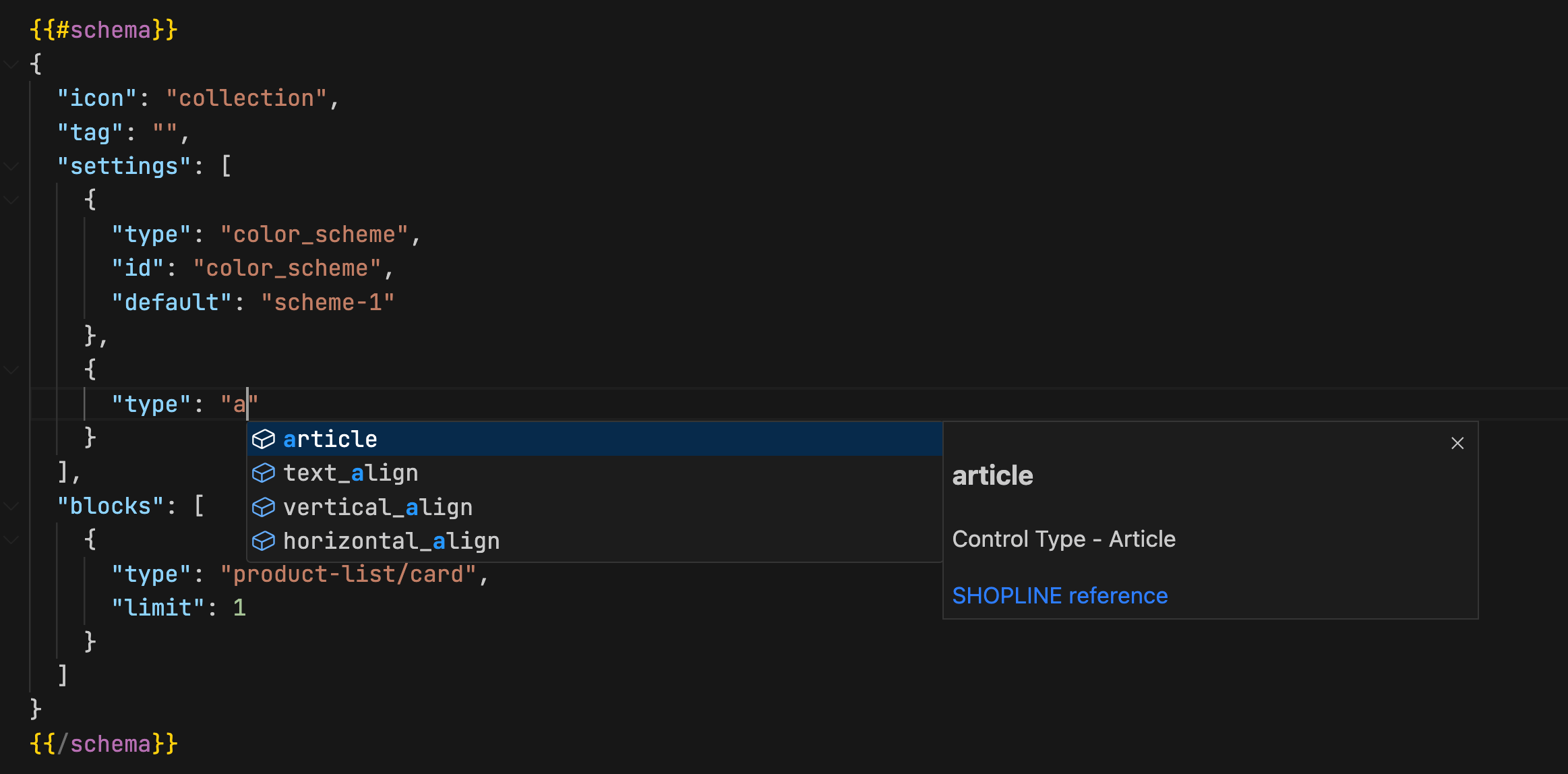
 When writing configurations, dynamic suggestions for supported values appear based on the property names you enter.
 Based on the schema configuration inference, property suggestions are provided for
 settings.
Variable declaration navigation
When you hover the cursor over a variable in use, its definition location is displayed based on context. You can jump directly to the variable's definition code with a single click.

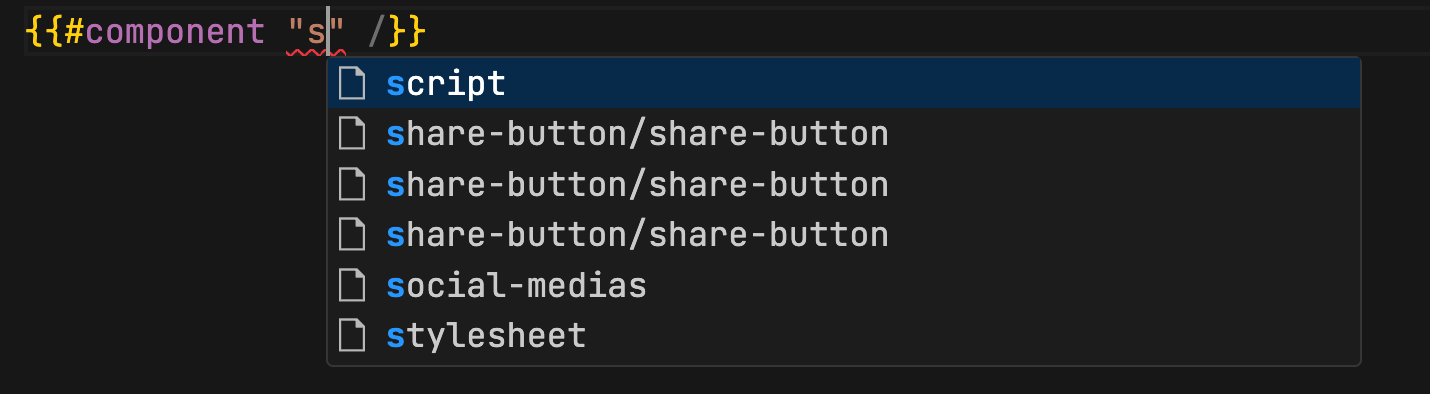
Path suggestions
For the following scenarios requiring the file path input, path completion suggestions are provided, reducing manual entry.
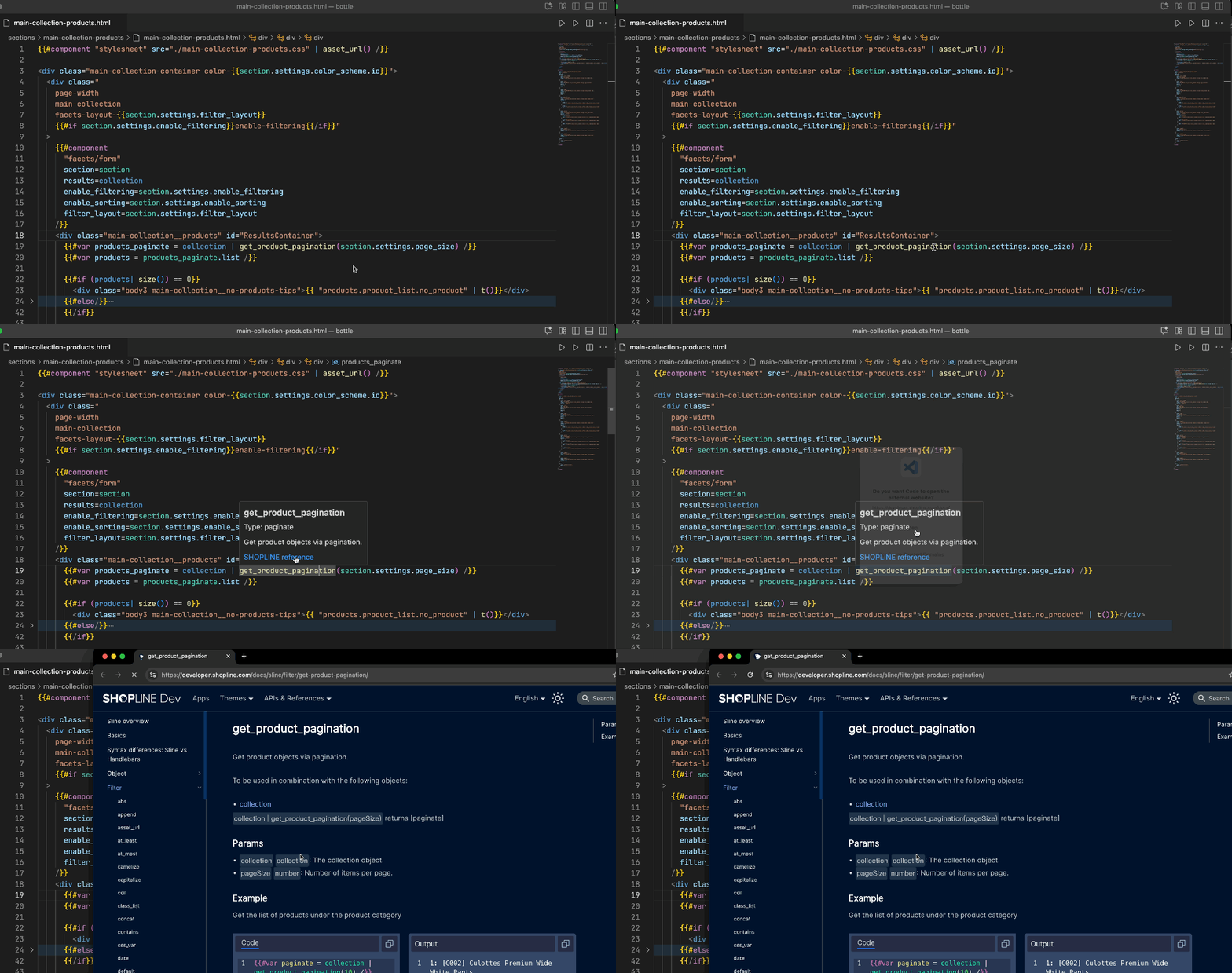
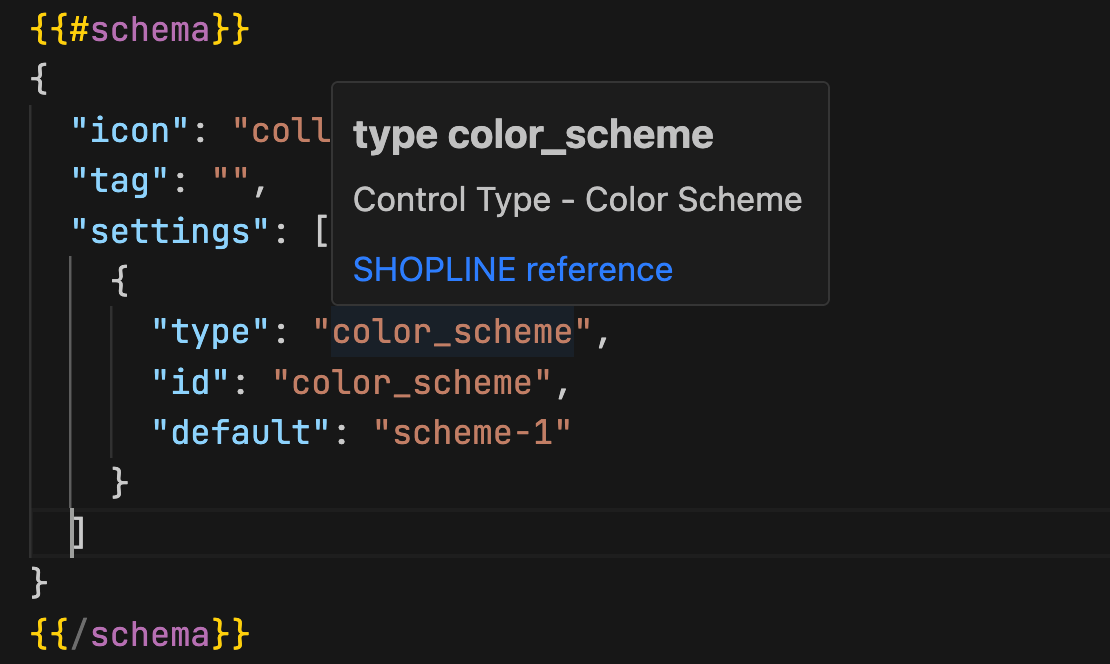
In any .html file, when the mouse hovers over keywords such as an object, a filter, a tag, or a scheme property, a corresponding documentation tooltip will appear.
Code snippet completion
Tag code snippet completion
When developing any .html file, typing {{# followed by some characters triggers a list of tag suggestions. Press Enter, and the code snippet for the selected tag is automatically inserted. For example, when you type {{#if and press Enter, the code completes as follows:

Completion for the end symbol '/'
In an .html file, if you use a tag without including the ending '/', saving the file will automatically append '/' to the end of the tag. For example, if you type {{#else}} and save the .html file, it will automatically be updated to {{#else/}}.
Syntax checking
Basic syntax checking
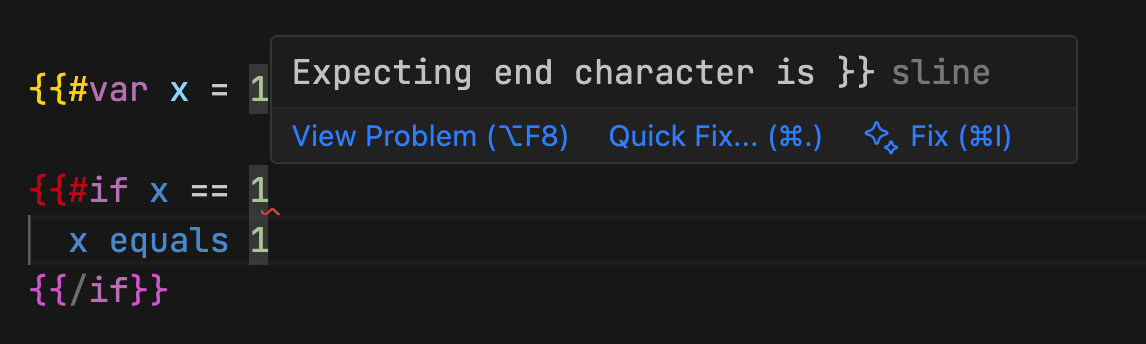
When you use template variables, automatic checks for basic syntax errors are performed. For example, a missing closing }} in a tag will trigger error diagnostics, as shown in the following:
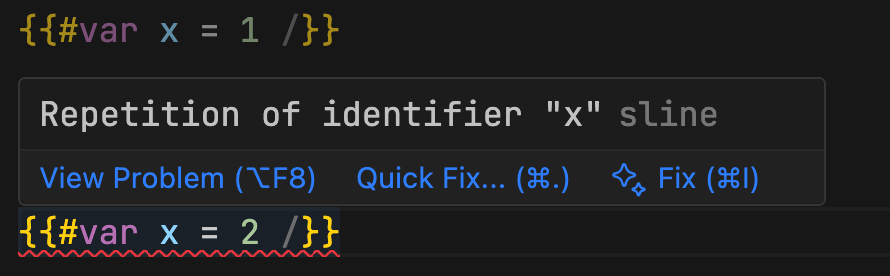
 Declaring a variable more than once within the same scope triggers error diagnostics, as shown in the following:
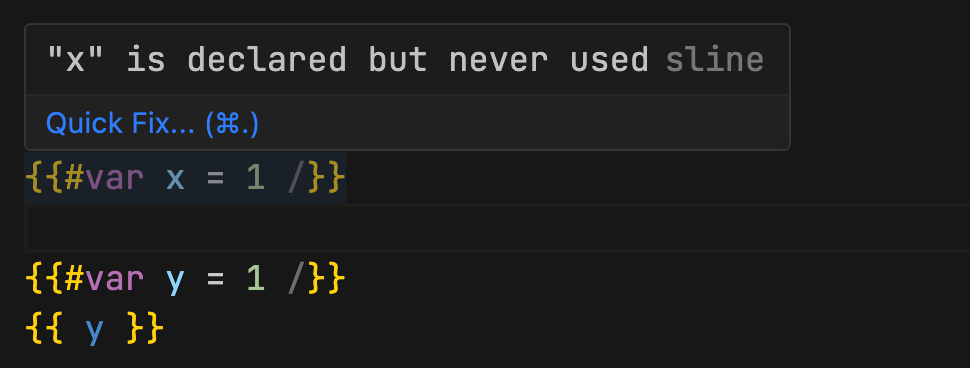
 An unused variable triggers error diagnostics, as shown in the following:
 Offer one-click quick-fix suggestions for detected issues, as shown in the following:

Tag or filter syntax checking
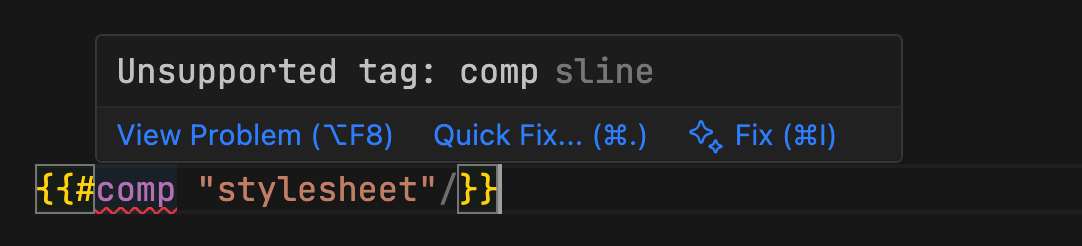
If you use a tag or filter that does not exist or specify incorrect parameters, error diagnostics will appear, as shown in the following figure:
Schema syntax checking
If there is an issue with the schema configuration, error diagnostics will appear, as shown in the following figure: 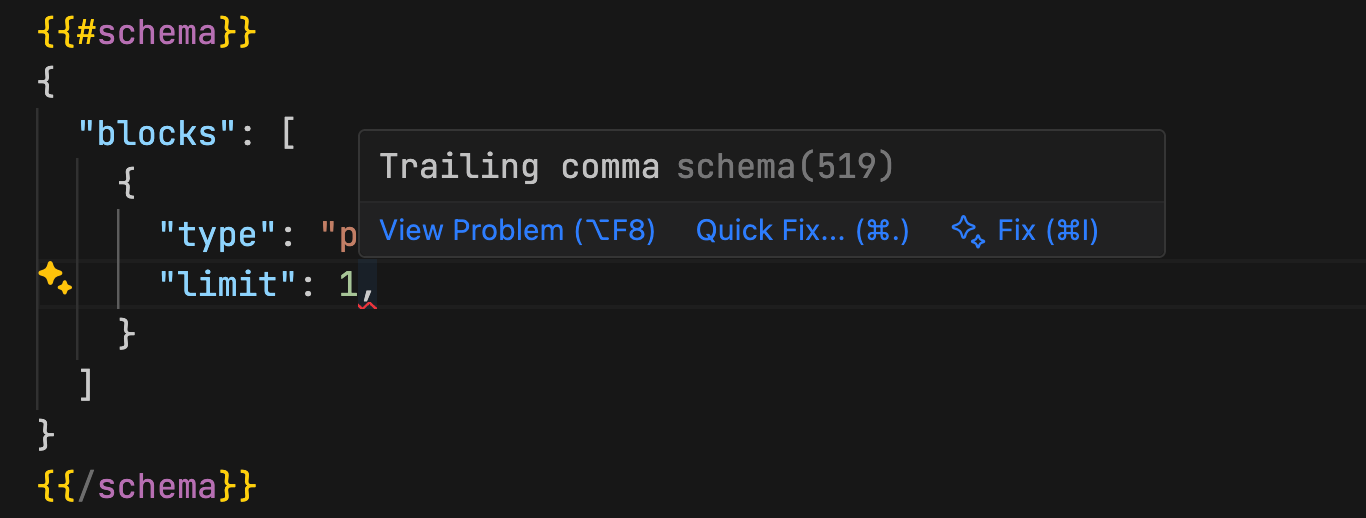
File path checking
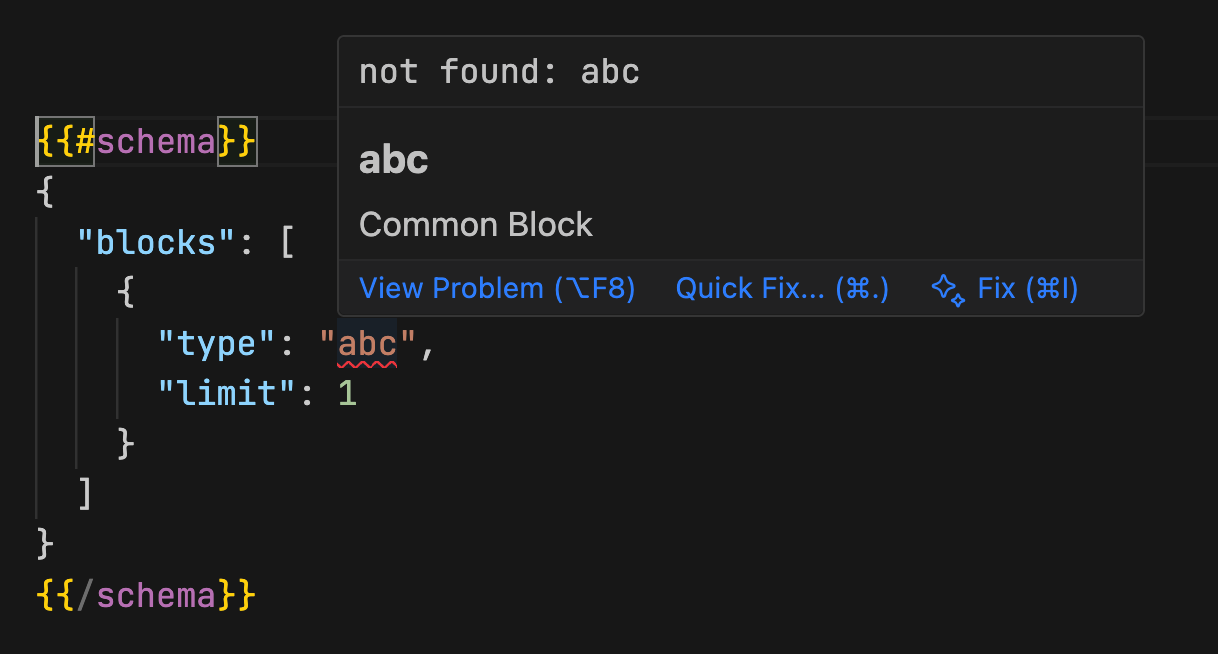
If you use a file that does not exist, error diagnostics will appear, as shown in the following figure:

Workspace scan for anomalous files
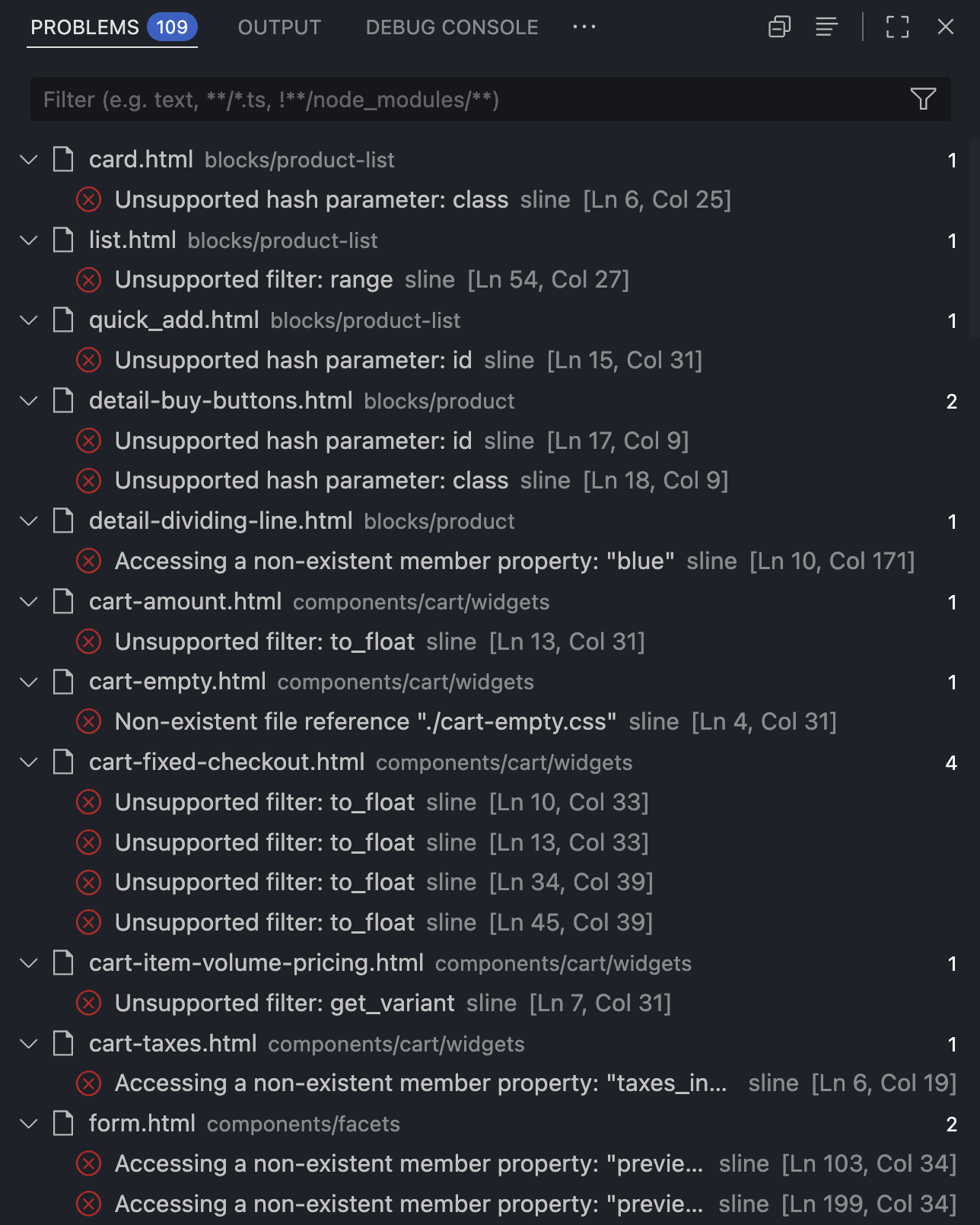
You can view all anomalous files in the workspace from the PROBLEMS tab in VS Code.
Path navigation
Hover over the file path, hold the option key, and click to open the file in the current window.

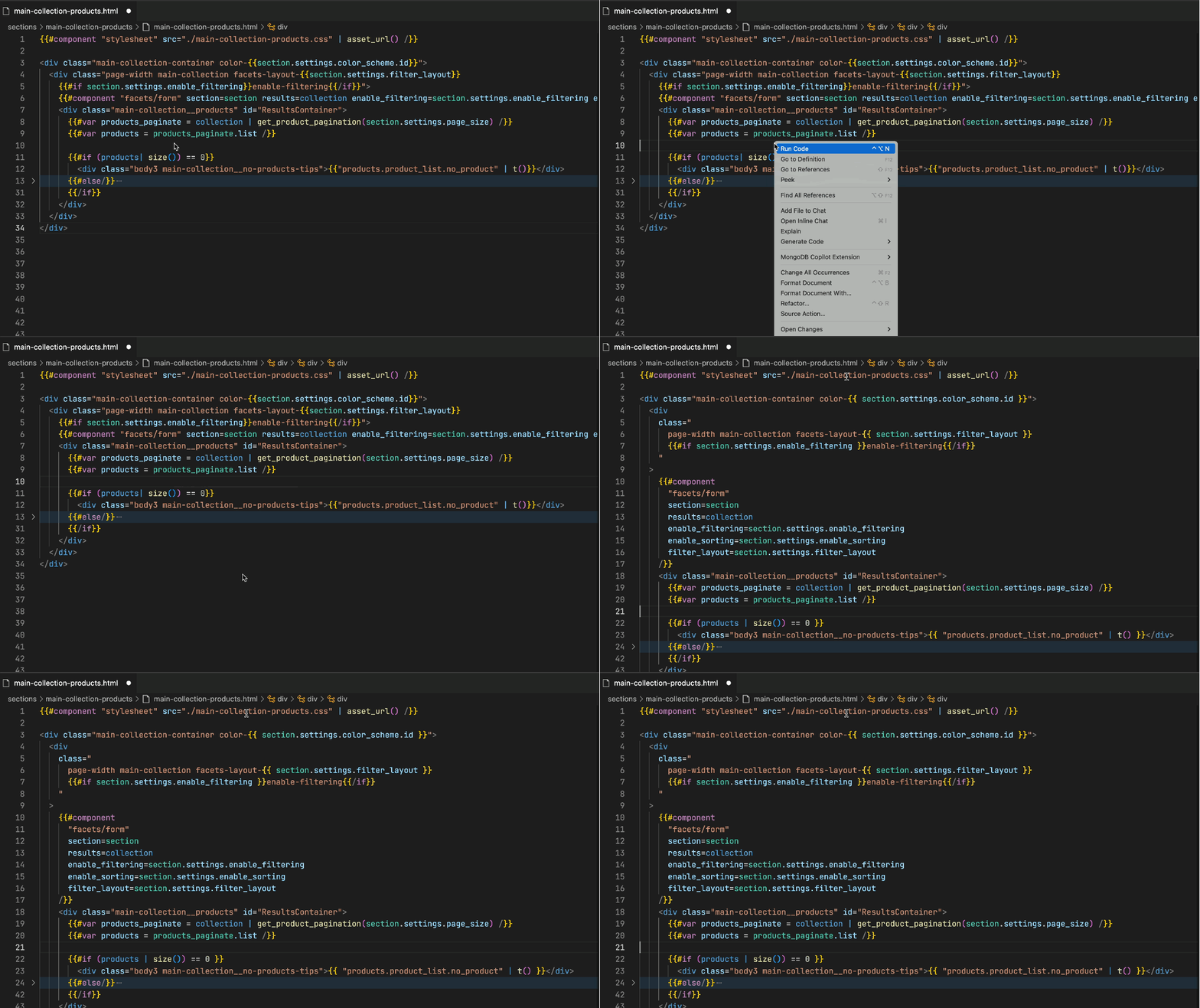
When using Sline syntax, you can format a document in one of the following ways: + Right-click and select Format Document. + Use the shortcut keys shift + option or Alt + F.
Code folding
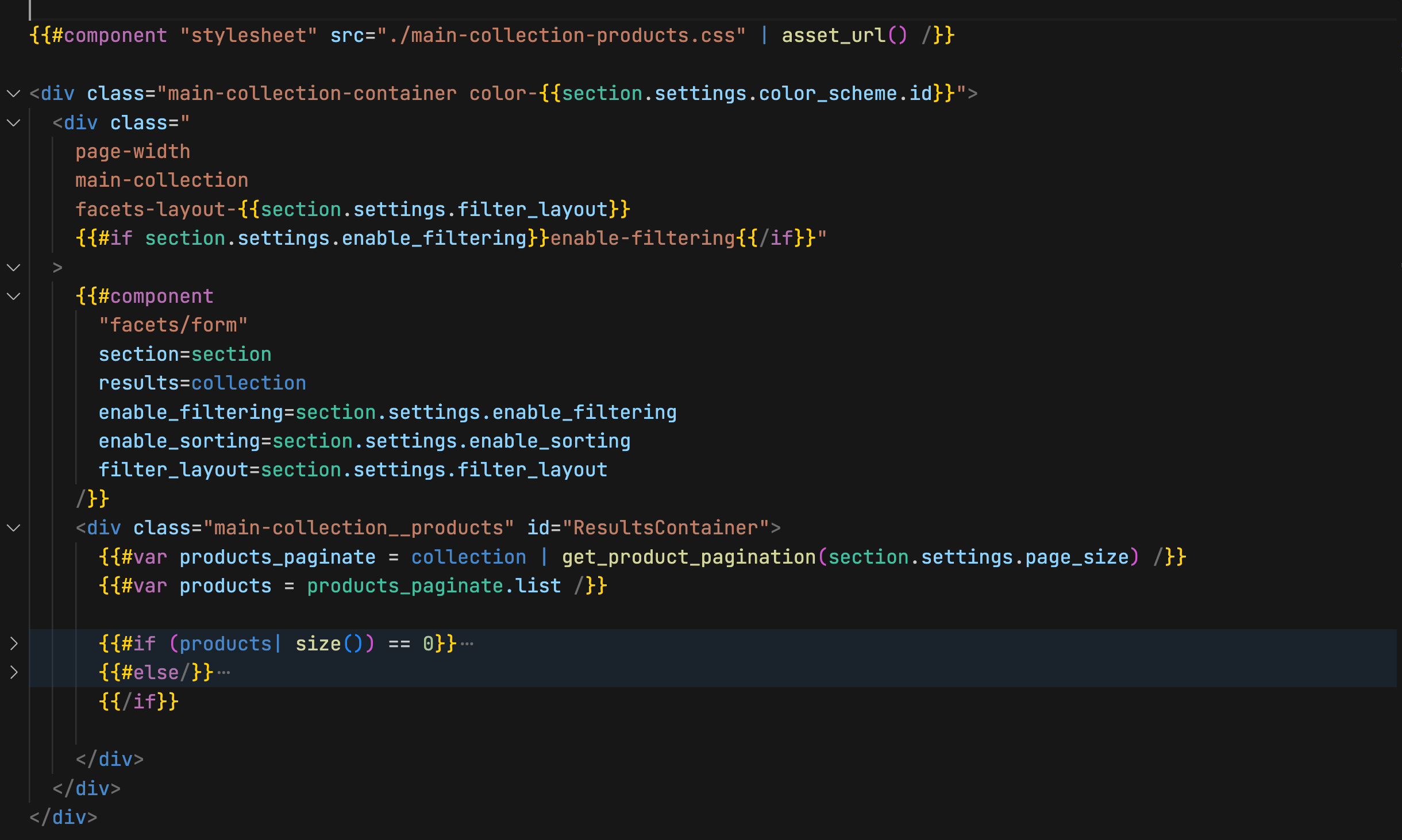
The following figure shows how the Sline code block folds:
Local development
Local rendering
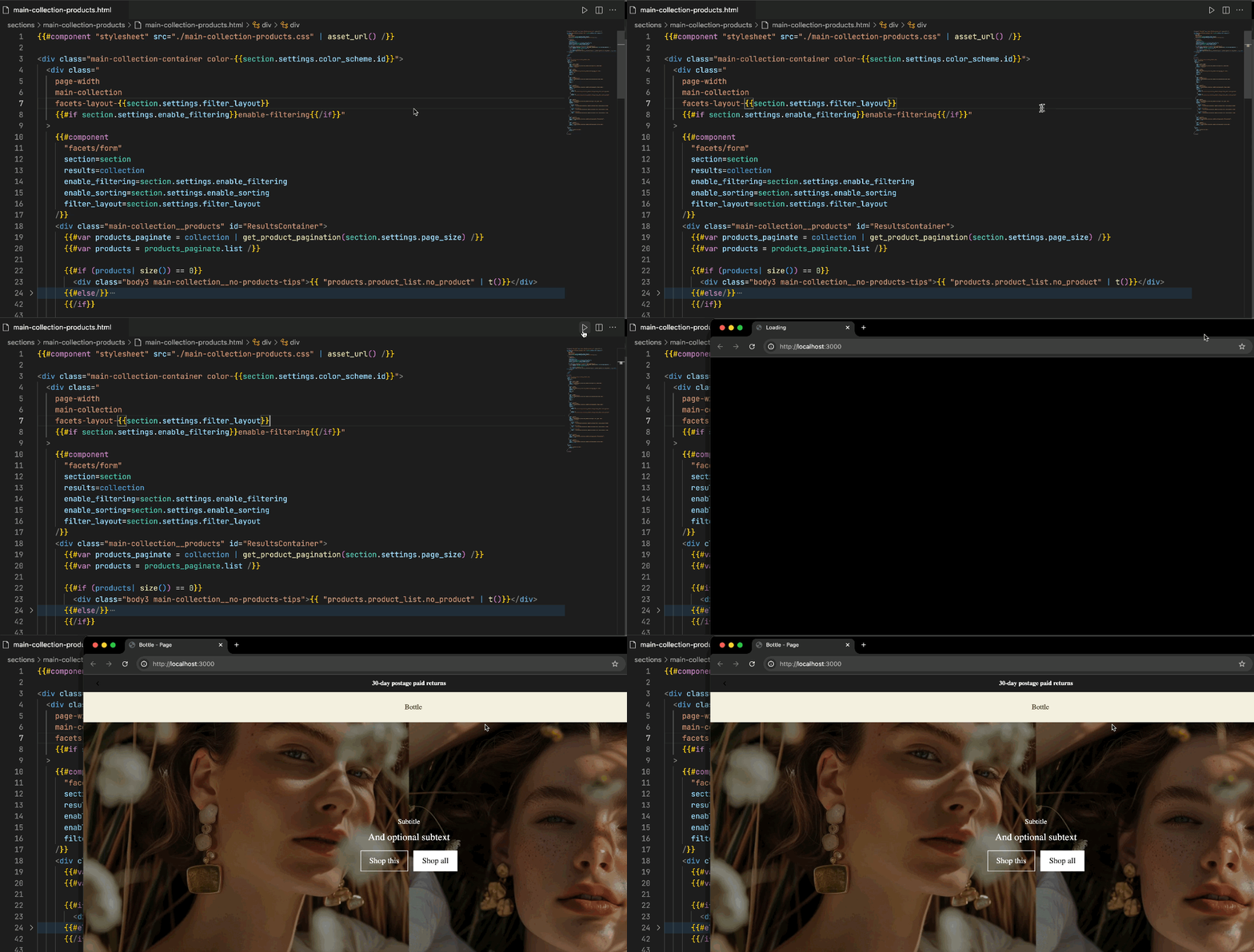
In theme development projects, local HTML files can be rendered as browser pages, allowing you to quickly preview static page effects by initiating a local service on localhost. This is suitable for scenarios such as static page development, section testing, and template previews.
Data source
A set of demo data sources is built in. If customization is desired, you can modify the data source address following these steps:
Go to Preferences > Settings.
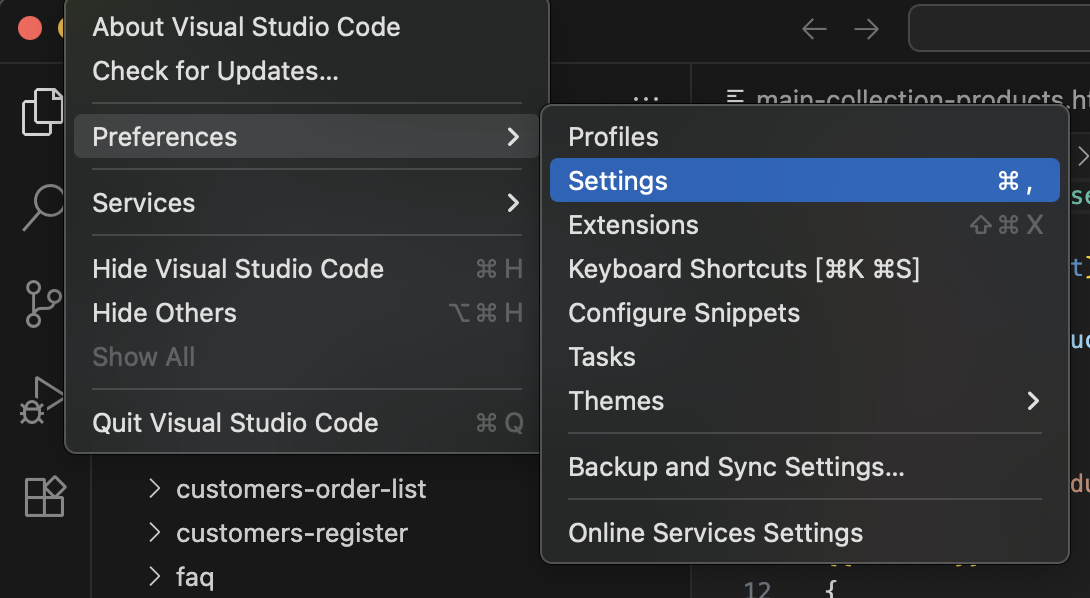
Enter renderer in the search settings.
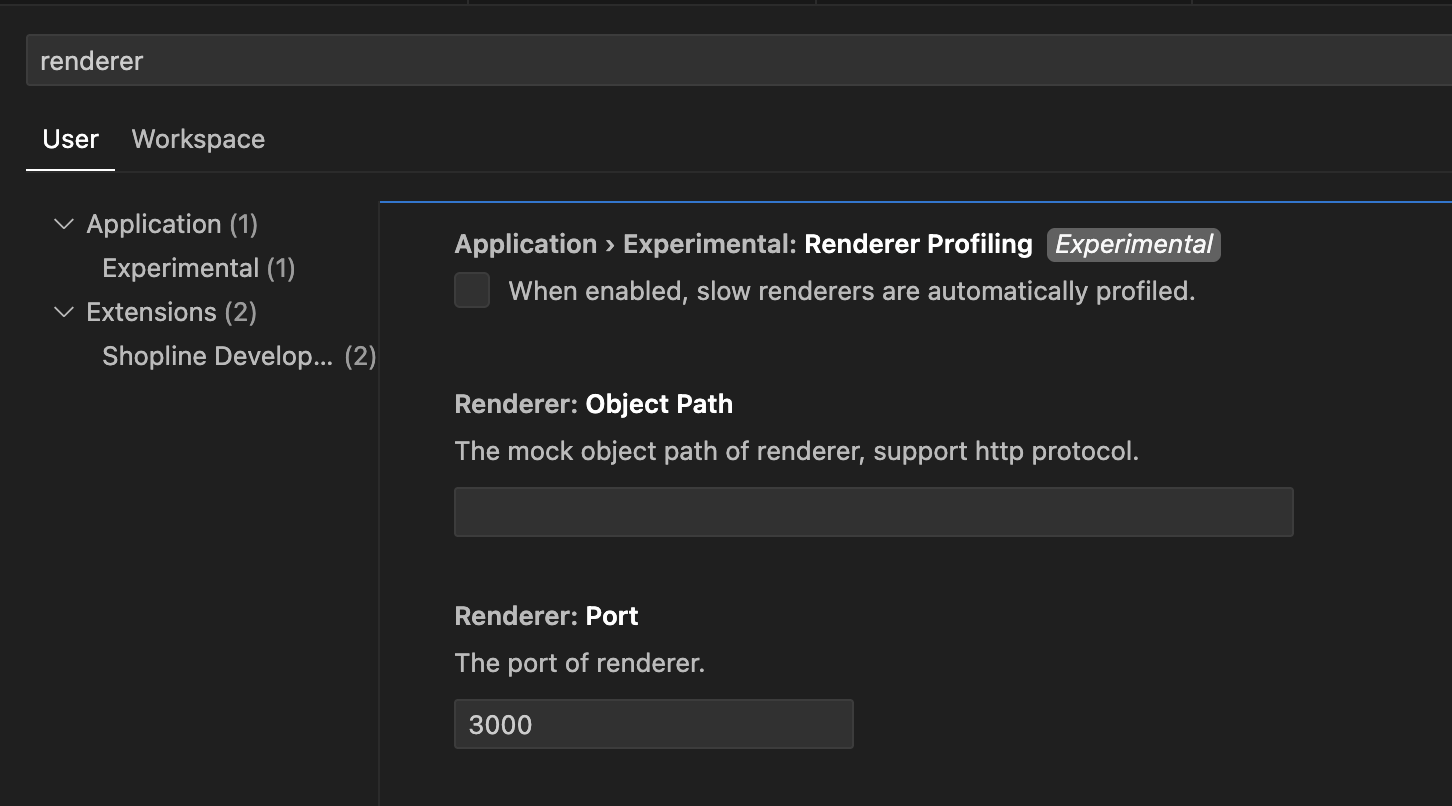
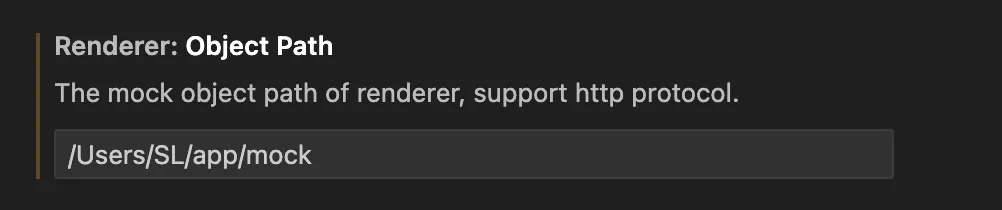
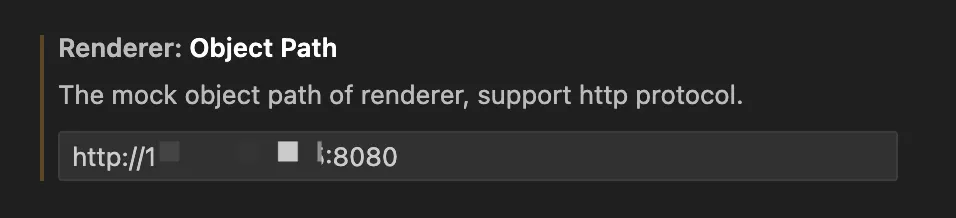
Modify Renderer: Object Path, which supports two methods: a local absolute address directory and an HTTP remote interface. Changes take effect after restarting VS Code.
- Local absolute address directory
- HTTP remote interface
Element-to-source navigation
When using the locally rendered code in your browser, you can hold the Option or Alt key while clicking on a specific page element. This action will help you jump to and locate the corresponding .html file, making it easier to find and modify the code.