Skip to content
| Marketplace
Sign in
Visual Studio Code>Visualization>Claude Action TimelineNew to Visual Studio Code? Get it now.
Claude Action Timeline

Claude Action Timeline

SKKokkula

|
8 installs
| (0) | Free
Timestamps for every Claude Code action: a live timeline of prompts, tool calls, replies and durations, read from the session transcripts Claude Code already writes locally. Unofficial.
Installation
Launch VS Code Quick Open (Ctrl+P), paste the following command, and press enter.
Copied to clipboard
More Info

Claude Action Timeline

Timestamps for every Claude Code action. A live timeline of what Claude Code is doing in your workspace — every prompt, tool call, reply and how long each took — read from the session transcripts Claude Code already writes locally.

Licence: MIT

Unofficial. This is an independent, community-built extension. It is not made by, endorsed by, or affiliated with Anthropic. "Claude" is Anthropic's trademark and is used here only to describe what the extension reads.
What you get

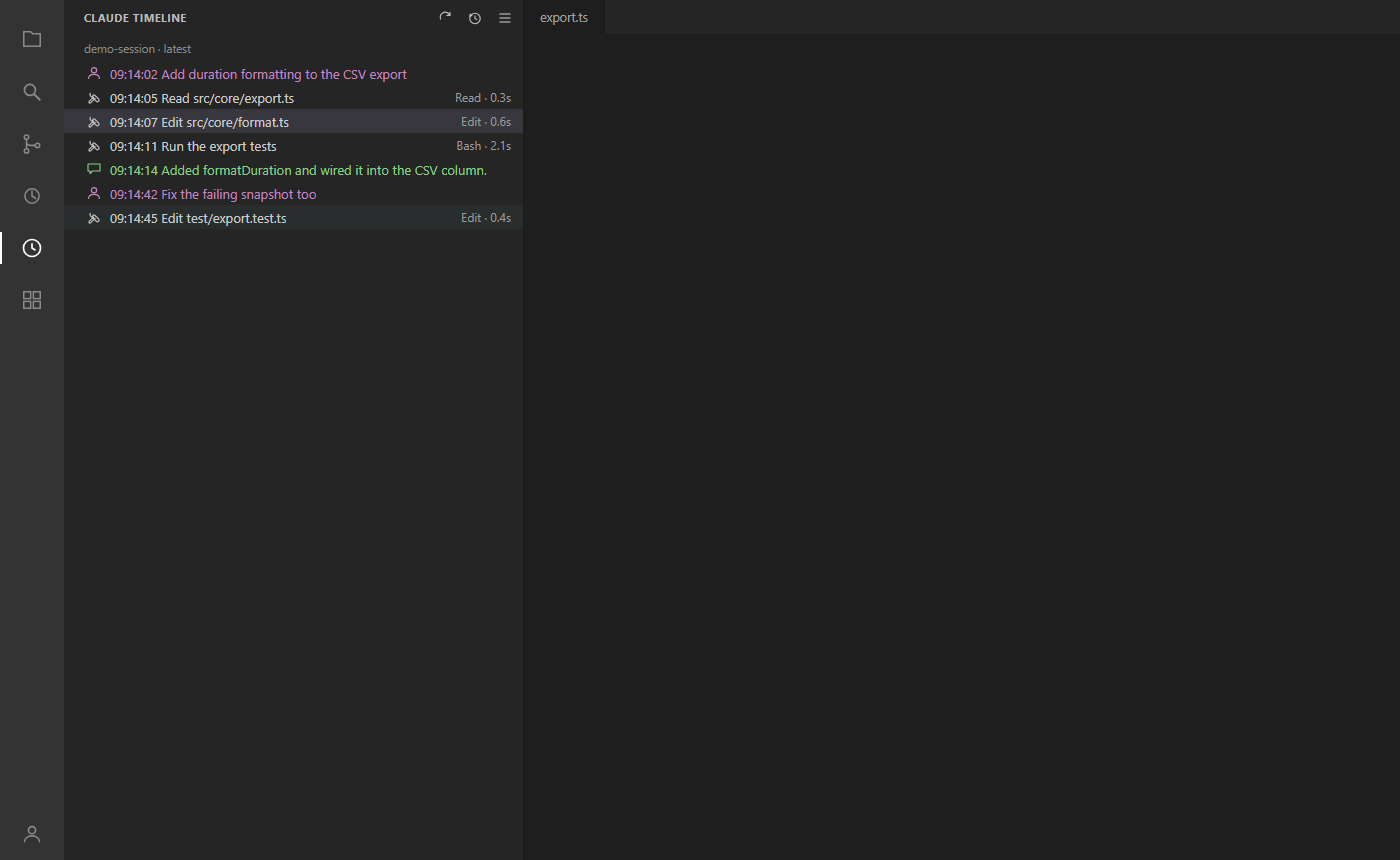
  • Timeline view (activity bar → clock icon): one row per action, each led by its wall-clock time so when reads straight down the left edge. Each row's icon carries two things: its shape says what the row is — your prompt, Claude's reply, a thinking block, a tool call, a compaction — and its colour says how it went. Prompts are purple and replies green; thinking and compactions are muted; tool calls, which are most of the view, stay in the ordinary foreground so the coloured rows can be seen at all. Red always means this went wrong, never a particular kind: a failed tool call keeps its tool icon and turns red, so it can be told apart from the API itself failing. Tool calls show a one-line summary (the command's description, the file's name, the search pattern…) and gain a duration the moment their result lands. Failed tool calls are marked, and a call the permission layer refused reads denied with its reason — a permission rule, a call you declined, or an auto-mode classifier outcome — in a muted icon rather than the error red, because a rule doing its job is not a failing tool. A call still waiting for its result reads no result 4m with an ellipsis icon — the age stays current — and API errors and conversation compactions get rows of their own instead of masquerading as replies or vanishing.
  • Work you sent to the background stays visible. A command Claude hands off — a CI watch, a long build, a subagent, a workflow — reads background · no report 4m while it is out there, and shows what really happened when the notification lands: the true duration, and failed, stopped or killed if that is how it ended. It never says "running", because a background task dies with the session that started it and the transcript cannot tell that from work still in progress; it says what was recorded, which is that the work was handed off and nothing has come back.
  • The task list, pinned on top. When Claude is working from a plan, the current list sits above the timeline — progress, the task running now, and the rest with their states — with the time it was last written beside it. It is the plan as Claude last wrote it, not a live view, and it says so; a subagent's own list never replaces the session's. Collapse it and it stays collapsed.
  • Prompt rows are what you typed. Claude Code writes a great deal besides your typing as user records — notifications from finished background agents, the output of ! commands, the summary blob after a compaction, the editor announcing which file is open — and none of it draws a row. Slash commands do, because running one is something you did: the row reads /model opus rather than the XML the command expands into. Only shapes the extension recognizes are filtered, so a future Claude Code change puts noise back in the timeline rather than making your prompts disappear from it.
  • Hover a prompt to read all of it. A row shows the first 80 characters; hovering shows the prompt in full, up to 1000. (Longer than that, and Reveal in Transcript has the rest.) There is no jump to this message in the chat because Claude Code exposes nothing to jump to — showing you what you asked is the reachable half of that wish.
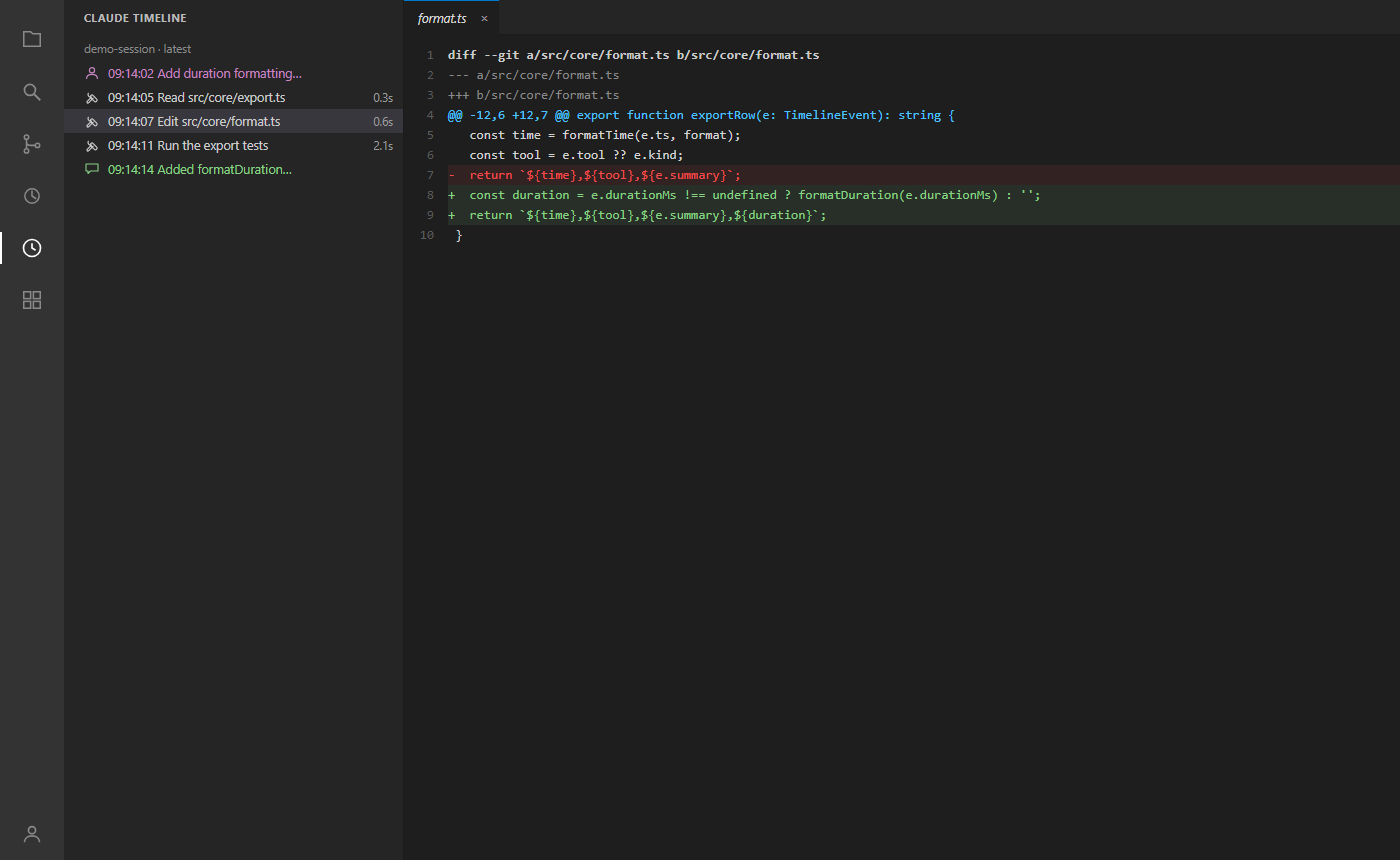
  • Click to open: rows for file tools (Read, Edit, Write, NotebookEdit) open the file they acted on; the hover shows the full path. Rows for everything else stay inert.
  • Reveal in Transcript: right-click any row to open the session's .jsonl at the line that row came from — the raw record behind the summary.
  • Status bar: the time and name of Claude's latest action, always in view. Hovering it shows the session being followed, its state (working, awaiting your input, or quiet), when it started and how long it spans, the last action with its duration, what the view holds, and the busiest tool. It names no file on disk — the hover is on screen whenever the extension is, so it stays fit for a screenshot or a screen share; Reveal in Transcript and Copy Freeze Report are where a path is disclosed, because you asked for it there. The hover ends with a Send feedback link (also in the palette as Claude Timeline: Send Feedback): rate the extension on the store your editor installs from — the VS Marketplace in official VS Code, Open VSX in VSCodium, Cursor or Windsurf — or report a problem or idea on GitHub issues. Click the status bar item to open the timeline.
  • Frozen-session triage: the session's state is assessed from the transcript — the one signal that keeps answering when the chat UI hangs. When a turn is open but nothing has been written for a while (3 minutes; 10 for shells, agents and workflows, which legitimately run long), the status bar turns warning-coloured with the measured span (quiet 4m) and the hover names the unanswered call and the recovery path. Facts, not verdicts: an idle session reads as awaiting your input, never as a flag, because the transcript cannot tell a hung tool from a slow one — and this extension does not pretend it can. Large single-turn writes (16k+ characters) note the known VS Code extension hang they can trigger in the row's tooltip, with the workaround.
  • Sleep/resume freeze detection: when the machine wakes from sleep with a session that was mid-turn and whose transcript has stopped moving — the signature of the known Claude Code freeze-after-sleep issues — a warning offers one-click recovery: copy the exact claude --resume <session-id> command, or open a fresh terminal with it pre-typed. See Frozen session detection and recovery.
  • Copy Freeze Report: one command puts a paste-ready diagnostic on the clipboard — state, unanswered calls with ages, recent API errors, compactions, transcript stat, time since the last transcript write, the resume details when the machine slept, recovery steps. Prompt and reply text is counted, never quoted, so the report is safe for a public issue after a read-through.
  • Live: the view follows the newest session for the workspace and updates as the transcript grows (directory watch + a 2-second polling backstop).
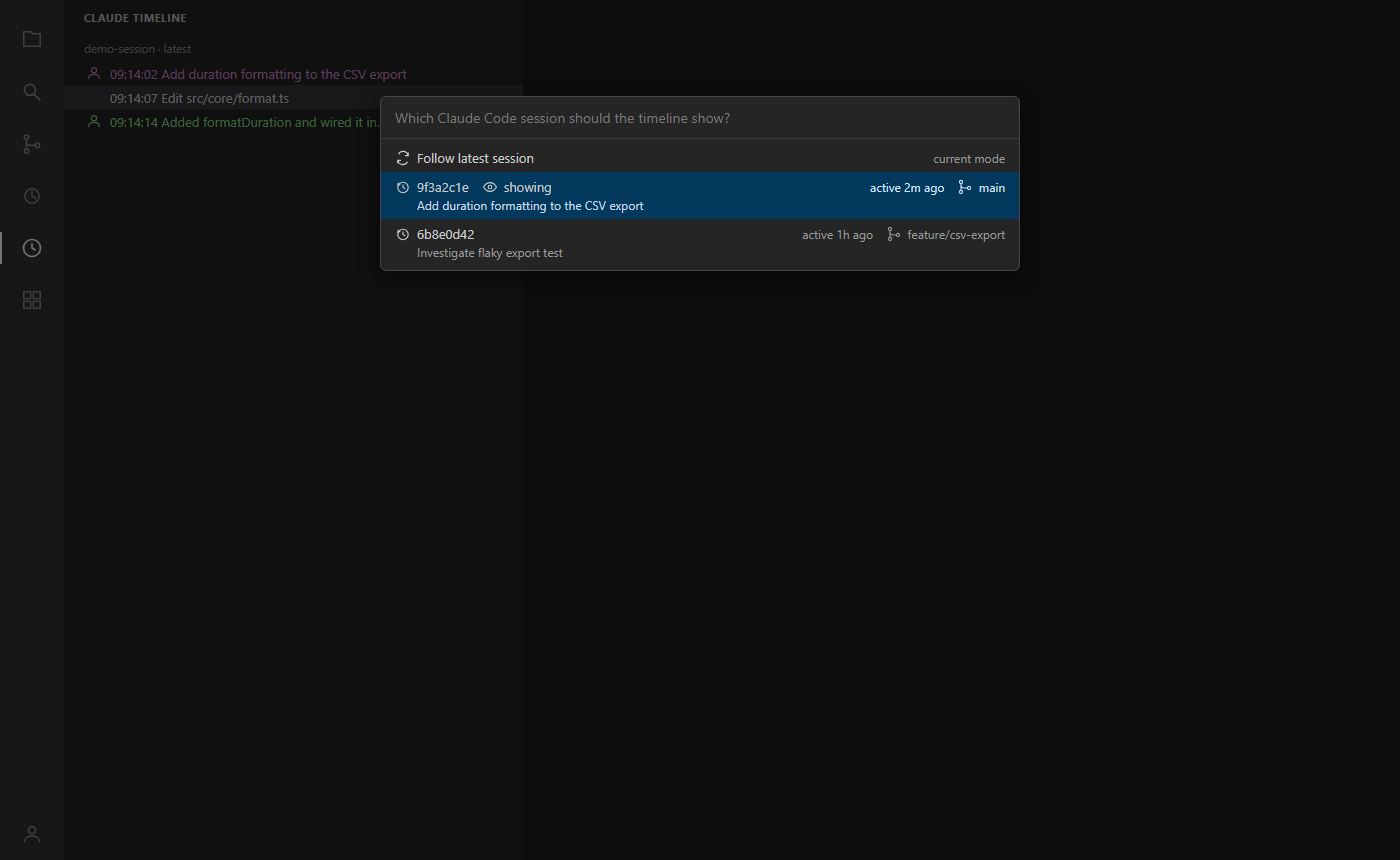
  • Session picker: pin an older session or go back to following the latest. Each entry says how long ago it was written to and which one is on screen, so with two chat windows live you can tell them apart.
  • Copy as text: the whole visible timeline as timestamped plain text.
  • Log (Claude Timeline: Show Log): which directory was searched, which session is being followed and why it changed, and a lines-in/events-out tally. An empty timeline has several causes and this is how you tell them apart. Raise the detail with Developer: Set Log Level.

Rows read like this — a text illustration, not a screenshot; the right-hand part is VS Code's dimmed item description, and the columns are padded here only for legibility:

14:04:12  The other session was mid-turn, so it stayed put
14:04:05  Wait for PR [#6](https://github.com/shivakrishnakokkula/claude-action-timeline/issues/6) CI checks                      Bash · background · no report 4m
14:04:01  Validate main and wait for its CI             Bash · background · 2m 5s
14:03:59  Publish the package                           Bash · 0.3s · denied (permission rule)
14:03:58  Run the unit tests                            Bash · 6.4s · failed
14:03:57  FOLLOW_IDLE_QUIET_MS                          Grep · 0.2s
14:03:56  follow.ts                                     Read · 0.1s
14:02:44  /model opus
14:02:41  why does the timeline keep flipping?

Each row opens with its wall-clock time, so when reads straight down the left edge. After it, whatever the action carried: a Bash call's description, a file tool's file name, a search pattern, or — for a prompt, reply or thinking block — its opening 80 characters, all whitespace collapsed to single spaces and an ellipsis at the cut. A multi-line prompt therefore reads as one flattened line, not as its first line; hover it and the whole prompt is there. On the right, the tool, the duration once its result lands, and the outcome when there is one to report — failed when the result came back an error, denied with its reason when the call was refused before it ran, or stopped and killed for background work that ended those ways. A row with none of those — a prompt, with durations off — simply has nothing on the right. Newest is at the top by default.

How it works

Claude Code appends one JSON line per event to ~/.claude/projects/<workspace-slug>/<session-id>.jsonl. This extension only reads those files — no network, no processes, nothing written to disk. The transcript format is internal to Claude Code and changes between versions, so the parser is deliberately defensive: lines it does not recognize are skipped silently rather than breaking the view.

Durations come from pairing each tool_use id with its tool_result line, so they measure the real gap between the call and its result.

Work sent to the background is the exception, and it is why background rows exist at all. Claude Code answers a backgrounded call immediately — the reply says where the work went, not what it did — so pairing on that reply timed every such job at a second or two and called it a success, including the ones that went on to fail. Those calls pair a second time instead, by task id, with the notification that ends the task, and the row shows what that reports.

Frozen session detection and recovery

Claude Code sessions can freeze when the machine sleeps or hibernates and resumes (claude-code#53846, claude-code#77880): after wake the CLI stops responding, or the backend dies while the panel stays open. Nothing is lost — the conversation is on disk — but the session has to be resumed, and first you have to notice which one froze.

This extension notices from the transcripts alone. It stays read-only and offline: no process inspection, no network, no OS power APIs. The poll that already runs every 2 seconds doubles as a heartbeat — a long gap between ticks means the machine (or the extension host) was suspended — and a few minutes after the resume, every session in the workspace's store is classified:

  • Mid-turn at sleep, transcript unmoved since resume → flagged as a frozen candidate. The timeline pins a warning row, the status bar turns warning-coloured with Claude session may be frozen, and one notification offers the recovery actions below.
  • Mid-turn, but the transcript advanced → the session survived; nothing is said.
  • Idle at a turn boundary → never warned. Silence while waiting for your input is normal, however long it lasts.
  • Waiting on a shell, agent, workflow, or a backgrounded task → exempt. A ten-minute build that straddles the wake is not a freeze, and the ordinary quiet-time flag still covers it if it truly stalls. The exemption holds however long the transcript is: a session that would otherwise be flagged is checked against its whole file for still-running background work before any warning appears, and if that check cannot answer, none appears.
  • Last written well before the machine slept → stale, and never flagged. A session you finished with days ago was not running to be frozen, even though its last turn may never have been closed — which is what happens every time Claude Code is interrupted or closed on a prompt. Sessions outside staleAfterMinutes (default 60) of the sleep are skipped without their transcripts being read at all.

The notification's buttons: Copy resume command puts the exact claude --resume <session-id> on the clipboard; Open recovery terminal opens a new integrated terminal with that command pre-typed but not run — you read it and press Enter; Ignore this session silences warnings for that session for good, and the choice survives reloading the window. The extension never types into, or interrupts, any existing terminal.

If one wake strands more than one session you get a single notification saying how many, with Copy resume commands (one command per line, ready to paste) and Ignore these sessions — never one popup per session.

Recovery is the same on Windows, macOS and Linux: press Ctrl+C — on macOS that is Control+C (⌃C), not Cmd+C — in the session's terminal, then run claude --resume and pick the session; the conversation is preserved. A session running in the Claude Code panel instead needs the panel closed and reopened, then resumed (that variant is #77880).

To stop the freeze happening at all, keep the machine from sleeping during long runs: on Windows powercfg /change standby-timeout-ac 0 (elevated terminal), or Settings → System → Power → sleep Never when plugged in; on macOS caffeinate -i for the duration, or Battery settings → Prevent automatic sleeping; on Linux systemd-inhibit, or the desktop's power settings.

Claude Timeline: Simulate Resume (debug) fires the resume event by hand for testing in the Extension Development Host, and every surface says so rather than reporting a sleep that never happened: the notification and the status bar's hover open with Simulated resume (debug), no sleep was measured, the timeline row reads simulated resume, and the freeze report says (simulated via the debug command). The detection is governed by the four claudeActionTimeline.frozenDetection.* settings below.

Settings

Setting Default Meaning
claudeActionTimeline.claudeDir "" Directory holding projects/; empty means ~/.claude
claudeActionTimeline.showThinking false Show thinking blocks as entries
claudeActionTimeline.showSubagents false Show subagent (sidechain) activity
claudeActionTimeline.showDurations true Per-tool durations — in the row, its tooltip and Copy as Text
claudeActionTimeline.newestFirst true Newest action at the top
claudeActionTimeline.maxEvents 500 Entries kept in the view (50–5000)
claudeActionTimeline.timeFormat time time = HH:MM:SS, timeWithDate = MMM D HH:MM:SS
claudeActionTimeline.frozenDetection.enabled true Warn when a session looks frozen after a sleep/resume, with recovery actions
claudeActionTimeline.frozenDetection.resumeSkewSeconds 60 Tick gap read as the machine having slept (10–3600)
claudeActionTimeline.frozenDetection.graceSeconds 180 Wait after a resume before classifying sessions (0–3600)
claudeActionTimeline.frozenDetection.staleAfterMinutes 60 A transcript last written longer than this before the sleep was not in use, and is never flagged (1–10080)

timeFormat governs the time leading each row, the status bar and Copy as Text. A row's tooltip is the detail view and always shows the full local date and time, whichever format is set.

Limitations

  • Multi-root workspaces: the first folder is used (re-resolved when folders change). A window with no folder open has no workspace path to resolve, so the view stays empty.
  • Transcripts are found by the absolute path Claude Code ran in, which is what names the directory under projects/. A drive letter in the other case is handled; reaching the same project by a different path (a symlink, a subfolder, a UNC share) is not — that path has its own directory, or none.
  • Remote development: the extension prefers the workspace side (extensionKind: ["workspace", "ui"]), so in SSH/WSL/container windows it reads the remote ~/.claude — the machine where Claude Code actually runs.
  • When two sessions write concurrently (two chat windows, or an interactive one plus a background agent), follow-latest hands the view over once the session it is showing has fallen silent — after 3 seconds if that session is waiting on you, or after the same few minutes the status bar waits before calling a session quiet if Claude is still working in it, so a long shell command or subagent does not give the view away. Two sessions genuinely working at once is ambiguous, and the view holds still rather than flip-flopping; the session picker is the override, and it says which session is on screen and how long ago each was written to.
  • Long sessions are trimmed, not paged: the view shows the last maxEvents entries and at most 5000 are held in memory, so the earliest actions of a very long session eventually drop out of the view.
  • The transcript format is Claude Code's internal format. When a Claude Code update changes it, unrecognized lines simply do not appear until this extension catches up. The log warns when a batch of lines yields no events, which is what that looks like from in here.
  • CLAUDE_CONFIG_DIR is honoured when claudeActionTimeline.claudeDir is empty, so a relocated ~/.claude is usually found with no configuration. Treat it as best-effort: it is undocumented upstream, so the setting remains the supported way to point this extension somewhere else. The log records which of the two won.

Development

npm install
npm run lint      # ESLint
npm test          # tsc + node:test over src/test
npm run package   # the installable .vsix, via @vscode/vsce

Press F5 in VS Code to launch an Extension Development Host.

TypeScript is pinned to ~6.0.3: typescript-eslint throws on TS 7.0 rather than warning, so the compiler and the lint step have to move together (see typescript-eslint#10940). Raise both once TS >= 7.1 is supported.

engines.node (>=20.19.0) is the floor for linting and testing, inherited from ESLint 10 — deliberately higher than the oldest runtime the extension itself supports, which is VS Code 1.90's Node 20.9 host (see below). npm run package needs Node 22 or newer — @vscode/vsce pulls in @azure/* packages and @typespec/ts-http-runtime that require it — so npm ci on Node 20 logs EBADENGINE warnings for a tool that only the packaging step uses.

CI (GitHub Actions) runs lint and tests on a matrix of ubuntu-latest and windows-latest against Node 20, 22 and 24; a second job then runs the packaging step on Linux and uploads the resulting .vsix as a build artifact. Node 20 is in the matrix deliberately: engines.vscode admits VS Code 1.90, whose extension host runs Node 20.9, so the 20.x line is where the oldest supported host lives. The @types/node pin to ^20.19 keeps the compiler on that line — it rejects APIs from Node 21 and later, though not the handful added between 20.9 and 20.19 — and the matrix's Node 20 leg proves the code runs there.

The requirements (each paired with the test or CI step that holds it), the design rationale, and the security posture — including the ledger of accepted warnings — live in docs/.

Releasing

Pushing a v* tag builds the .vsix and attaches it to a draft GitHub Release. The workflow refuses tags whose commit is not on main, and tags that disagree with package.json about the version — so a release can only come from reviewed history, and its artifact can never contradict its own label.

git tag -a vX.Y.Z -m "X.Y.Z"
git push origin vX.Y.Z

Then review the draft and publish it. Storefront publishing stays manual: publish tokens are long-lived credentials with write access to the publisher account, which is not something to keep in CI for a project this size. From a Node 22+ shell, with the .vsix downloaded from the release, the same tested artifact goes to both storefronts:

npx @vscode/vsce publish --packagePath claude-action-timeline-X.Y.Z.vsix
npx ovsx publish claude-action-timeline-X.Y.Z.vsix -p <open-vsx-token>

(vsce reads its Azure DevOps token from VSCE_PAT or an earlier vsce login; Open VSX serves VSCodium, Cursor and Windsurf users.)

License

MIT

  • Contact us
  • Jobs
  • Privacy
  • Manage cookies
  • Terms of use
  • Trademarks
© 2026 Microsoft