ShareContent - Share your code with one click! 🚀
The fastest and easiest way to share code, files, and shorten URLs directly from Visual Studio Code.
Tired of copying and pasting code in messages? Need to share a file quickly? Want to shorten long URLs? ShareContent turns these tasks into something simple and instant - all without leaving your editor!
🎯 Why use ShareContent?
✅ Instant sharing - Turn any selected text into a shareable link in seconds
✅ Smart URL shortening - Long URLs automatically become short links
✅ Simplified file upload - Share files with a right-click
✅ Simple and beautiful sharing - Your text is shared on a clear, organized, and easy-to-read page
✅ Zero configuration - Works immediately after installation
📸 Screenshots
🚀 Features
📝 Share Selected Text
Select any code or text in the editor and instantly turn it into a shareable link. Perfect for:
- Sharing code snippets with colleagues
- Sending documentation excerpts
- Showing errors or logs for analysis
- Quickly sharing configurations
How to use:
- Select the text you want to share
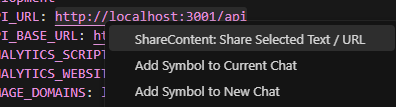
- Right-click and choose "ShareContent: Share Selected Text / URL"
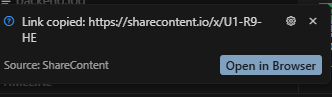
- Done! The link is already in your clipboard
🔗 Shorten URLs
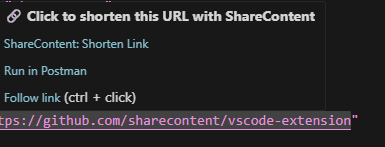
Long and complicated URLs? Not anymore! ShareContent automatically detects when you select a URL and creates a short, clean link.
How to use:
- Select the URL in the editor
- Right-click and choose "ShareContent: Share Selected Text / URL"
or press Ctrl+Shift+P, type ShareContent: Share Selected Text / URL and select the command from the palette
- The shortened link is generated and copied automatically
💡 Pro Tip: Enable "Replace Url In Editor" in settings to automatically replace the original URL with the shortened link directly in your code!
📁 Share Files
Need to send a file to someone? Upload directly from VS Code's Explorer!
How to use:
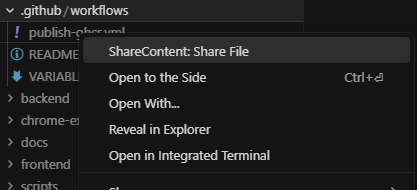
- In the Explorer, right-click on the file
- Select "ShareContent: Share File"
or press
Ctrl+Shift+P, type Share File and select the command from the palette
- The download link is automatically copied for you to share
⚙️ Configuration
Replace URL in Editor
When shortening URLs, you can automatically replace the original URL with the shortened link directly in your editor.
How to enable:
- Open VS Code Settings (
Ctrl+, / Cmd+,)
- Search for "ShareContent"
- Enable "Share Content: Replace Url In Editor"
- Now when you shorten a URL, it will be automatically replaced in your code!
This is perfect for:
- Replacing long API endpoints with short links in configuration files
- Updating documentation with cleaner URLs
- Keeping your codebase tidy with shorter links
API Token (project-scoped) and VS Code settings scopes (Local vs Remote vs Workspace)
ShareContent can associate generated links with your account/project when you set sharecontent.token.
Important: VS Code has multiple settings scopes, and they can be different depending on where VS Code is running:
- User (Local): your local machine settings.
- User (Remote): settings for the remote environment (e.g. Remote-WSL, Dev Containers, Remote-SSH).
- Workspace: settings stored in the repository at
.vscode/settings.json (shared with the project).
If you are using Remote-WSL, the extension runs on the remote side. That means:
- Setting the token only in User (Local) will NOT be seen by the extension.
- You should set the token in Remote [WSL] settings (or in the Workspace).
Recommended setup (Remote-WSL):
- Open Settings and switch to Remote [WSL] (or use:
Preferences: Open Remote Settings (JSON)).
- Add your token:
{
  "sharecontent.token": "YOUR_PROJECT_API_TOKEN"
}
- Avoid putting tokens in
.vscode/settings.json (Workspace), so you don't accidentally override it with a different/invalid token.
How the extension chooses the token when multiple scopes exist:
- User (global) → Workspace → Workspace Folder
- If the User token is empty, it falls back to Workspace.
Troubleshooting
- If the token is invalid, ShareContent will behave like public/anonymous.
- In the ShareContent OutputChannel you can check:
tokenSource: user | workspace | workspaceFoldertokenType and tokenLength- messages like
Could not resolve projectId from token via introspect endpoint (usually means the token isn't a valid project-scoped API token).
💡 Use Cases
- Developers: Quickly share code in chats, emails, or documentation
- Teams: Send configuration files or logs without hassle
- Educators: Share code examples with students
- Technical support: Send code snippets or log files for analysis
- Collaboration: Share snippets during code reviews
Made with ❤️ to make your workflow more efficient
Visit sharecontent.io to learn more.