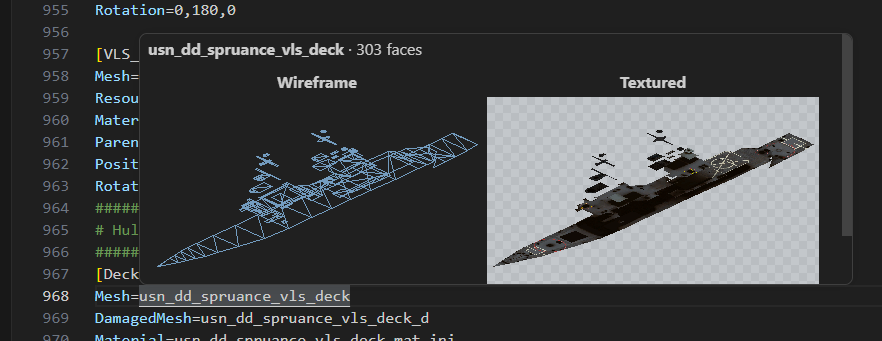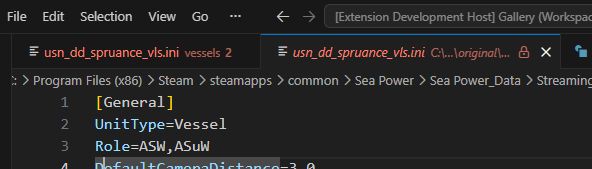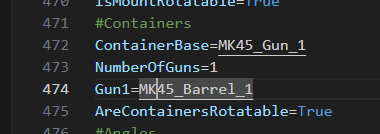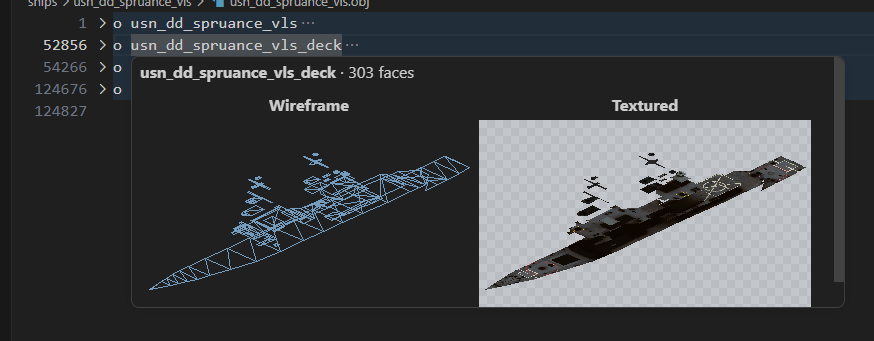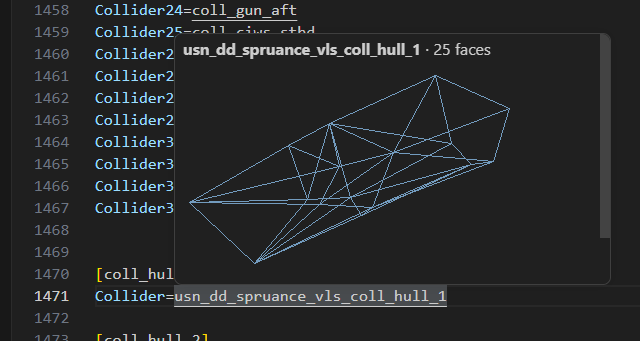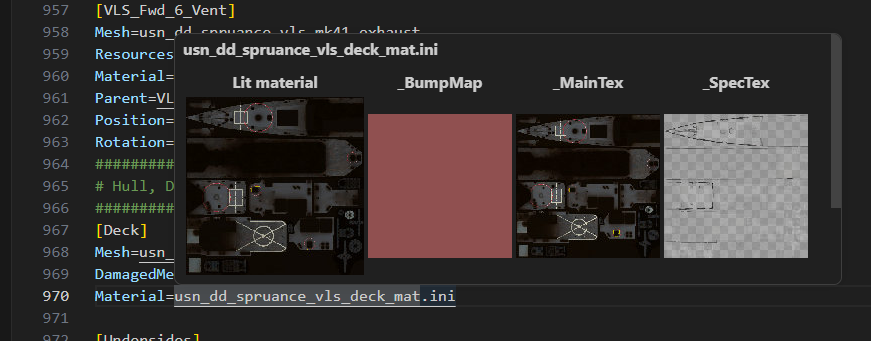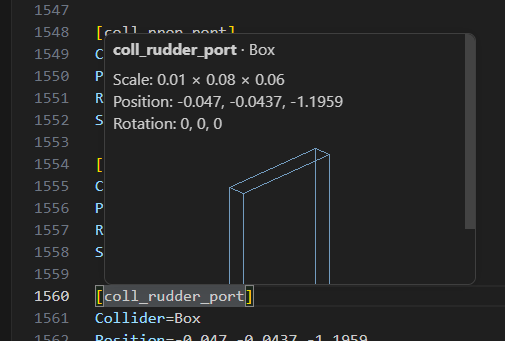

Sea Power INIDownloads | VS Code Marketplace | Editor setup | PSPad | Notepad++ Ctrl+click an underlined INI value to open its source. Hover over a mesh to see its wireframe and, when it has UVs and a diffuse map, its textured preview. Hover over a collider to see its shape or wireframe. Material tooltips show the full texture on a lit plane, followed by the individual texture maps.
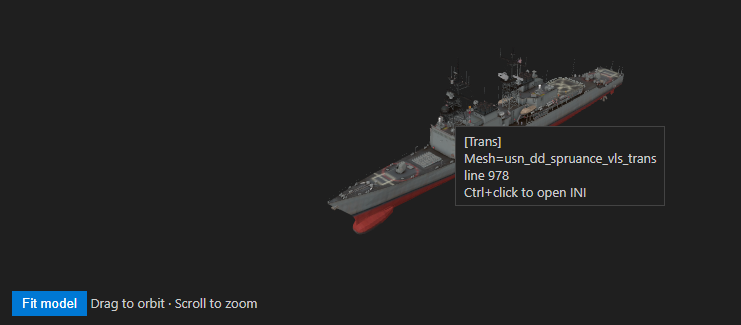
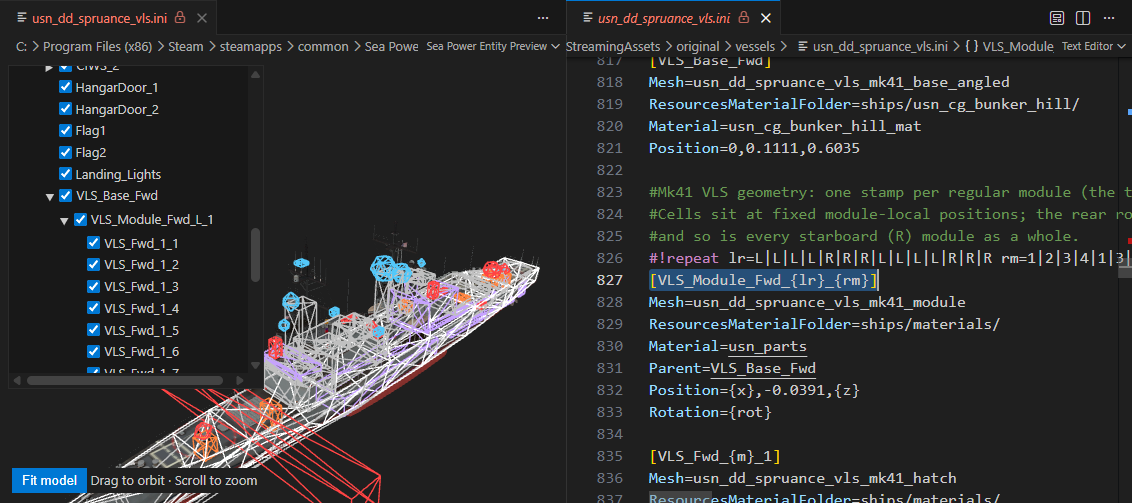
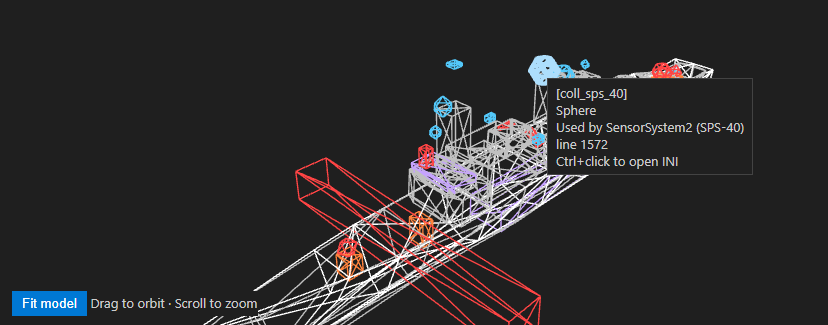
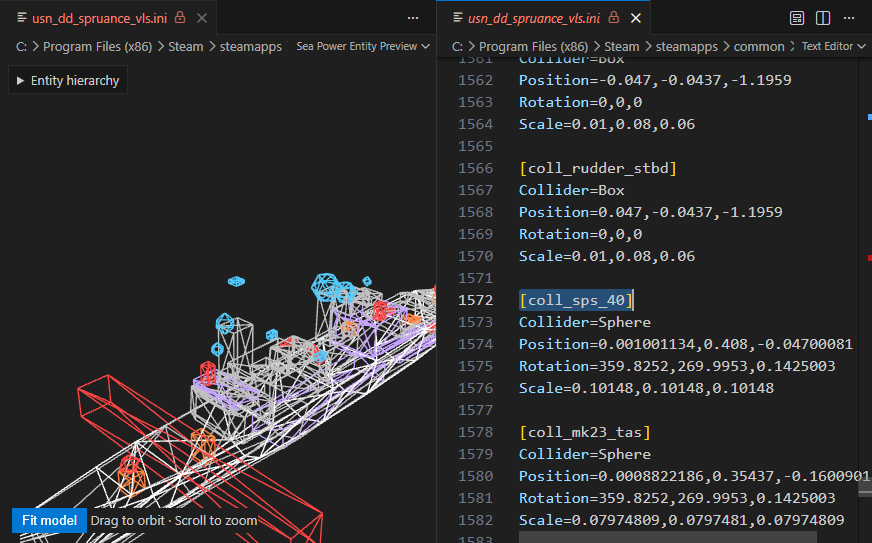
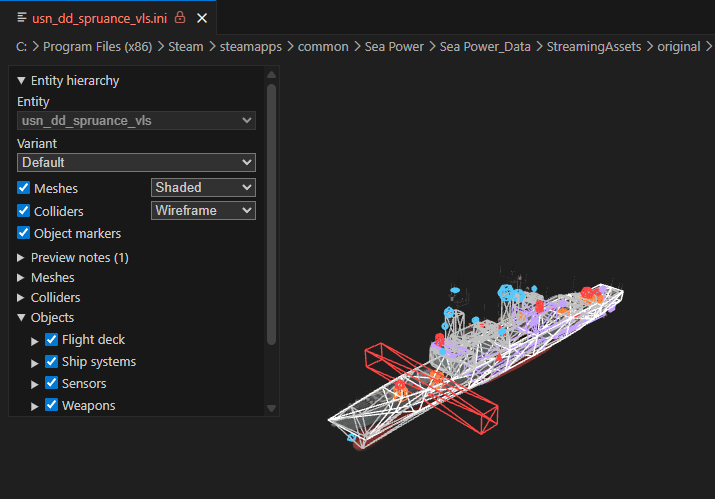
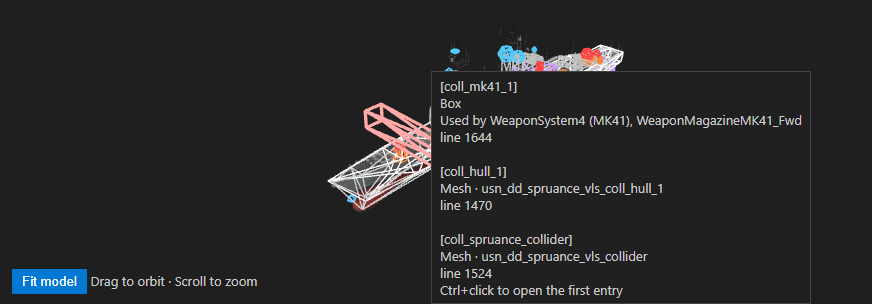
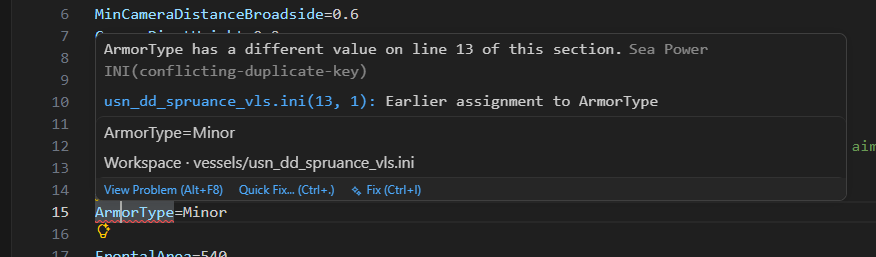
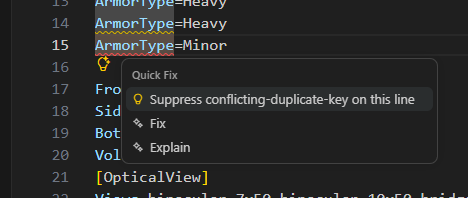
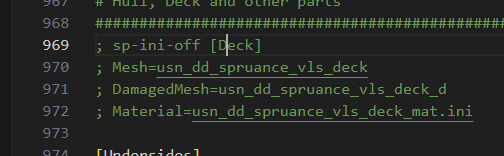
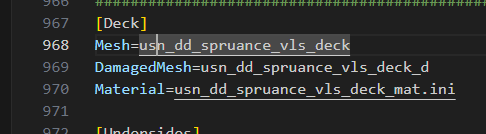
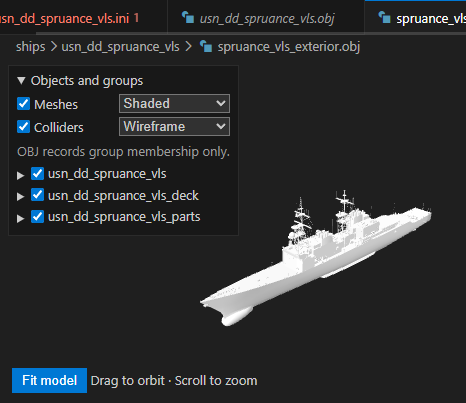
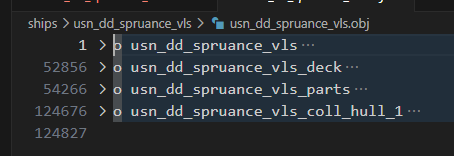
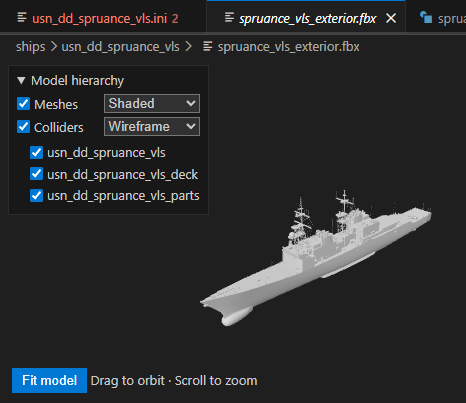
Visual previewsClick Preview Entity in the upper-right corner of the INI editor to open the selected unit beside its source. Hover over a mesh or collider in the preview to see where it comes from. Ctrl+click it to open its INI section. The INI preview has separate Meshes, Colliders, and Objects trees. Enable Colliders to draw them over the model. The main hull is white. Unassigned structures such as the superstructure are light grey. Sensors are blue, weapons red, magazines orange, and other linked objects purple. A collider shared with a weapon is red. Hover over a collider to see which sections use it. Objects show a separate marker when their linked colliders are hidden or unavailable. Select a marker to reveal its row, or Ctrl+click it to open its INI section. Hover lists every visible collider under the pointer. Weapons appear first, followed by other systems, the main hull, and unassigned structures. Within each group the nearest appears first. Alt+scroll moves through long tooltips. Ctrl+click opens the first entry. Sphere collider detail follows its in-game size. Hovered colliders brighten, with the strongest highlight on the first collider. Editing the INI preserves your camera and expanded branches. The last valid preview stays visible while you type. Open an OBJ or FBX for a 3D preview. Use the tree to show or hide parts and switch between shaded and wireframe views. You can collapse branches in the FBX hierarchy and fold objects and groups in OBJ text view. Mesh names containing Export from FBXRight-click an FBX in the Explorer or its 3D preview and choose Copy Hierarchy as INI to copy submodels and colliders. To set custom object roles, right-click a parent in the FBX hierarchy and choose Generate Submodels and Colliders…. Review the changes, then apply them to an INI or copy the generated text to your clipboard. Choose Copy Colliders as INI to copy just the mesh collider definitions. Right-click a tree row to limit the picker to that branch. The picker preselects likely colliders by object or mesh name. You can change the selection before copying. Each collider keeps its FBX parent and local position. Error checkingThe Problems panel lists INI issues. Repeating a key in the same section gives a warning when the values match and an error when they differ. Sea Power ignores material settings in numbered sensor sections. Use Quick Fix on the warning to move the line to the submodel named by To suppress an issue, right-click its line in the INI editor and choose Suppress Diagnostic on This Line. This adds a comment to that line. To comment out or restore a whole section, including its header, right-click anywhere in it and choose Comment or Uncomment INI Section. ScreenshotsThe examples use the stock Spruance VLS destroyer. Select a screenshot to view it at full size.
|