AsciiDoc Productivity
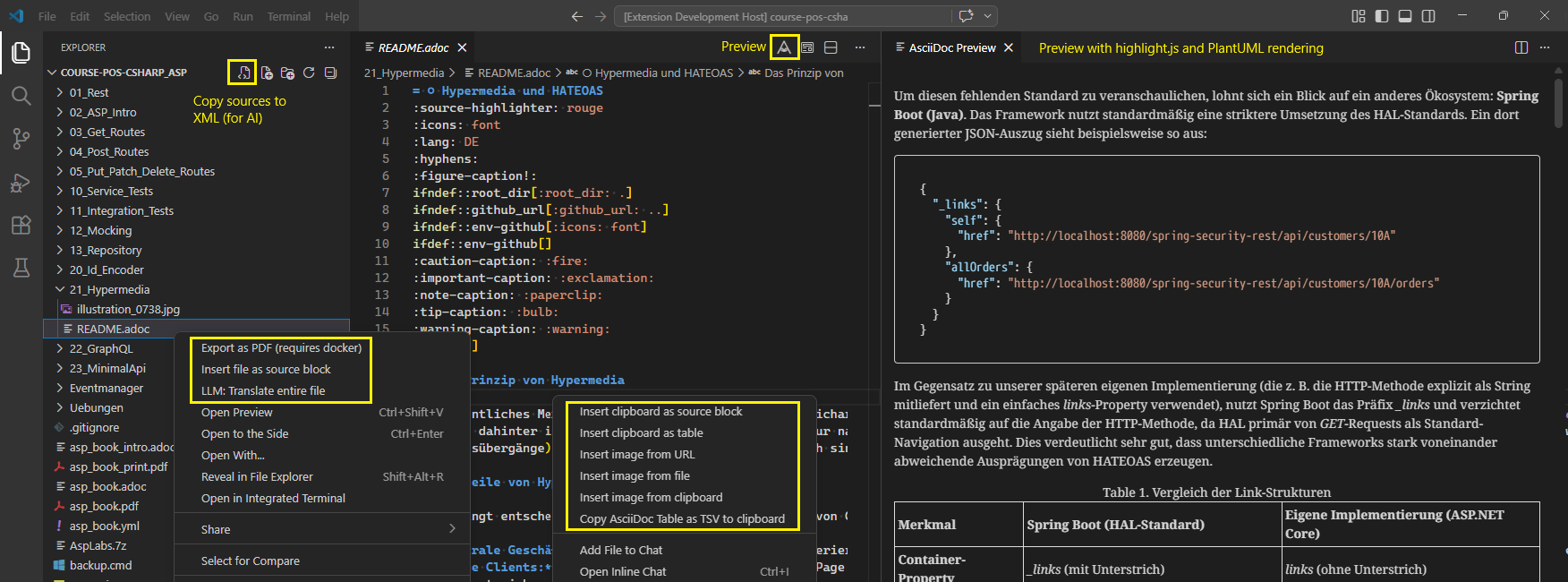
This extension turbocharges your AsciiDoc editing experience in Visual Studio Code, providing smart tools for handling images, source code snippets, data tables, LLM integrations, and PDF exports.
1. Insert source code from clipboard (Insert as source block)
Copy any code. Right-click in your AsciiDoc document and select Insert as source block.
An input line will open at the top where you can type the programming language (e.g., csharp, java, python). The code will then be inserted as a perfectly formatted AsciiDoc source block.
2. Insert TSV tables (Insert as tsv table)
Copy table-like data (e.g., directly from Excel) to your clipboard. Select Insert as tsv table from the right-click menu.
The extension automatically detects the number of columns (based on the tabs) and generates a completed AsciiDoc table block in TSV format.
3. Insert image from local file (Insert image from file)
Do you want to embed an image located on your hard drive? Select Insert image from file.
A dialog window opens in the current folder. Select your image. The extension automatically calculates the relative path from your document to the image and inserts the correct image::path/to/image.png[] syntax.
Note: To ensure the path matches the .adoc file, you must save your document first.
4. Save image from clipboard (Insert image from clipboard)
Have you taken a screenshot that is currently in your clipboard?
Select Insert image from clipboard. A save dialog will open. Give the image a name. The extension saves the image from memory to your hard drive and immediately inserts the code with the relative path into the document.
Note: To ensure the path matches the .adoc file, you must save your document first.
5. Download image from the internet (Insert image URL)
Copy the URL of an image (e.g., https://example.com/image.png) to the clipboard. Select Insert image URL.
The extension downloads the image from the internet, asks where you would like to save it locally, and then inserts it into the document along with the original source. This ensures that no images are lost if the website later goes offline.
Note: To ensure the path matches the .adoc file, you must save your document first.
6. Copy AsciiDoc table as TSV to clipboard
Highlight a table in AsciiDoc including the start and end markers (|===).
In the context menu, select Copy AsciiDoc Table as TSV to clipboard.
This copies the table as a tab-separated text to your clipboard, allowing you to easily paste it into spreadsheet software like Excel.
7. Import file directly as code block (File Explorer Feature)
This is a powerful feature for writing technical documentation:
In the left-hand file tree view of VS Code (File Explorer), right-click on any code file (e.g., .cs, .java, .py) and select Insert file as source block.
The extension reads the entire file, automatically detects the programming language, calculates the relative path, and inserts a clickable link to the file along with the source code into your currently open AsciiDoc document.
Note: To ensure the path matches the .adoc file, you must save your document first.
8. Copy files and directories to the clipboard
When writing AI prompts, you often need to provide your source code as context.
Select one or multiple files and directories in the File Explorer, right-click, and choose Copy sources to clipboard. You can also click the dedicated icon next to a directory name.
This recursively bundles your selected code into an XML structure optimized for LLMs, and will notify you exactly how many files were processed.
Note: Extractors are included for .docx and .pdf files. Ensure you add these to your included extensions if you want their text extracted!
9. PDF generation
In the Explorer context menu, you can export an ADOC file to PDF by right-clicking on the file and selecting Export as PDF.
Prerequisite: Docker must be installed and running.
The conversion is executed using the asciidoctor/docker-asciidoctor Docker image.
- Linux: Ensure your user is in the
docker group (sudo usermod -aG docker $USER).
- Troubleshooting: Check if communication with the daemon is working by running
docker ps in your terminal.
10. AI Features: Translation and Custom Prompts
You can trigger AI-assisted edits directly from your editor or explorer:
- Translate Selection: Select text, right-click, and choose LLM: Translate.
- Send to AI: Select text or file, right-click, and choose LLM: Send to AI.... A menu will open allowing you to choose from configurable preset tasks (like Spellchecking or Text Simplification) or enter a completely custom prompt and temperature on the fly.
Prerequisite: An OpenAI-compatible endpoint (like LM Studio, Ollama) or a Cloud API (like Google Gemini, OpenAI) is required. Configure your endpoint URL, model, and optional API Key in your workspace settings.
11. Live Preview with highlight.js and PlantUML
Click the Preview Icon in the top right corner of the editor title bar, or run Open AsciiDoc Preview from the Command Palette.
The live preview natively renders integrated PlantUML diagrams (marked with [plantuml]), supports MathJax equations, and provides syntax highlighting via highlight.js. It closely resembles the final PDF output.
💡 Tips for a Smooth Workflow
- Use the Command Palette: All features can be triggered by pressing
Ctrl+Shift+P (Windows/Linux) or Cmd+Shift+P (Mac) and typing AsciiDoc Productivity.
- Save Frequently: Many features rely on calculating relative paths. Ensure your
.adoc file is saved to your workspace before inserting images or files.
- Local LLMs: If you use Ollama or LM Studio locally, set your
completionsUrl to your local endpoint (e.g., http://127.0.0.1:1234/v1/chat/completions for LM Studio).
Configuration
You can customize the extension via your settings.json. Here are the available parameters and their default values:
{
  "asciidoc-productivity.includeExtensions": "abap|actionscript|ada|adb|ado|adoc|ads|apache|apex|apib|applescript|as|asm|aug|awk|b|bat|bbc|bf|bib|bicep|biml|bpf|brs|bsl|c|cc|ceylon|cfc|cfm|cjs|clj|cljc|cljs|cls|cmake|cmd|cmm|coffee|conf|coq|cpp|cr|cs|csproj|css|csvs|cu|cxx|cyp|cypher|d|dart|dfy|diff|dig|do|dockerfile|dot|e|ecl|edp|eex|elm|eml|epp|erb|erl|ex|exs|f|f90|factor|feature|frag|fs|fsi|fsx|gd|glsl|go|gql|gradle|graphql|groovy|gv|h|hack|haml|hbs|hcl|hcr|hh|hlsl|hocon|hpp|hql|hrl|hs|htm|html|http|hx|hy|ice|idl|idr|ijs|ini|io|ipf|irb|isbl|j2|janet|java|jinja|jl|js|jsl|json|json5|jsonnet|jsp|jsx|kt|kts|lasso|lean|lhs|liquid|lisp|litcoffee|ll|ls|lsp|lua|lus|lut|m|magik|mak|matlab|md|meson|mjs|mk|ml|mli|mm|mojo|moon|mos|mxml|mzn|ndf|nginx|nim|nix|ocl|os|p|p4|pas|patch|php|phtml|pkb|pks|pl|plist|pm|pony|pp|praat|pro|prolog|properties|proto|ps|ps1|psm1|puml|py|pyw|pyx|q|qml|r|rb|re|rego|rei|res|resi|rkt|rml|robot|rq|rs|s|sas|sass|sc|scala|scm|scpt|scss|sed|service|sh|sieve|slim|sml|sqf|sql|ss|ssh|st|stan|sv|svelte|swift|syz|tap|tcl|tex|tf|thy|tlp|toml|tpl|trigger|ts|tsx|ttcn3|ttl|twig|txt|v|vala|vb|vcl|vert|veryl|vhd|vhdl|vim|vm|vue|wlk|xml|xojo_code|xpath|xq|xquery|yaml|yang|yml|zig",
  "asciidoc-productivity.excludeDirectories": ["bin", "obj", "node_modules"],
  "asciidoc-productivity.excludeFiles": ["package-lock.json"],
  "asciidoc-productivity.completionsUrl": "http://localhost:1234/v1/chat/completions",
  "asciidoc-productivity.llm": "lmstudio-community/Qwen3.6-35B-A3B-GGUF",
  "asciidoc-productivity.maxOutputTokens": 32768,
  "asciidoc-productivity.defaultLanguage": "en-US",
  "asciidoc-productivity.apiKey": "your api key for your cloud service (not needed for local llms)",
  "asciidoc-productivity.systemPrompts": [
    {
      "name": "Check spelling and grammar",
      "prompt": "You are an expert editor for asciidoc documents. Correct spelling, grammar, and punctuation of the provided text.\nMaintain the original tone and all formatting (especially AsciiDoc syntax and source blocks).\nOutput ONLY the corrected text. Do not add explanations or comments.",
      "temperature": 0.1
    },
    {
      "name": "Simplify text",
      "prompt": "You are an expert editor for asciidoc documents. Rewrite the provided German text to be clear and easily understandable for non-native students with a B2 language level.\nKeep all technical terms intact, but resolve overly nested sentences (Schachtelsätze) and avoid unnecessary passive voice.\nMaintain the original tone and all formatting (especially AsciiDoc syntax and source blocks).\nOutput ONLY the rewritten text. Do not add explanations or comments.",
      "temperature": 0.2
    },
    {
        "name": "Cleanup and Comment codefile",
        "prompt": "You are an expert polyglot software engineer performing a precise, CONSERVATIVE code refactoring and documentation task. Your primary goal is safety. You must clean up and document the provided code file WITHOUT altering its execution logic, state management, or structural integrity.\n\nFollow these strict requirements:\n1. Remove Old Comments (WITH EXCEPTIONS): Delete all existing explanatory comments, BUT you MUST PRESERVE all compiler directives, linter rules, type annotations, and pragmas specific to the language (e.g., JS/TS: `// @ts-expect-error`, `/* eslint-disable */`; Python: `# type: ignore`, `# pylint: disable`; C#: `#pragma warning disable`, etc.).\n2. English Only: Write all new comments exclusively in English.\n3. Structural Documentation: Add or update clear, professional comments at the class and method/function level using the standard documentation format of the target language. Preserve standard metadata tags (like `@param`, `@returns`, etc.).\n4. Selective Inline Comments: Inside methods, explain only non-trivial or complex logic.\n5. Clean Code: Improve readability, but prefer safety over cleverness.\n6. STRICT Scope & Lifecycle Preservation: DO NOT change the scope of any variables or functions (e.g., do not move function-level variables to class-level properties). DO NOT alter object lifecycles, caching behaviors, or state management. If a value is dynamically fetched inside a method, it must continue to be fetched inside that method.\n7. Preserve Logic: DO NOT change the underlying execution flow, input/output behavior, or business rules.\n8. Line Length (Soft Limit): Aim for a maximum line length of 100 characters for both code and comments, prioritizing logical readability.\n\nCRITICAL OUTPUT FORMAT INSTRUCTIONS:\nYou must respond ONLY with the raw, refactored source code. \n- DO NOT wrap the code in Markdown code blocks (do not use ``` symbols).\n- DO NOT output any conversational text, introductions, explanations, or summary.\n- The very first character of your response must be the first character of the code file.",
        "temperature": 0.1,
    }
  ]
}
The app asks which extensions should be considered.
The default is read from the settings.json file (includeExtensions).
An extractor is available for the docx and pdf extensions (mammoth for Word files, pdfreader for PDF files).
To copy these files as well, you must add the docx and pdf extensions in the settings or enter them before copying.
Files larger than 10 MB will not be read.
Extending the app and Creating the VSIX File
The source code can be found at https://github.com/schletz.
package.json:
Defines the menu entries in the contributes key and refers to the methods in the extension.
src/extension.ts:
The actual extension.
It is loaded at the start.
When a menu item is clicked, the corresponding method is called.
src/EditorService.ts:
A classic service file used to summarize the editor methods.
src/ConfigurationService.ts:
Reads the configuration from the settings.json file and provides it to the application.
src/LLMService.ts:
A wrapper for the fetch requests to the OpenAI-compatible endpoint for LLM prompts.
Debugging
If you open the extension directory with Open Folder, you can simply open a VS Code window with F5 or Run -> Start Debugging and test your extension.
Exporting to a VSIX File
To build the extension yourself and install it in Visual Studio Code (VS Code), the global Node.js tool @vscode/vsce is required.
You can install it via the console with npm install -g @vscode/vsce.
Now go to the extension folder (where the package.json is located).
Then execute the following command to generate the finished installation file:
vsce package --allow-missing-repository
After the process, you will find a new file with the extension .vsix (e.g., asciidoc-productivity-1.0.0.vsix) in your folder.
You can now install this in VS Code.

