Highlight custom keywords anywhere in your code with bold text and configurable colors. Perfect for tracking TODOs, FIXMEs, personal notes, important variables, and more.
Demo Screenshots
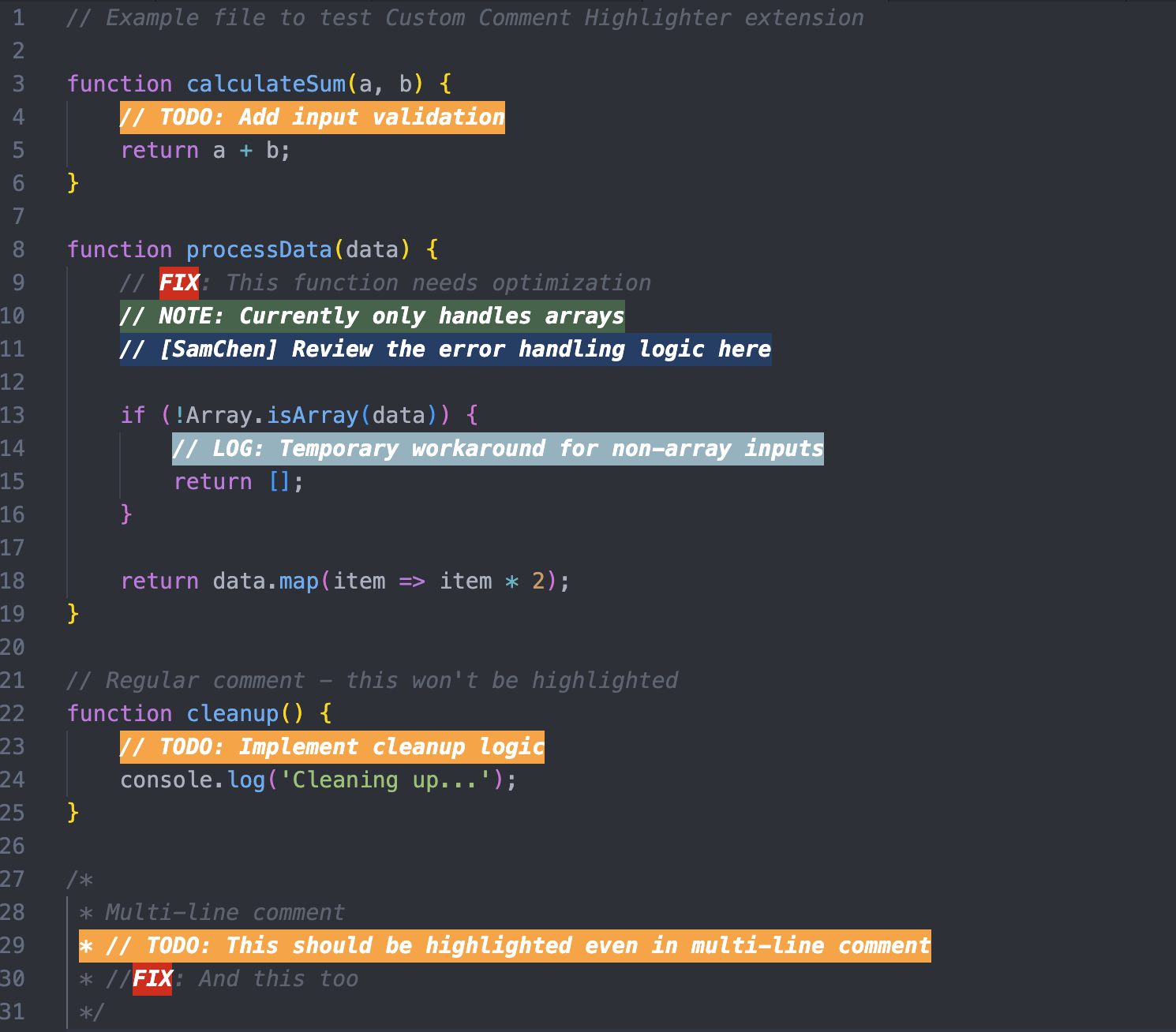
✨ Key Features
- Custom Colors - Set background and font colors for each keyword
- Bold Text - Keywords always displayed in bold
- Quick Toggle - Status bar button to enable/disable highlighting
- Live Updates - Changes apply instantly as you type
- Case Sensitive - Precise keyword matching
- Multiple Keywords - Support unlimited custom keywords
- Flexible Scope - Highlight in comments only or throughout entire code
- Multiple Modes - Highlight whole line or just the keyword
Quick Start
1. Install
- Open VS Code Extensions (
Cmd+Shift+X or Ctrl+Shift+X)
- Search for "Custom Comment Highlighter"
- Click Install
2. Use Default Keywords
The extension comes with 5 pre-configured keywords:
// [SamChen] - Dark Blue// TODO: - Orange// FIX: - Red// NOTE: - Green// LOG: - Gray-Blue
Just type them in your comments and they'll be highlighted!
3. Toggle Highlighting
Click the 👁 Comments button in the bottom-right status bar to toggle on/off.
Customize Keywords
- Open Settings:
Cmd+, (Mac) or Ctrl+, (Windows/Linux)
- Search for "Custom Comment Highlighter"
- Click "Edit in settings.json"
Basic Example
{
  "customCommentHighlighter.keywords": [
    {
      "keyword": "// TODO:",
      "color": "#FFA240"
    },
    {
      "keyword": "// URGENT:",
      "color": "#DC0000"
    }
  ]
}
With Custom Font Color
{
  "customCommentHighlighter.keywords": [
    {
      "keyword": "// IMPORTANT:",
      "color": "#DC0000",
      "fontColor": "#FFFF00"
    }
  ]
}
With Individual Highlight Mode and Scope (New!)
You can now configure highlightMode and highlightScope for each keyword individually:
{
  "customCommentHighlighter.keywords": [
    {
      "keyword": "// TODO:",
      "color": "#FFA240",
      "fontColor": "#FFFFFF",
      "highlightMode": "wholeLine",
      "highlightScope": "commentsOnly"
    },
    {
      "keyword": "URGENT",
      "color": "#DC0000",
      "fontColor": "#FFFFFF",
      "highlightMode": "keywordOnly",
      "highlightScope": "everywhere"
    }
  ]
}
Multiple Keywords with Same Style (New!)
You can now use an array of keywords to apply the same highlight style to multiple keywords:
{
  "customCommentHighlighter.keywords": [
    {
      "keyword": ["FIX", "FIXME", "BUG"],
      "color": "#DC0000",
      "fontColor": "#FFFFFF",
      "highlightMode": "keywordOnly",
      "highlightScope": "everywhere"
    },
    {
      "keyword": ["TODO", "TODO:", "@todo"],
      "color": "#FFA240",
      "fontColor": "#FFFFFF"
    }
  ]
}
Benefits: Group related keywords together without duplicating configuration!
Configuration Options:
keyword - The text to match (case-sensitive). Can be a single string or an array of strings [required]color - Background color in hex (e.g., #FFA240) [required]fontColor - Text color in hex (e.g., #FFFFFF) [optional, defaults to white]highlightMode - Display mode: wholeLine or keywordOnly [optional, defaults to global setting]highlightScope - Scope: commentsOnly or everywhere [optional, defaults to global setting]
Note: If highlightMode or highlightScope are not specified for a keyword, the global settings will be used.
Change Colors
Pick colors that work well with your theme:
| Color |
Hex Code |
Best For |
| Red |
#DC0000 |
Critical/Urgent |
| Orange |
#FFA240 |
Warning/TODO |
| Blue |
#1A3D64 |
Info/Notes |
| Green |
#41644A |
Success/Done |
| Purple |
#4B0082 |
Review/Question |
Pro Tip: Use darker backgrounds with light text for best readability!
🔍 Highlight Scope Modes
Choose where keywords should be highlighted:
Keywords are highlighted only in comments:
const TODO = "task";         // Not highlighted
// TODO: Fix this            // ✅ Highlighted
Best for: Traditional comment highlighting (TODO, FIXME, NOTE)
Everywhere Mode
Keywords are highlighted anywhere in code:
const TODO = "task";         // ✅ Highlighted
// TODO: Fix this            // ✅ Highlighted
function important() {}      // ✅ Highlighted
let data = "NOTE: check";    // ✅ Highlighted
Best for: Tracking specific variables, functions, or patterns across files
To change scope:
{
  "customCommentHighlighter.highlightScope": "everywhere"
}
Per-Keyword Settings (Advanced)
You can now override the global highlightMode and highlightScope settings for individual keywords. This gives you fine-grained control over how each keyword is displayed.
Use Cases
Example 1: Mix comment-only and everywhere highlighting
{
  "customCommentHighlighter.highlightScope": "commentsOnly",
  "customCommentHighlighter.keywords": [
    {
      "keyword": "// TODO:",
      "color": "#FFA240"
      // Uses global scope: commentsOnly
    },
    {
      "keyword": "CRITICAL",
      "color": "#DC0000",
      "highlightScope": "everywhere"
      // Override: highlights CRITICAL anywhere in code
    }
  ]
}
Example 2: Different display modes for different keywords
{
  "customCommentHighlighter.highlightMode": "wholeLine",
  "customCommentHighlighter.keywords": [
    {
      "keyword": "// NOTE:",
      "color": "#41644A",
      "highlightMode": "wholeLine"
      // Highlights entire line
    },
    {
      "keyword": "// TAG:",
      "color": "#94B4C1",
      "highlightMode": "keywordOnly"
      // Highlights only "// TAG:"
    }
  ]
}
Example 3: Complete customization per keyword
{
  "customCommentHighlighter.keywords": [
    {
      "keyword": "// TODO:",
      "color": "#FFA240",
      "fontColor": "#000000",
      "highlightMode": "wholeLine",
      "highlightScope": "commentsOnly"
    },
    {
      "keyword": "FIXME",
      "color": "#DC0000",
      "fontColor": "#FFFFFF",
      "highlightMode": "keywordOnly",
      "highlightScope": "everywhere"
    }
  ]
}
Remember: Per-keyword settings always take priority over global settings. If not specified, keywords will use the global highlightMode and highlightScope settings.
Highlight Display Modes
Choose how to display highlighted keywords:
Whole Line Mode (Default)
Highlights the entire line content (excluding leading/trailing spaces):
TODO: fix this issue // Highlights "TODO: fix this issue"
Keyword Only Mode
Highlights only the keyword itself:
TODO: fix this issue // Highlights only "TODO:"
To change display mode:
{
  "customCommentHighlighter.highlightMode": "keywordOnly"
}
See Highlight Scope Guide for detailed examples.
Documentation
Troubleshooting
Highlighting not working?
- Check if toggle is enabled (status bar button)
- Verify keyword spelling (case-sensitive!)
- Reload VS Code:
Cmd+R or Ctrl+R
Font color not changing?
- Make sure you've rebuilt the extension:
npm run compile
- Reload VS Code window
- Check
fontColor is spelled correctly in settings
Images not showing on marketplace?
- Images are hosted on GitHub and may take time to load
- Make sure your repository is public
Requirements
- Visual Studio Code v1.107.0 or higher
License
MIT License - Free for personal and commercial use
Contributing
Issues and pull requests welcome! Visit our GitHub repository
Enjoy your highlighted comments!