epímonos
Επιμονή — persistence. The path is rarely direct; what matters is that you keep moving.
A real Markdown editor inside VS Code — and persistent memory for your AI assistants, stored as your own notes.
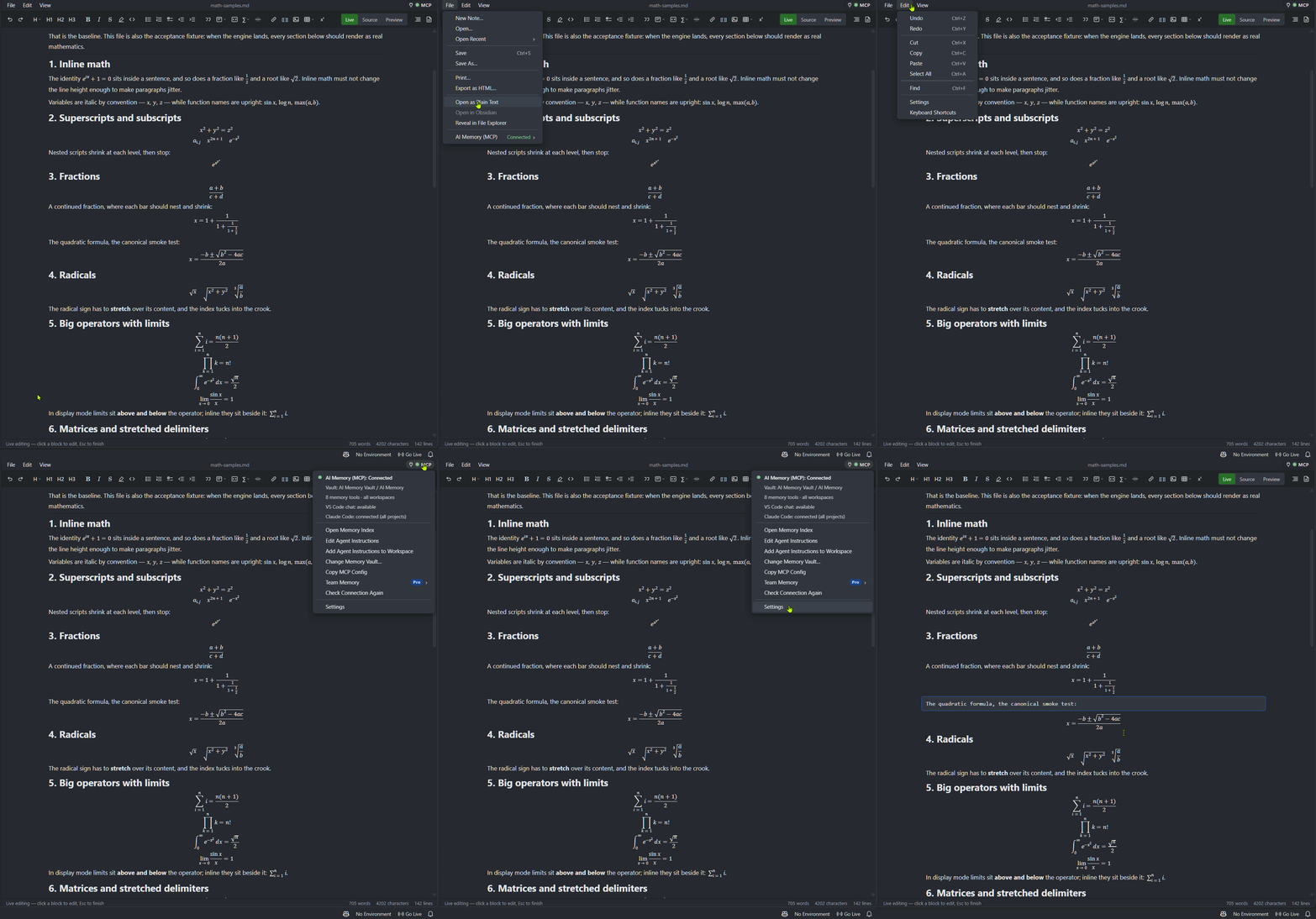
A proper menu bar — files, recent notes, export, print, and a live AI memory indicator.
Write in a rendered document instead of raw text. Typeset LaTeX maths as you type. Browse your Obsidian vaults from the Activity Bar. Give Claude, Copilot and other agents long-term memory that lives in plain Markdown files you can read, edit and graph yourself.
Everything here is written from scratch — the Markdown engine, the maths typesetter, the MCP server. No third-party runtime dependencies. The only bundled third-party component is the maths font (STIX Two Math, OFL).
Write, don't mark up
Three modes, switchable at any time from the toolbar or a keystroke:
| Mode |
What you get |
| Live (default) |
The rendered document. Click any block — paragraph, list, table, callout — to edit its raw Markdown right there, then Esc to finish. Like Obsidian's Live Preview or Typora. |
| Source |
The whole file as syntax-highlighted text, with an optional scroll-synced preview beside it. |
| Preview |
Read-only rendering. Task checkboxes still toggle. |
A full formatting toolbar sits above the document: headings, bold, italic, strikethrough, highlight, inline code, lists and task lists, indent/outdent, quotes, ten callout types, code and maths blocks, links, wikilinks, images, tables and footnotes.
Your file is never reformatted. The Markdown text is the only model — edits are spliced in as minimal diffs against the VS Code document, so undo, save, dirty state, hot exit, git and side-by-side text editing all behave exactly as they normally do.
Markdown it understands
- Obsidian syntax —
[[wikilinks]], [[note#heading|alias]], ![[embeds]] with |300 sizing, foldable callouts, ==highlights==, #tags, %%comments%%, and YAML frontmatter shown as properties
- GFM — tables with alignment, task lists, strikethrough, autolinks, footnotes, reference links, fenced code with highlighting
- Smart typing —
Enter continues lists, tasks and quotes and ends them when empty; Shift+Enter starts a new paragraph; Tab / Shift+Tab indent list items
- Images — paste or drop to save into the attachment folder, following Obsidian's own Files & Links setting when you are inside a vault
- Links — wikilinks open the note (or offer to create it), web links open the browser, and clicking a
#tag searches the vault
Everything is themed from your VS Code color theme — light, dark or high contrast.
LaTeX maths, properly typeset
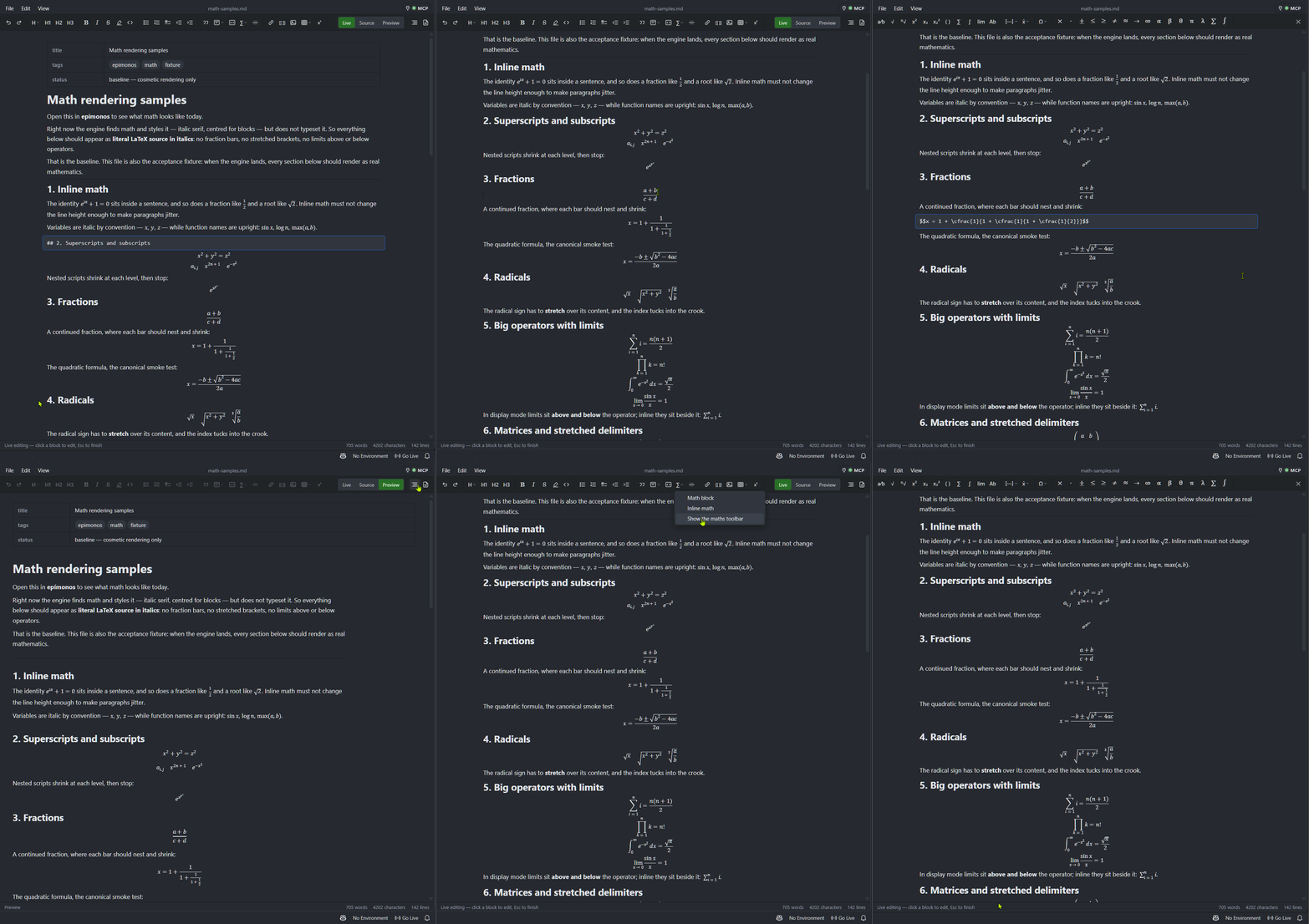
Click any block to edit its raw Markdown. Maths typesets as you go.
Write $e^{i\pi} + 1 = 0$ inline or $$…$$ as a block and it is typeset, not just italicised:
- Fractions and nested fractions, radicals with indices, superscripts and subscripts in either order, primes
- Big operators with limits —
\sum and \prod stack theirs, \int keeps its at the corners, as TeX does
\left…\right delimiters that grow with their contentpmatrix, bmatrix, vmatrix, Bmatrix, Vmatrix, cases, align, gather, array- Accents,
\text{}, spacing commands, \mathbb and the other variants, Greek, and the standard operator, relation, arrow and set-theory symbols
It compiles to MathML and the browser lays it out, which is why it is fast and why the output copies cleanly. The original LaTeX travels inside the document in an <annotation> element, so nothing is lost when you export to HTML or print.
A malformed formula never damages the document. An unrecognised command is flagged in place and a broken expression falls back to showing its source — important when you are mid-keystroke.
When the caret enters $…$ or a $$ block, the formatting toolbar swaps for a maths one, and swaps back on the way out. No mode to remember. Dismiss it with ✕, or pin it from ∑ ▾ → Show the maths toolbar.
| Section |
What it holds |
| Structures |
fraction, √, ⁿ√, superscript, subscript, both, sized brackets, ∑, ∫, lim, text |
[⋯] ▾ |
2×2 and 3×3 matrices, square brackets, determinant, cases, aligned equations |
x̂ ▾ |
accents — hat, bar, vec, dot, ddot, tilde, widehat, overline |
Ω ▾ |
every symbol the engine knows, grouped and searchable — filter on arrow, leq, sub |
| Quick row |
× · ± ≤ ≥ ≠ ≈ → ∞ α β θ π λ ∑ ∫ |
Two things make it faster than typing:
Tab walks the slots. Insert a fraction, type the numerator, press Tab, type the denominator. Templates leave {} behind and Tab jumps to the next empty one, skipping any you have filled.- Selections are kept. Select
x+1, click Fraction, and you get \frac{x+1}{} with the caret in the denominator.
Every button shows its LaTeX name beside the symbol, so the palette teaches the command rather than replacing it — typing stays faster once you know it.
The palette is generated from the engine's own symbol table, so anything epímonos can typeset is insertable, and the two can never drift apart.
Diagrams
A ```mermaid fence is drawn as SVG:
```mermaid
graph TD
  Check{Is it valid?}
  Check -->|yes| Save[Save it]
  Check -->|no| Warn[Show an error]
```
graph and flowchart headers in all four directions, nine node shapes — rectangle, rounded, stadium, circle, diamond, hexagon, subroutine, cylinder, parallelogram — labelled edges, solid, thick and dotted links, arrowheads, cycles and disconnected pieces. Themed from your VS Code colours like everything else.
Flowcharts, sequence, state and class diagrams are drawn, subgraphs included. ER, gantt, pie and journey still render as code blocks. Anything that cannot be drawn falls back to the code block it has always been — so a half-typed diagram looks like code, never like breakage.
Written from scratch, like the rest of the extension. It adds 8 KB.
Vaults are detected automatically from Obsidian's own registry, from any workspace folder containing .obsidian/, and from your AI memory vault. Add others with +.
The tree is Obsidian-shaped — folders first, note names without .md, .obsidian and .trash hidden — and updates live as files change on disk. New note, new folder, rename, delete to trash, reveal in File Explorer, and open in Obsidian are all there. Search Notes fuzzy-finds across every vault, or creates a note from what you typed.
Obsidian itself is not required. A vault is just a folder; epímonos reads one whether or not Obsidian is installed.
Persistent AI memory
epímonos ships Vault Memory, a Model Context Protocol server that gives AI assistants long-term memory stored as ordinary notes:
AI Memory/
  _Index.md                 auto-maintained map of content
  _Agent Instructions.md    your rules, sent to every AI that connects
  People/ Projects/ Decisions/ Preferences/ Facts/ Procedures/ …
  Journal/2026-09-26.md     timestamped session log
Because it is just Markdown in a vault, you can read it, correct it, link it, and see it in Obsidian's graph. Every note carries frontmatter and a ## Related section of wikilinks, and properties you add yourself survive when the AI updates a note.
| Tool |
Purpose |
memory_overview |
What is in memory: categories, tags, recent notes, latest journal |
memory_search |
Ranked full-text search by words, tag or category |
memory_read |
Read a note by title, [[wikilink]] or path, with links and backlinks |
memory_write |
Create or update a note (upsert, create, append, replace) |
memory_journal |
Append a timestamped entry to today's journal |
memory_list |
List notes by recency or title, filtered by category or tag |
memory_links |
The link graph around a note, including missing targets |
memory_delete |
Move a memory note to the vault's .trash (recoverable) |
It is designed to work inside VS Code. Chat picks the server up automatically in agent mode, and Claude Code is detected whether you run it as the VS Code extension or the standalone CLI — the extension bundles its own binary and does not put it on your PATH, which epímonos accounts for. Nothing needs installing or configuring on PATH.
Works with:
- VS Code chat (agent mode) — picked up automatically, on VS Code's own runtime, nothing to install
- Claude Code — one command registers it; choose user scope for every project, or project scope for one
- Claude Desktop and others — copies a ready
mcpServers block to your clipboard
Agents actually use it. Setup writes a managed section into AGENTS.md (read by Codex, Copilot, Cursor and others) and has CLAUDE.md import it, telling agents to check memory at the start of a task and journal at the end. The section sits between markers; the rest of those files stays yours.
Safety: the AI can read the whole vault but can only write inside the memory folder. It cannot touch .obsidian or escape the vault. mcpAllowWriteAnywhere lifts that restriction if you want it lifted.
Run the server outside VS Code:
node out/mcp/server.js --vault "/path/to/vault" [--memory-folder "AI Memory"] [--allow-write-anywhere]
Installing and setting up
Requires VS Code 1.101 or newer. Obsidian is optional.
Install, then reload. epímonos checks the install on every launch and opens a guided Set up epímonos walkthrough for anything unfinished — steps that already pass arrive ticked, so you only do what is left. A ⚠ epímonos setup status bar item stays up until it is genuinely complete; there is no dismiss.
Pick what you want
The first step asks. epímonos: Choose Setup… changes it later, and so does mcpEnabled in the settings card.
Markdown editor only — live editing, typeset maths, diagrams and the vault explorer. One step: make it your default .md editor. The setup check asks for nothing else.
Editor and AI memory — adds three steps:
- Choose a vault for AI memory.
- Start the Vault Memory server. A live check: it launches the server and completes an MCP handshake.
- Connect an assistant — Claude Code, or copy the config for another MCP client. VS Code chat is picked up automatically.
Either way, the first step is making epímonos the default Markdown editor. VS Code keeps opening .md in the plain text editor until you do, and it is the step people miss.
Run epímonos: Check Setup at any time. Manual instructions, other MCP clients and troubleshooting: docs/INSTALL.md.
To open one file without changing your default, right-click it and choose Open in epímonos. Open as Plain Text in the title bar always gets you back to the text editor.
Keyboard shortcuts
While the epímonos editor is focused. Everywhere else, VS Code's own shortcuts are untouched.
| Action |
Windows / Linux |
macOS |
| Bold / Italic / Inline code |
Ctrl+B / Ctrl+I / Ctrl+E |
Cmd+B / Cmd+I / Cmd+E |
| Link / Wikilink |
Ctrl+K / Ctrl+Shift+K |
Cmd+K / Cmd+Shift+K |
| Strikethrough / Highlight |
Ctrl+Shift+X / Ctrl+Shift+H |
Cmd+Shift+X / Cmd+Shift+H |
| Numbered / Bulleted / Task list |
Ctrl+Shift+7 / 8 / 9 |
Cmd+Shift+7 / 8 / 9 |
| Quote / Code block |
Ctrl+Shift+. / Ctrl+Shift+C |
Cmd+Shift+. / Cmd+Shift+C |
| Heading 1–6 / Normal text |
Ctrl+Alt+1–6 / Ctrl+Alt+0 |
Cmd+Alt+1–6 / Cmd+Alt+0 |
| Live / Source / Preview |
Ctrl+Shift+Alt+L / S / P |
Cmd+Shift+Alt+L / S / P |
| New paragraph (splits the block) |
Shift+Enter |
Shift+Enter |
| Continue a list item on a new line |
Shift+Enter |
Shift+Enter |
| Next maths slot (inside maths) |
Tab |
Tab |
| Finish editing a block |
Esc |
Esc |
| Follow a link / Edit a link |
Click / Alt+Click |
Click / Alt+Click |
Commands
All under the epímonos prefix in the Command Palette.
Editing — Open in epímonos · Open as Plain Text · Make Default Editor for Markdown Files · Switch to Live / Source / Preview · Toggle Outline · Open Settings
Vaults — Search Notes… · New Note… · New Folder… · Rename… · Delete · Add Vault Folder… · Remove Vault · Refresh Vaults · Open in Obsidian · Reveal in File Explorer
AI memory — Choose Setup… · Set Up AI Memory (MCP)… · Connect AI Memory to Claude Code · Copy AI Memory MCP Config · Show AI Memory (MCP) Status · Open AI Memory Index · Edit Agent Instructions · Add Agent Instructions to Workspace · Check Setup
Licensing — Enter License Key… · License Status · Remove License
Settings
Every option lives in one card, epimonos.settings. Open it with Edit → Settings in the menu bar, or epímonos: Open Settings.
| Option |
Default |
|
editorMode |
live |
Mode on open: live, source or preview |
editorShowOutline |
false |
Show the outline panel on open |
editorSourcePreview |
true |
Preview pane beside the text in Source mode |
attachmentFolder |
assets |
Image folder for notes outside a vault |
vaultsAutoDetect |
true |
Read Obsidian's vault list and workspace .obsidian folders |
vaultsExtraFolders |
"" |
Extra vault folders, separated by ; |
vaultsShowAllFiles |
false |
Show non-note files in the explorer |
mcpEnabled |
true |
Offer the Vault Memory server to VS Code chat |
mcpVault |
"" |
Vault used as AI memory |
mcpFolder |
AI Memory |
Folder the AI writes to |
mcpAllowWriteAnywhere |
false |
Let the AI modify any note in the vault |
teamServerUrl |
"" |
Team Memory backend (Pro) |
Values merge across scopes, so a workspace can override just mcpVault to give one project its own memory:
// .vscode/settings.json
{ "epimonos.settings": { "mcpVault": "C:\\Projects\\Acme\\Acme Vault", "mcpFolder": "AI Memory" } }
Note. A workspace card can shadow the user one. If a setting you expect stops applying, check for an epimonos.settings block in Workspace settings.
Settings from earlier versions — including the vaultMd.* keys used before the rename — move into the card automatically, in the same scope.
Troubleshooting
Run epímonos: Check Setup first — it reports which of the four setup steps is failing, and why.
A vault is missing from the sidebar. The explorer lists vaults, not folders: a vault appears under its own name (AI Memory Vault), never as its parent directory. A folder shows up when Obsidian's registry knows it, when it is a workspace folder containing .obsidian/, when it is listed in vaultsExtraFolders, or when it is your mcpVault. Reload the window after editing settings outside VS Code.
.md files still open as plain text. Step 1 is not done. Run epímonos: Make Default Editor for Markdown Files, or check for "*.md" under workbench.editorAssociations. Another extension may have claimed it — last write wins.
Claude Code cannot see the memory tools. Three causes, in order of likelihood:
- The session was already running when you connected. In Claude Code, run
/mcp — it lists the configured servers and lets you reconnect vault-memory without leaving the session. Starting a new session also picks it up. In VS Code chat, start a new chat if an open one does not list the tools.
- It is registered but not approved. A project-scoped server in
.mcp.json needs a one-time approval: run claude in that folder and accept the prompt. Until then claude mcp list shows ⏸ Pending approval and the server never loads. User scope avoids this entirely.
- Project scope, wrong folder. A project-scoped server only applies to sessions started in that folder.
The memory server stopped working after an extension update. The server runs from the extension's global storage, whose path contains the extension ID. Re-run epímonos: Connect an AI Assistant to AI Memory…, then check claude mcp list shows the current ID.
The MCP icon is red. Hover it for the reason. Usually the vault folder was moved or deleted; re-run Set Up AI Memory.
Maths shows as literal LaTeX. The expression could not be compiled — hover it for the reason. An unknown command appears flagged in place.
Settings changed but nothing happened. Settings edited outside VS Code do not always raise a change event. Reload the window.
Known limitations
\widetilde does not stretch across its argument — the bundled font has no wide-tilde glyph variants. \widehat, \overline and \overbrace stretch correctly- Of the Mermaid diagram types, only flowcharts are drawn so far. Sequence, class, state, ER, gantt, pie and journey still render as code blocks, as do flowcharts using
subgraph
- Renaming a note does not yet update links pointing at it
- Embedded notes (
![[Note]]) render as a link card, not transcluded content
Team Memory (Pro, coming soon)
Shared AI memory for a project: everyone's agents read and write the same notes, kept in sync, with roles and an audit log. The entry points are in place; the feature is not implemented yet, and nothing is charged for until it is.
License
Proprietary. Copyright © 2026 Tim Flinn, all rights reserved. See LICENSE.
Documentation and issue tracker: github.com/Save5Bucks/epimonos · Maths engine design · Maths toolbar

