
The most comprehensive static analysis suite for Flutter and Dart. 2,300+ lint rules that catch memory leaks, security vulnerabilities, accessibility violations, and runtime crashes — the bugs that compile fine but crash in production.
Developed by Saropa to make the world of Dart & Flutter better.
Have feedback? Open an issue on GitHub.
Quick Start
Requirements: Dart SDK >=3.9.0 <4.0.0.
Option A — VS Code extension (recommended)
- Install Saropa Lints from the Marketplace (also on Open VSX)
- Open the Saropa Lints sidebar (checklist icon)
- Run Saropa Lints: Set Up Project to add the package and analysis config
Run "Saropa Lints: Getting Started" from the Command Palette for a guided tour.
Option B — Tier preset (zero-config)
dart pub add --dev saropa_lints
# analysis_options.yaml
include: package:saropa_lints/tiers/recommended.yaml
Option C — CLI init (full control, CI/scripting)
dart pub add --dev saropa_lints
dart run saropa_lints:init --tier recommended
Run dart analyze — issues appear in your IDE and terminal. See the CLI Reference for all commands and CI examples.
Presets: essential · recommended · professional · comprehensive · pedantic — see The 5 Tiers
What Standard Linters Miss
dart analyze checks syntax and style. It doesn't check behavior. Code that compiles but fails at runtime:
// Memory leak — controller never disposed
final _controller = TextEditingController();

// Crash — setState after widget disposed
await api.fetchData();
setState(() => _data = data);  // boom

// State loss — new GlobalKey every build
Widget build(context) {
  final key = GlobalKey<FormState>();  // wrong
  return Form(key: key, ...);
}
Saropa Lints detects these patterns and 2,300+ more across four domains:
- Security — Hardcoded credentials, sensitive data in logs, unsafe deserialization, OWASP-mapped
- Accessibility — Missing semantics, inadequate touch targets, screen reader issues, EAA compliance
- Performance — Unnecessary rebuilds, memory leaks, expensive operations in build methods
- Lifecycle — setState after dispose, missing mounted checks, undisposed controllers and streams
Rules use AST type checking — not string matching — so you won't get false positives on variable names like "password" or "upstream".
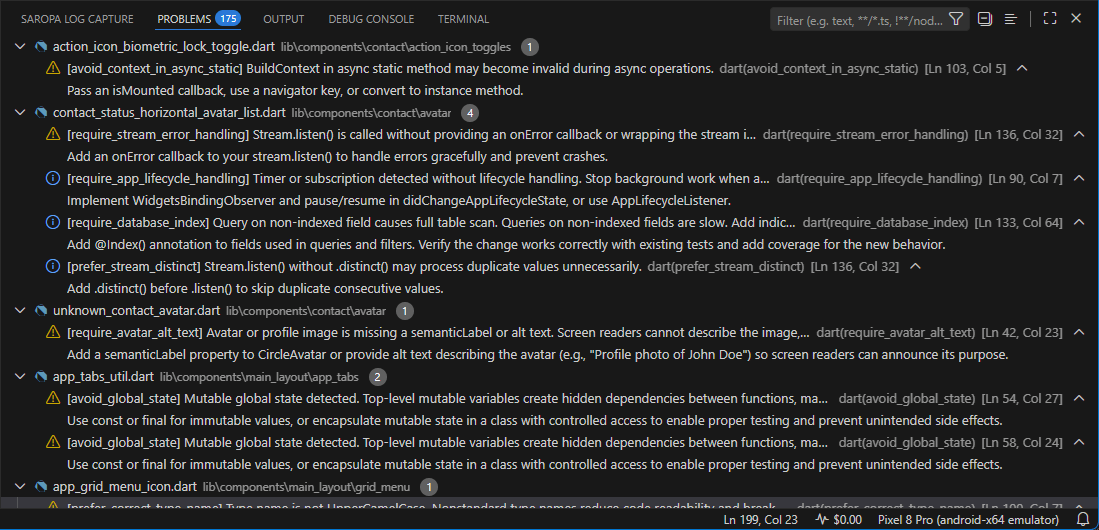
How Saropa Lints Compares
| Feature |
flutter_lints |
very_good_analysis |
Saropa Lints |
| Syntax & style checks |
Yes |
Yes |
Yes |
| Zero-config setup |
Yes |
Yes |
Yes (tier presets) |
| Controller leak detection |
— |
— |
Yes (deep analysis) |
| Runtime crash prevention |
— |
— |
Yes (behavioral) |
| Security (OWASP mapped) |
— |
— |
Yes (ISO/OWASP) |
| Library-specific rules |
— |
— |
Yes (50+ rules) |
| AI-ready diagnostics |
— |
— |
Yes |
| Health score & trends |
— |
— |
Yes (VS Code extension) |
Alternative Package Coverage
Saropa Lints has been audited rule-by-rule against 46 alternative Dart and Flutter lint packages — the entire published landscape. Across 1,670 custom rules from those packages, saropa_lints has a HAVE or PARTIAL equivalent for ~75%.
| Alternative |
Their rules |
Saropa coverage |
Migration guide |
| DCM (dart_code_metrics) |
487 |
87% HAVE |
Guide |
| flutter_skill_lints |
279 |
84% HAVE |
Guide |
| many_lints |
261 |
74% HAVE |
Guide |
| awesome_lints |
128 |
85% HAVE |
Guide |
| dart_code_linter |
87 |
88% HAVE |
Guide |
| solid_lints |
31 |
48% HAVE |
Guide |
| pyramid_lint |
36 |
67% HAVE |
Guide |
| riverpod_lint |
13 |
30% HAVE |
Guide |
| bloc_lint |
9 |
37% HAVE |
Guide |
Every alternative has a dedicated migration guide with a per-rule mapping table and one-click migration packs in the VS Code extension.
The 5 Tiers
Each tier builds on the previous one. Start where your team is comfortable and upgrade over time.
| Tier |
Focus |
When to use |
| Essential |
Crashes, data loss, security breaches, memory leaks |
Every project. Non-negotiable baseline. |
| Recommended |
+ Common bugs, performance, accessibility fundamentals |
Most production apps. The sensible default. |
| Professional |
+ Architecture, testability, documentation standards |
Enterprise teams, long-lived codebases. |
| Comprehensive |
+ Stricter patterns, optimization, edge cases |
Quality-obsessed teams, published packages. |
| Pedantic |
+ Everything, including highly opinionated rules |
Greenfield projects, maximum strictness. |
Full tier details and configuration: Configuration Guide
VS Code Extension
The package and extension are one product — published together and versioned in sync. The Dart package provides the rules; the extension is the setup, configuration, and triage surface.
Key features:
- Health Score — 0–100 in the status bar; green/yellow/red bands
- Violations view — Grouped by severity/impact/file/rule/OWASP, with inline annotations
- Security Posture — OWASP Top 10 coverage matrix and compliance export
- Triage — Disable noisy rules from the UI; see estimated score impact before acting
- Rule Packs — Enable stack bundles (Riverpod, Drift, Bloc, ...) from the UI
- Package Vibrancy — Dependency health with activity grades (A–F) and dormancy alerts
- Code Health Dashboard — Function-level scoring for your own Dart source
- File Risk — Files ranked by violation density; focus on the riskiest first
- TODOs & Hacks — Sidebar scan for TODO/FIXME/HACK markers (opt-in workspace scan)
- Trends — Score progression over time with milestone celebrations
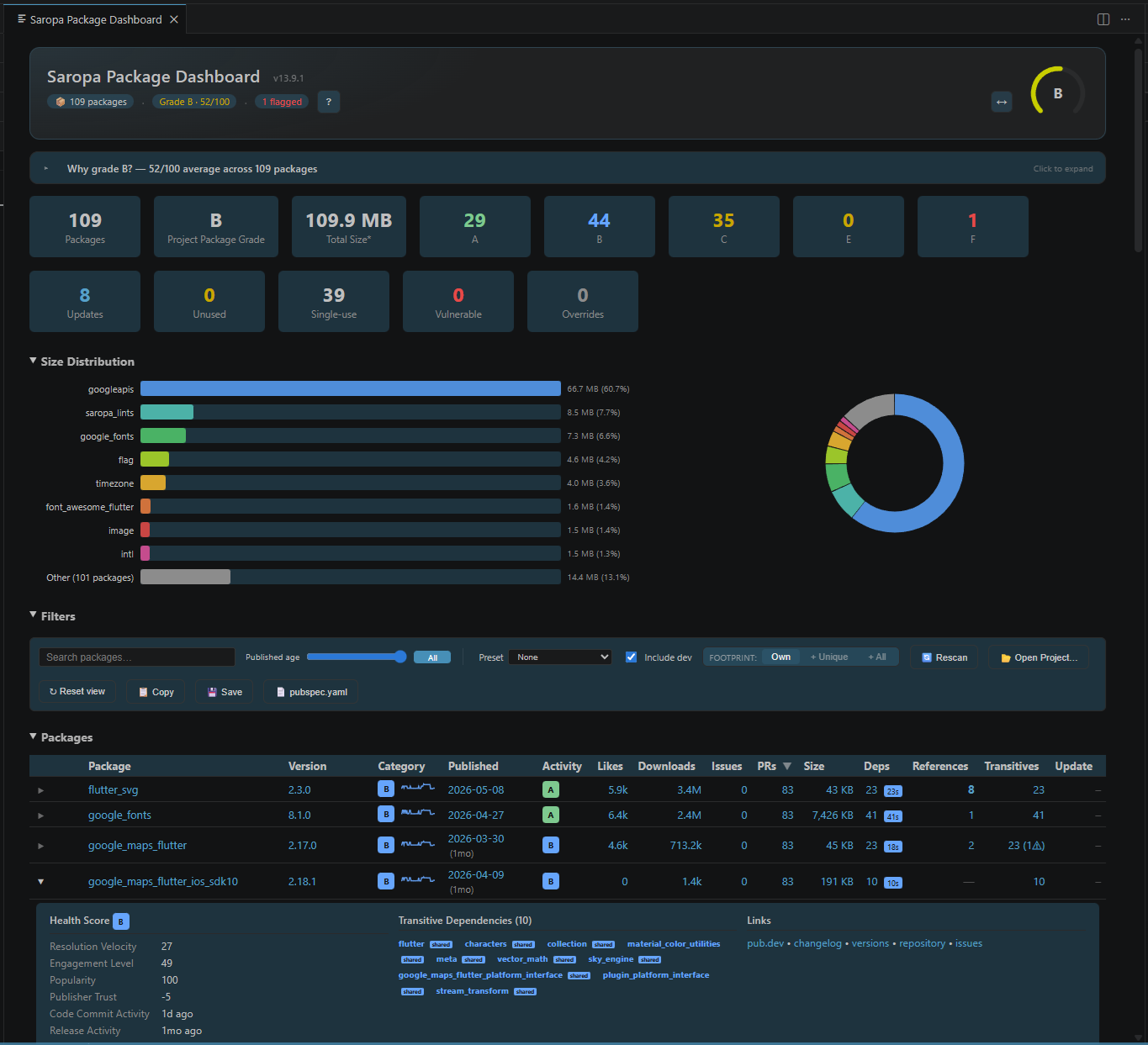
Full extension reference: Extension Guide — settings, commands, API, view details.
Library-Specific Rules
Standard linters see valid Dart code. Saropa Lints understands library APIs and catches patterns that fail silently at runtime — 50+ rules for popular packages:
| Library |
Common issues caught |
Guide |
| GetX |
Undisposed controllers, memory leaks from workers, missing super calls |
Using with GetX |
| Riverpod |
Circular provider deps, ref.read() in build, missing ProviderScope |
Using with Riverpod |
| Provider |
Provider.of in build causing rebuilds, recreated providers losing state |
Using with Provider |
| Bloc |
Events in constructor, mutable state, unclosed Blocs, BlocListener in build |
Using with Bloc |
| Isar |
Enum fields causing data corruption on schema changes |
Using with Isar |
| Hive |
Missing init, unclosed boxes, hardcoded encryption keys |
Using with Hive |
| Firebase |
Unbounded queries, missing batch writes, FCM token leaks |
Using with Firebase |
Also: Drift, Equatable, Freezed, dio, GraphQL, Supabase, get_it, flutter_hooks, Flame, and more. Configure which libraries are active in analysis_options_custom.yaml.
OWASP Security Mapping
Security rules map to OWASP Mobile Top 10 (2024) and OWASP Top 10 (2021) for compliance reporting and risk categorization.
| OWASP Mobile |
Coverage |
OWASP Web |
Coverage |
| M1 Credential Usage |
5+ rules |
A01 Broken Access Control |
4+ rules |
| M2 Supply Chain |
2+ rules |
A02 Cryptographic Failures |
10+ rules |
| M3 Authentication |
5+ rules |
A03 Injection |
6+ rules |
| M4 Input Validation |
6+ rules |
A05 Misconfiguration |
4+ rules |
| M5 Communication |
2+ rules |
A07 Authentication |
8+ rules |
| M6 Privacy Controls |
5+ rules |
A09 Logging Failures |
2+ rules |
| M8 Misconfiguration |
4+ rules |
|
|
| M9 Data Storage |
7+ rules |
|
|
| M10 Cryptography |
4+ rules |
|
|
The European Accessibility Act took effect June 2025. GitHub detected 39 million leaked secrets in 2024. These aren't edge cases — Saropa Lints catches both categories.
Built for AI
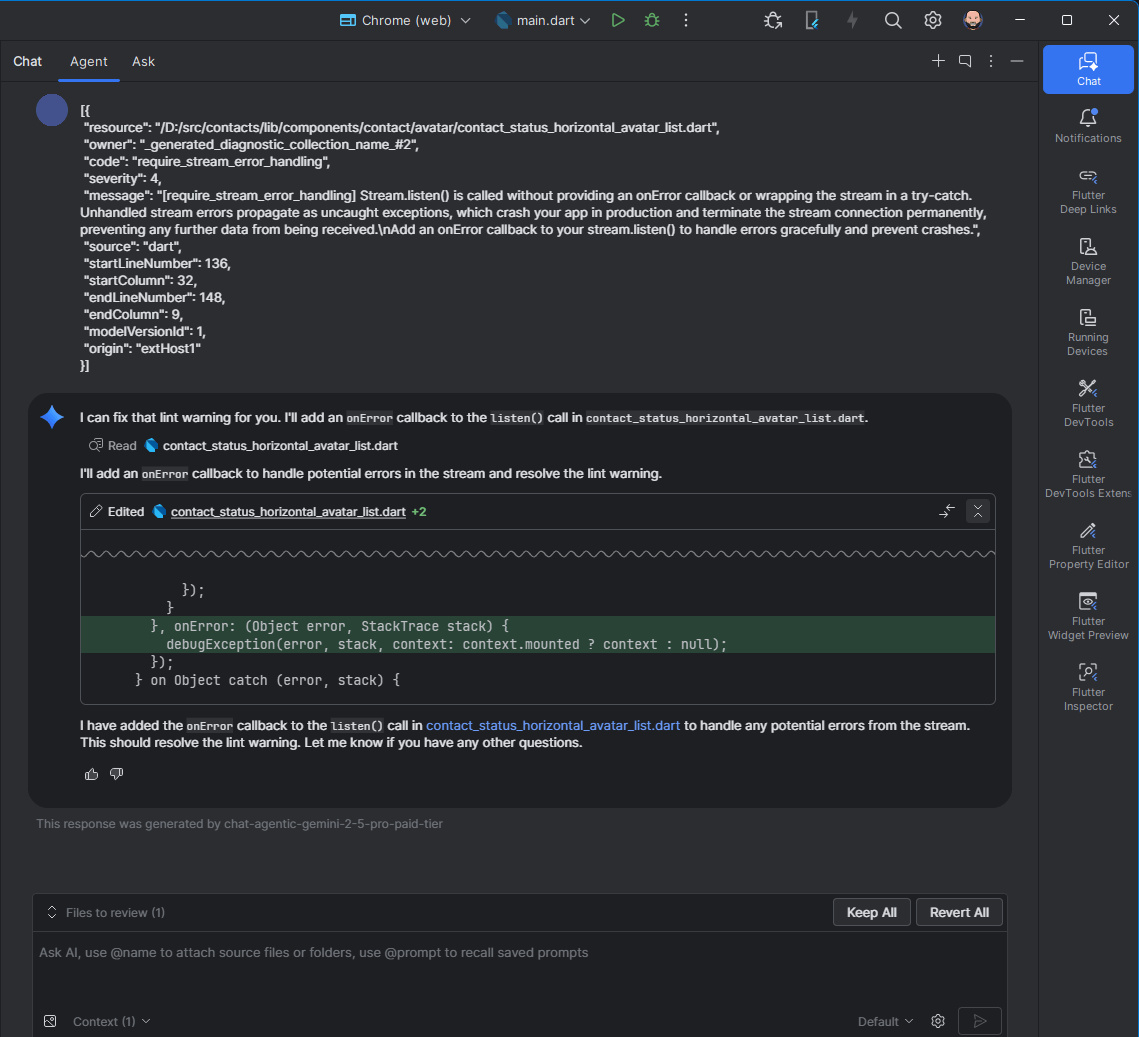
AI coding assistants move fast but hallucinate code that compiles yet crashes. Saropa Lints acts as guardrails — semantic feedback on behavior, not just syntax, forces the AI to correct mistakes in real-time.
Diagnostics are engineered as paste-ready prompts: deep context and specific failure points that give the AI exactly what it needs to fix the issue without further explanation.
Every command supports --help. Full reference: CLI Guide
dart run saropa_lints:init             # Configure analysis_options.yaml
dart run saropa_lints scan             # Run rules against any Dart project
dart run saropa_lints:cross_file       # Unused files, circular deps, import stats
dart run saropa_lints:baseline         # Baseline existing violations for brownfield adoption
dart run saropa_lints:quality_gate     # CI pass/fail from violations.json
dart run saropa_lints:project_vibrancy # Function-level code-health scoring
dart run saropa_lints audit            # Full audit with SARIF output for GitHub
The scanner works on any Dart project — even without saropa_lints as a dependency. Ideal for evaluating before adopting.
Scope: Static Code vs. Runtime Data
saropa_lints and Saropa Drift Advisor are complementary. They analyze different things and should both be installed when you use Drift.
|
saropa_lints |
saropa_drift_advisor |
| Analyzes |
Dart source code (AST) |
Live database file, schema, data |
| Runs as |
Analyzer plugin (compile-time) |
VS Code extension + debug server (runtime) |
| Sees source |
Yes |
No |
| Sees data |
No |
Yes |
How It Works
Dart package                    VS Code extension
   |                                  |
   v                                  v
analysis_options.yaml  <---  Set Up Project / Set Tier / Triage
   |                                  |
   v                                  v
dart analyze           <---  Run Analysis (from UI)
   |                                  |
   v                                  v
violations.json        --->  Health Score, Violations, Security,
                             File Risk, Trends, Inline Annotations
The Dart package provides 2,332 lint rules via the native analyzer plugin. The VS Code extension reads violations.json and provides the UI. Both are published together.
Adoption Strategy
Static analysis reveals problems that already exist. The tiered system lets you start at any level.
New projects: Start with professional or comprehensive.
Existing projects:
- Enable
essential — fix critical issues first
- Move to
recommended — fix warnings as you touch files
- Enable higher tiers when the noise is manageable
- Use
dart run saropa_lints:baseline to suppress existing violations and only catch new ones
One-click migration packs in the VS Code extension, plus detailed per-package guides:
Rule Categories
| Category |
Description |
| Flutter Widgets |
Lifecycle, setState, keys, performance |
| Modern Dart 3.0+ |
Class modifiers, patterns, records, when guards |
| State Management |
Provider, Riverpod, Bloc patterns |
| Performance |
Build optimization, memory, caching |
| Security |
Credentials, encryption, input validation — OWASP mapped |
| Accessibility |
Screen readers, touch targets, semantics |
| Testing |
Assertions, mocking, flaky test prevention |
| Architecture |
Clean architecture, DI, SOLID principles |
| Async |
Futures, Streams, cancellation |
175+ stylistic rules available separately for team preferences (formatting, ordering, naming). Enable individually or use --stylistic-all.
Open Source & Transparent
Unlike proprietary tools, Saropa Lints is 100% open source (MIT). Every rule's logic is inspectable and forkable.
- ROADMAP.md — Active backlog and planned rules
- Deferred rules — The hard problems we can't solve yet. Community help welcome.
Contributing
We don't have all the answers. If you've shipped production Flutter apps, we want your opinions.
- Wrong rule? Tell us why — we'll fix or remove it
- Too strict? Maybe it belongs in a higher tier
- Missing rule? Propose it, or implement it
- New to AST analysis? We mentor contributors. Pick a "Good First Issue"
See CONTRIBUTING.md for guidelines.
Professional Services
Optional paid services for teams that want hands-on help.
| Service |
Description |
| New Projects |
Development scoped to your stage — MVP, Production, or Enterprise |
| Upgrade |
Move existing projects to higher tiers |
| Audit |
Assess codebases you inherited |
| Custom Rules |
Rules specific to your architecture and compliance requirements |
Contact: saropa.com | services@saropa.com | Details
Documentation
| Document |
Description |
| Extension Guide |
VS Code extension — settings, commands, views, API |
| Configuration Guide |
Tiers, platforms, packages, baseline, file skipping |
| CLI Reference |
All CLI commands with flags and CI examples |
| Troubleshooting |
IDE issues, OOM errors, configuration problems |
| FAQ |
Common questions about adoption, compatibility, custom rules |
| Stylistic Rules |
175+ optional formatting/naming/ordering rules |
| Rule Packs |
Stack bundles and migration packs |
| Performance |
Profiling and optimization guide |
| Composite Plugin |
Running saropa_lints alongside custom rules |
| Violation Export API |
violations.json schema for CI/tooling |
| CONTRIBUTING.md |
How to contribute rules and report issues |
| CHANGELOG.md |
Version history and release notes |
| SECURITY.md |
Security policy and vulnerability reporting |
Library Guides
Badge
Show your code quality standards:

[](https://pub.dev/packages/saropa_lints)
Supported Versions
The current major (12.x) is the actively maintained line. Earlier majors are updated only for security-impacting issues. Open an issue tagged backport-request if needed.
License
MIT — see LICENSE. Use it however you like.
pub.dev | GitHub | Issues | Saropa

















