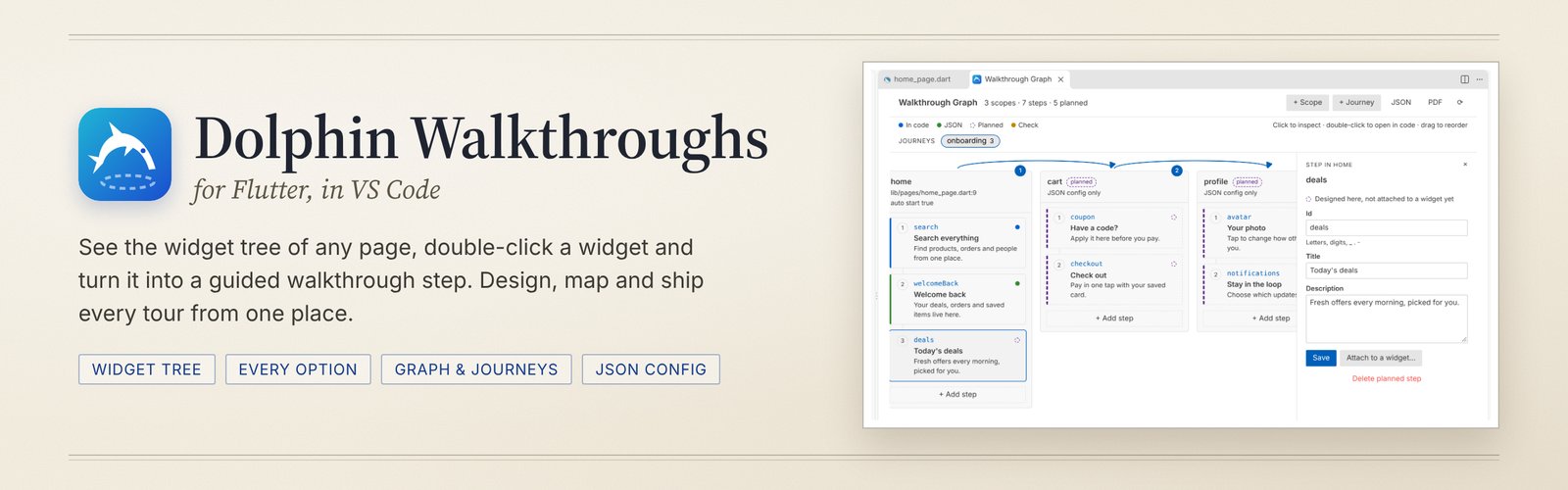
Dolphin Walkthroughs for Flutter
Build dolphin walkthroughs from VS Code.
See the widget tree of a page, double-click a widget, fill in a form. The extension writes the code.
What it does
dolphin shows guided walkthroughs in a Flutter app. You mark a page with DolphinScope, wrap the widgets to highlight with DolphinTarget, and put one Dolphin above your MaterialApp. This extension does that wrapping for you, and gives every option dolphin has a place in a form, so you never have to look up a parameter name.
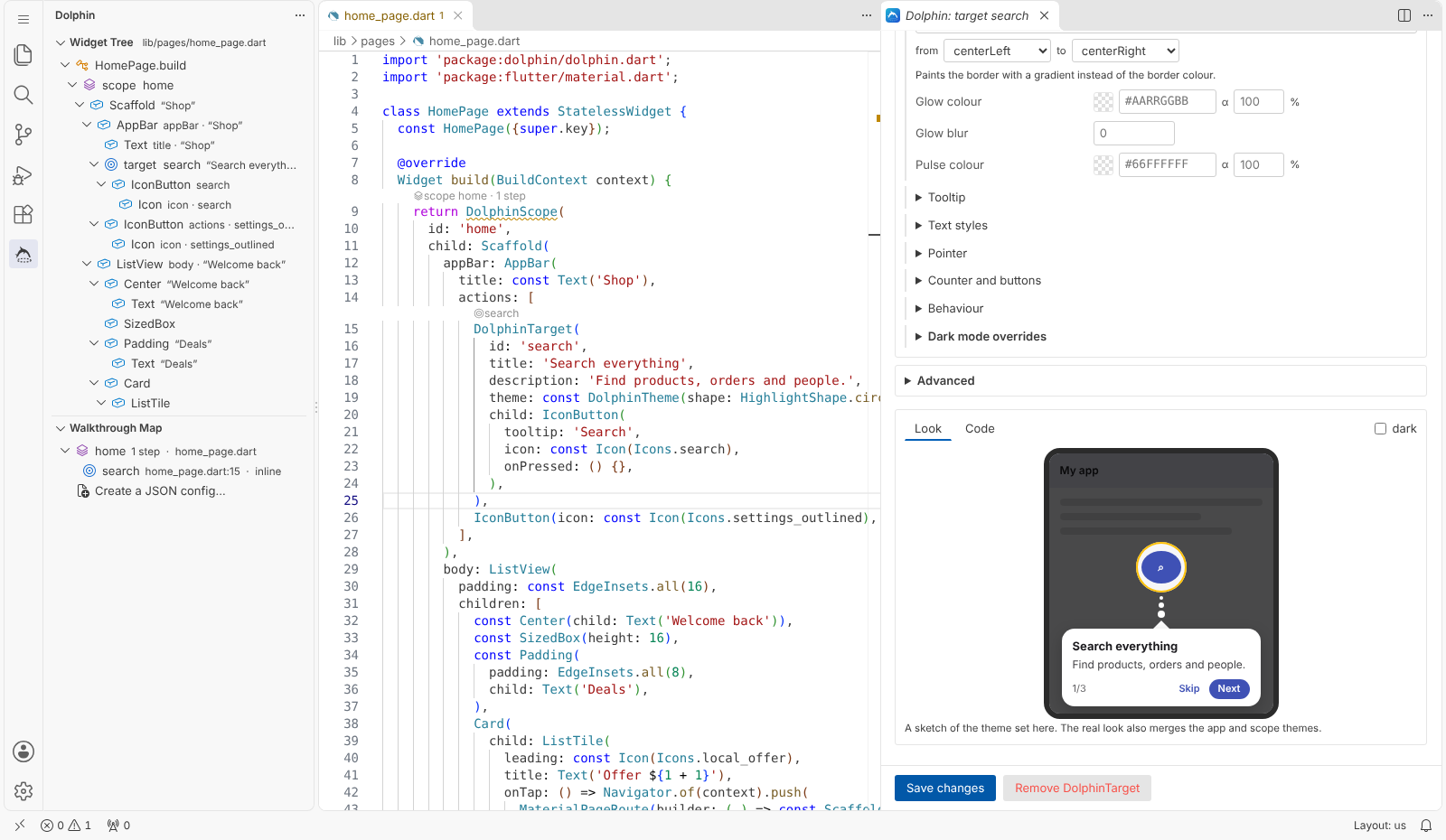
- Widget tree. Open any Dart file and the Dolphin view shows its widgets, page by page, the way they nest in the code. Helper objects such as
EdgeInsets and callbacks such as onPressed are left out, so you see only what is on screen. The tree follows your cursor.
- Double-click to wrap. Double-click a widget and choose DolphinTarget (a step) or DolphinScope (a page). On
MaterialApp you can also choose Dolphin, the app root. A form opens with a suggested id taken from the widget's icon, tooltip or text.
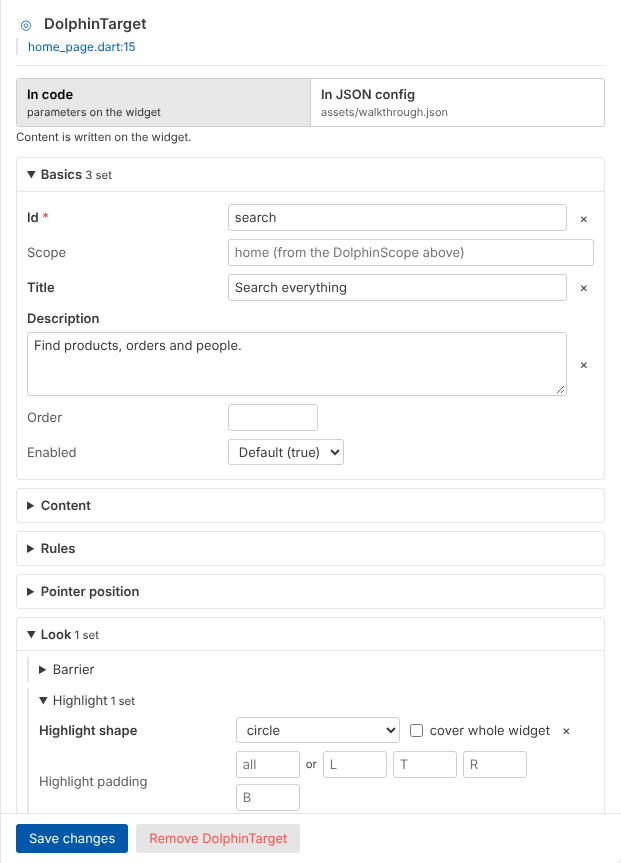
- Every option in one form. Basics, content, rules, pointer position and the whole look: barrier, highlight shape, border, glow, tooltip style and position, colours, text styles, pointer, counter, buttons, animation, tap and back-button behaviour, and the dark-mode overrides. Each field shows its default, so an empty field means "use the default".
- Live preview. A sketch of the step updates as you type, in light and dark. The Code tab shows exactly what will be written.
- In code or in JSON. Choose per step whether the title, description and options go on the widget or into your walkthrough JSON config. In JSON mode the widget keeps only its id. Options that only exist in Dart, such as a tooltip builder, stay in code automatically.
- Edit what is already there. Double-click an existing
DolphinTarget or DolphinScope and the form opens with its current values. Anything the form does not know is kept exactly as you wrote it.
- App root and controller. Wrap
MaterialApp with Dolphin, and configure the DolphinController: storage, auto start, delays, missing-target behaviour, counter mode, theme mode, app theme and dark theme, journeys and callbacks. One click makes main() load the JSON config at startup.
- Walkthrough map. A second view lists every scope, its steps in order, and every journey in the project, from the code and the JSON config together. Steps with problems are marked.
- Walkthrough graph. Every scope as a lane, its steps as cards in the order users see them, and journeys drawn as arrows from page to page. Double-click a card to jump to its widget. Drag cards to change the order.
- Design first, attach later. Add scopes, steps and journeys in the graph before the screens exist. They go into the JSON config as planned. When the page is built, double-click a widget and choose Planned step: the widget is wrapped with that id and the content stays in the JSON.
- PDF of the map. Export every scope, step, journey and open problem as a PDF to share with design or QA.
- Checks while you type. Duplicate ids in a scope, steps with no content, tooltip styles and conditions that were never registered, a missing
Dolphin root, and JSON entries with no widget in the code.
- Small helpers. Completion for scope ids, tooltip styles and condition names; hover on a step id to see its content; snippets; a JSON schema with completion and validation for the config file; code actions in the light bulb menu.
Getting started
- Install the extension, then open your Flutter project.
- Add the package if you have not yet: run Dolphin: Add dolphin to pubspec.yaml from the Command Palette, or
flutter pub add dolphin.
- Click the dolphin icon in the activity bar. The Widget tree shows the file you have open.
- Open the file with your
MaterialApp. Double-click MaterialApp and choose Dolphin (app root). Keep the defaults and click Wrap app. The extension adds the import, declares dolphinController and wraps the app.
- Open a page. Double-click its
Scaffold and choose DolphinScope. The id is suggested from the class name (HomePage becomes home).
- Double-click a button on that page and choose DolphinTarget. Write a title and a description and click Wrap widget.
- Run the app. The walkthrough starts by itself when the page opens.
Where the code goes
Wrapping an IconButton with a title, a description and a circle highlight writes:
DolphinTarget(
  id: 'search',
  title: 'Search everything',
  description: 'Find products, orders and people.',
  theme: const DolphinTheme(shape: HighlightShape.circle()),
  child: IconButton(
    icon: const Icon(Icons.search),
    onPressed: () {},
  ),
),
The same step with In JSON config selected writes only DolphinTarget(id: 'search', child: ...) in Dart and this in the config:
{
  "scopes": {
    "home": {
      "steps": {
        "search": {
          "title": "Search everything",
          "description": "Find products, orders and people.",
          "theme": { "shape": "circle" }
        }
      }
    }
  }
}
The extension adds import 'package:dolphin/dolphin.dart'; where it is missing, puts const where it can, removes a const above the widget only when the new code cannot be constant, and formats the changed lines with the Dart formatter when the Dart extension is installed.
The JSON config
The config is found automatically: any JSON file in the project with a scopes key, preferring files under assets/. Set dolphin.configFile to choose one. The first time you store a step in JSON, the extension offers to create assets/walkthrough.json, registers it under flutter: assets: in pubspec.yaml, and can change main() to load it:
Future<void> main() async {
  WidgetsFlutterBinding.ensureInitialized();
  final walkthroughJson = await rootBundle.loadString('assets/walkthrough.json');
  dolphinController.loadConfigJson(jsonDecode(walkthroughJson) as Map<String, dynamic>);
  runApp(const MyApp());
}
Files named walkthrough*.json, *dolphin*.json, onboarding*.json or showcase*.json get completion and validation for every key dolphin reads.
The walkthrough graph
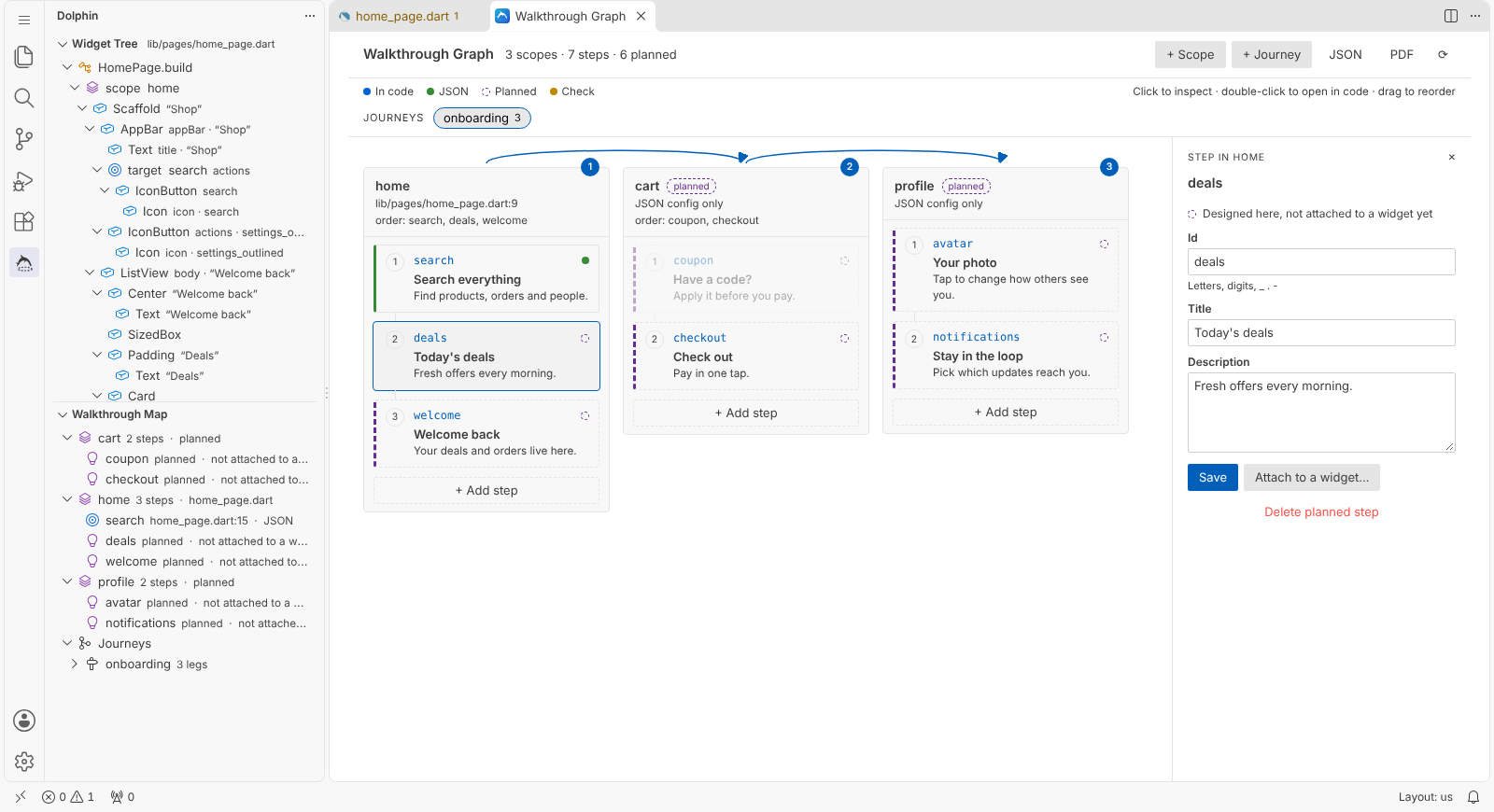
Open it with the graph icon on the Walkthrough Map, or Dolphin: Open walkthrough graph.
- Click a card to see and edit it on the right. Double-click to open the widget in the code, or the JSON entry of a planned step.
- Drag cards to change the order. The order is saved as
sequence in the JSON config.
- + Scope, + Add step and + Journey design new parts of the walkthrough. Everything is written to the JSON config, with your comments and layout kept.
- Click a journey to see its pages in order. Steps the journey skips are faded.
- Colours: blue for content in code, green for content in JSON, a dashed purple outline for planned, amber for something to check.
To attach planned work to the code: open the page, double-click its page widget in the Widget Tree and choose Planned scope, then double-click each widget and choose Planned step.
Journeys
A journey walks the user across several pages. In the Walkthrough map, click Add journey, pick the scopes in order, choose the steps of each leg and the route that opens each page. Start it in your app with Dolphin.of(context).startJourney('onboarding').
Commands
| Command |
What it does |
| Dolphin: Wrap with DolphinTarget… |
Wrap the widget under the cursor as a step. Ctrl+Alt+T (Cmd+Alt+T on Mac). |
| Dolphin: Wrap with DolphinScope… |
Wrap the widget under the cursor as a page or section. |
| Dolphin: Wrap with Dolphin (app root)… |
Wrap MaterialApp, CupertinoApp or WidgetsApp and set up the controller. |
| Dolphin: Configure… |
Open the form for the dolphin widget under the cursor. |
| Dolphin: Remove wrapper (keep child) |
Take a DolphinTarget, DolphinScope or Dolphin away and keep its child. |
| Dolphin: Open JSON config |
Open the walkthrough config, or create one. |
| Dolphin: Load JSON config at app startup |
Change main() to load the config into the controller. |
| Dolphin: Add journey… |
Add a cross-page journey to the config. |
| Dolphin: Add dolphin to pubspec.yaml |
Run flutter pub add dolphin. |
| Dolphin: Open walkthrough graph |
Lanes, steps, journeys and design mode. |
| Dolphin: Export walkthrough map as PDF… |
Save the whole map as a PDF. |
| Dolphin: About Dolphin |
Links, pub.dev downloads, likes and points, and the version your project uses. |
The same actions are in the right-click menu of the widget tree, in the editor's right-click menu under Dolphin, and in the light bulb menu on any widget.
Settings
| Setting |
Default |
Description |
dolphin.configFile |
empty |
Path of the JSON config. Empty finds it automatically. |
dolphin.defaultStorage |
inline |
Where the content of a new step goes: inline or json. |
dolphin.formatAfterEdit |
true |
Format the changed code after wrapping or editing. |
dolphin.followCursor |
true |
Select the widget under the cursor in the widget tree. |
dolphin.codeLens |
true |
Show a configure link above dolphin widgets. |
dolphin.diagnostics |
true |
Check ids, scopes, styles, conditions and the config. |
Snippets
dscope, dtarget, dtargetid, dstep, dtheme, droot, dreplay, dreset, djourney, denabled, dbuilder, dcondition.
Requirements
- VS Code 1.85 or newer.
- A Flutter project that uses dolphin 1.0 or newer.
- The Dart extension is recommended, for formatting after edits. The widget tree and the forms work without it.
License and disclaimer
BSD 3-Clause. See LICENSE and DISCLAIMER, both also included with the extension. The user manual is at sanket-manohar.github.io/dolphin/vscode.html. The extension changes only the files you ask it to change and collects nothing. Everything works offline; only the About page reads the public download and like counts from pub.dev and the Marketplace, when you open it. Review its changes as you would any other code change before you commit them.
Made by Sanket Santosh Vidya Manohar.
| |

