
Markdown Review
A markdown viewer with inline commenting for the AI era — read any .md file, annotate sections, answer AI-embedded questions, and export structured feedback.




Demo
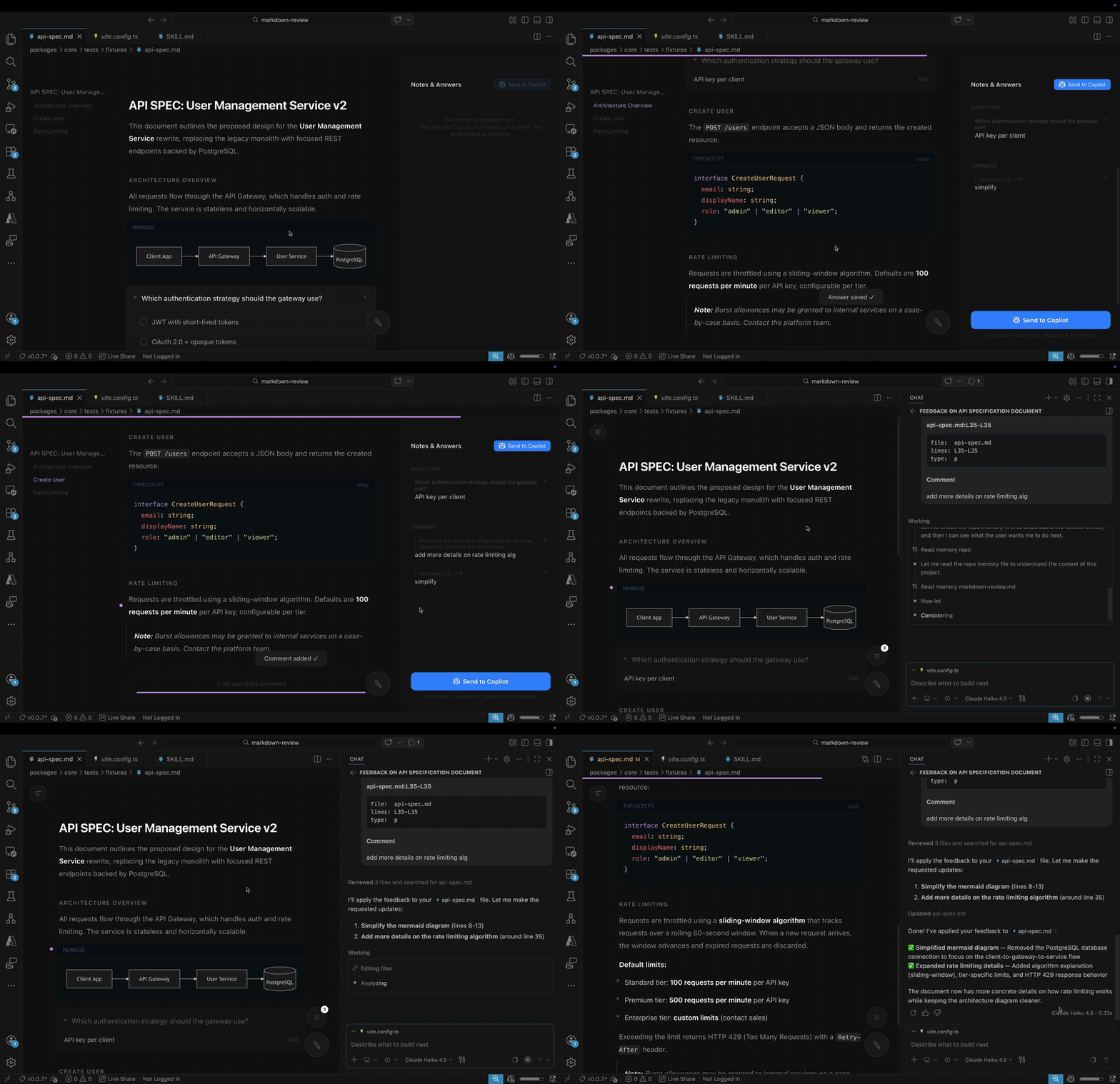
Screenshot
Why Markdown Review?
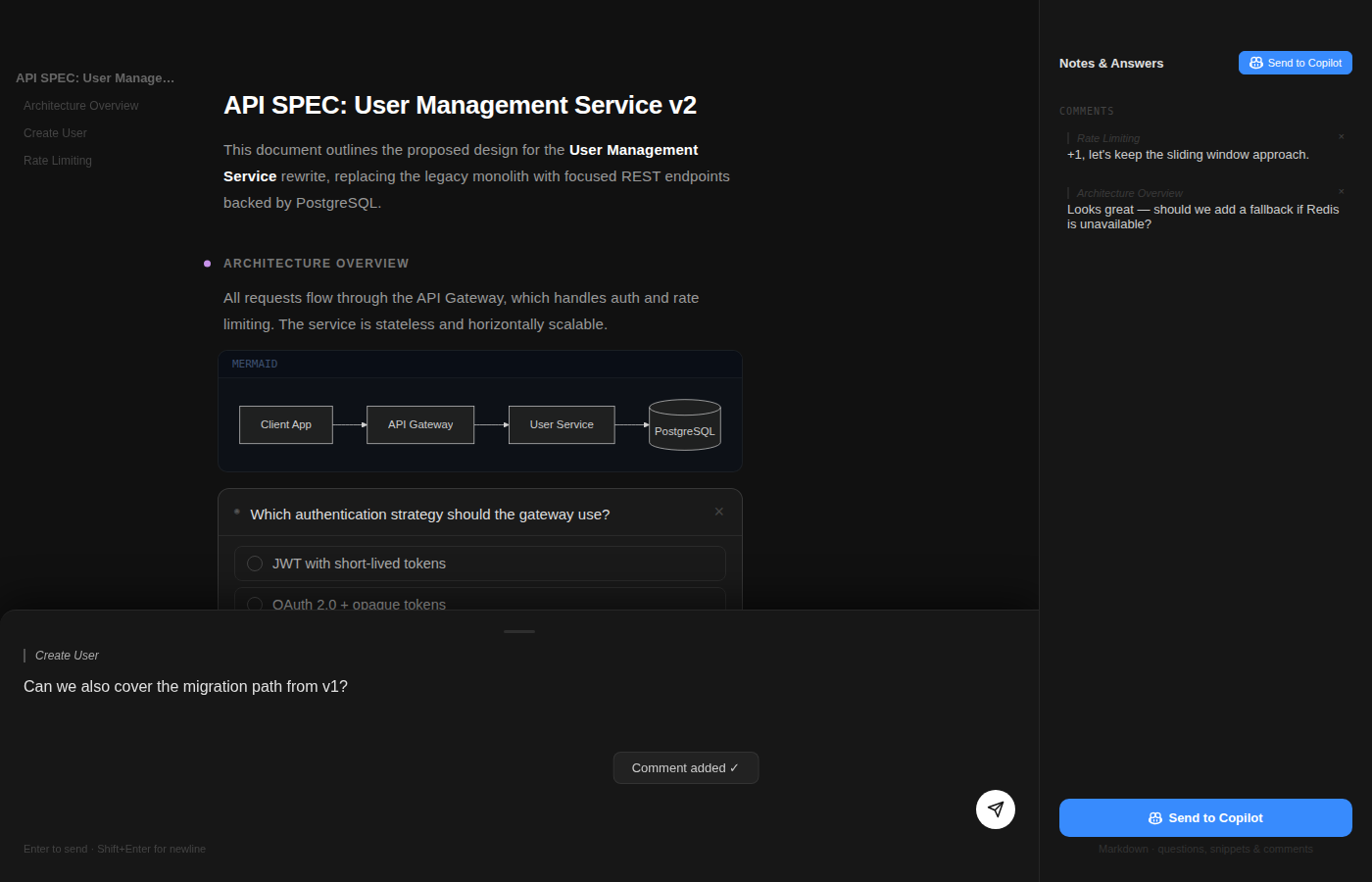
Markdown Review turns any .md file into a review surface — read it, annotate it, answer embedded questions, and send structured feedback back to an AI agent or your team:
- 🔍 Read markdown as a document, not a chat message — clean, readable layout with a live outline and notes panel.
- ❓ Answer AI-embedded questions in context — agents can drop
question:open, question:choice, and question:checkbox blocks directly into the document.
- ✏️ Annotate any section with one click — leave comments on paragraphs, headings, code blocks, or list items.
- 🚀 Send structured feedback in one click — your answers and annotations flow back to the agent automatically, ready for it to act on.
Whether you're reviewing a PLAN.md, a SPEC.md, an API.md, or any other markdown file — Markdown Review gives you a commenting layer that works with AI agents out of the box. Point at a paragraph and say "change this" instead of manually quoting text in a chat thread.
VS Code Extension
Install the extension from the Visual Studio Marketplace to review any markdown file directly inside VS Code.
Once installed, open any .md file — Markdown Review opens automatically as the default editor for Markdown files. Read the document, answer any embedded questions, and click sections to annotate. Close the panel (or press the Export button) — structured feedback is sent to Copilot chat.
Tip: To switch between the standard Markdown preview and Markdown Review, right-click a .md file in Explorer → Open With… and choose your preferred editor. Optionally choose Set as Default to persist that preference.
Copilot Agent Skill
The extension ships with a built-in Agent Skill (markdown-plan-review-feedback) that Copilot and other AI agents can automatically discover and use. When the skill is active, the agent knows:
- The full Markdown Review workflow — generate a structured
.md file, the user reviews it, feedback flows back to the agent.
- The
question:open, question:choice, and question:checkbox block syntax for embedding interactive questions.
- Best practices for structuring a reviewable document (headings, question placement, annotatable blocks).
Simply ask Copilot to "draft a plan for X" or "write a spec for Y" and it will produce a question-rich Markdown file ready to open in Markdown Review — no manual prompt engineering required.
Copilot CLI Plugin
The Copilot CLI plugin adds a review skill to GitHub Copilot in the terminal. When invoked, Copilot writes a markdown file to disk, opens it in a browser-based review UI, and waits for your feedback — all without leaving the terminal.
Install
copilot plugin install rwoll/markdown-review
Or from within an interactive Copilot CLI session:
/plugin install rwoll/markdown-review
How It Works
- Copilot writes a markdown file (e.g.
plan.md, spec.md, or any .md file).
- It runs
npx -y markdown-review@latest plan.md, which starts a local server and opens your browser.
- You review, annotate, and answer embedded questions in the browser UI.
- You click Submit — feedback is sent back to Copilot and the server exits.
- Copilot incorporates your feedback and continues.
Manage
copilot plugin list                        # view installed plugins
copilot plugin update markdown-review      # update to latest version
copilot plugin uninstall markdown-review   # remove the plugin
CLI
markdown-review is a zero-install CLI that opens a local browser UI for reviewing any markdown file.
npx markdown-review README.md             # review in browser, feedback to stdout
npx markdown-review SPEC.md -o fb.md      # write feedback to file
npx markdown-review PLAN.md --json        # JSON output instead of markdown
Features
- Document rendering — headings, paragraphs, lists, blockquotes, syntax-highlighted code, and mermaid diagrams
- Embedded AI questions — open-text, single-choice, and multi-checkbox with "Other" option
- Inline annotations — click any block to leave a comment
- General feedback — start typing anywhere to open the comment sheet
- Export — download
PLAN-feedback.md with responses, annotations, and notes
- Responsive — mobile (< 800 px), tablet (800–1099 px), desktop (≥ 1100 px)
- Dark theme — high-contrast, reading-optimised
Embedding Questions
Question blocks are authored in markdown by AI tools (for example Copilot or other agent workflows), and reviewers answer them directly in the UI.
Use fenced code blocks with a question: language tag:
```question:open
id: q-approach
question: What do you think about this approach?
```

```question:choice
id: q-preference
question: Which option do you prefer?
options: Option A | Option B | Option C
```

```question:checkbox
id: q-features
question: Select all that apply
options: Feature 1 | Feature 2 | Feature 3
```
Contributing
See CONTRIBUTING.md for development setup, testing, and PR guidelines.
License
MIT

