TermSnap-TextWrap
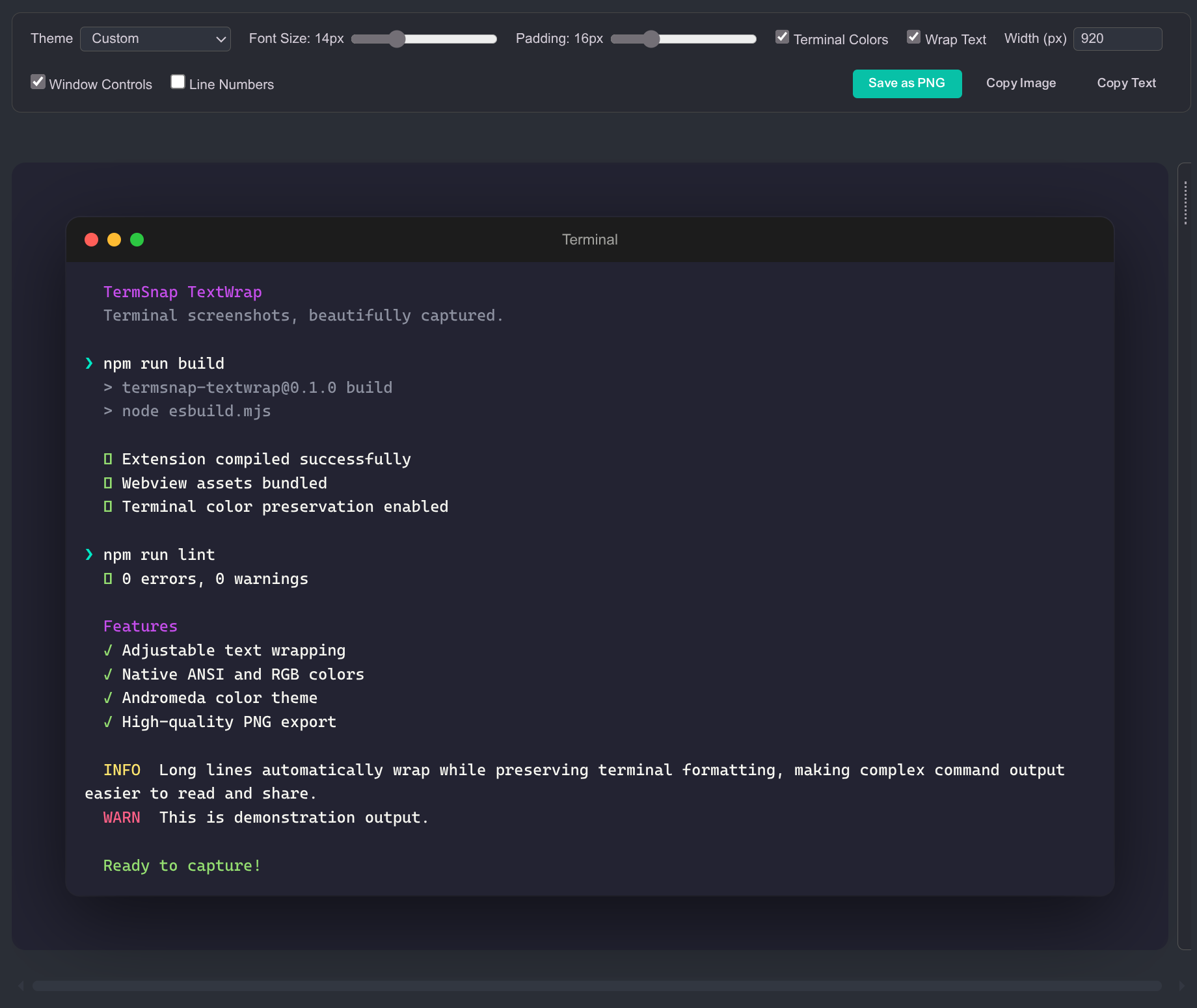
Capture beautiful, Carbon-style screenshots of your terminal output — directly from VS Code.
Why TermSnap-TextWrap?
Copy-pasting breaks formatting — Paste a table into WhatsApp, Slack, Google Docs, or Word and the alignment is gone. Box-drawing characters break, columns misalign, structured output becomes an unreadable wall of text.
Screenshots can't capture long output — Your platform's screenshot tool only captures what's visible on screen. If your table or log output extends beyond the viewport, you're stuck stitching multiple screenshots together.
TermSnap-TextWrap solves both — select text in your terminal (no matter how long), press Cmd+Shift+S, and get a single styled screenshot of the entire output.
Features
- One-shortcut capture — Select terminal text, press
Cmd+Shift+S (Mac) / Ctrl+Shift+S (Windows/Linux), and get a styled preview instantly
- Captures full selection — Even hundreds of lines that don't fit on screen
- Carbon-style rendering — Rounded window frame, macOS traffic light dots, subtle shadow, themed background
- 12 built-in themes — Andromeda, Dracula, One Dark, Monokai, Solarized Dark, Night Owl, GitHub Dark, Catppuccin Mocha, Tokyo Night, Gruvbox Dark, Nord, Solarized Light
- Custom themes — Define your own background, text, and title bar colors
- Live preview controls — Adjust theme, font size, padding, window chrome, and line numbers in real time
- Optional text wrapping — Enable wrapping and set an exact terminal width (240–2400px) or drag the grip beside the preview, similar to CodeSnap
- Export options — Save as PNG, copy image to clipboard, or copy raw text
- Preserves layout — Wrapping is off by default so tables, ASCII art, box-drawing characters, and alignment remain intact
Works great for
- Tables, ASCII art, mermaid diagrams, flowcharts
- Deployment logs and CLI output
- Documentation, presentations, slides, blog posts
- Anywhere plain text loses formatting when pasted
Usage
- Open the integrated terminal in VS Code
- Run your commands
- Select the terminal text you want to capture
- Press
Cmd+Shift+S (Mac) / Ctrl+Shift+S (Windows/Linux)
- The TermSnap-TextWrap preview panel opens — adjust theme and settings as needed; switch Terminal Colors on or off if HTML capture is available; optionally enable Wrap Text and set Width (px) or drag the right-side resize grip (arrow keys also work when the grip is focused)
- Click Save as PNG, Copy Image, or Copy Text
You can also open the command palette (Cmd+Shift+P) and search for "TermSnap-TextWrap: Capture Terminal Screenshot".
Themes
| Theme |
Style |
| Andromeda |
Dark with purple accents |
| Catppuccin Mocha |
Pastel dark |
| Custom |
Your own colors |
| Dracula |
Purple-tinted dark |
| GitHub Dark |
GitHub's dark theme |
| Gruvbox Dark |
Retro warm dark |
| Monokai |
Warm dark |
| Night Owl |
Deep blue dark |
| Nord |
Arctic cool dark |
| One Dark |
Atom-inspired dark |
| Solarized Dark |
Blue-green dark |
| Solarized Light |
Warm light |
| Tokyo Night |
Cool blue dark |
Settings
| Setting |
Default |
Description |
termsnap-textwrap.backgroundColor |
#1e1e2e |
Outer background color |
termsnap-textwrap.customBackground |
#1e1e2e |
Custom theme: background |
termsnap-textwrap.customTextColor |
#f8f8f2 |
Custom theme: text color |
termsnap-textwrap.customTitleBarColor |
#161616 |
Custom theme: title bar |
termsnap-textwrap.fontSize |
14 |
Font size (10–24px) |
termsnap-textwrap.padding |
16 |
Inner padding (0–64px) |
termsnap-textwrap.showLineNumbers |
false |
Show line numbers |
termsnap-textwrap.showWindowControls |
true |
Show macOS-style dots |
termsnap-textwrap.theme |
andromeda |
Screenshot theme |
termsnap-textwrap.wrapText |
false |
Enable word wrapping for long terminal lines |
termsnap-textwrap.wrapWidth |
800 |
Width of the terminal window (240–2400px) when wrapping is enabled; excludes outer background padding |
termsnap-textwrap.preserveTerminalColors |
true |
Capture and display colors from terminal HTML when supported (Linux wl-paste or xclip) |
Wrapping and Resizing
Wrapping is off by default to preserve terminal tables and ASCII art. Check Wrap Text in the preview or set:
{
  "termsnap-textwrap.wrapText": true,
  "termsnap-textwrap.wrapWidth": 800
}
You can type a width in pixels or drag the resize grip on the right of the preview. Width changes are reflected immediately and saved to VS Code settings when committed. The grip is not included in the generated PNG. When line numbers are enabled, wrapped continuation lines remain indented under their associated text. Copy Text still copies the original, unwrapped terminal selection. Note that automatic wrapping can break the visual alignment of terminal tables and diagrams, so switch wrapping off for those captures.
Preserving Terminal Colors
- TermSnap-TextWrap can use VS Code's built-in Terminal: Copy Selection as HTML command to capture each colored text run, then copy the plain selection separately for the Copy Text button. The screenshot preview and PNG export retain the selected terminal's foreground/background colors, bold/italic/underline, etc.; your selected TermSnap-TextWrap theme still controls the window background and title bar.
{
  "termsnap-textwrap.preserveTerminalColors": true
}
Linux desktop requirement: the extension's host process needs access to the system clipboard HTML MIME type. On Wayland, provide wl-paste from the wl-clipboard package; on X11, provide xclip on the PATH. A Wayland session may also fall back to the XWayland clipboard bridge (xclip). For instance, check with wl-paste --list-types after running VS Code's Terminal: Copy Selection as HTML command. The result should include text/html.
On Windows, macOS, SSH/Dev Containers, or sandboxed VS Code installations where the extension host cannot read the local desktop HTML clipboard, the extension falls back to its existing plain-text rendering. The Terminal Colors checkbox is disabled if no valid HTML is available for that capture. This feature only preserves existing terminal colors—it does not invent ANSI highlighting for uncolored text. Do not paste arbitrary clipboard HTML into the preview; TermSnap-TextWrap parses and reconstructs allowlisted styles only.
Note: The terminal's original plain-text selection is copied to the system clipboard when you capture, just as before. Colorized output is preserved inside the preview and PNG, not in the Copy Text action.
Custom Theme
Set the theme to custom and configure your colors in VS Code settings:
{
  "termsnap-textwrap.theme": "custom",
  "termsnap-textwrap.customBackground": "#1a1a2e",
  "termsnap-textwrap.customTextColor": "#e0e0e0",
  "termsnap-textwrap.customTitleBarColor": "#16213e"
}
How It Works
VS Code's extension API does not expose terminal buffer access. TermSnap-TextWrap uses VS Code's terminal copy commands, optionally reads the desktop's HTML clipboard flavor, and safely reconstructs terminal color runs in the preview. If formatted capture is unavailable, a plain-text screenshot still works. Text layout (tables, ASCII art, alignment) remains preserved when wrapping is disabled.
License
MIT

