AI Feedback
A VS Code extension for collecting line-level feedback notes directly in the editor and reviewing them in a dedicated sidebar.
What it does
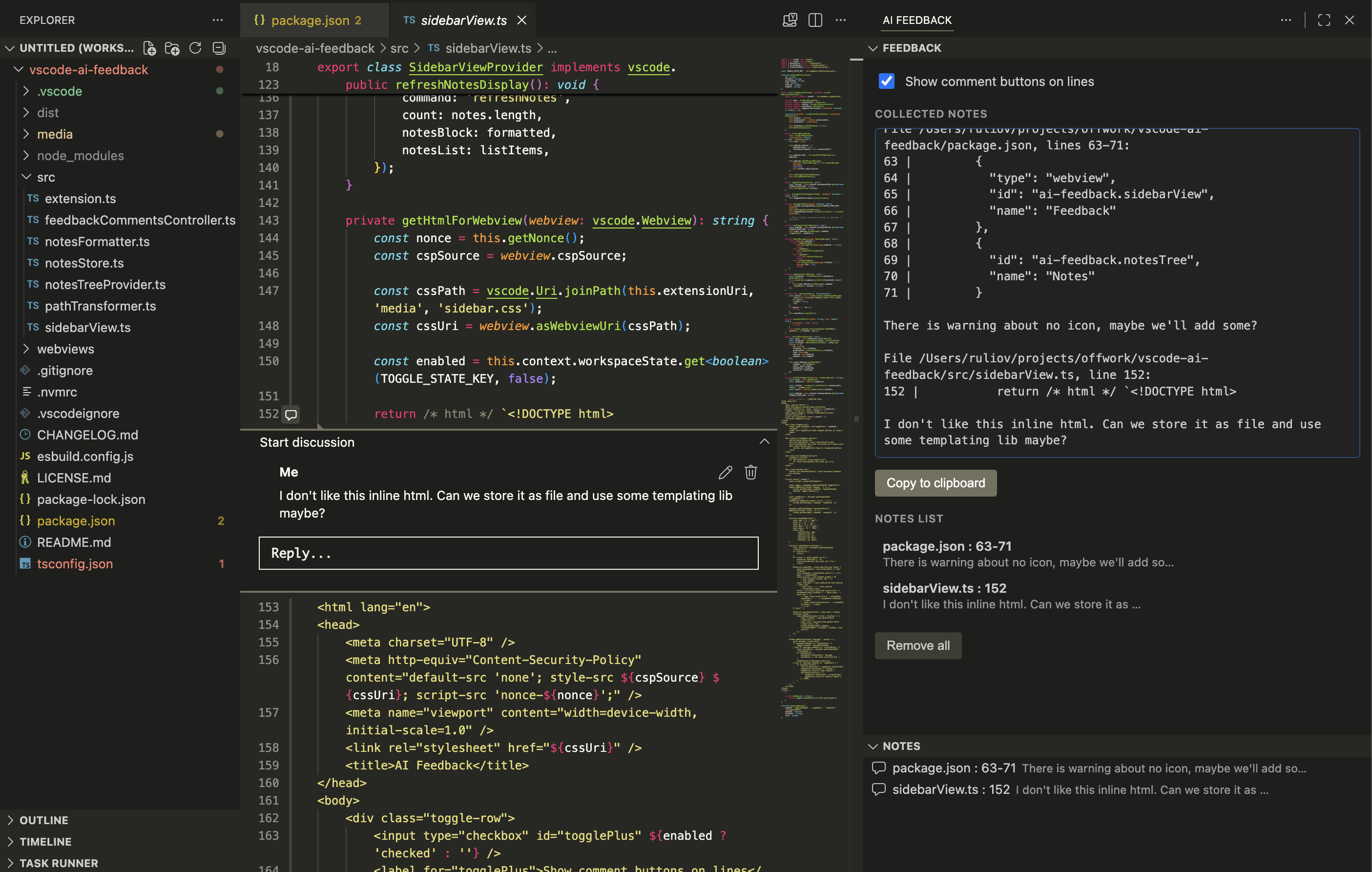
- Adds an AI Feedback icon to the activity bar with a single Feedback webview.
- A toggle in the sidebar enables inline commenting: when on, you can select a range of lines in any editor and add a feedback comment via VS Code's native comment thread UI.
- Comments can be added, edited, and deleted inline, just like regular code comments.
- All collected notes are aggregated in the sidebar as a read-only formatted text block with a Copy to clipboard button, ready to paste into a review, chat, or ticket.
- The Notes List lists every note (
file basename : line); clicking a note opens the file and reveals the line. Hovering a note reveals a Remove button to delete that single note.
- A Remove all button (next to Copy to clipboard) clears every note at once.
- Notes persist across editor restarts in VSCode's internal workspace storage (outside the project directory, so they are never committed to git).
- Notes support multi-line ranges (a comment can cover several consecutive lines).
Path regex replace
The vscode-ai-feedback.pathRegexReplace setting lets you rewrite file paths as they appear in the sidebar and in copied output, so shared feedback uses portable paths instead of machine-specific absolute paths. The stored path stays absolute for navigation — only the displayed text is transformed. Patterns are applied in insertion order.
Example — strip a local project prefix and rename another project:
"vscode-ai-feedback.pathRegexReplace": {
  "^/Users/ruliov/my-project/": "",
  "^/Users/ruliov/other-project/": "other/"
}
With these rules, a note stored at /Users/ruliov/my-project/src/app.ts is displayed as src/app.ts, while /Users/ruliov/other-project/lib/util.ts becomes other/lib/util.ts. Clicking either note still opens the original file at the correct line.
Confirm before removing all notes
The vscode-ai-feedback.confirmRemoveAll setting controls whether a confirmation dialog appears before clearing every note with the Remove all button. It defaults to true. Set it to false to remove all notes immediately without confirmation:
"vscode-ai-feedback.confirmRemoveAll": false

