Archify Diagram Viewer
View Archify diagrams inside VS Code. Click a .archify file (YAML) and the interactive diagram opens straight away; open its source beside it and the diagram follows your edits. Rendered Archify HTML files open in a viewer tab instead of a browser.
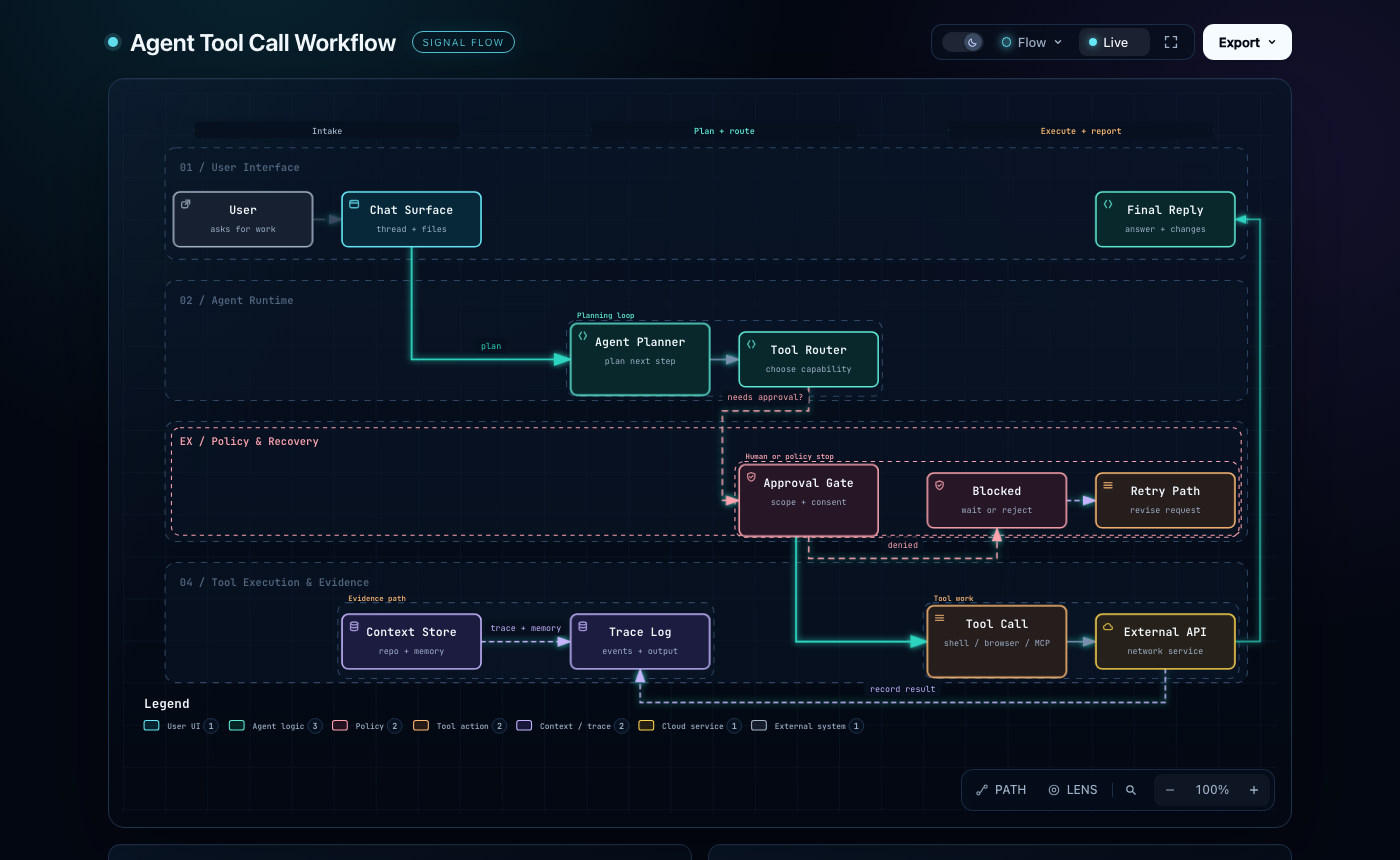
This is an unofficial extension. It bundles the Archify renderer (MIT, © tt-a1i) and runs it on VS Code's own Node runtime, so nothing else needs to be installed.
Quick start
Create a file ending in .archify, for example hello.archify:
schema_version: 1
diagram_type: architecture
meta:
  title: Hello Archify
  output: hello.html
components:
  - { id: browser, type: frontend, label: Browser, pos: [40, 120], size: [140, 60] }
  - { id: api, type: backend, label: API, pos: [260, 120], size: [140, 60] }
  - { id: db, type: database, label: PostgreSQL, pos: [480, 120], size: [140, 60] }
connections:
  - { from: browser, to: api, label: HTTPS }
  - { from: api, to: db, label: SQL }
Click it in the Explorer: the diagram opens.
To edit, use Show Source in the editor title. The YAML opens beside the diagram, which re-renders as you type.
The same file is in examples/hello.archify.
A .archify file is an Archify diagram source written in YAML. It has the same fields as the JSON the Archify CLI renders, and plain JSON content still works, since JSON is valid YAML. diagram_type selects the kind of diagram: architecture, workflow, sequence, dataflow or lifecycle.
- Opening: the Archify Diagram editor is the default for
.archify. Use Reopen Editor With… → Text Editor to edit the YAML full-screen.
- Completion: with the YAML extension (
redhat.vscode-yaml) installed, .archify files get completion and hover from Archify's schemas. The schema follows diagram_type.
Archify's own JSON naming, name.architecture.json, name.workflow.json and so on, works too. Those open as text with a preview button, and get schema help from VS Code's built-in JSON support.
Features
- Diagram editor:
.archify files open as the rendered diagram. Show Source opens the YAML beside it, and edits re-render live.
- Live preview: for Archify's
*.architecture.json-style files, or any JSON with a diagram_type. Use the preview button in the editor title, Cmd/Ctrl+K V (to the side) or Cmd/Ctrl+Shift+V. The preview keeps the focus and route you selected (#focus=…, #route=…) when it re-renders.
- HTML viewer: right-click a rendered
.html file and choose Open in Archify Viewer, or use Reopen Editor With… → Archify Diagram Viewer. For Archify HTML already open as text, a button appears in the editor title. The viewer reloads when the file changes on disk.
- Problems: YAML syntax errors, plus
archify validate's schema, layout and evidence problems, appear at the matching line of the source.
- Schema help: completion and hover come from Archify's own schemas: built in for the JSON files, and through the YAML extension for
.archify files.
- Source links: in source-backed diagrams, clicking a source reference opens that file and line range in the editor. If the file is not in the workspace, the web link opens instead.
- Export: the diagram's own Export menu (PNG, SVG, share card, …) saves through a VS Code save dialog.
- Commands: Archify: Render to HTML File…, Archify: Open in Browser, Archify: Refresh Preview, Archify: Show Source.
Source evidence
A diagram that declares meta.repository and sources is verified against a local Git checkout whose origin and pinned commit match. The extension uses the Git top-level directory of the diagram file, or archify.repoRoot when set.
When verification fails, the default (archify.sourceEvidence: "fallback") still shows the diagram without source links, explains why in a notice, and reports the reason as a warning. Set it to "strict" to treat this as an error, as the Archify CLI does. Render to HTML File… always verifies strictly and asks before rendering without source links.
Settings
| Setting |
Default |
Description |
archify.theme |
vscode |
vscode follows the color theme; dark or light force one; diagram keeps the diagram's own choice. |
archify.preview.liveUpdate |
true |
Re-render while typing; when off, re-render on save. |
archify.preview.debounceMs |
400 |
Delay before re-rendering after an edit. |
archify.validation.enabled |
true |
Report validation results in Problems. |
archify.quality |
"" |
Force the standard or showcase quality profile. |
archify.sourceEvidence |
fallback |
fallback or strict handling of unverifiable source evidence. |
archify.repoRoot |
"" |
Checkout used to verify source evidence. |
archify.nodePath |
"" |
Node.js 18+ executable to use instead of VS Code's runtime. |
Security
Diagrams run in a webview with a strict content security policy. Only the page's own inline scripts run (via a per-render nonce), there is no network access for scripts or fetches, and links open through VS Code.
Development
npm install
npm run build             # bundle to dist/
npm test                  # unit tests + renderer tests (Node)
npm run test:integration  # runs the suite inside VS Code
npm run package           # build archify-vscode-ext-<version>.vsix
Press F5 to launch an Extension Development Host with the test fixtures.
Updating the bundled renderer
vendor/archify/ and schemas/ are generated from an Archify checkout:
node scripts/sync-archify.mjs /path/to/archify   # default: ../../ws-storm/archify
npm test
vendor/archify.json records the upstream version and commit.
License
MIT. See LICENSE. The bundled renderer is MIT-licensed by tt-a1i; see vendor/archify/LICENSE and vendor/archify/THIRD_PARTY_NOTICES.md.

