
vsHPC Simulation CenterReservoir HPC Control Center for Launching and Managing Flow and Geomechanics Simulations Installation Launch VS Code Quick Open ( Ctrl+P), paste the following command, and press enter.Copied to clipboard |

vsHPC-ng
vsHPC-ng is a powerful extension designed for reservoir engineers to bridge the gap between their local workspace and High-Performance Computing (HPC) clusters. It streamlines the entire lifecycle of a simulation—from intelligent submission and real-time monitoring to high-fidelity data visualization. 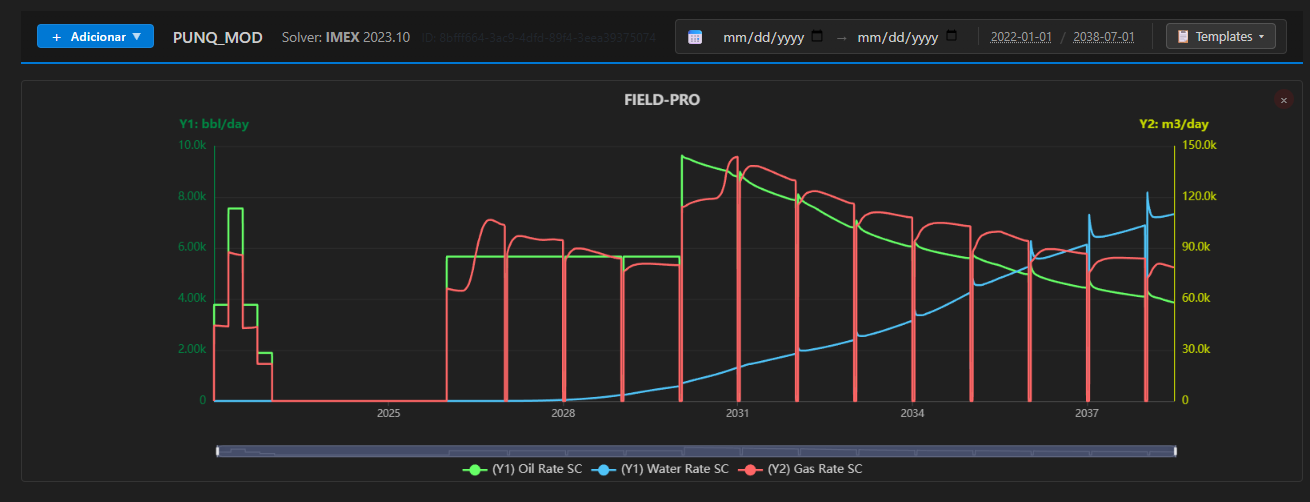
Flagship Feature: High-fidelity SR3 Visualization with adaptive resolution. 🚀 Core Pillars
🛠️ The Engineer's WorkflowStreamline your daily simulation tasks in three simple stages: 1. Configure & LaunchEffortlessly bridge your local models to the HPC cluster. vsHPC-ng uses a dynamic interpolation engine to handle paths, environment variables, and solver parameters. To get started, three mandatory steps are required:
Refer to the Appendix for a detailed breakdown of these requirements. 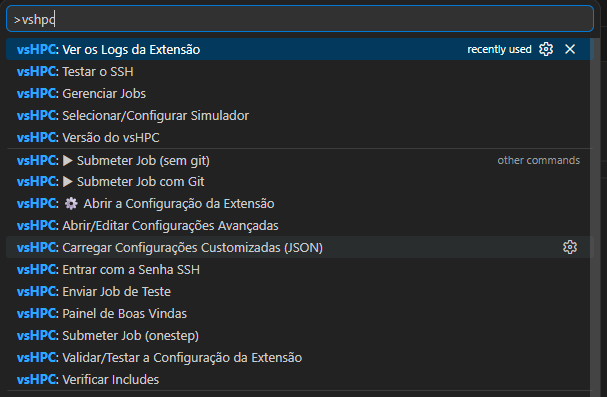
Image: Use the VS Code sidebar menu or Command Palette showcasng vshpc.json loading. The Context menu helps submit simulations either using an automatic Git clone or locally (legacy), and it can also be used to test your configuration. 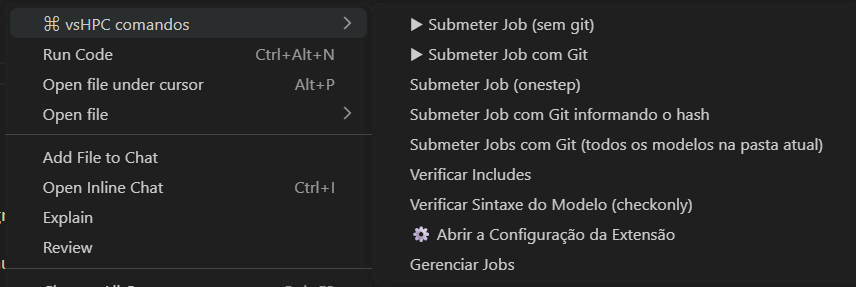
Image: Use the VS Code context menu to submit simulations. 2. Monitor & ManageKeep an eye on your cluster performance without leaving your editor. Track progress percentage (CMG support included), check SLURM states, and open remote logs with a single click. 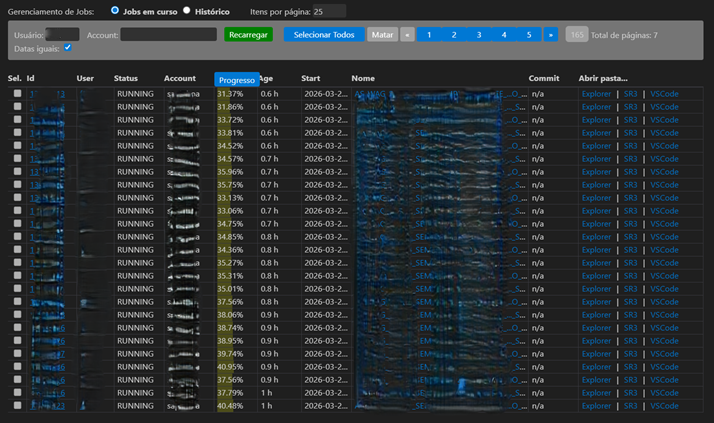
Image: The Jobs Panel showing active simulations, progress bars, and "Action" buttons. 3. Analyze & InsightVisualization is the heart of engineering. Turn raw SR3/HDF5 data into interactive charts. Use adaptive resolution for performance, apply custom unit conversions (e.g., bbl/day to m³/day), and save dashboard templates for recurring analysis. Mixing groups, wells and sector on same chart. Export the dataset to CSV to easly import in other tools. 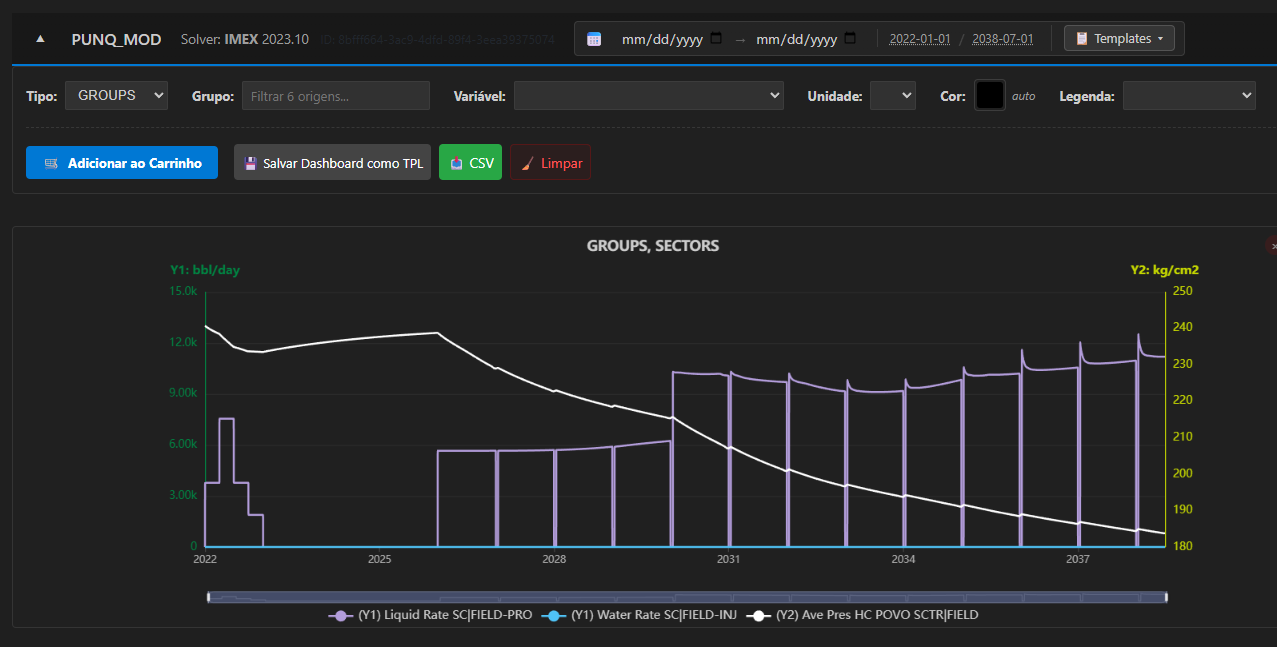
Flagship Feature: High-fidelity SR3 Visualization with adaptive resolution.✨ Key Features
📦 Getting Started
🔌 External APIvsHPC-ng can be called by external scripts and agents through VS Code URI handling.
Important operational prerequisites:
Remote-SSH NoteIf you use VS Code through Remote-SSH behind a corporate proxy, remember that the VS Code Server and remote extensions run on the remote host. In that setup, proxy variables such as 📖 Appendix: Quick Configuration GuideMost users will receive a pre-configured 1. Load your ConfigurationOpen the VS Code Command Palette ( 2. Set your SLURM AccountIn your VS Code Settings ( 3. Simulation SpecificationsBefore submitting a job, ensure you have selected:
Need help? Check with your local HPC support team for a compatible |