
CLI Launcher for Claude, Codex, Grok, Kiro & Antigravity
Run Claude Code, Codex, Grok, Kiro & Antigravity — five AI coding CLIs — inside VSCode tabs,
read the conversation as live markdown, manage sessions in a tree, and auto-sync your workspace with git.
A VSCode / Antigravity extension for the
Claude Code, Codex,
Grok, Kiro, and Antigravity CLIs.
한국어 README
I use Claude Code every day because I like it. Then Codex, Grok, Kiro, and Antigravity each found their way into my workflow too. AI coding CLIs are great in a plain terminal — but the more of them I kept open, the clearer it got that one terminal isn't enough.
- Every agent needs its own terminal.
- Session history is scattered, and each CLI stores it differently (some jsonl, some SQLite).
- I keep hopping between windows to check whether a response finished. On long thinks I can't get anything else done while waiting.
- Every file path / URL / folder in a reply has to be retyped or copy-pasted by hand.
- Frequently-used commands (
/init, prompt prefixes) get retyped every time.
- With the same workspace on two or more devices, I keep forgetting to
git pull / git push.
- I burn through my usage (5-hour / 7-day) without noticing, then suddenly hit the wall.
I built cli-launcher to solve all of that. It started by wrapping just Claude Code; now it runs five CLIs the same way inside one panel.
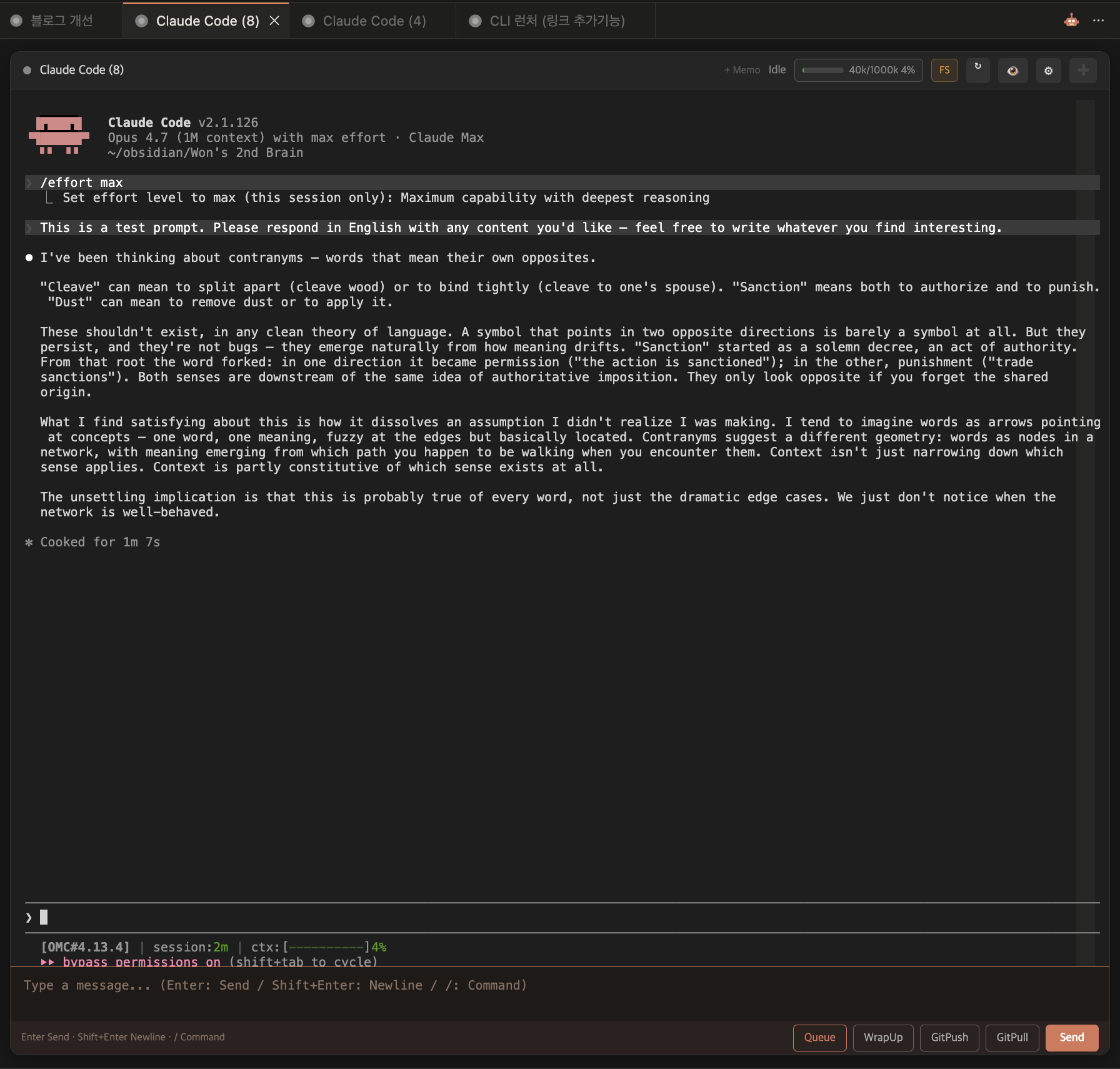
This is what it looks like. A session runs inside a VSCode tab with an input box at the bottom. Tabs along the top run several sessions at once, and the HUD reports your usage.
What it does
In one line: run Claude Code, Codex, Grok, Kiro & Antigravity in VSCode tabs, read the conversation as clean markdown, manage sessions in a tree, and auto-handle your workspace's git push/pull.
A little more:
- The CLI as-is, with conveniences on top — every feature of each CLI stays 100% intact. The launcher only layers the friction-fixers on top; it never hides or replaces anything.
- Five agents, one panel — run Claude / Codex / Grok / Kiro / Antigravity in the same Webview tab. Each agent gets its own sessions view, and each tab wears its agent's color.
- Session tree + groups — give each session a title and bucket related ones into groups/folders. Re-open an archived session from the tree to pick up where you left off.
- Reader-Live — watch the running conversation as markdown — code blocks, quotes, tables all rendered — side by side with the xterm.js terminal in a split layout. (Antigravity excepted — see "The five agents".)
- Status + notifications — a tab and its panel border glow yellow while a response is in flight and turn green when it's done, plus a desktop notification so you notice from another window.
- Hand-off — pass one agent's conversation context to another. "Did this much with Claude, now continue with Codex."
- Repo Sync — auto commit + push on workspace changes; the device name is stamped into the commit message.
- Multi-account switching — save Claude logins as profiles and swap between them. (file-based on Windows/Linux, Keychain-based on macOS.)
- HUD — 5-hour / 7-day usage rate + next reset time.
The five agents
cli-launcher wraps five AI coding CLIs the same way. Each one stores sessions differently (file vs DB, who assigns the id), so the internals differ — but from the outside it's identical: open it in a tab, pick it from the tree, read it in the reader.
| Agent |
CLI |
Reader |
Tone |
Permission toggle |
| Claude |
claude |
✅ markdown |
coral |
--dangerously-skip-permissions |
| Codex (OpenAI) |
codex |
✅ markdown |
slate |
--dangerously-bypass-approvals-and-sandbox |
| Grok (xAI) |
grok |
✅ markdown |
green |
--always-approve |
| Kiro |
kiro-cli |
✅ markdown (incl. tool-use) |
purple |
--trust-all-tools |
| Antigravity (Google) |
agy |
❌ (terminal-only) |
azure |
--dangerously-skip-permissions |
- Only Claude is enabled by default. Turn the rest on under Settings → Agent; whichever ones are actually installed then show up in the new-session picker and the sidebar sessions view.
- Tabs take their agent's color automatically (Auto theme). The terminal output colors are left alone — only the bottom input area's tone changes — so you can tell which agent you're in at a glance while output stays consistent. You can also pin one color everywhere.
- Only Antigravity has no reader.
agy stores its conversations as protobuf-in-SQLite, which can't be unpacked into markdown, so Antigravity tabs open terminal-only. Hand-off to Antigravity works (the context is injected into the prompt), but handing off from it doesn't — there's no readable transcript to carry over.
- Each permission toggle is that agent's "don't ask, just run" mode. Use it only on trusted work; all of them are off by default.
Why I built it
First, session visibility. A CLI's TUI is fine, but scrolling up through a long conversation isn't. With a reader, the session file is read straight back as clean markdown — code highlighting, tables, links all intact.
Identifying the session itself follows the same idea. Each CLI tracks sessions by an internal id only, so after a while you can't tell which was which. cli-launcher lets you give each session a title and bucket related ones into groups/folders. From the left tree you can re-open an archived session and keep working. Skip the title and it auto-generates one from the first message, so a session is always identifiable.
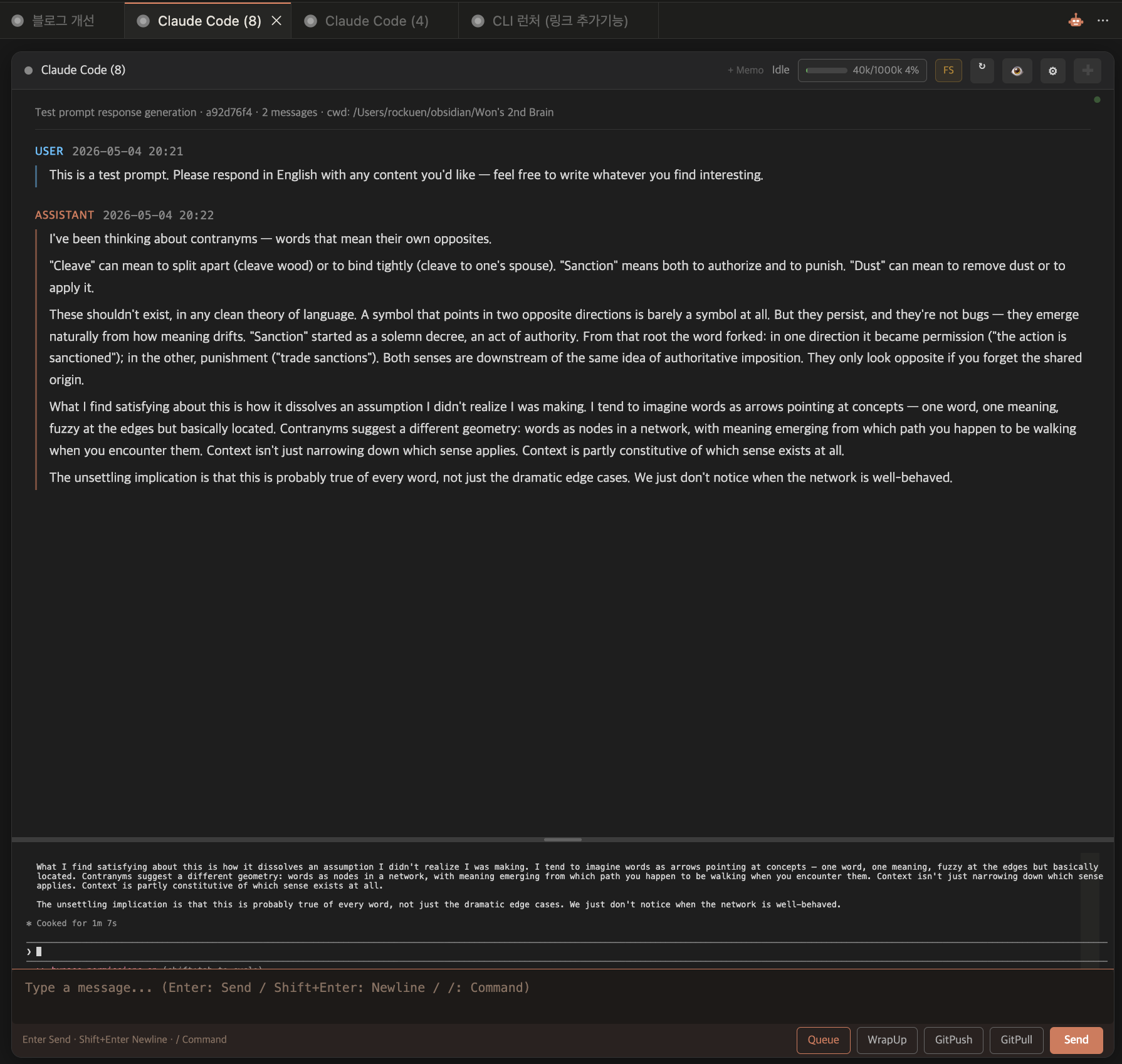
You see the same session two ways at once: as markdown on top, as the real terminal below. The top pane isn't read-only — you can send a message from the input box at the very bottom. Drag the splitter in the middle to rebalance.
Second, response state has to be visible at a glance. When the model thinks hard it can take over a minute, and going to check whether it finished broke my flow every time. So I made the state visual — the tab and panel border glow yellow while running and turn green when done, with a desktop notification too. Working in another window, a glance at the color tells you it's done.
Third, multiple devices. I move between a work PC, a home desktop, and a Mac, and every time I'm unsure whether the other side pushed. Laziness at shutdown breeds anxiety at startup. Repo Sync removes the shutdown-side laziness, which dissolves the startup-side doubt too: workspace changes are debounced for 5 minutes and auto committed + pushed, a final commit fires on VSCode exit, and the device name is stamped into the message ([Mac] auto-sync: …).
Fourth, usage visibility. I wanted to see Claude Code's rate-limit info in real time. Pinned to the status bar, a glance is enough to pace myself.

Fifth, the CLI stays; the flow just gets smoother. cli-launcher's most important principle is to leave every feature of each CLI 100% intact and only layer the friction-fixers on top — never hiding or replacing anything.
Reaching into a reply to grab a file path by hand got old, so file/URL/folder mentions in the response text are automatically clickable — one click opens the file in the IDE, a URL in the browser, a folder in Finder. Frequently-used commands go on custom buttons that drop into the input on click. Paste an image and it's saved to a temp file with just the path (@/tmp/...png) dropped in; large text gets converted to a .txt the same way, so the input box never gets clogged.
Features
- Per-agent session views — a sidebar tree for each of Claude / Codex / Grok / Kiro / Antigravity. Groups, folders (nested up to 3 levels), drag-and-drop, rename, trash.
- Reader-Live — the running conversation as markdown, split-pane or standalone, with a branded welcome screen for empty sessions. (Antigravity excepted.)
- Customizable reader sender names — set the name shown for "you" (global) and a per-agent AI name in Settings.
- Status-aware tabs — idle / running / done / error / needs-attention. Interactive prompts (
[Y/n], menus) skip the 7-second threshold and fire needs-attention + a desktop notification immediately.
- Agent themes — the input area's tone follows the agent (Auto); pin one tone if you prefer.
- Hand-off — pass conversation context to any other enabled agent.
- Session links — right-click a session (or hit 🔗 in the toolbar) to copy a link that reopens it. Paste it into a task tracker, a note, or a chat; clicking it opens the editor and resumes that exact session, in the window that owns its folder.
- Multi-account switching — save / switch Claude logins as profiles. The active account shows in the left status bar; click for a QuickPick. Tokens are read/written from
~/.claude/.credentials.json on Windows/Linux and from the Keychain on macOS.
- Auto-links + context menu — click file/URL/folder mentions in a reply; right-click a selection for a menu.
- Find files anywhere — clicking a bare filename that lives outside the session's working directory falls back to the OS file index (Everything on Windows, Spotlight on macOS,
locate on Linux) and opens it; one hit opens directly, several show a picker. One-time setup in Getting started.
- Custom buttons / smart paste / input history / task queue — input-panel conveniences.
- Slash autocomplete — the Claude Code built-in catalog plus your personal PKM/OMC catalog (via an override file).
- Repo Sync — auto commit + push, with
${workspaceFolder} substitution.
- HUD — 5-hour / 7-day usage + reset time + model name.
- Optional tmux/psmux backend — run the session inside a multiplexer in the same Webview tab, for external attach + multi-machine workflows.
- Optional OMC mode — with oh-my-claudecode installed, a CCG viewer + HUD light up.
Getting started
Install — three ways:
- Open VSX: search for CLI Launcher for Claude, Codex, Grok, Kiro & Antigravity in the Extensions view of
Antigravity, or VSCode with the Open VSX gallery.
- VSIX: download the latest
cli-launcher-for-claude-<platform>-<version>.vsix from
GitHub Releases and
install via Extensions: Install from VSIX....
- Build from source:
git clone https://github.com/rockuen/cli-launcher-for-claude.git
cd cli-launcher-for-claude
npm install && npm run build && npm run package
At minimum you need claude on PATH (npm install -g @anthropic-ai/claude-code or the
official standalone install). For Codex / Grok / Kiro / Antigravity, install each CLI and enable it
under Settings → Agent.
Optional — "find files anywhere" lets you click a file link that lives outside the
session's working directory and have it located via your OS file index. On by default; it
degrades gracefully if the backend isn't installed.
- Windows — install Everything (keep it running) plus its
command-line tool
es.exe.
Put es.exe in %LOCALAPPDATA%\Programs\everything-cli\ (auto-detected) or set
claudeCodeLauncher.fileLocator.esPath.
- macOS — nothing to install; Spotlight's
mdfind is built in.
- Linux — install
plocate (or mlocate) and seed the db once: sudo apt install plocate && sudo updatedb.
Basic use:
- Click the launcher icon in the editor title bar (or
Cmd/Ctrl + Shift + ;), then pick the agent (Claude / Codex / Grok / Kiro / Antigravity).
- Start working. To open another tab with the same agent, use the in-session
+.
- Re-open an archived session by clicking it in the per-agent Sessions tree (sidebar → CLI Launcher activity).
- (Optional) Toggle the 👁 in the header for a split layout — reader on top, terminal below.
- (Optional) Enable Repo Sync in the gear modal (⚙) and set your workspace path.
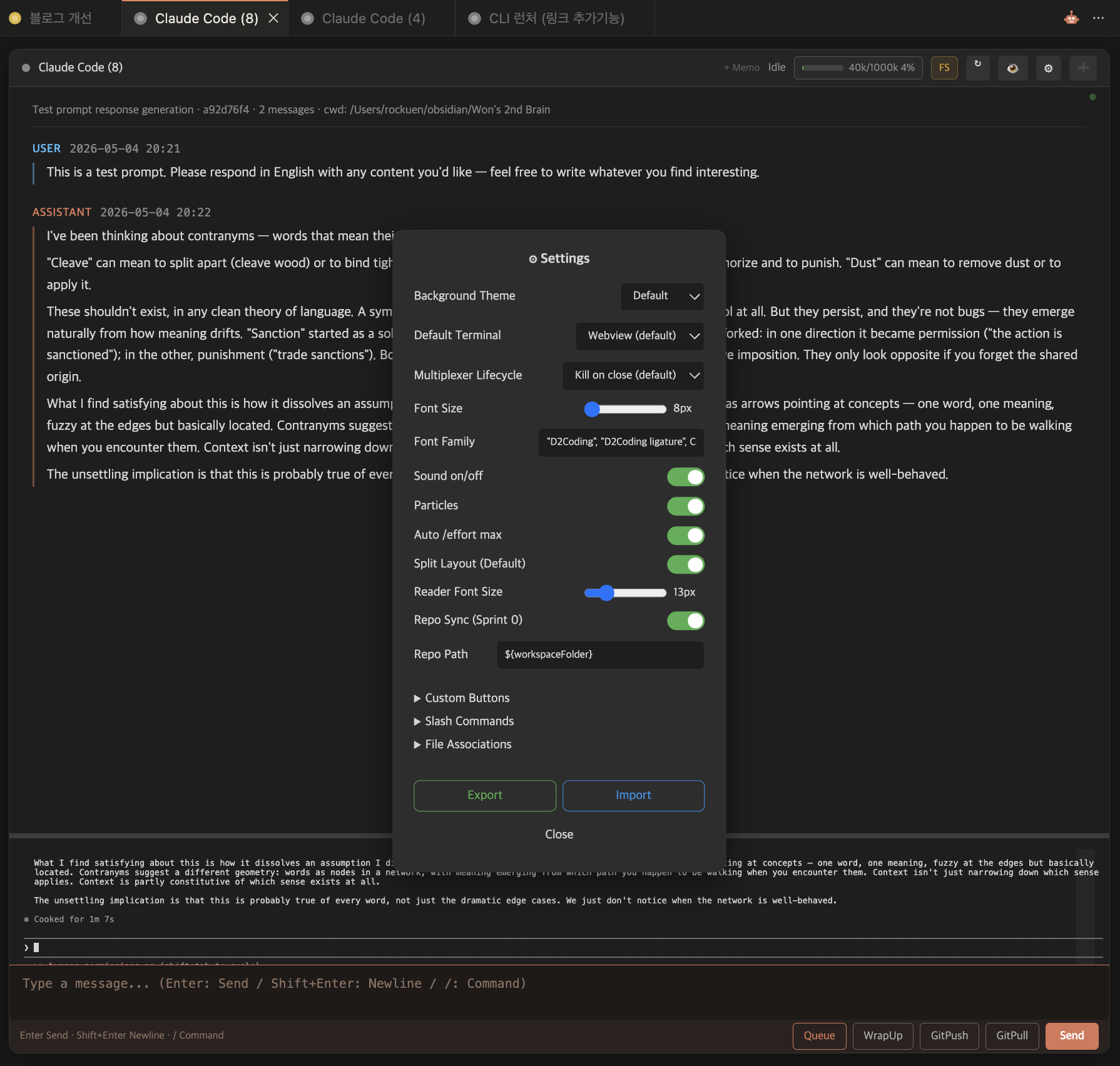
Repo Sync can be toggled in the in-panel ⚙ Settings modal, or set directly in your workspace .vscode/settings.json:
// .vscode/settings.json (workspace)
{
  "claudeCodeLauncher.repoSync.enabled": true,
  "claudeCodeLauncher.repoSync.path": "${workspaceFolder}",
  "claudeCodeLauncher.repoSync.deviceName": "Mac"   // prompted on first enable
}
It supports ${workspaceFolder} / ${userHome} substitution, so you never hard-code an
absolute path per device. Commit .vscode/settings.json into the vault repo and it fits
every device automatically.
Who it's for
- Anyone who uses Claude Code (or Codex / Grok / Kiro / Antigravity) daily and finds the bare TUI cramped.
- Anyone juggling several AI coding CLIs who wants to run them the same way in one panel.
- Anyone unifying their workflow inside VSCode/VSCodium.
- Anyone moving between devices on the same vault/repo.
- Anyone who wants their usage visible at a glance.
One honest note
- The HUD works best with OMC (oh-my-claudecode) installed, because it reads the usage cache OMC produces. Everything else (TUI / Reader / Repo Sync / multiple agents) works without OMC; only the HUD stays empty.
- Antigravity has no reader. Its conversations are protobuf-in-SQLite and can't be rendered as markdown, so it runs terminal-only and hand-off is receive-only.
- Multi-account switching is Claude-only for now. Tokens live in the Keychain on macOS and in a file elsewhere.
Closing
It's a small tool, but building it tidied up the flow I use every day. Even as the agents grew from one to five, the things that used to scatter all collect inside one panel.
I hope it helps people who lean on AI coding CLIs. Thoughts / issues welcome at
GitHub Issues.
Full changelog: CHANGELOG.md.
License
MIT. Made by @rockuen.

