Skip to content
| Marketplace
Sign in
Visual Studio Code>Other>Keybinding Conflict ScannerNew to Visual Studio Code? Get it now.
Keybinding Conflict Scanner

Keybinding Conflict Scanner

FullMoon

|
9 installs
| (1) | Free
Automatically detect and resolve keybinding conflicts between VS Code extensions
Installation
Launch VS Code Quick Open (Ctrl+P), paste the following command, and press enter.
Copied to clipboard
More Info

Keybinding Conflict Scanner

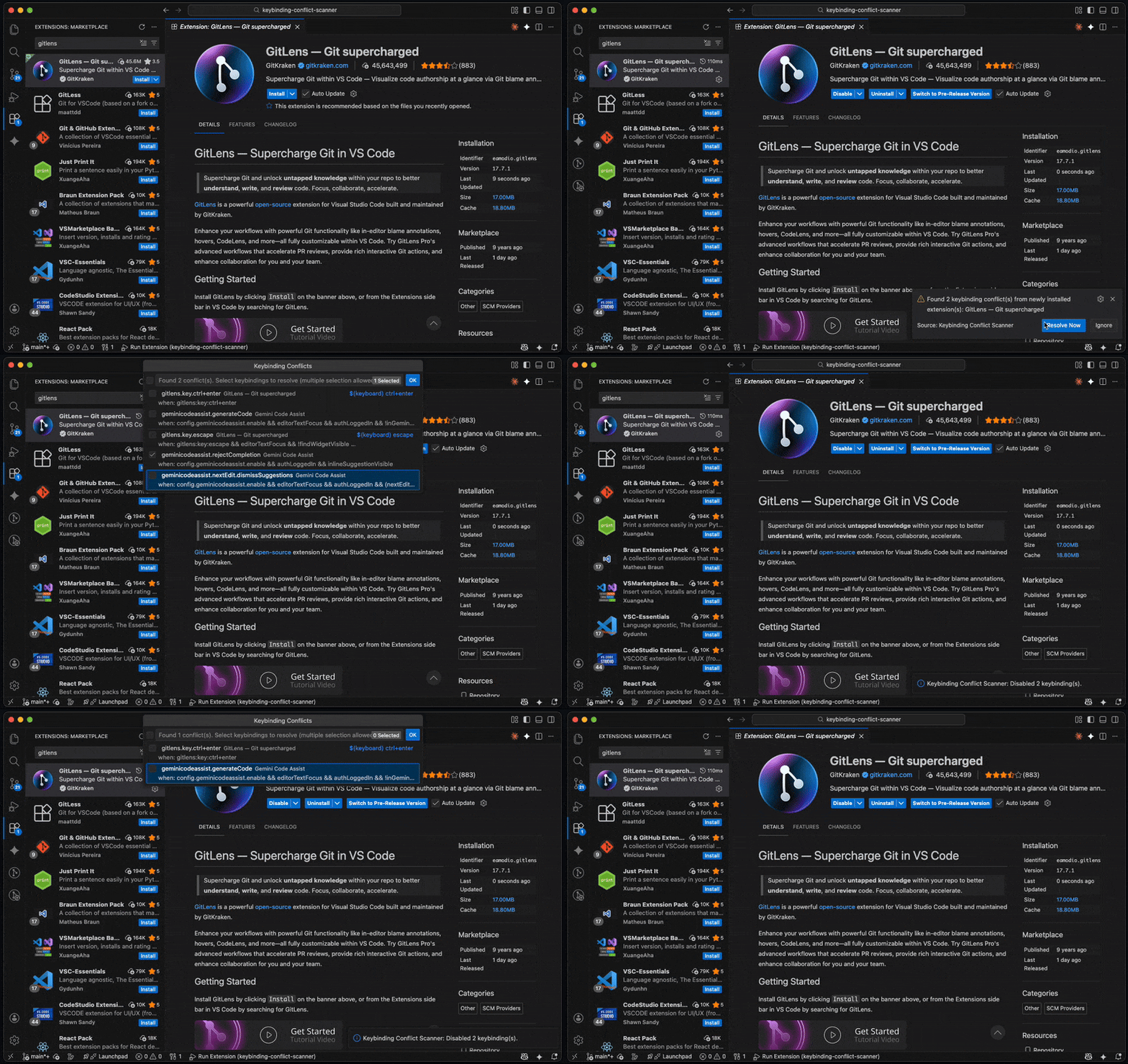
Demo

Stop wrestling with conflicting keyboard shortcuts. This extension automatically detects keybinding conflicts when you install new VS Code extensions and helps you resolve them in seconds.


🎯 Why You Need This

When you install multiple VS Code extensions, they often define the same keyboard shortcuts. VS Code doesn't warn you about these conflicts, leaving you wondering why certain shortcuts don't work as expected.

Keybinding Conflict Scanner solves this by:

  • 🔔 Alerting you immediately when new extensions create conflicts
  • 🎯 Showing only relevant conflicts (not overwhelming you with everything)
  • ⚡ Resolving conflicts in seconds with simple actions

✨ Key Features

🔍 Automatic Detection

Detects conflicts the moment you install a new extension - no manual scanning needed.

🎯 Smart Filtering

Only shows conflicts involving your newly installed extension, not every conflict in your workspace.

Example: Install "GitLens" → See only GitLens conflicts.

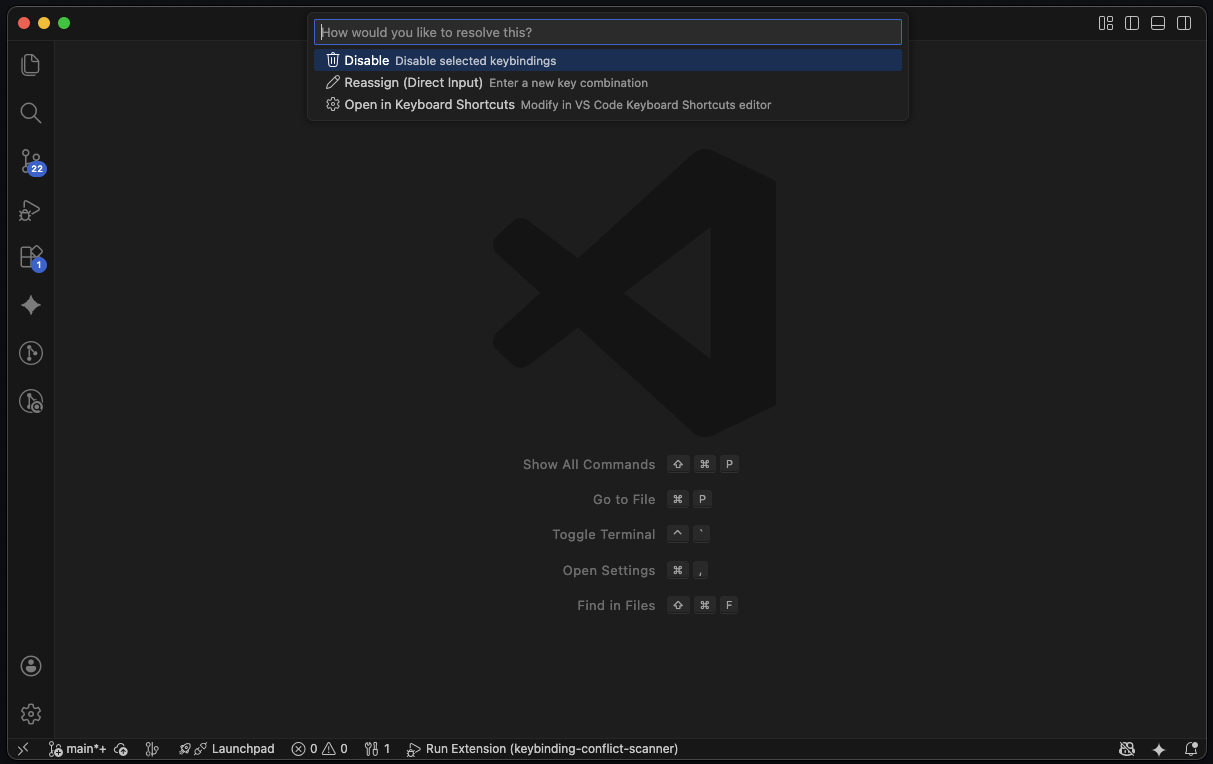
⚡ Three Resolution Options

Resolution Options

1️⃣ Disable Keybinding

Quickly disable the conflicting shortcut with one click.

2️⃣ Reassign to Different Key

Type a new shortcut with real-time validation:

  • ✅ Format validation (ctrl+shift+k, ctrl+k v)
  • ✅ Conflict detection (warns if new key already exists)
  • ✅ Invalid key prevention

3️⃣ Open in Keyboard Shortcuts Editor

Opens VS Code's native Keyboard Shortcuts editor with the command pre-searched for you.


🚀 Getting Started

Installation

  1. Open VS Code
  2. Press Ctrl+Shift+X (or Cmd+Shift+X on Mac)
  3. Search for "Keybinding Conflict Scanner"
  4. Click Install

First Time Setup

No setup needed! The extension works automatically after installation.

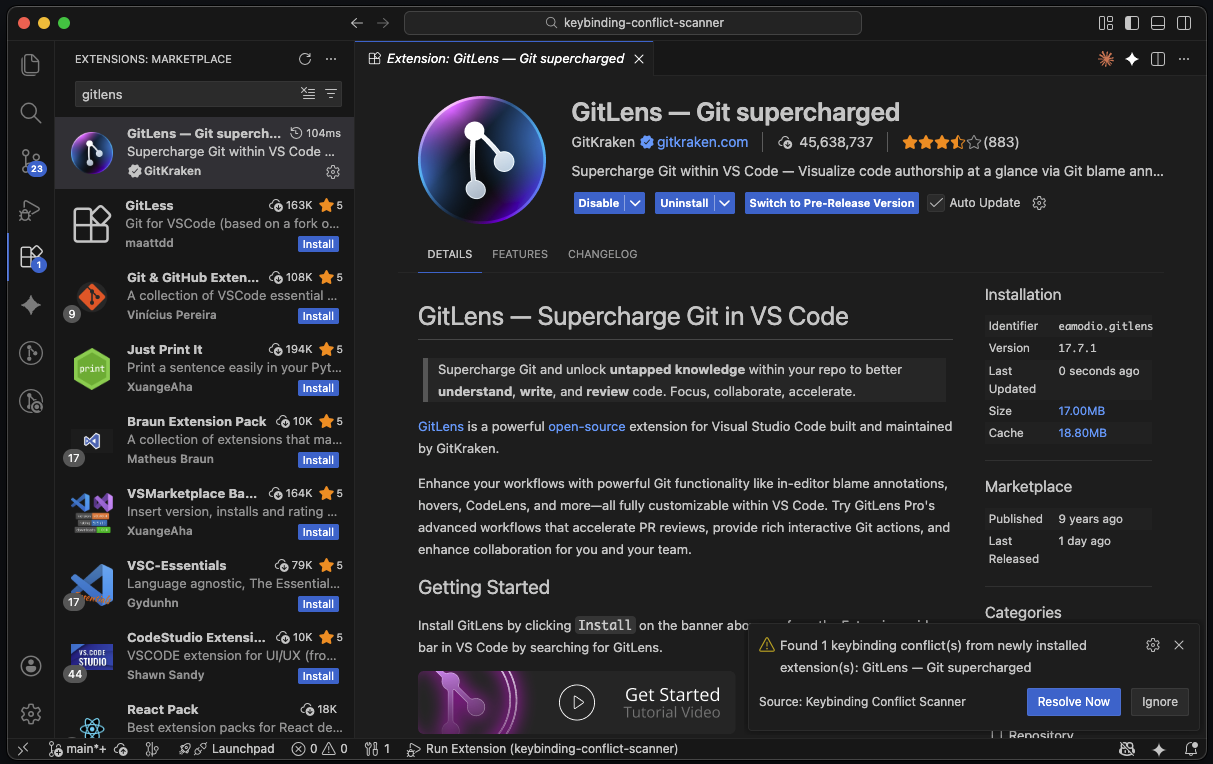
When you install your next extension, you'll see a notification if conflicts are detected:

Notification

⚠️ Found 1 keybinding conflict(s) from newly installed extension(s): Git Lens
[Resolve Now] [Ignore]

📖 How to Use

Automatic Mode (Default)

  1. Install any extension from the marketplace
  2. Wait 2 seconds for conflict detection
  3. Click "Resolve Now" if notification appears
  4. Select conflicting keybindings (multi-select with checkboxes)
  5. Choose resolution method

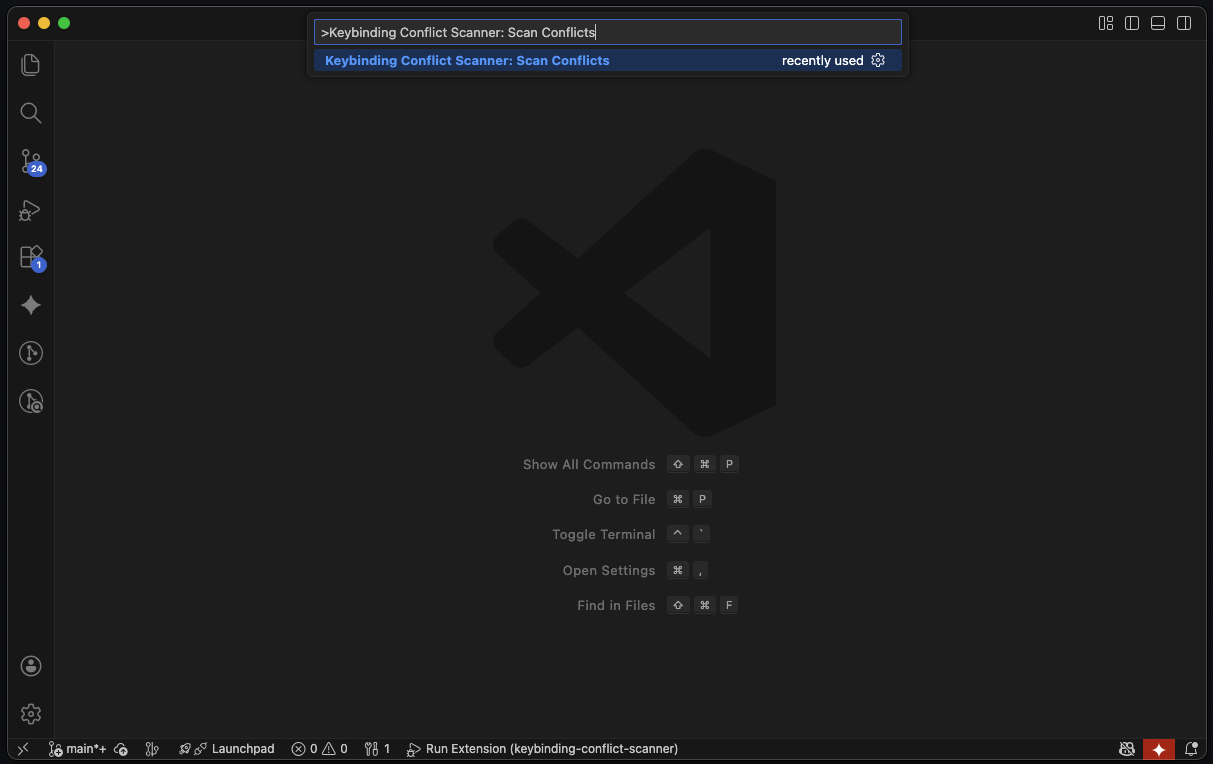
Manual Scan

Want to check for conflicts anytime?

  1. Press Ctrl+Shift+P (or Cmd+Shift+P)
  2. Type Keybinding Conflict Scanner: Scan Conflicts
  3. Press Enter

Command Palette


⚙️ Settings

Setting Default Description
autoDetect true Automatically detect conflicts when installing extensions
showNotifications true Show popup notifications when conflicts are found

To change settings:

  1. Press Ctrl+, (or Cmd+,)
  2. Search for "Keybinding Conflict Scanner"
  3. Toggle options

🎼 Advanced Features

Chord Key Support

Properly handles sequential key combinations:

  • ctrl+k ctrl+s - Open Keyboard Shortcuts
  • ctrl+k v - Open Markdown Preview to Side
  • ctrl+k ctrl+n ≠ ctrl+n (not treated as duplicate)

Same Extension Filtering

Smart enough to ignore same extension with different contexts:

Example: Git extension uses ctrl+enter in two contexts:

  • when: inQuickOpen - Confirm Quick Open selection
  • when: scmRepository - Commit changes

These are NOT treated as conflicts (they work in different contexts).

Platform-Specific Handling

Automatically uses the correct modifier key for your platform:

  • Windows/Linux: ctrl
  • Mac: cmd

🔍 How It Works

Detection Logic

New Extension Installed
        ↓
Wait 2 seconds (for extension to fully load)
        ↓
Scan all extension keybindings
        ↓
Find conflicts involving new extension
        ↓
Filter out same-extension different-context bindings
        ↓
Show notification (if conflicts found)

Key Normalization

To detect conflicts accurately, the extension normalizes keys:

Input Normalized
Shift+Ctrl+V ctrl+shift+v
CTRL+C ctrl+c
cmd+k cmd+s ctrl+k ctrl+s (on Windows/Linux)

Smart Filtering Examples

Scenario: You have Gemini Code Assist extensions installed. You now install GitLens.


📋 Requirements

  • VS Code: Version 1.80.0 or higher
  • Operating System: Windows, macOS, or Linux

📝 Known Limitations

System Commands Not Detected

VS Code's built-in "System" commands (like Ctrl+C for Copy in editor) cannot be detected because they're hardcoded in VS Code's core, not defined in extensions.

Runtime Keybindings

Only detects keybindings defined in package.json. Dynamic keybindings registered at runtime through code are not accessible via VS Code API.

Priority Detection

Cannot determine which keybinding "wins" when multiple are defined - this depends on VS Code's internal priority system (extension load order, when clause specificity, etc.).


🤝 Contributing

Found a bug? Have a feature request?

Open an issue: GitHub Issues

Pull requests are welcome!


📄 License

MIT License - see LICENSE file for details


💖 Support This Project

If you find this extension helpful, consider supporting its development:

Sponsor on GitHub

Your sponsorship helps:

  • 🚀 Maintain and improve the extension
  • 🐛 Fix bugs and add new features
  • 📚 Create better documentation
  • 💡 Develop new tools for the community

Every contribution, no matter how small, is greatly appreciated! ✨


🙏 Acknowledgments

Built with ❤️ using:

  • VS Code Extension API
  • TypeScript

📞 Support

  • Issues: GitHub Issues
  • Discussions: GitHub Discussions

Enjoy conflict-free shortcuts! 🎹✨

  • Contact us
  • Jobs
  • Privacy
  • Manage cookies
  • Terms of use
  • Trademarks
© 2025 Microsoft