Sudo for Remote - SSH
Add, edit, save, delete, move, compress, extract, and change permissions/ownership of protected files and folders with sudo/root privileges while using the VS Code Remote - SSH extension.
If you frequently work on remote Linux servers and need to edit system configuration files (like /etc/nginx/nginx.conf or /etc/fstab), or fix web server file ownership (like www-data), this extension saves you from having to drop into the terminal. You can manage protected files, directories, and their permissions directly from the comfort of the VS Code editor!
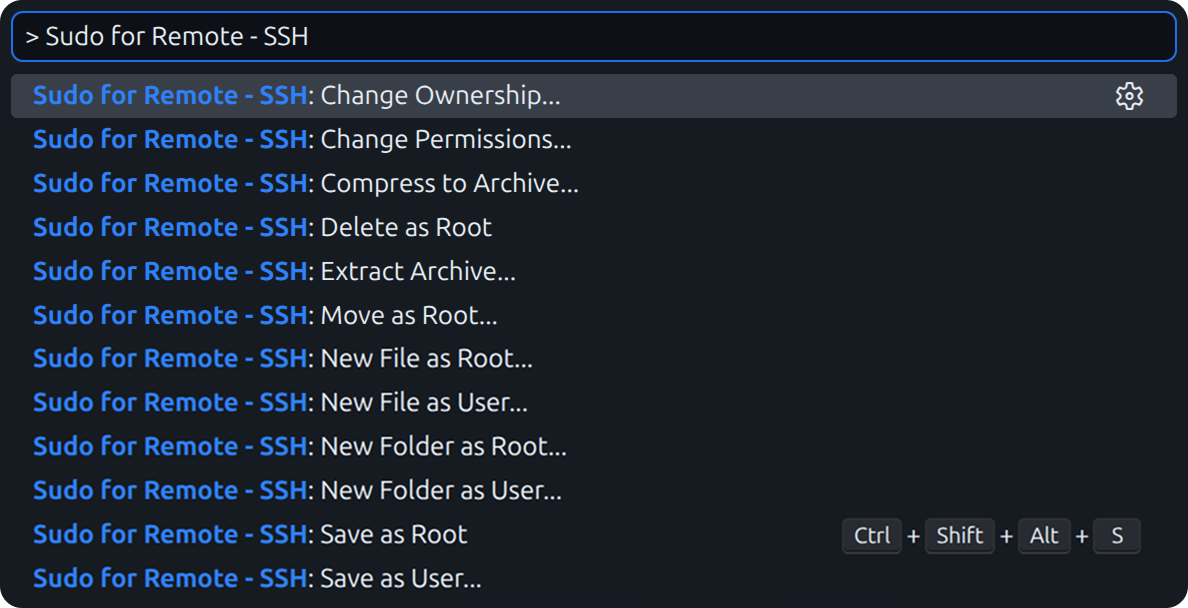
Features
This extension adds several commands to VS Code, allowing you to bypass permission denied errors seamlessly:
- Save as Root / User: Save the currently open protected file using
sudo. Icons appear in the Editor Actions Title bar for quick access! (Default Hotkey: Ctrl+Shift+Alt+S)

- Multi-Selection Support: Apply actions (Delete, Compress, Chmod, Chown, Move) to dozens of files and folders at the exact same time.
- Move as Root: Move protected files or directories with smart path prediction and automatic destination folder creation.
- New File / Folder as Root / User: Create new files or nested directories anywhere on the remote file system.
- Delete as Root: Permanently delete protected files or directories (runs
rm -rf).
- Change Permissions (chmod): Quickly apply new numeric or symbolic permissions to any file or folder.
- Change Ownership (chown): Easily reassign the user and group ownership of a file or folder.
- Compress & Extract: Instantly zip/unzip or tar/untar files directly from the context menu with visual progress bars.
- Recursive Operations: Automatically detects if you are modifying a folder's permissions or ownership and interactively asks if you want to apply the changes recursively (
-R).
You don't need to memorize commands! You can simply right-click in the VS Code File Explorer to access the full suite of management tools.
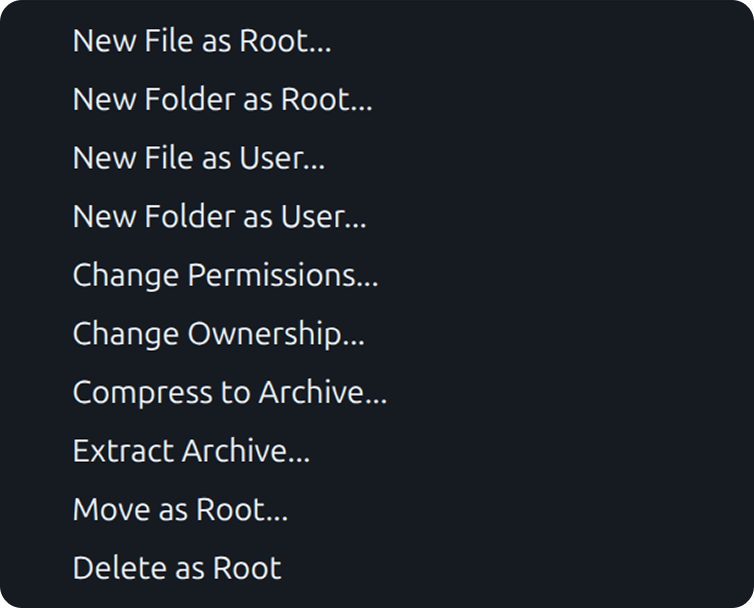
How It Works
When you trigger a command that requires elevated privileges, the extension uses the native sudo command on your remote machine. If sudo requires a password, VS Code will securely prompt you to enter it at the top of the screen.
Extension Settings
This extension contributes the following settings that you can configure in your settings.json:
remote-ssh-sudo.command: The command used to execute sudo. (Default: "sudo")remote-ssh-sudo.timeoutSeconds: Configure the timeout for long-running operations. (Default: 60)remote-ssh-sudo.extensionsToNotifyOnSave: A list of extension IDs to notify when a file is saved via this extension.
Requirements
- You must be connected to a remote machine (e.g., via the official VS Code Remote - SSH extension).
- The remote system must have
sudo installed and configured.
- Your remote user account must have permissions to execute
sudo.
- Note for Compression: To use the
.zip compression and extraction features, ensure that the zip and unzip packages are installed on your remote server (e.g., sudo apt install zip unzip).
Known Limitations
- Large file transfers over slow SSH connections might trigger a timeout.
- VS Code might temporarily display a "Permission Denied" warning when trying to save normally before you trigger the "Save as Root" command.

