Loom — AI-assisted workflow for VS Code
Document-native workflow for AI-assisted development.
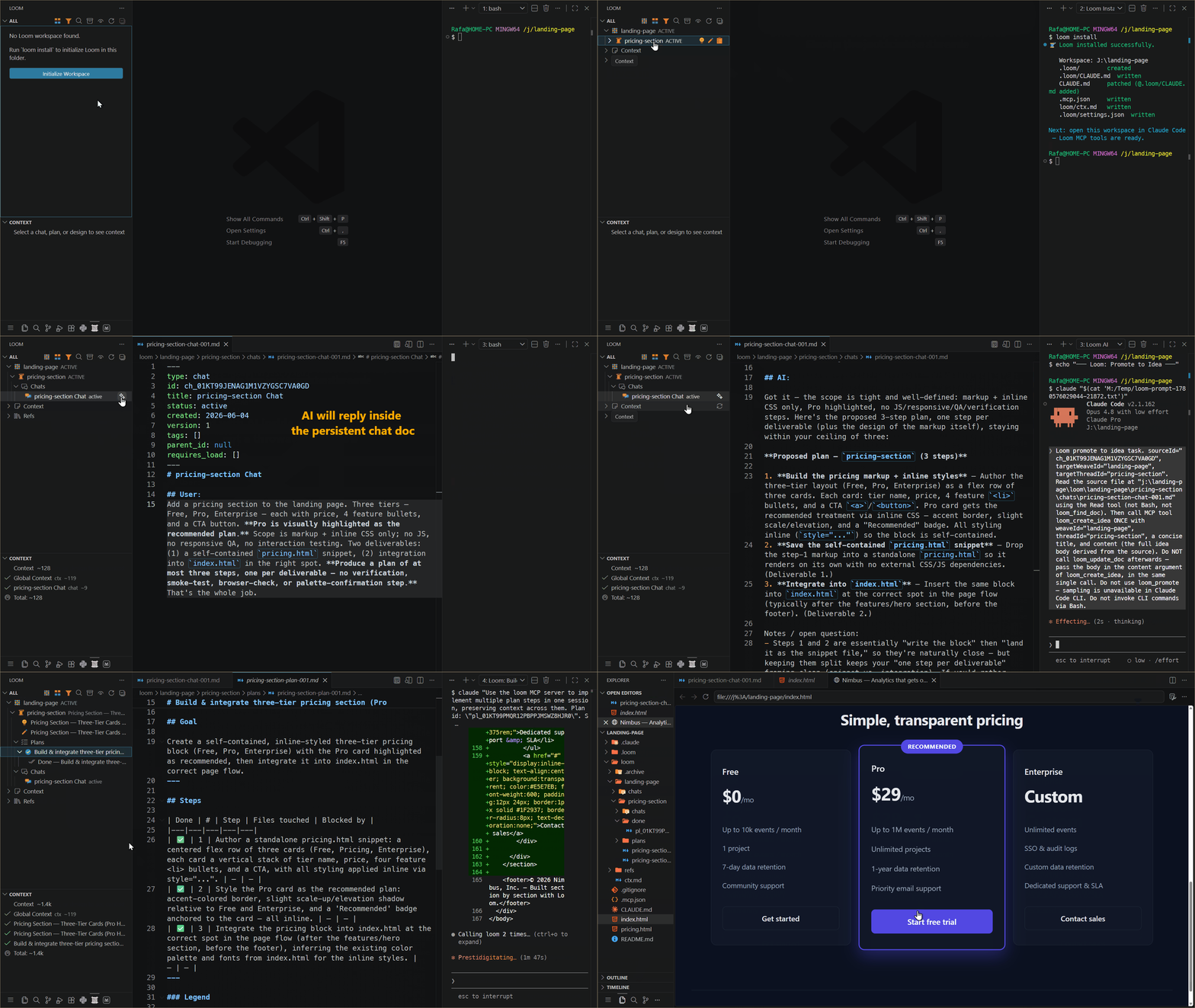
🎬 Workflow demo — chat → idea → design → plan → do-step → done, with the document graph building node-by-node in the sidebar.

Loom turns your project into a structured collaboration surface between you and AI. Instead of a chat window that forgets everything, you get a document-driven loop:
chat → idea → design → plan → implement → done
Every stage is a Markdown document. The AI reads them, writes to them, and tracks progress through them — across sessions, without losing context.
🔗 Get Loom: GitHub repo · CLI on npm · VS Code Marketplace · Open vsx
📚 Guides: Core concepts & workflow · Extension User Guide · CLI / Claude Code Guide
Why Loom
Loom started as a hand-built habit: while developing the .NET library REslava.Result, I got tired of ephemeral AI chats that forgot every decision between sessions, so I began keeping ideas, designs, plans, and requirements as persistent Markdown — grouped by feature, so the AI always had the right context. Loom automates that.
Traditional AI chat: Loom:
knowledge drifts & dies knowledge becomes artifacts
artifacts become context
context drives implementation
The part that matters most isn't the loop — it's how Loom decides what the AI sees. A graph of typed docs, scope-loaded ctx summaries, reference docs with conditional requires_load / load_when, locked requirements (include / exclude / constrain), and a Context panel that shows the exact bundle before you launch. The AI's memory is structural, not conversational. → How context works
Install
1. Install the CLI (required — the extension talks to it):
npm install -g @reslava/loom
2. Install the extension from the VS Code marketplace: search reslava.loom.
3. Initialize Loom in your project:
loom install
This creates .loom/ (config), loom/ (your doc workspace), and a CLAUDE.md that wires up the AI session contract.
Connect an AI agent
Loom works best with an MCP-capable AI agent (Claude Code, Cursor). loom install already wrote .mcp.json to your project root — shown here for reference:
{
"mcpServers": {
"loom": {
"type": "stdio",
"command": "loom",
"args": ["mcp"],
"env": {
"LOOM_ROOT": "${workspaceFolder}"
}
}
}
}
The agent then has access to all Loom tools (loom_create_idea, loom_do_step, loom_complete_step, etc.) and resources (loom://context/...).
The loop
- Chat — open a chat doc, think out loud with the AI (AI Reply).
- Idea — create one with Weave Idea and flesh it out with Refine Idea, or Promote a chat straight to an idea.
- Design — click Generate Design to define how to build it.
- Plan — click Generate Plan to get a concrete step-by-step implementation list.
- Implement — click Do Step to have the AI implement the next step, record what was done, and mark it complete.
Each stage produces a Markdown document visible in the Loom panel. Nothing disappears between sessions.
The LOOM panel
The Loom Activity Bar icon opens the Loom sidebar, which contains two views: Threads and Context.
Threads view
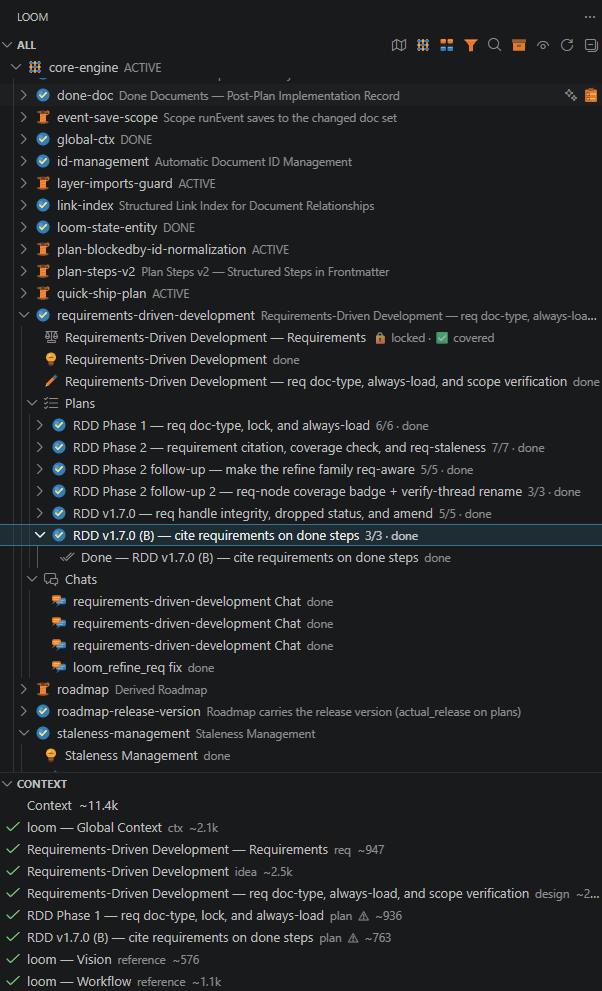
Shows your weaves (project areas) → threads (workstreams) → docs (idea, design, plans, chats, done docs). Buttons appear inline on a node and in its right-click menu, grouped by what they do.
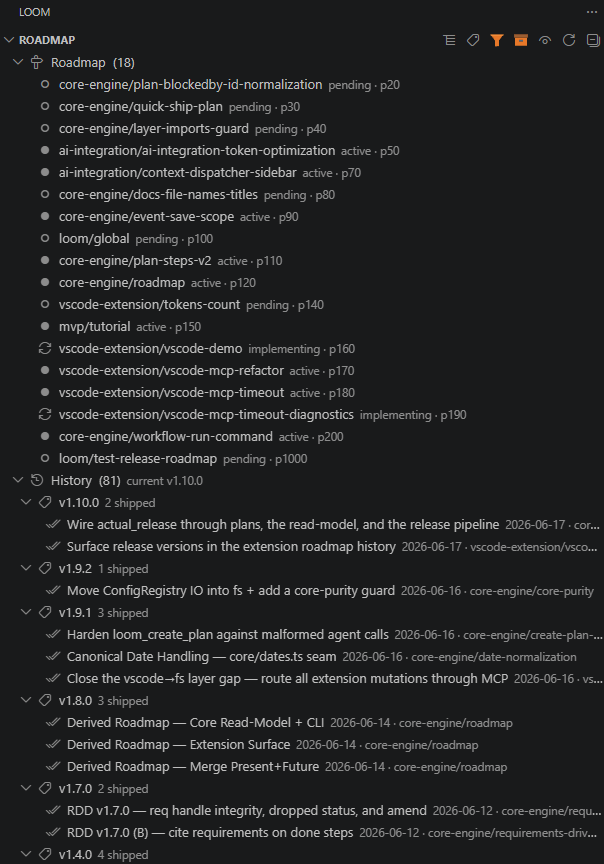
A Show Roadmap toolbar toggle re-lays this view into the derived cross-weave roadmap — one Roadmap band (present + future threads in a single dependency-then-priority order, each row showing its status and, when blocked, what it's blocked on) and History (shipped plans). In roadmap mode the status filter folds to all / roadmap / history, the History band can group by thread, and drag-to-reorder spans the whole Roadmap list, writing soft priority (never overriding a hard dependency). It's all computed from the documents — no roadmap list to maintain.
 |
 |
Threads + Context — every weave → thread → doc (chat, idea, design, plan, req, reference, done) in one graph, each node carrying its derived state: reqs marked 🔒 locked · ✅ covered, plan step counts (3/3 · done), and staleness ⚠. The CONTEXT panel shows the exact docs — and their token cost — the AI will receive for the selected node, before you launch. |
Roadmap — the same graph re-laid as the derived roadmap: present + future threads in one dependency-then-priority order (status, soft priority p20, and what each is blocked on), over a History band grouped by shipped version with date and thread. |
Click either image to view full size.
AI actions (run the agent):
| Button |
What it does |
| Generate Design (AI) |
Turn an idea into an architecture + decisions doc |
| Generate Plan (AI) |
Break a design into numbered, reviewable implementation steps |
| Do Step(s) |
AI implements the next pending step; marks it ✅ and writes a done note |
| AI Reply |
Continue the conversation inside a chat doc with full thread context loaded |
| Refine Idea / Design / Plan |
Re-run generation on a stale doc after its parent was updated |
| Refresh Context |
Regenerate the ctx.md summary for a weave |
Create & promote (structure, no AI):
| Button |
What it does |
| Weave Idea / Design / Plan |
Create an idea, design, or plan doc on a thread |
| Weave Chat |
Start a new chat doc on a thread |
| Promote to Idea / Design / Plan / Reference |
Turn a chat or doc into the next doc type in one click |
| Create Reference / Add References… |
Add a loom/refs/ doc, or wire one into a doc's requires_load |
Manage (state & tree):
| Button |
What it does |
| Start Plan / Close Plan |
Move a plan to implementing / finish it |
| Complete Step |
Mark the current step ✅ without running the AI |
| Mark Done / Mark Active |
Flip a doc's status |
| Rename / Archive / Delete |
Inline doc management from the tree |
| Validate |
Check a weave for broken links and stale docs |
Right-click any node for the same actions as a context menu.
Context view
Shows every document that would be loaded into the AI's context for the selected node — before you launch anything. Updates as you click around. What you see here is what the AI gets.
Each row is one doc, marked by why it's there:
| Symbol |
Meaning |
| ✓ |
Auto-included (ctx, parent chain, or a matching always reference) |
| 📌 |
You pinned it in |
| 🚫 |
You excluded it |
| ⊘ |
Excluded but pulled back in by another doc's requires_load |
| 🔒 |
load: always — locked on (force-off prompts a warning) |
| ⚠ / ❌ |
Stale / missing |
Click a row to open the doc. Use the inline actions to include / exclude / reset; choices persist per target in .loom/context-prefs.json. Per-doc and total token estimates let you keep launches lean.
A real project in Loom
ChordFlow — a Rhythm & Progression Trainer for guitar — is built with Loom from outside this extension's own repo: the same panel, driving an unrelated app.
 |
 |
Threads + Context — ChordFlow's music-domain weaves (CAGED system, interval lattice, octave shapes), a plan mid-implementation, and a diagnostics banner: 1 stale · 3 plan steps blocked · 11 req coverage gaps. |
Roadmap — ChordFlow's derived roadmap and shipped-version history, computed from its own documents. |
Click either image to view full size.
AI setup
Every AI button picks its path automatically:
1. Claude Code CLI (default)
If claude is on your PATH, buttons open a persistent Loom AI terminal and run claude "<prompt>". Claude reads your Loom docs, calls the right MCP tools, and writes the result back. No API key needed — works with a Claude Pro subscription.
# Install Claude Code CLI (free with Claude Pro)
npm install -g @anthropic-ai/claude-code
2. API key / sampling (fallback)
If Claude Code CLI is not installed, the extension calls the AI provider directly via its configured API key. Set in VS Code settings:
reslava-loom.ai.apiKey → your Anthropic / OpenAI / DeepSeek key
reslava-loom.ai.provider → anthropic | openai | deepseek
Settings
| Setting |
Default |
Description |
reslava-loom.user.name |
User |
Your display name in chat headers |
reslava-loom.ai.provider |
anthropic |
AI provider for API key path (anthropic/deepseek/openai) |
reslava-loom.ai.apiKey |
— |
API key (fallback — not needed if Claude Code CLI is installed) |
reslava-loom.ai.model |
— |
Model override (blank = provider default) |
Requirements
- VS Code 1.85+
- Node.js 18+
@reslava/loom CLI installed globally
Documentation
License
MIT