Remote Agents: GitHub Copilot Chat on your phone
You need the free Remote Agents phone app and a Remote Agents subscription. New accounts get a 14-day free trial at remoteagents.app. Plans start at $9/month after the trial. No card is needed to start the trial.
Keep your Copilot agent working while you're away from your desk. Approve tool calls, answer its questions, and send the next prompt from your phone.

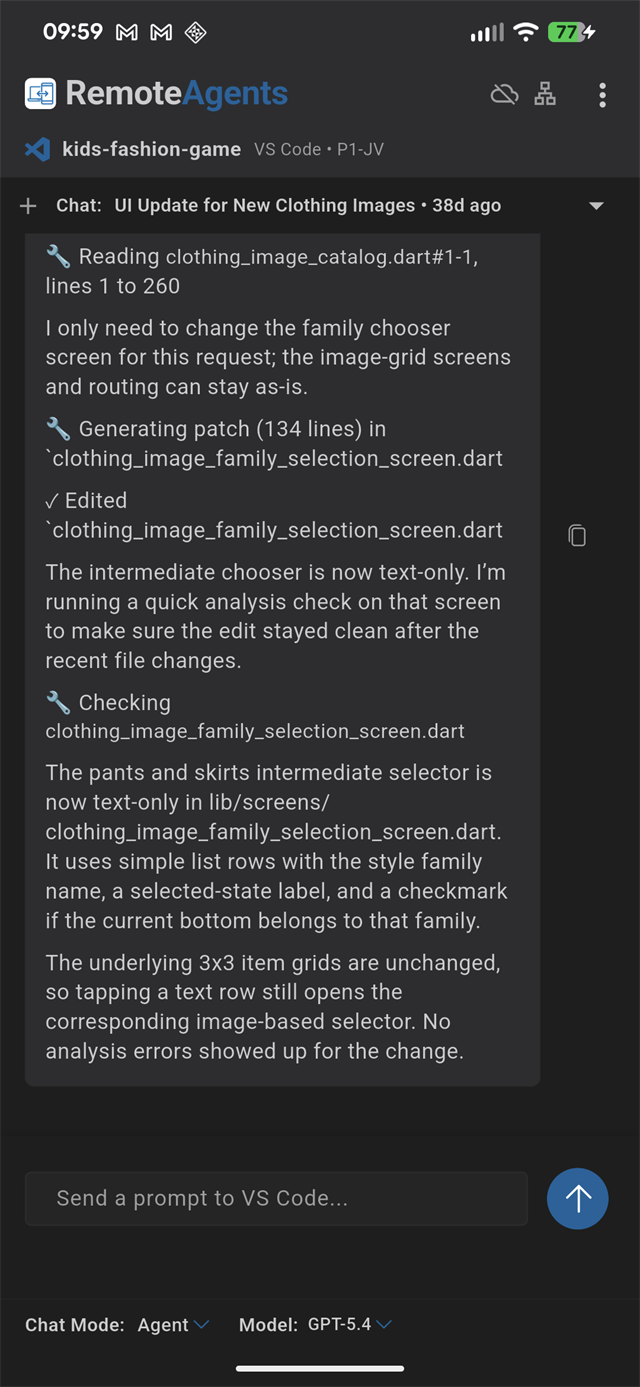
Why Remote Agents
Nothing to change
The Copilot Chat sessions you already have show up in the app automatically, from every open VS Code window. That includes chats you started before installing Remote Agents.
- There's no
/remote on, no CLI switch and no wrapper.
- Keep chatting in the Chat panel as usual. The extension reads the chats VS Code already saves.
Private
- Local-only mode. Your phone talks to the Remote Agents desktop app over your own network, using pinned TLS. Chat content never goes to our servers.
- Cloud mode. Content is end-to-end encrypted between VS Code and your phone. The relay sees only routing information, never your prompts, code or replies.
- Any Git host, or none. Remote Agents relays chats, not repositories. GitHub, GitLab, Bitbucket, Azure DevOps, self-hosted, or no Git at all all work the same way.
Know when it needs you
Your phone alerts you when Copilot is waiting for a tool approval, asks a question, or finishes a turn. Then, from your phone, you can:
- approve or skip the tool call;
- answer the question;
- send the next prompt, or start a new chat;
- pick the chat mode (Agent, Ask, Edit or Plan) and the model.
In cloud mode, alerts arrive as push notifications even when the app is closed. In local-only mode, the app alerts you while it's connected.
All your windows and PCs in one app
- Every VS Code window connects on its own, so all your projects on all your computers appear in one list.
- Agent Host chats in VS Code (Copilot CLI, Claude and Codex sessions) appear next to your Chat-panel sessions.
How it compares with GitHub's remote control
Checked on November 23, 2026. GitHub is changing these features quickly.
|
GitHub Copilot remote control |
Remote Agents |
| Sessions it covers |
Copilot CLI sessions, and VS Code through code agent host |
The Copilot Chat panel sessions you already have in VS Code |
| Chat-panel sessions you already have |
Not covered in GitHub's docs. New work runs in the Copilot harness |
Show up automatically |
| Setup |
Turn on remote connections in Copilot CLI (/remote on or a saved preference), or run code agent host on each machine |
Install the extension and sign in |
| Approve requests from your phone |
Yes, in GitHub Mobile |
Yes |
| Where traffic goes |
Through GitHub. No end-to-end encryption is stated |
End-to-end encrypted in cloud mode, or local-only on your network |
| Price |
Included with Copilot. Business and Enterprise need an admin policy turned on |
From $9/month after a 14-day free trial |
GitHub's option is free and built in, so try it first if it covers how you work. Remote Agents is for people who live in the VS Code Chat panel and want their existing sessions on their phone without changing anything, including local-only use that never leaves the network.
Setup
First, create an account and start your trial at remoteagents.app. Starter covers local-only mode, and Pro adds cloud mode.
Cloud mode: extension + phone (Pro)
No desktop app needed.
- Install this extension.
- Install Remote Agents on your phone from the App Store or Google Play, and sign in.
- In VS Code, open the Command Palette and run Remote Agents: Switch Server Mode. Choose Cloud.
- Sign in with GitHub or with your email and password when asked. You can also run Remote Agents: Sign In yourself.
- In the phone app, choose Link with VS Code and scan the QR code that VS Code shows. Approve the link in VS Code. This sets up end-to-end encryption. If you can't scan, compare the six-digit codes instead.
- Chat with Copilot as usual. Your sessions appear on your phone.
Local-only mode: desktop app + phone (Starter or Pro)
- Sign in at remoteagents.app and install the Remote Agents desktop app for Windows, macOS or Linux on the computer where you run VS Code. The desktop app runs the local relay and installs this extension for you.
- Install the phone app and open it on the same network. It finds the desktop app and asks to connect.
- Approve the request in the desktop app.
- Chat with Copilot as usual.
Local mode is the default (rem.serverMode is set to local), and the extension finds the desktop app on your network by itself.
The status bar shows REM: with the current mode and connection state. Click it to switch between Cloud and Local.
Commands
Open the Command Palette (Ctrl+Shift+P / Cmd+Shift+P) and type "Remote Agents":
| Command |
What it does |
| Remote Agents: Connect |
Connect to the relay |
| Remote Agents: Disconnect |
Disconnect from the relay |
| Remote Agents: Sign In |
Sign in with GitHub or with your email and password |
| Remote Agents: Sign Out |
Sign out and delete this editor's cloud encryption key |
| Remote Agents: Switch Server Mode |
Switch between Cloud and Local |
| Remote Agents: Support and Debugging Workflow |
Collect logs and set up Copilot debug logging for a support case |
| Remote Agents: Prepare Same-Computer E2E Link |
Link the desktop app on this computer for end-to-end encryption, without a QR code. Then choose Link on this computer in the desktop app within two minutes |
| Remote Agents: Pair with Local Relay (Advanced) |
Pair by hand with a relay at a host and port you enter |
| Remote Agents: Toggle Rapid Response Updates (Advanced) |
Turn faster end-of-turn updates on or off |
Settings
| Setting |
Default |
What it does |
rem.serverMode |
local |
local uses the desktop app on your network. cloud uses the encrypted cloud relay |
rem.autoConnect |
true |
Connect when VS Code starts |
rem.toolApprovals |
true |
Show tool approvals and agent questions in the app. Turn it off to keep them in VS Code only |
rem.cloudStandby |
true |
While in local mode and signed in, keep a restricted cloud connection so the app can see this editor is online and switch it to cloud. It shares the computer's hostname and workspace name, but no chat content or file paths. Turn it off to keep everything on your network |
rem.rapidResponseUpdates |
true |
Briefly cycle window focus at the end of a turn so the final reply reaches your phone sooner |
rem.allowSelfSignedLocalTls |
true |
Allow a self-signed certificate for a relay on localhost only |
Requirements
- VS Code 1.120 or newer, with GitHub Copilot Chat installed and signed in.
- The Remote Agents phone app for iOS or Android.
- A Remote Agents subscription or free trial.
- For local-only mode, the Remote Agents desktop app on the same network.
Use Remote Agents with your own Copilot subscription, and follow your organization's policies for Copilot and source code.
Privacy
- The extension reads the Copilot Chat sessions and logs that VS Code saves on your computer. It sends chat content only to your own linked devices.
- In cloud mode, content is end-to-end encrypted before it leaves VS Code. Messages are blocked until this editor is linked with your app, so plaintext is never sent to the cloud.
- The extension has no analytics. Its diagnostics are written only to local VS Code output channels.
Read the full privacy policy and terms.
Troubleshooting
- Nothing shows up on the phone. Open the Remote Chat output channel in VS Code and check the connection log. Make sure GitHub Copilot Chat is installed and enabled, then reload the window.
- REM: Other Window in the status bar means the relay rejected a duplicate connection from the same window. It doesn't stop you from running VS Code and VS Code Insiders together.
- Agent Host chats don't appear. The Remote Chat output channel has to report AHP bridge connected. If several editor windows run an Agent Host, set
rem.ahpInstanceId. If the code-tunnel CLI isn't found automatically, set rem.ahpCliPath.
- VS Code asks to allow a
vscode: link. Remote Agents uses these links during pairing. It asks you to confirm before a link replaces your relay token or turns on tool approvals. Only confirm if you just started that action from the Remote Agents app on this computer.
- Still stuck? Run Remote Agents: Support and Debugging Workflow, then contact support.
More answers are in the technical FAQ. Release notes are in the changelog.

