Skip to content
| Marketplace
Sign in
Visual Studio Code>Machine Learning>Redcon - Context BudgetNew to Visual Studio Code? Get it now.
Redcon - Context Budget

Redcon - Context Budget

Redcon

| (0) | Free
Deterministic context budgeting for AI coding agents. Rank, compress, and pack repository context under token limits.
Installation
Launch VS Code Quick Open (Ctrl+P), paste the following command, and press enter.
Copied to clipboard
More Info

Redcon - Context Budget for VS Code

Deterministic context budgeting for AI coding agents. Rank, compress, and pack repository context under explicit token limits - directly from your editor.

VS Code License


Features

Sidebar with Live Budget Analysis

Four dedicated panels in the activity bar:

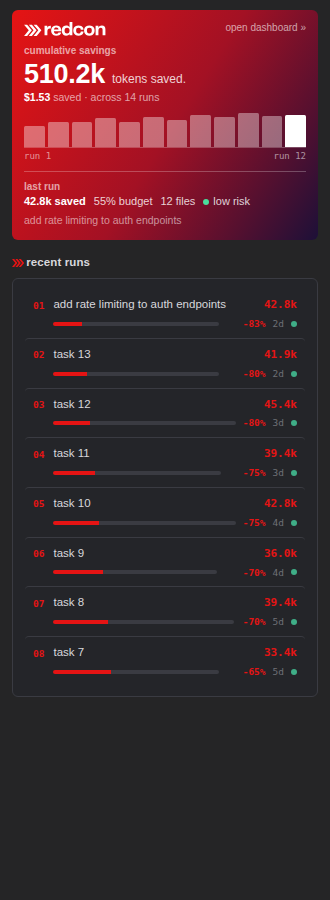
  • Budget - token usage gauge, savings, quality risk, cache stats
  • File Ranking - files sorted by relevance score with color-coded tiers
  • Packed Context - compressed files with strategy pills (full/snippet/symbol/summary)
  • Run History - past runs with trend arrows

Status Bar

Real-time budget indicator in the bottom bar:

  • Token usage: 12.4k / 30k
  • Quality risk badge: low / medium / high
  • Click to open dashboard or re-pack

File Decorations

Score badges appear on files in the Explorer:

  • Star for high-scoring files
  • Checkmark for included files
  • Dash for skipped files
  • Color-coded by relevance tier

CodeLens

Above every file that's in context:

Redcon: snippet | 400/1200 tok (-67%)

Shows compression strategy, token counts, and savings percentage.

Dashboard

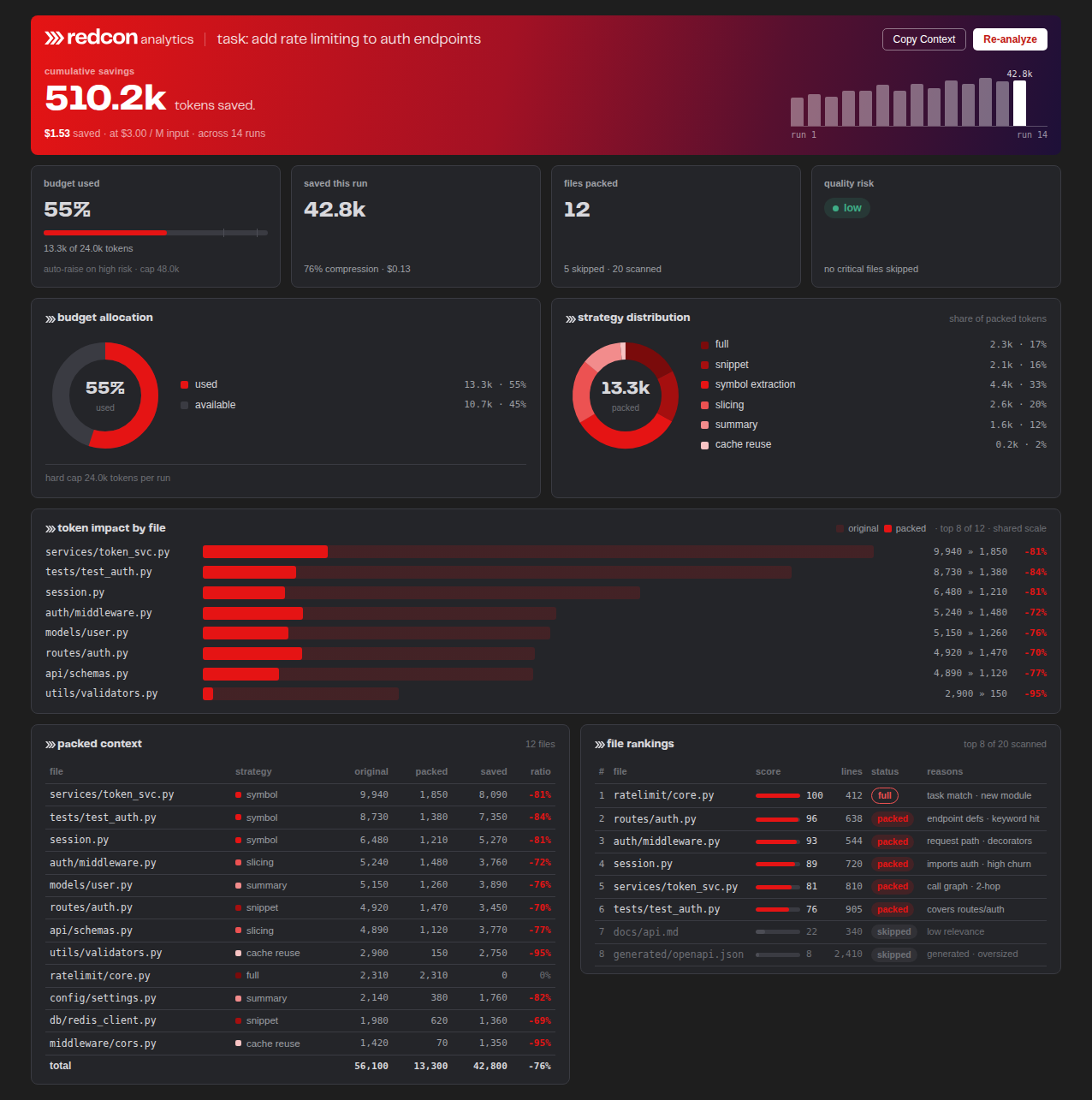
Full webview with:

  • KPI cards (tokens, savings, files, risk)
  • Animated budget gauge bar
  • Token distribution bar chart
  • Packed files table with strategy pills
  • File ranking table with score bars
  • Metadata (estimator, summarizer, cache)

Commands

Open Command Palette (Cmd+Shift+P / Ctrl+Shift+P) and type Redcon:

Command Description
Redcon: Pack Context Build compressed context under token budget
Redcon: Plan - Rank Files Score files by relevance to a task
Redcon: Plan Agent Workflow Plan multi-step agent context
Redcon: Doctor Check environment health
Redcon: Initialize Config Generate redcon.toml for your project
Redcon: Export Context Export packed context to clipboard or file
Redcon: Benchmark Strategies Compare packing strategies side by side
Redcon: Simulate Agent Cost Estimate token costs and USD spend
Redcon: Check Token Drift Detect token usage growth trends
Redcon: Open Dashboard Rich visualization of the latest run
Redcon: Open Configuration Open redcon.toml in editor
Redcon: Copy Context to Clipboard Copy all packed context text

Requirements

  • Redcon CLI installed and available in PATH:
    pip install redcon
    
  • Python 3.10+
  • A redcon.toml config file in your project root (or run Redcon: Initialize Config)

Settings

Setting Default Description
redcon.cliCommand redcon CLI command or path to executable
redcon.pythonPath python Python interpreter path
redcon.defaultMaxTokens 30000 Default token budget
redcon.defaultTopFiles 25 Max ranked files
redcon.autoRefreshOnSave false Re-run on file save
redcon.showStatusBar true Show budget in status bar
redcon.showFileDecorations true Score badges in Explorer
redcon.showCodeLens true Compression info above files
redcon.configPath "" Custom path to redcon.toml

Quick Start

  1. Install the extension
  2. Install the CLI: pip install redcon
  3. Open a project and run Redcon: Initialize Config
  4. Run Redcon: Pack Context with a task description
  5. Explore results in the sidebar, status bar, and dashboard

How It Works

Redcon uses deterministic heuristics (no ML models) to:

  1. Scan your repository for relevant files
  2. Score each file against your natural-language task
  3. Compress files using the best strategy (full inclusion, snippet extraction, symbol extraction, or summarization)
  4. Pack everything under your token budget with quality risk estimation

The extension wraps the Redcon CLI, displaying results inline in VS Code with zero additional dependencies.


License

MIT

  • Contact us
  • Jobs
  • Privacy
  • Manage cookies
  • Terms of use
  • Trademarks
© 2026 Microsoft