Chat Manager for Claude Code & Codex
Mission control for your AI chats. Every Claude Code chat sits on one
always-on-top board - and on your phone - with its project, title and newest
prompt, and your usage live at the top. Prompts you queue while the usage
limit is hit run at the reset, even with VS Code closed, and your phone says
how they went. Find or delete any Claude Code, Codex or Copilot chat from
PowerShell; this extension installs those commands and keeps them up to date.
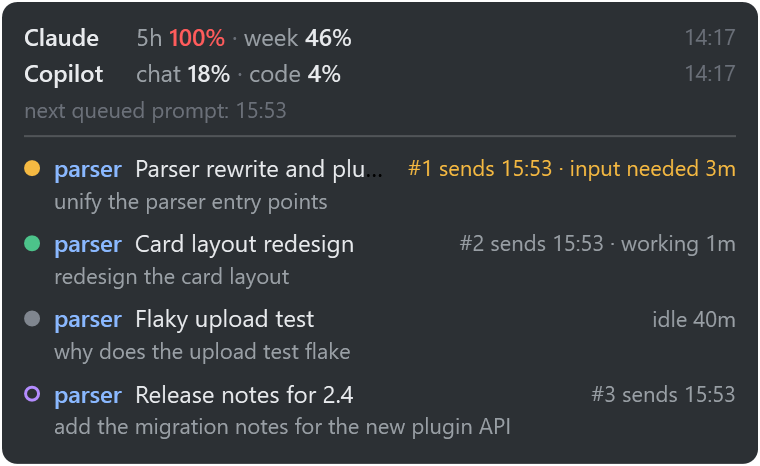
- Find any chat by part of its title and Tab-complete it:
chatfind, chatrm, chatq.
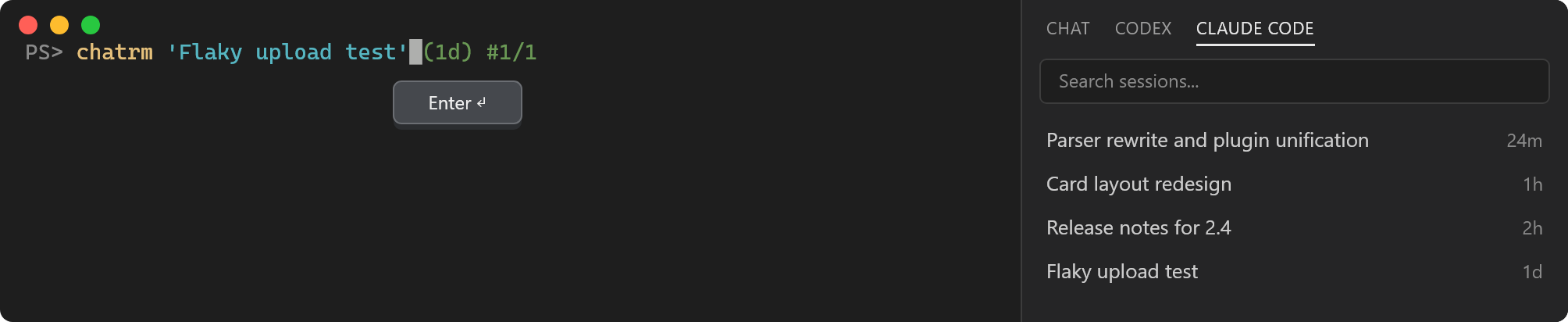
- Delete one chat and everything it leaves on disk, or archive it and bring it back later.
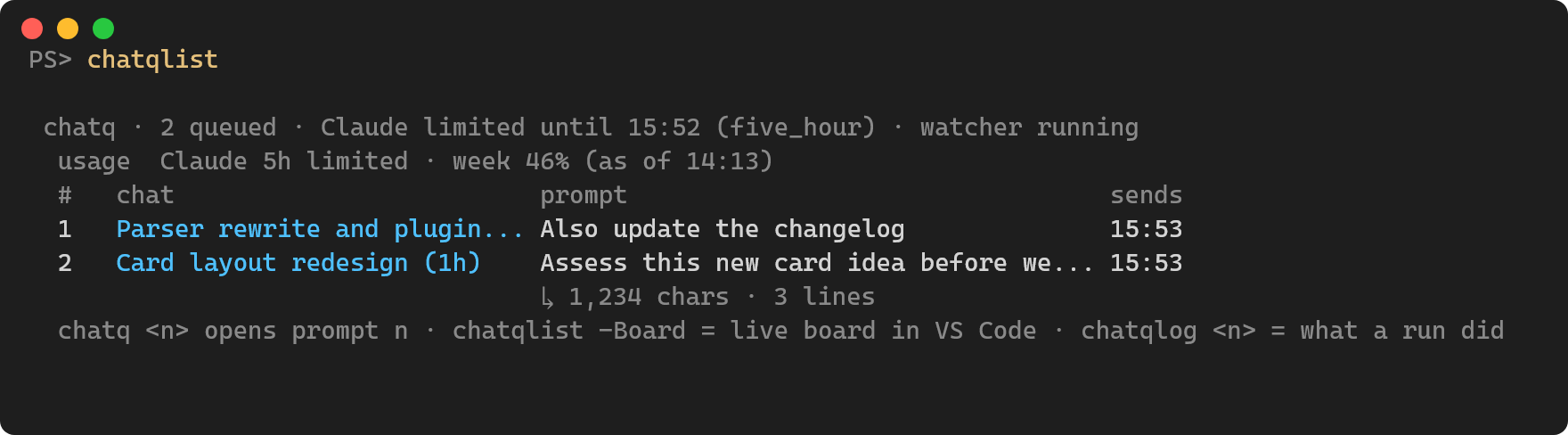
- Queue prompts while the usage limit is hit. At the reset each chat is resumed in turn, sent its prompt, and run to the end - with VS Code closed, too.
- Tells you how it went: a desktop toast, your phone through Join or ntfy, or a command of your own.
- Shows every running chat at a glance:
chatoverlay keeps a small panel above every app, started with VS Code on Windows. Click a chat there to open it as a tab.
- Open chat... in the command palette lists this window's Claude chats, newest first, with what runs each - open, working, a terminal, or a queued prompt - and opens the one you pick in a tab. A chat working elsewhere, in a terminal, or taking a queued prompt is never opened a second time - for a queued prompt, its live view opens instead. A chat Claude Code's own list hides after a
claude -p run is listed again first, or offered in a terminal where it cannot be - never opened as a blank chat.
- A queued run takes the chat's tab's place. A prompt going into a chat open idle in a tab here closes that tab - Claude Code ends its process itself - and opens the run's live view there; when the run ends, the view turns back into the chat, loaded from disk and up to date. The tab in front of you is never taken: the prompt waits until you leave it, or until you click Hand over now. A tab that cannot be told apart is left, and you are told its view is stale until the run ends.
- The live view follows the run as it goes: Claude's text, each tool and how long it has run, results, subagents, edits, the todo being done, a permission waiting on your phone, and the end - with Cancel, Log and Open chat. Open it from the status bar item (
chatq [#15](https://github.com/phal40lax78/claude-codex-chat-manager/issues/15) running), Watch the running queued prompt in the command palette, the overlay's chip, or Open chat.... It follows your theme and survives a window reload.
- Show it closes before it ends anything. After a run that went in beside the chat's tab, Show it closes that tab, ends its process only if it outlived the close, and opens the chat again up to date. A tab it cannot be sure of is left alone, never left on a dead process. A chat that had Ultracode on, or an effort level for the session only, comes back without it - Claude Code does not keep either - so its new tab's input box holds
/effort ultracode (or the level): press Enter there to put it back.
- Phone alerts... in the command palette opens the window that sets up alerts on your phone through Join - and answering them from the phone, with the phone paired once - with no terminal needed (Windows).
- Continues what the usage limit cut off: once the limit is over the overlay asks, and continues the chats it cut off on a click - the default - or, chosen, a chat the limit stopped gets "Continue from where you left off." by itself a minute after the reset. Auto-continue cut-off chats... in the command palette picks Continue, Ask or Leave, the same switch as
chatq -AutoContinue on|ask|off and the overlay's settings box, kept in data/config.json rather than a VS Code setting. After an automatic run the window offers to show the chat in words of its own.

What it does on first start
- It puts the PowerShell scripts in
~/Tools/claude-codex-chat-manager
(chatManager.folder moves it). Everything the tool writes goes in data/
there - nothing in AppData.
- It asks once before adding one line to your PowerShell profile, which loads
the commands in every new terminal. The profile is backed up first.
Never is remembered; Chat Manager: Install terminal commands asks
again whenever you like.
- If PowerShell's execution policy would stop that line from running, it
offers to allow local scripts for your user (
RemoteSigned), and changes
nothing unless you click.
- On Windows it starts the overlay as soon as step 1 is done, without
waiting on step 2's question, and does so with every window after that
unless it is running already. Chat Manager: Overlay: start by
itself... in the command palette turns that On or Off - Off also
closes a running overlay - with no terminal needed.
chatoverlay -AutoStart off in a terminal sets the same switch,
overlay.autoStart in data/config.json, and leaves a running one
up.
Updates come through VS Code. A window starts running a new version once
you click Restart Extensions or reload - and either ends every Claude
chat of that window, mid-answer or not. So the version still running says
when a new one is installed, names the chats a reload would stop, and
offers Reload when they're idle: a status-bar item (click it to
cancel) that reloads the window once every chat there has been idle for a
minute. The first window to reload replaces
the scripts in the tool folder and moves a running watcher and overlay
onto the new copy. Terminals already open keep the old commands until
they are reopened. A folder that is a git checkout is never written to.
If you installed the extension from a .vsix file, it is pinned and never
updates by itself: right-click it in the Extensions view and turn on
Auto Update.
Then open a new terminal and type chat for the list of commands.
Requirements
- Windows, with Windows PowerShell 5.1 (every Windows has it) or PowerShell 7.
macOS and Linux need PowerShell 7 and are untested.
- Claude Code 2.1.259 or later for the queue; the Claude Code extension for
showing a chat fresh.
Settings
| setting |
|
chatManager.folder |
where the scripts and data/ live; empty means ~/Tools/claude-codex-chat-manager |
chatManager.showFresh |
after a queued run, show the chat in a fresh tab of its own instead of reloading the window (on) |
chatManager.autoReloadAfterRun |
do that without asking when you are away and nothing else works (on) |
chatManager.autoReload |
reload without asking after a delete (off) |
chatManager.watchRuns |
a queued prompt going into a chat open in a tab here takes the tab's place with its live view, and turns back into the chat when it ends (on). Off, the run goes in beside the tab, whose view is stale until the run ends. "handover": false in data/config.json turns it off for every window |
Settings under chatManagerReload.*, from the extension this one replaces,
are still read where the new ones are unset.
Uninstalling
Uninstalling the extension leaves the PowerShell commands working. To remove
them as well, run chatuninstall in a terminal (-All also deletes the tool
folder and its data/).
More
The full guide - every command, the overlay, the console, alerts, and how a
queued prompt is sent - is in the
README on GitHub.
| |

