Recato Code
An AI coding assistant in your editor. Recato Code reads your project, proposes changes, runs commands and keeps going until the job is done. You approve every change and every command, or let it work without asking.
What it does
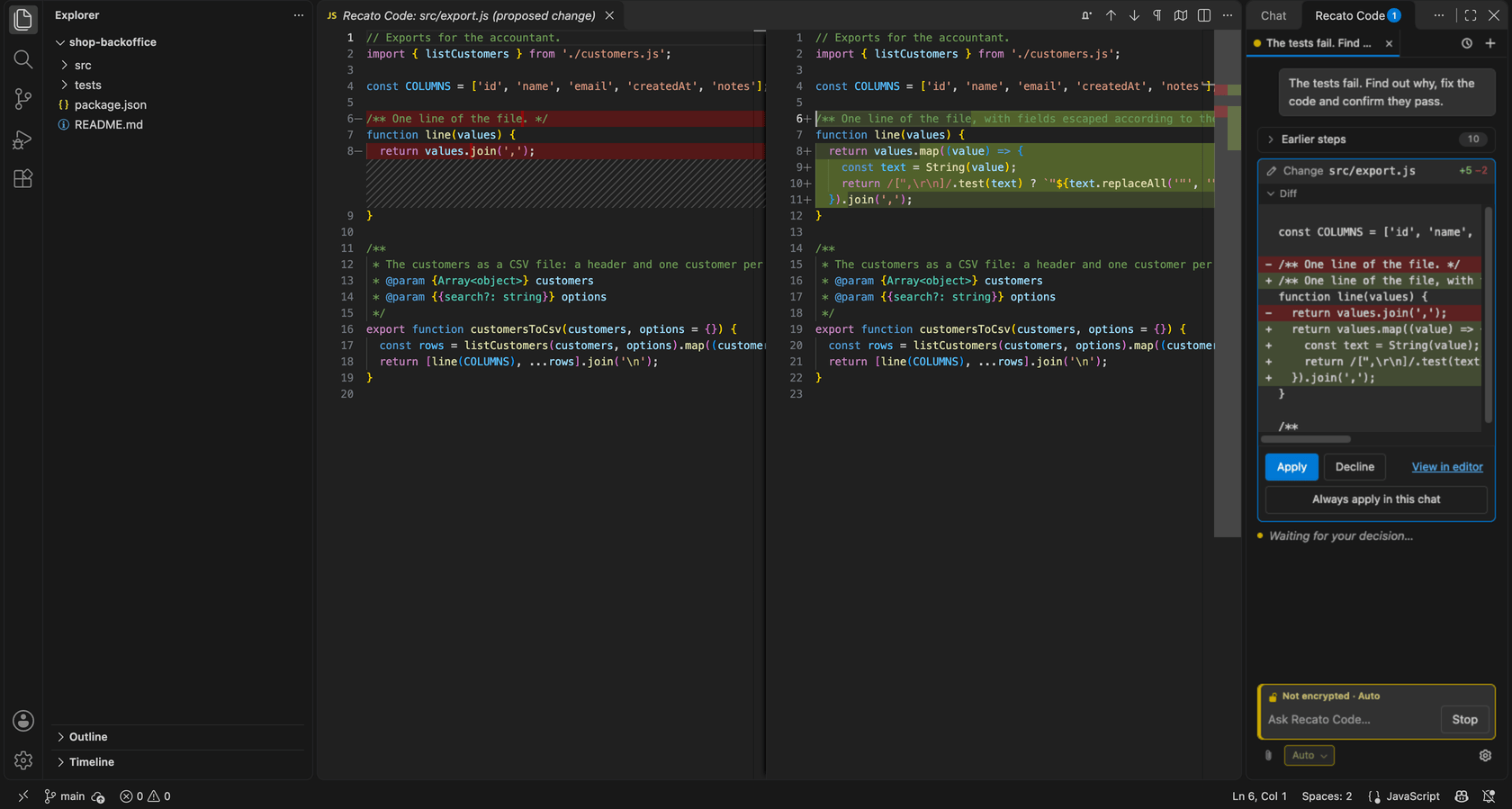
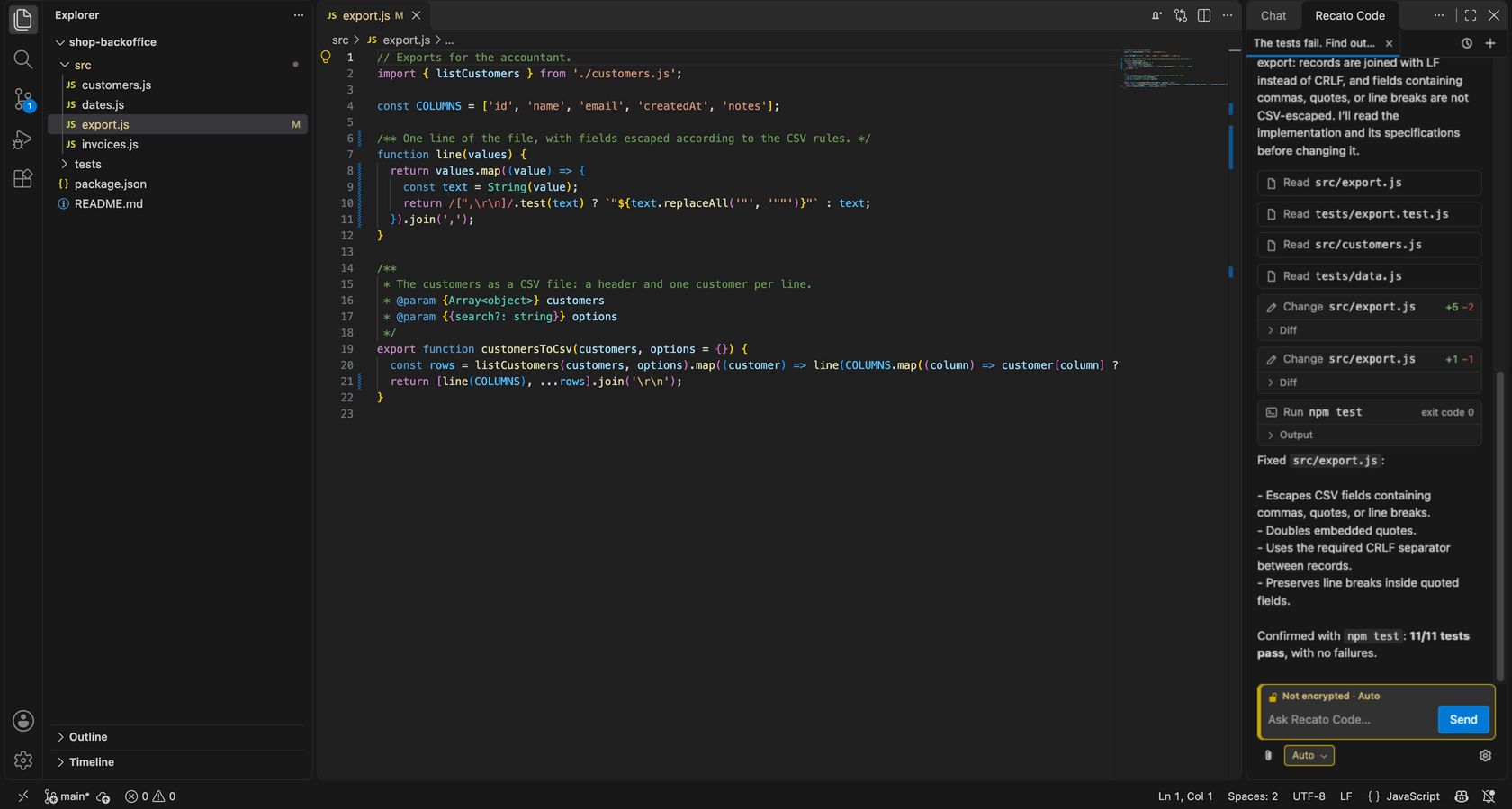
- Works on your project. Ask it to fix the failing tests, add a feature or explain a file. It reads and searches the folder you have open (or all of them, if you have several), edits the files and runs the commands it needs, then checks the result and carries on.
- You stay in control. Every file change is shown as a diff, in the panel or in the editor's own diff view, and waits for Apply or Decline. Every command is shown before it runs and waits for Run or Decline. Stop ends the answer, or the command that is running, at any time. While a command runs, you see what it prints as it goes.
- Or lets it work without asking. The gear below the message box chooses: Always ask, the default; Files without asking, where it changes files straight away and commands still ask; or Everything without asking, where it also runs commands. Files in the
.vscode folder always ask, and each change made without asking says so in the chat.
- Knows what you are looking at. The file you have open and the text you have selected go with your question, so “this function” means what you expect.
- Reads what you attach. Add screenshots, images, logs, PDF, Word, Excel and PowerPoint files, video and audio to your question: with the clip below the message box, by pasting a screenshot, or by dragging the files onto the panel while holding Shift. Images, text and code work with all three models; PDF, Word, Excel, PowerPoint, video and audio are read with the two models that run outside the secure enclave.
- Stays inside the folder. It only reads and changes files in the folders you opened, and never touches the
.git folder.
- Several chats at once. Each chat has its own tab at the top of the panel. Start another one with + while the first is still working: they keep going side by side. When a chat that is not in front needs your approval, its tab turns yellow and the editor tells you, with a button that opens it. The clock opens the history of the chats in this folder, with search; there you can rename or delete them.
- Picks up where you left off. Close the editor and open the folder again: your chats are still there, with the tabs you had open. They are kept on your computer, encrypted, and signing out deletes them.
- Auto, by default. Recato picks the model for each request: DeepSeek V4.1 Flash to write texts, such as emails and posts, and Kimi K3.1 Pro for everything else, code and images included. Both run outside the secure enclave.
- Or one of three models. Kimi K3.1 Pro gives the most careful answers and takes longer to start. DeepSeek V4.1 Flash is the fastest and the cheapest. The third one runs inside a secure enclave. You choose in the panel, and you can switch in the middle of a chat.
- Private when you need it. With the model that runs inside the secure enclave, your questions, your code and the output of your commands are encrypted from your editor all the way to it. Not even Recato can read them. The other two, and Auto, which comes selected, run outside the enclave: with them, what you send is not encrypted all the way to the model. The message box always says which is the case, by its colour and by name: “Encrypted” or “Not encrypted”.
- Choose how hard it thinks. Standard, the default, or Maximum for the hard problems: slower and more expensive.
- In English and Portuguese. The panel follows the language of your editor; the assistant answers in the language of your account.
Getting started
- Open the Recato Code panel. It sits in the secondary side bar, next to the other assistants; in older editors, in the activity bar.
- Choose Sign in. Your browser opens Recato so you can confirm the connection with your account.
- Open a folder and ask. For example: “The tests fail. Find out why, fix the code and confirm they pass.”
You need a Recato account with balance, a Chat or a Coding one. Create one at recato.ai.
Commands
| Command |
What it does |
| Recato Code: Open Recato Code |
Opens the panel. |
| Recato Code: New chat |
Starts a new chat. |
| Recato Code: Sign in |
Connects this editor to your Recato account. |
| Recato Code: Sign out |
Disconnects this editor from your account. |
Good to know
- Without a folder open, or in a folder you have not trusted (Restricted Mode), the assistant can only chat: it does not read or change files and does not run commands.
- Always apply in this chat stops asking about file changes until the next chat. Changes to the
.vscode folder always ask.
- Always run this command applies to that exact command, in that chat.
- Commands run at the root of the folder (with several folders open, in the first one, unless the assistant names another), without keyboard input, for up to two minutes.
- You can attach up to 5 files to each question, up to 100 MB each and 200 MB together. With the models outside the secure enclave, the chosen model itself sees the images; text and code files are read in your editor; PDF, Word, Excel, PowerPoint, video and audio are read by Recato's server and are not kept. With the encrypted model, images are described by an image model inside the secure enclave and PDF, Word, Excel and PowerPoint files are read in your editor instead, so nothing of them passes through Recato in readable form, and video and audio need one of the other models.
- Each folder keeps its own chats. Closing a tab does not delete the chat: it stays in the history (and stops, if it was working). A window with no folder open does not keep its chats.
- Each chat keeps its own model and thinking level. A new chat starts with the ones you chose last.
- At every step, the model reads the whole chat again, so in a long chat a new topic costs more. When a request looks like a different topic, the same model checks it first, with a short summary of the chat, and the request waits: Open in a new chat sends it to a new chat, with the same model, which starts working straight away; Continue here sends it in the same chat.
- If a model that runs outside the secure enclave is having trouble, the panel tells you to switch to the one inside it. It never switches by itself. Signing in always starts with the default model.
- You can see and disconnect the editors linked to your account in Recato, under Settings › Security.
Recato Code (português)
Um assistente de programação no seu editor. O Recato Code lê o projeto, propõe alterações, corre comandos e continua até o trabalho ficar feito. Cada alteração e cada comando passam por si, ou deixa-o trabalhar sem perguntar.
O que faz
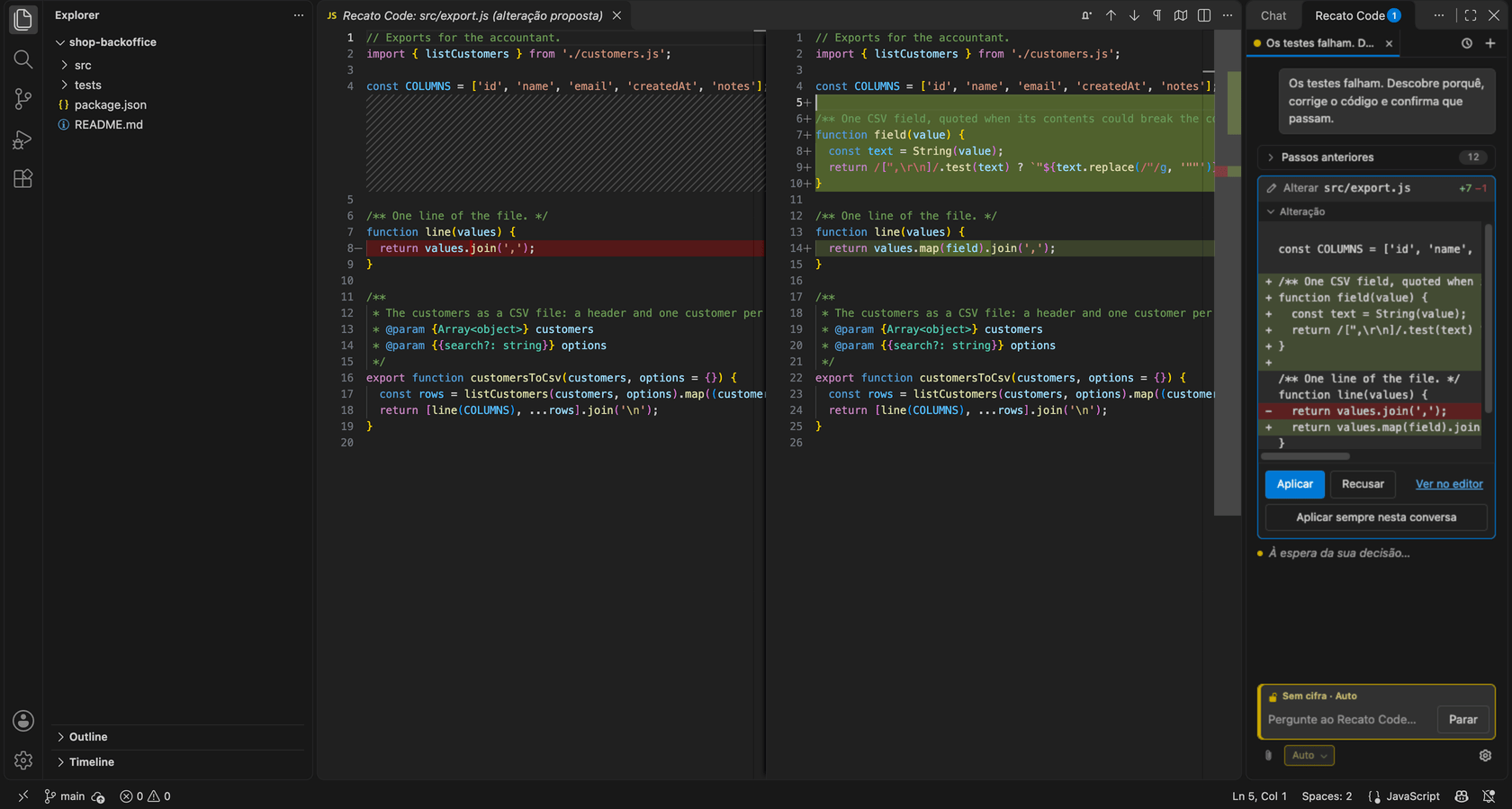
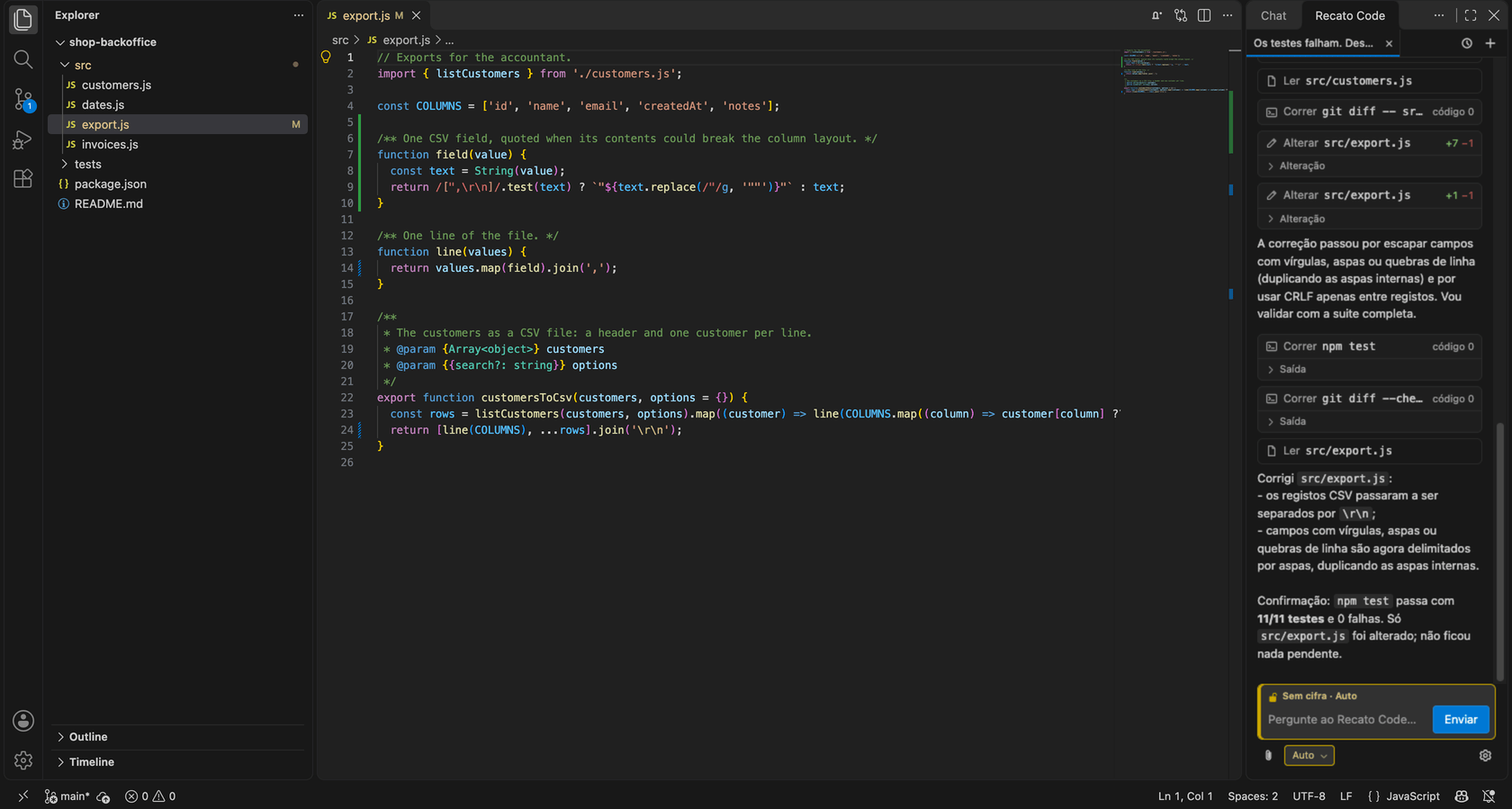
- Trabalha no seu projeto. Peça-lhe para corrigir os testes que falham, juntar uma funcionalidade ou explicar um ficheiro. Lê e procura na pasta que tem aberta (ou em todas, se tiver várias), altera os ficheiros e corre os comandos de que precisa, confere o resultado e continua.
- Quem manda é você. Cada alteração aparece como uma comparação, no painel ou na comparação do próprio editor, e espera por Aplicar ou Recusar. Cada comando aparece antes de correr e espera por Correr ou Recusar. Parar acaba a resposta, ou o comando que está a correr, em qualquer altura. Enquanto um comando corre, vê o que ele vai escrevendo.
- Ou trabalha sem perguntar. A engrenagem, por baixo da caixa de escrita, escolhe: Perguntar sempre, o que vem por omissão; Ficheiros sem perguntar, em que altera os ficheiros logo e os comandos continuam a pedir; ou Tudo sem perguntar, em que também corre os comandos. Os ficheiros da pasta
.vscode perguntam sempre, e cada alteração feita sem perguntar di-lo na conversa.
- Sabe o que tem à frente. O ficheiro aberto e o texto selecionado vão com a pergunta: «esta função» é a que está a ver.
- Lê o que junta. Junte à pergunta capturas de ecrã, imagens, registos, PDF, Word, Excel e PowerPoint, vídeos e áudio: pelo clipe por baixo da caixa de escrita, a colar uma captura ou a arrastar os ficheiros para o painel com a tecla Shift carregada. Imagens, texto e código funcionam com os três modelos; PDF, Word, Excel, PowerPoint, vídeos e áudio leem-se com os dois modelos que correm fora da caixa-forte.
- Não sai da pasta. Só lê e altera ficheiros das pastas que abriu, e nunca mexe na pasta
.git.
- Várias conversas ao mesmo tempo. Cada conversa tem o seu separador no topo do painel. Comece outra com + enquanto a primeira ainda trabalha: continuam as duas, lado a lado. Quando uma conversa que não está à frente precisa da sua aprovação, o separador dela fica amarelo e o editor avisa, com um botão que a abre. O relógio abre o histórico das conversas desta pasta, com pesquisa; aí pode mudar-lhes o nome ou apagá-las.
- Continua onde ficou. Feche o editor e volte a abrir a pasta: as conversas estão lá, com os separadores que tinha abertos. Ficam guardadas no seu computador, cifradas, e sair da conta apaga-as.
- O Auto, por omissão. O Recato escolhe o modelo para cada pedido: o DeepSeek V4.1 Flash para escrever textos, como emails e publicações, e o Kimi K3.1 Pro para tudo o resto, também o código e as imagens. Os dois correm fora da caixa-forte.
- Ou um de três modelos. O Kimi K3.1 Pro dá as respostas mais cuidadas e demora mais a começar. O DeepSeek V4.1 Flash é o mais rápido e o mais barato. O terceiro corre dentro de uma caixa-forte. Escolhe no painel, e pode trocar a meio da conversa.
- Privado quando precisa. Com o modelo que corre dentro da caixa-forte, as perguntas, o código e o que os comandos escrevem vão cifrados do editor até ela. Nem o Recato os consegue ler. Os outros dois, e o Auto, que vem por omissão, correm fora da caixa-forte: com eles, o que envia não vai cifrado até ao modelo. A caixa de escrita diz sempre qual é o caso, pela cor e pelo nome: «Cifrado» ou «Sem cifra».
- Escolhe quanto pensa. Normal, por omissão, ou Máximo para os problemas difíceis: mais lento e mais caro.
- Em português e em inglês. O painel segue a língua do editor; o assistente responde na língua da conta.
Para começar
- Abra o painel Recato Code. Fica na barra lateral secundária, ao lado dos outros assistentes; nos editores mais antigos, na barra de atividades.
- Escolha Entrar. O browser abre o Recato para confirmar a ligação com a sua conta.
- Abra uma pasta e peça. Por exemplo: «Os testes falham. Descobre porquê, corrige o código e confirma que passam.»
Precisa de uma conta do Recato com saldo, de Conversa ou de Programação. Crie-a em recato.ai.
Convém saber
- Sem pasta aberta, ou numa pasta em que não confia (modo restrito), o assistente só conversa: não lê nem altera ficheiros e não corre comandos.
- Aplicar sempre nesta conversa deixa de perguntar pelas alterações até à conversa seguinte. As alterações à pasta
.vscode perguntam sempre.
- Correr sempre este comando vale para esse comando exato, nessa conversa.
- Os comandos correm na raiz da pasta (com várias pastas abertas, na primeira, a não ser que o assistente diga outra), sem teclado, durante dois minutos no máximo.
- Pode juntar até 5 ficheiros a cada pergunta, cada um até 100 MB e 200 MB juntos. Com os modelos de fora da caixa-forte, as imagens vê-as o próprio modelo escolhido; os ficheiros de texto e de código leem-se no editor; PDF, Word, Excel, PowerPoint, vídeos e áudio lê-os o servidor do Recato, sem os guardar. Com o modelo cifrado, as imagens descreve-as um modelo das imagens dentro da caixa-forte e os PDF, Word, Excel e PowerPoint leem-se no próprio editor, sem nada deles passar legível pelo Recato, e os vídeos e o áudio só com um dos outros modelos.
- Cada pasta guarda as suas conversas. Fechar um separador não apaga a conversa: fica no histórico (e para, se estava a trabalhar). Uma janela sem pasta aberta não guarda as conversas.
- Cada conversa guarda o seu modelo e o seu nível de pensamento. Uma conversa nova começa com os últimos que escolheu.
- Em cada passo, o modelo volta a ler a conversa toda, por isso, numa conversa longa, um assunto novo custa mais. Quando um pedido parece ser de outro assunto, o mesmo modelo vê-o primeiro, com um resumo curto da conversa, e o pedido fica à espera: Abrir numa conversa nova manda-o para uma conversa nova, com o mesmo modelo, que começa logo a trabalhar; Continuar aqui manda-o na mesma conversa.
- Se um modelo que corre fora da caixa-forte estiver com dificuldades, o painel diz-lhe para mudar para o que corre dentro dela. Nunca muda sozinho. Quem entra na conta começa sempre pelo modelo por omissão.
- Os editores ligados à sua conta veem-se e desligam-se no Recato, em Configurações › Segurança.
| |

