AI Keep Clean (AKC)
Why use three separate tools for themes, rainbow indent, and preset workflows? AKC combines all three in one extension and keeps the setup usable across repositories for the whole team.
Take control of how your VS Code workspace looks — color-code your workspaces so you always know which project is open, open an external terminal from the status bar in those same workspace colors, add visible indent and bracket hierarchy guides to deep code, and run AI-powered file and directory comparisons — all from a single activity bar panel.
💡 Optional local Ollama: Theme Suggest works offline from the vibe/preset catalog. Enable Generate with local model for Ollama seed colors under your vibes. AI Compare always uses your configured provider (Ollama or OpenAI-compatible). No cloud API key required for the local path.
Video Tutorials
Short walkthroughs for the three everyday wins — click a thumbnail to watch on YouTube.
Stop fighting VS Code terminal paths — Launch a terminal from the AKC status bar already rooted and colored for the active workspace.
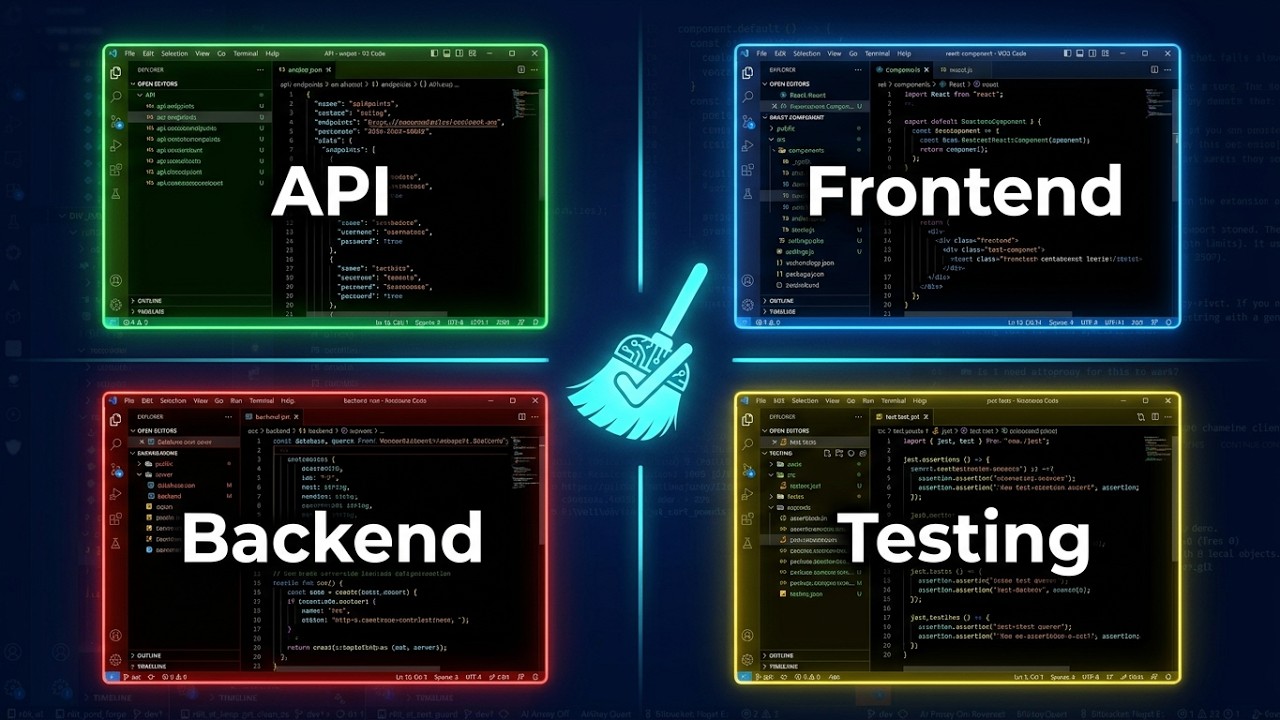
Visually Separate Your VS Code Workspaces with AI Keep Clean — Give each project its own status bar, title bar, and sidebar colors so you never mix contexts.
Make your code readable: VS Code Indent Guides — Rainbow indent and hierarchy overlays that make nested code easy to scan.
More guides: ready-4-it.com/akc/guides
Why install this?
You work across multiple projects and lose track of which workspace is which.
Assign distinct colors to each workspace's status bar, title bar, and side bar. One glance tells you where you are — see the workspace colors tutorial.
Terminals open in the wrong folder or look like every other window.
Click the AKC status bar item to open a terminal (external PowerShell on Windows) already styled in those workspace colors — see the terminal paths tutorial.
Your multi-root Explorer looks like one grey tree.
Tint each workspace folder in Explorer (Configure → Explorer Root Colors). Free colors the first 2 workspace roots (builtin palettes); root 3+ and custom hex need Trial/Pro.
Your deeply nested code is hard to follow.
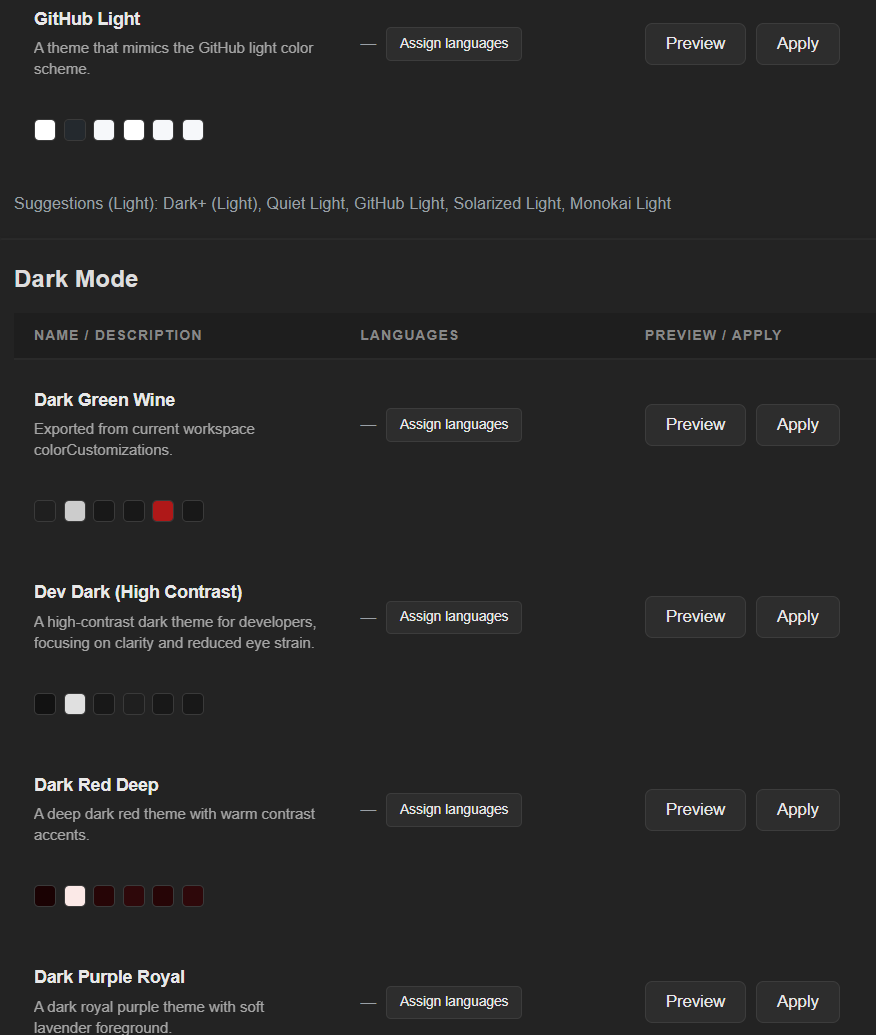
Rainbow indent guides and colored bracket overlays make hierarchy visible at a glance — see the indent guides tutorial. Workspace settings and presets keep the overall look consistent without hand-editing JSON.
What You Get
- Theme switching made easy — change workspace look and apply presets in seconds, without hand-editing JSON
- Workspace color coding — status bar, title bar, side bar, editor, panel per workspace
- Status-bar terminal launch — click
AKC in the status bar to open a terminal in your current workspace colors (external PowerShell/Windows Terminal on Windows; integrated terminal fallback elsewhere)
- Indent & hierarchy overlays — rainbow indent guides and bracket highlights on any language
- Explorer root colors — tint workspace folders in Explorer (Free: first 2 roots + builtin palettes; folders only, no tree walk)
- Workspace Presets — built-in and custom presets, per-language assignment, import/export (Pro)
- External theme library support — load up to 250 validated
tinted themes in one flow
- Theme Suggest (vibes) — offline catalog suggestions under Metallic/Pastel/…; optional Generate with local model (Ollama) for seed colors, still Colour Zen validated
- AI Compare — file and directory diff via Ollama or any OpenAI-compatible endpoint
- Live preview — see color changes before applying, no guesswork


Main Views (Activity Bar)
Top level:
Under Configure:
- Workspace Settings
- Workspace Presets
- Indent & Hierarchy Settings
- Explorer Root Colors
- AI / KI Settings
- Extension Settings (Language)
Under Help:
- About
- Online Guides (ready-4-it.com/akc/guides)
- AI Guide
- AI Safety
- AI Models
- Compare Help
- API Documentation
- Change Language
License opens the activation view directly.
Presets and Licensing
AKC works in Free mode out of the box.
Free includes:
- Fast workspace theme switching with AKC presets
- One-click
tinted source loading (validated catalog, up to 250 entries)
- Up to 10 AI theme suggestions per local day
Activation unlocks premium preset workflows:
- Unlimited AI theme suggestions
- AI Compare features
- Preset import
- Preset export
- Higher custom preset limits
- Higher workspace limits
Activation steps:
- Open
License in the AKC Activity Bar.
- Copy the device hash or activation URL shown by the extension.
- Complete activation on the ready-4-it website.
- Paste the returned
R4IT.<payload>.<signature> token and activate locally.
| Feature |
Free |
Trial (14 d) |
Pro |
| Workspace colors (status / title / side bars) |
✅ |
✅ |
✅ |
| Root folder in colors: first 2 (builtin) |
✅ |
✅ |
✅ |
| Root folder in colors: 3+ |
— |
✅ |
✅ |
| Root folder in colors: custom hex |
— |
✅ |
✅ |
| Built-in presets |
✅ |
✅ |
✅ |
| AI theme suggestions |
10/day |
unlimited |
unlimited |
| AI Compare (file/dir) |
— |
✅ |
✅ |
| Preset import/export |
— |
✅ |
✅ |
| Custom presets |
1 |
3 |
150 |
| Workspaces |
25 |
50 |
unlimited |
| Activations |
— |
1 |
2 |
License status is shown in the status bar (AKC Free | Trial | Full).
Quick Start
- Open
Workspace Settings from the AKC activity bar.
- Preview and apply a theme setup.
- Click
AKC in the status bar to open a terminal tinted with the same workspace colors.
- Open
Workspace Presets to apply AKC presets, load tinted, or save your own.
- Configure AI provider/model if you want AI Compare features.
Supported Preset Sources
Current source list in Workspace Presets -> Preset Browser -> Source:
URL/source support status:
- Direct URL import: intentionally not supported
- Local file import (
Import button): supported
Import workflow (recommended):
- In AKC open
Workspace Presets.
- Use source
tinted and click Import to load validated tinted presets.
- For local JSON files, click
Import and select a local .json file.
Accepted file types in current AKC import flow:
- VS Code theme JSON with
colors
- AKC preset export JSON array
AKC strengths in this area:
- Quality pipeline for imported themes (sanitize, compensate, validate, targeted repair)
- Readability-focused contrast checks for critical UI pairs
- Stable preview/apply flow with workspace/global scope controls
- Save current workspace colors as reusable presets
Security and Privacy
- Webviews use strict CSP and external scripts only
- API keys stay in your local VS Code settings/secret storage
- Workspace styling changes are applied explicitly by user action
AI Safety Controls
When using AI Compare (Ollama or OpenAI-compatible endpoints), AKC includes guardrails to reduce accidental data exposure and prompt-injection impact:
- Request size cap:
aikeepclean.ai.maxRequestChars truncates overly large AI requests and shows a warning.
- One-time consent for remote providers: when using non-local endpoints, AKC asks for explicit consent before sending requests.
- Optional sanitized request logging (opt-in):
aikeepclean.ai.debugRequestLog.enabled can log safe request metadata (never API keys).
- File-level opt-out: add
akc:no-ai or aikeepclean:no-ai to a file to suppress AI requests for that file.
Streaming Zebra (licensed)
When a license token is stored, AKC may report its version to Streaming Zebra (api.streamingzebra.com) so updates work outside Marketplace (Bazaar, VSIX, derivatives). That needs one consent (aikeepclean.zebra.networkConsent); uninstall/update does not ask again. Uncheck the setting or the License checkbox to revoke. CCC consent is separate.
Important Notes
- Git workflows are not part of AKC.
Use the sibling extension
r4it-AiKeepGitClean for Git automation.
- For detailed change history, see
CHANGELOG.md.
FAQ & Troubleshooting
No theme suggestions showing?
Offline Suggest does not need Ollama. Check the Free limit (10/day), license status, and selected vibes. If Generate with local model is on, also ensure Ollama is running with a model pulled (ollama pull llama3) — otherwise AKC falls back to the offline catalog.
AI Compare not working?
Requires Trial or Pro license. Verify the provider URL in AI Settings and that the selected model is available.
Ollama errors / connection refused?
Start Ollama (ollama serve), check the base URL in AKC AI Settings (default: http://localhost:11434), and pull the model you selected.
Where do I get a license?
Visit ready-4-it.com/akc to start a Trial or purchase Pro.
Lost activation token or need help?
Contact support@ready-4-it.com or visit the AKC Guides.
Workspace colors not applying?
Make sure you click Apply in Workspace Settings and check whether the scope is set to Workspace or Global.
Accepted design not applied / colors look wrong?
Check the status bar — each workspace has a separate Dark and Light mode. Make sure you applied the preset to the correct mode (☀️ Light or 🌙 Dark).
What does clicking the AKC item in the status bar do?
It launches a terminal in your current workspace colors: on Windows an external PowerShell / Windows Terminal window (best-effort console color mapping); on other hosts an integrated terminal fallback. Title pattern is PS: <workspace> #<n>.
"Close All" button not showing in the status bar?
Click the AKC status bar item once or twice to activate the context-driven status bar for AKC.
Status bar click triggers security warnings?
This is a Microsoft certificate issue on some systems. Add code.exe (VS Code) to your antivirus exclusion list to prevent it from intercepting VS Code's internal commands.
Links

