Code Spots — Project Bookmarks for VS Code
Navigate any codebase like a browser. Bookmark files, lines, URLs, AI clips, shell commands and more — shared with your team via Git.
Product info, pricing, and purchase: ready-4-it.com — Code Spots
Guides & FAQ: Product guides · German: Produktseite · Guides
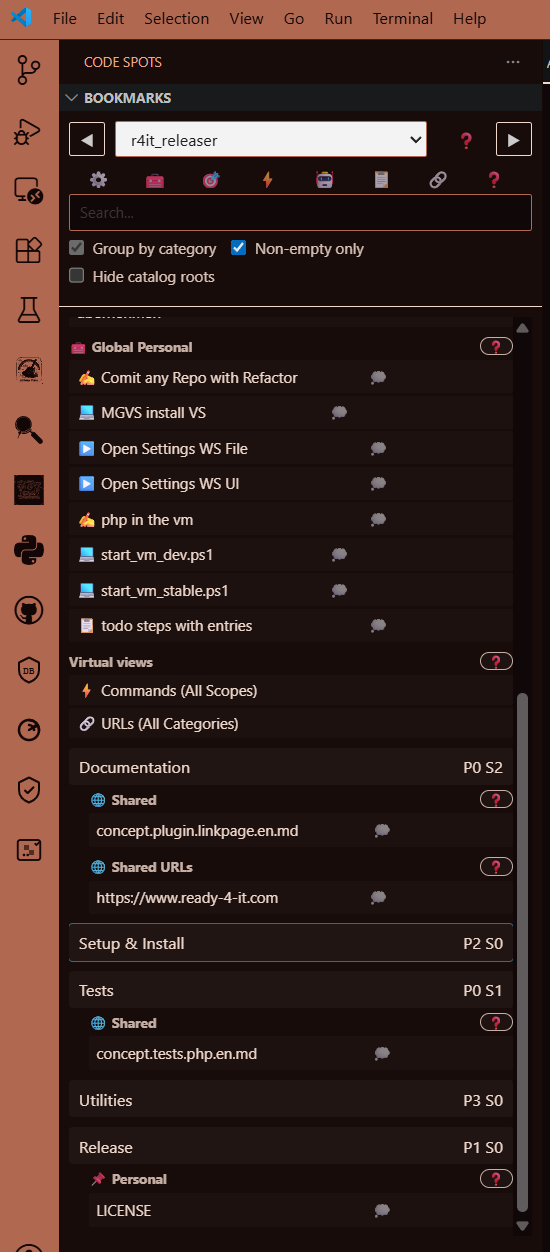
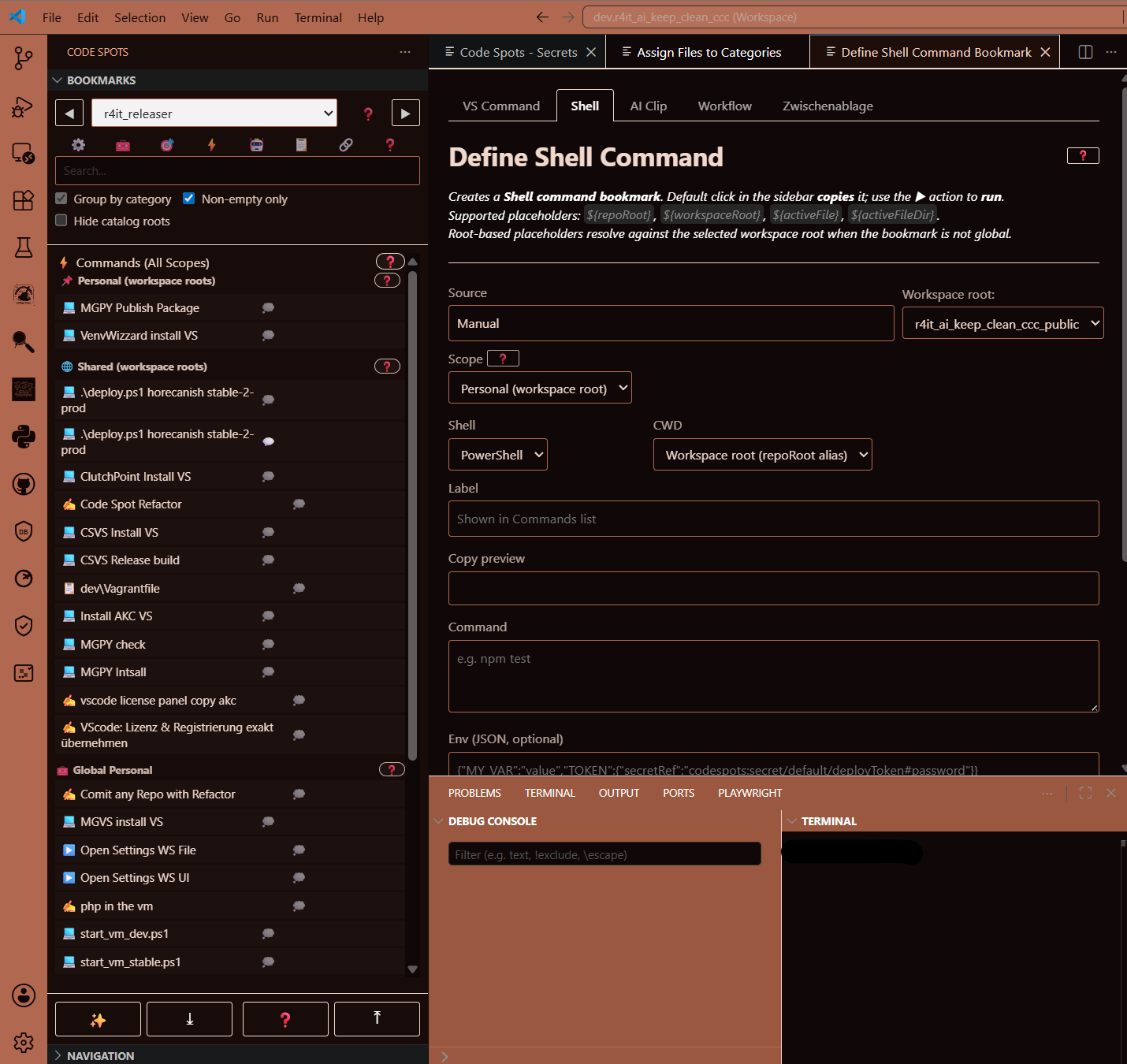

What it does
- Adds a sidebar panel with categorized, navigable bookmarks for your project
- Stores shared bookmarks in
.csvs/shared.json (committed to Git) so the whole team benefits
- Keeps personal bookmarks encrypted per-developer in
.csvs/personal.<hash>.enc.json (committed but unreadable to others; identity derived from OS username and machine ID)
- Supports multi-root workspaces with per-folder context switching
- Saves URLs, AI prompts, shell commands, clipboard snippets and cursor-position anchors alongside file/line bookmarks
- Includes a PIN-protected Secrets vault for per-workspace sensitive references
Who it's for
- Developers who frequently jump between different areas of a large codebase
- Teams who want shared navigation anchors committed alongside their code
Quick Start
- Install the extension and open any VS Code workspace
- Click the Code Spots icon in the Activity Bar — or press
Ctrl+Alt+B
- Right-click a file in the Explorer → Code Spots: Add to Category to create your first bookmark
Key Features
Bookmark types
| Type |
What it stores |
| File |
A workspace file, opened on click |
| Line |
A file + line number anchor |
| URL |
External or internal URL |
| AI Clip |
A reusable AI prompt snippet |
| Clipboard |
A reusable text/clipboard snippet |
| Shell |
A shell command to run in the terminal |
| Position |
A cursor position anchor |
| Workflow |
A multi-step workflow reference |
Team & Personal Storage
- Shared —
.csvs/shared.json, committed with your code so the team shares the same bookmarks
- Personal —
.csvs/personal.<hash>.enc.json, encrypted with a per-developer key (XSalsa20-Poly1305), committed but unreadable to others; identity derived from OS username and machine ID (not Git config)
Categories
Organize bookmarks in named categories. Use the 15 built-in defaults or define your own. Assign files via drag-and-drop or the Assign Files panel.
Secrets Vault
Store sensitive references (tokens, keys, notes) in an encrypted vault (VS Code SecretStorage) protected by a 4-digit PIN. Auto-locks after configurable inactivity.
Export / Import
Share or back up the full bookmark set with Export (Ctrl+Alt+E). Import is available in Trial/Pro/Team (Ctrl+Alt+I).
Licensing & Free limits
Code Spots runs in Free mode by default (no activation required). Free has soft limits: existing items remain usable, but creating new ones is blocked after the limit.
- URL bookmarks: 10
- Shell command bookmarks: 10
- AI Clip bookmarks: 10
- Workflow bookmarks: 5
- Vault secrets: 3
Trial/Pro/Team remove these limits and unlock features like Import, encrypted personal storage, and global (cross-workspace) storage.
Repair & Diagnose
Built-in commands recover from Git merge-conflict markers and inspect storage state.
Why it's different
Code Spots stores bookmarks in your repository — .csvs/shared.json is committed alongside your code. The whole team gets the same navigation map without any external service, account, or sync setup. Personal bookmarks are encrypted per-developer (XSalsa20-Poly1305) and committed in the same repo — transparent to Git, unreadable to others. Eight bookmark types cover the full developer workflow: not just file and line anchors, but also URLs, AI prompts, clipboard snippets, shell commands, workflow references and cursor positions.
Commands
| Command |
Shortcut |
Description |
| Code Spots: Reveal Sidebar |
Ctrl+Alt+B |
Open the sidebar panel |
| Code Spots: Add Bookmark from Current Line |
Ctrl+Alt+L |
Bookmark the current editor line |
| Code Spots: Add to Category |
Ctrl+Alt+A |
Bookmark a file from the Explorer |
| Code Spots: Add URL from Selection |
Ctrl+Alt+U |
Bookmark a selected URL |
| Code Spots: Export Bookmarks |
Ctrl+Alt+E |
Export the full bookmark set |
| Code Spots: Import Bookmarks |
Ctrl+Alt+I |
Import a bookmark set |
| Code Spots: Add URL Bookmark |
— |
Add a custom URL bookmark |
| Code Spots: Add AI Clip Bookmark |
— |
Add a reusable AI prompt snippet |
| Code Spots: Add Clipboard Bookmark |
— |
Add a clipboard snippet |
| Code Spots: Add Shell Command Bookmark |
— |
Add a shell command |
| Code Spots: Add Workflow Bookmark |
— |
Add a workflow reference |
| Code Spots: Add Position Bookmark |
— |
Anchor the current cursor position |
| Code Spots: Categories |
— |
Manage categories |
| Code Spots: Assign Files |
— |
Assign files to categories |
| Code Spots: Manage Secrets |
— |
Open the Secrets vault panel |
| Code Spots: Repair Bookmarks |
— |
Recover from storage / merge issues |
| Code Spots: Diagnose Storage |
— |
Inspect current storage state |
| Code Spots: Settings |
— |
Open the extension settings panel |
Settings
| Key |
Default |
Description |
codespots.htmlOpenMode |
internal |
How to open .html bookmarks: internal (VS Code preview) or external (browser) |
codespots.mdViewerCommandId |
markdown.showPreviewToSide |
Command used to open .md bookmarks — swap to any Markdown viewer extension |
codespots.defaultCategories.selected |
(15 defaults) |
Which default category templates are active and their order |
codespots.defaultCategories.custom |
[] |
Extra category templates available in the Settings panel |
codespots.secrets.autoLockSeconds |
60 |
Inactivity timeout before the Secrets vault auto-locks (10–600 s) |
Troubleshooting
Sidebar is blank after install
→ Run Code Spots: Reveal Sidebar (Ctrl+Alt+B) to focus the view.
Bookmarks missing after a Git pull
→ Run Code Spots: Repair Bookmarks — it resolves merge conflict markers in .csvs/shared.json.
Storage looks wrong
→ Use Code Spots: Diagnose Storage to inspect the current state of shared and personal storage.
Secrets vault locked / PIN forgotten
→ Open Code Spots: Diagnose Storage and clear the stored vault PIN from VS Code SecretStorage, then set a new PIN.
Privacy & Data Handling
Code Spots does not send telemetry or workspace content to any external service.
| Data |
Where stored |
Leaves device? |
| Shared bookmarks |
.csvs/shared.json in workspace |
Only if you commit and push to Git |
| Personal bookmarks |
.csvs/personal.<hash>.enc.json (encrypted) |
Only if you commit and push to Git |
| Secrets vault contents |
VS Code SecretStorage (OS credential store) |
Never |
| Activation token |
VS Code SecretStorage |
Never after local storage; activation itself is completed by the user on ready-4-it / LB |
See PRIVACY.md for the full statement.
Support
License
See LICENSE.txt.
Copyright (c) 2024–2026 Ready-4-IT

