memory.wiki Markdown PublisherSidebar to your memory.wiki cloud right inside VS Code. Publish a Markdown file, get a permanent URL Claude, ChatGPT, Cursor, and Gemini all read the same way. Sidebar lists every cloud doc by state (public, shared, private, view-only), supports starring, and syncs both ways. WYSIWYG preview, GFM, K Installation Launch VS Code Quick Open ( Ctrl+P), paste the following command, and press enter.Copied to clipboard |

memory.wiki Markdown Publisher for VS CodeWrite Markdown in VS Code. Publish as a beautiful web document. Share a permanent URL.
memory.wiki turns your Markdown files into shareable, beautifully rendered documents with a permanent URL -- directly from VS Code. No copy-pasting into Google Docs. No screenshots. No "can you open this .md file?" conversations. Powered by the same markdown-it pipeline that runs on memory.wiki with GFM, KaTeX math, Mermaid diagrams, and 190+ language syntax highlighting. The same renderer that powers memory.wiki, the Chrome extension, and the Mac desktop app. Table of Contents
Why memory.wiki?VS Code's built-in Markdown preview is read-only and local. memory.wiki gives you:
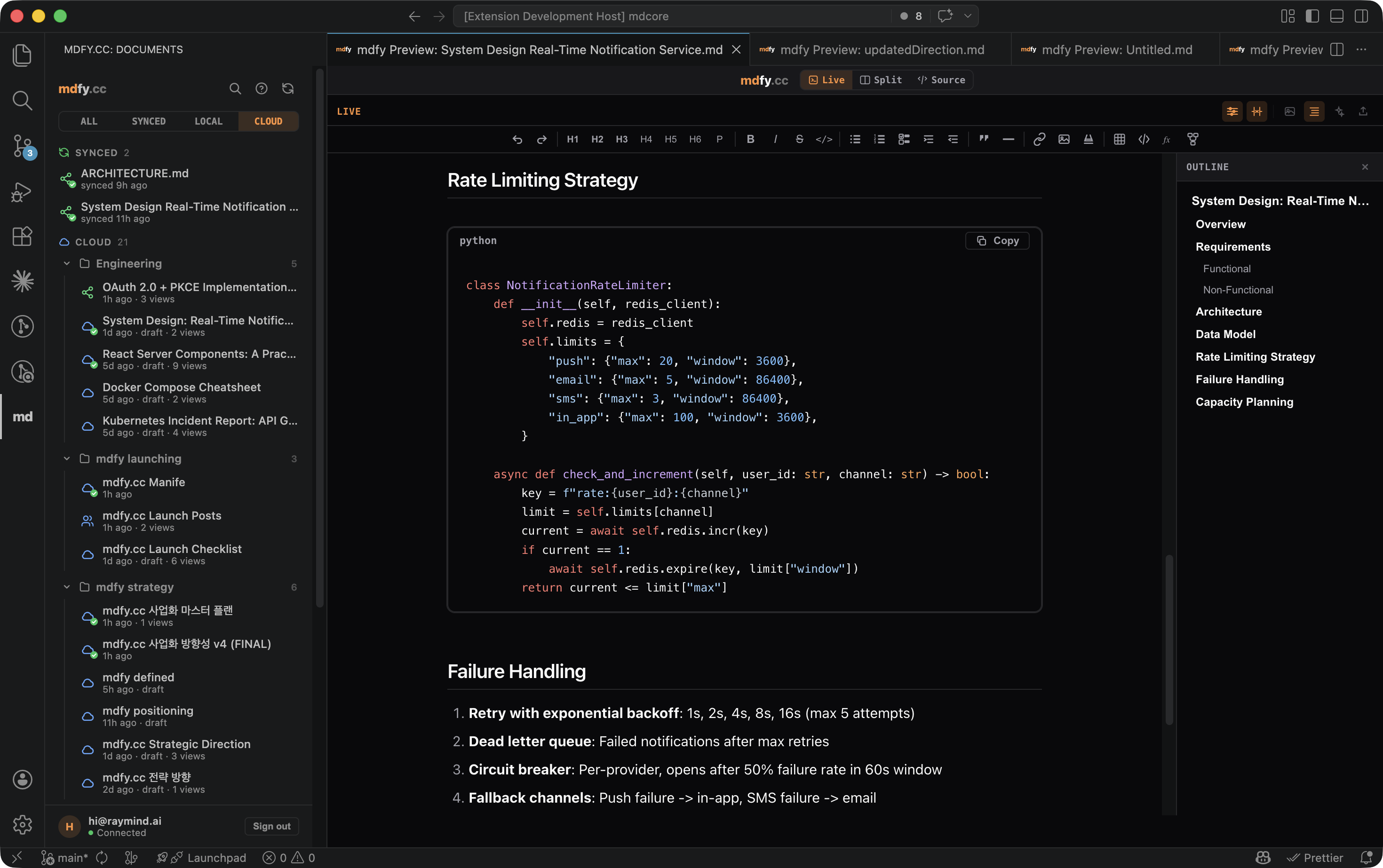
FeaturesWYSIWYG PreviewPress Cmd+Shift+M to open the memory.wiki preview panel. Unlike the built-in preview, you can edit directly in the rendered view.
Rich RenderingEvery Markdown feature you need, rendered correctly: GFM (GitHub Flavored Markdown)
Math (KaTeX)
Diagrams (Mermaid)
Code Blocks
Document OutlineClick the Outline button in the preview toolbar to open a document structure panel. It lists all headings (H1-H6) with indentation matching their hierarchy. Click any heading to scroll directly to it in the preview, with a brief highlight animation. The outline updates automatically as you edit. One-Click PublishTurn any
No account required for basic publishing. The recipient sees a beautifully rendered document in their browser -- they don't need VS Code, Markdown knowledge, or an account. Cloud SyncKeep your local files in sync with the published version.
SidebarBrowse all your documents in one place. Click the memory.wiki icon in the Activity Bar to open the sidebar:
ExportExport your rendered document in multiple formats:
Keyboard shortcut: Cmd+Alt+E Getting StartedQuick Start (no account needed)
With Account (for sync and AI)
CommandsAll commands are available via Command Palette (Cmd+Shift+P, type "memory.wiki"):
All commands are also available in the right-click context menu when editing a Markdown file. Keyboard Shortcuts
SettingsConfigure via VS Code Settings (Cmd+,) under "memory.wiki":
AI ToolsFive AI-powered tools to enhance your documents, available both as commands and in a dedicated side panel. Requires login. AI Side PanelClick the AI button in the preview toolbar to open the AI panel alongside your document. The panel provides:
The AI panel, Outline panel, and Image panel are mutually exclusive -- opening one closes the others. AI PolishRewrites your document for clarity, grammar, and professional tone while preserving the original meaning and structure. AI SummaryGenerates a concise summary of your document, capturing the key points and conclusions. AI TL;DRExtracts the essential takeaways as bullet points. Useful for long documents, meeting notes, or research papers. AI TranslateTranslates your document to any language. A prompt asks for the target language, then the entire document is translated while preserving Markdown formatting, code blocks, and technical terms. Ask AI to EditDescribe what you want to change in natural language: The AI modifies your document based on the instruction. The change is applied directly to your Markdown source -- undo with Cmd+Z if needed. How Sync WorksThe .memorywiki.json sidecarWhen you publish a file, a This file tracks sync state. Add it to Sync flowConflict resolutionWhen both local and remote have changed:
Use CasesShare technical documentationWrite your README, API docs, or architecture decisions in VS Code. Publish to memory.wiki. Share the URL with your team. They see a beautifully rendered document -- no Capture and refine AI outputUse the Chrome extension to capture an AI conversation. Pull it into VS Code for editing. Push refined version back. The URL stays the same. Publish from CI/CDUse the CLI in your pipeline to auto-publish documentation on every commit. Edit locally in VS Code when needed. Cross-AI knowledge basePublish a document from VS Code. Paste the URL into any AI conversation. Claude, ChatGPT, and Gemini can all read memory.wiki URLs. For programmatic access from Claude Web, Cursor, or Windsurf, point them at the hosted MCP at Meeting notes to shareable documentTake notes in Markdown during a meeting. When done, Cmd+Alt+P to publish. Share the URL in Slack. Recipients see formatted notes with tables, checklists, and code blocks -- not raw Markdown. memory.wiki Ecosystemmemory.wiki is a cross-platform document publishing system. All platforms share the same rendering engine and the same document URLs.
The URL is the bridgeEvery memory.wiki document has a permanent short URL (
FAQQ: Do I need an account to publish? A: No. You can publish without logging in. The document gets a permanent URL and an edit token (stored locally). Login is needed for cloud sync, document listing, and AI tools. Q: Is my Markdown sent to a server? A: Rendering happens entirely in your browser via WASM. When you publish, the Markdown is stored on memory.wiki (Supabase PostgreSQL). Documents can be private or public. Q: Can I use this with private/internal documents? A: Yes. Published documents are public by default but can be made private (draft) from the web editor. Documents can also be password-protected or restricted to specific email addresses. Q: What happens if I uninstall the extension?
A: Your local Q: Does it work with existing Markdown extensions? A: Yes. memory.wiki adds its own preview panel and does not interfere with the built-in Markdown preview or other extensions. Q: How is this different from GitHub Gists? A: memory.wiki renders Markdown with KaTeX math, Mermaid diagrams, and full GFM. It has WYSIWYG editing, AI tools, bidirectional sync, and works across 9 platforms. Gists are static text files. Q: Can AI read my published documents? A: Yes. Paste any memory.wiki URL into Claude or ChatGPT and they can read the full document content. This makes memory.wiki a cross-AI knowledge sharing layer. Requirements
Links
Free during beta. No login required to publish. Built by a solo founder with Claude as pair programmer. |