AI Credits Analyzer
See where your GitHub Copilot Chat tokens and AI Credits go. AI Credits
Analyzer reads the logs Copilot Chat writes on your machine and shows each
session turn by turn: what each turn cost, how much prompt caching saved,
which tool calls failed and why, and how your usage changes over time.
Learn mode explains caching and AI Credits with sample sessions, so it's
useful before you have any data of your own.
AI Credits are GitHub Copilot's billing unit for premium requests (not
dollars). The figures come from Copilot Chat's own logs, not from
estimates.
This is an early pre-release; please
report issues.
Independent project; not affiliated with or endorsed by GitHub or
Microsoft.
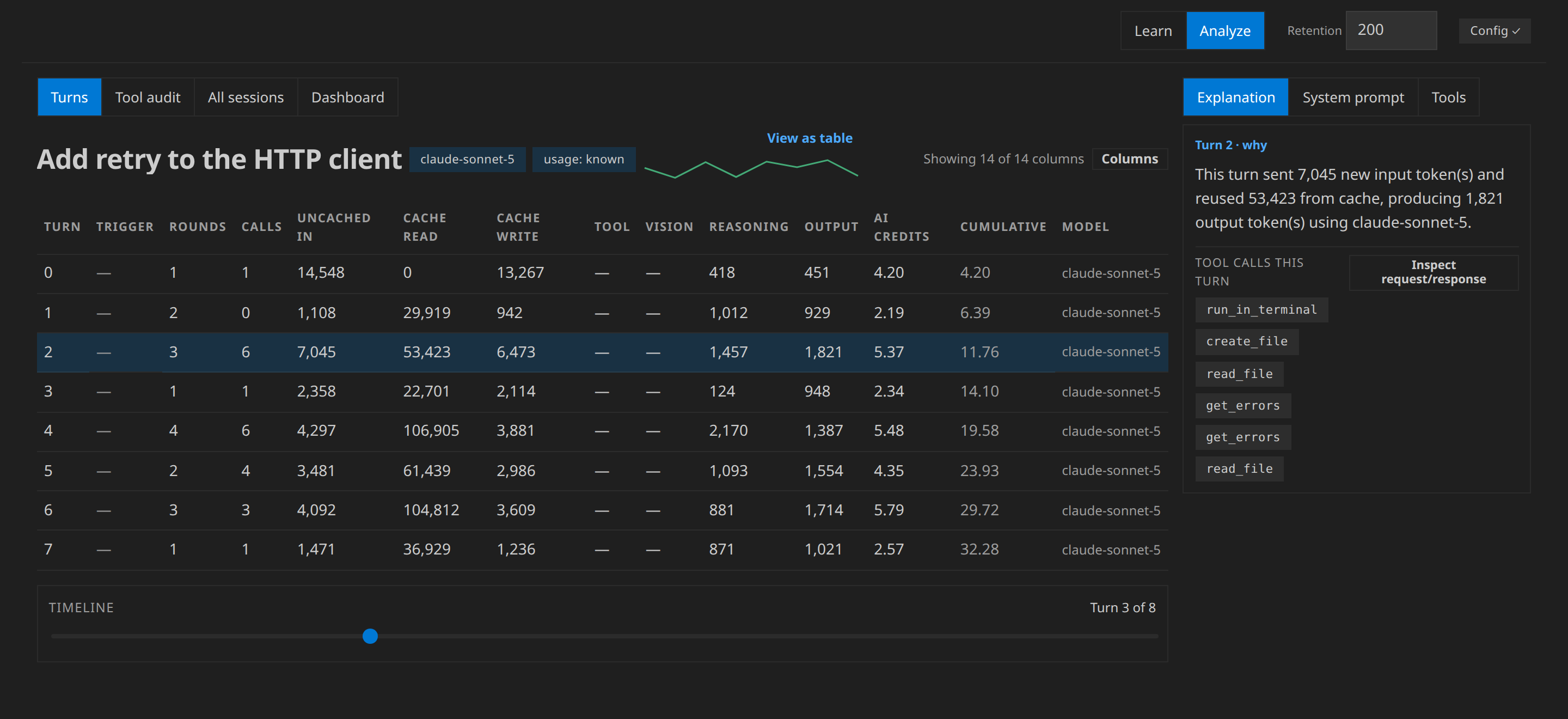
Features
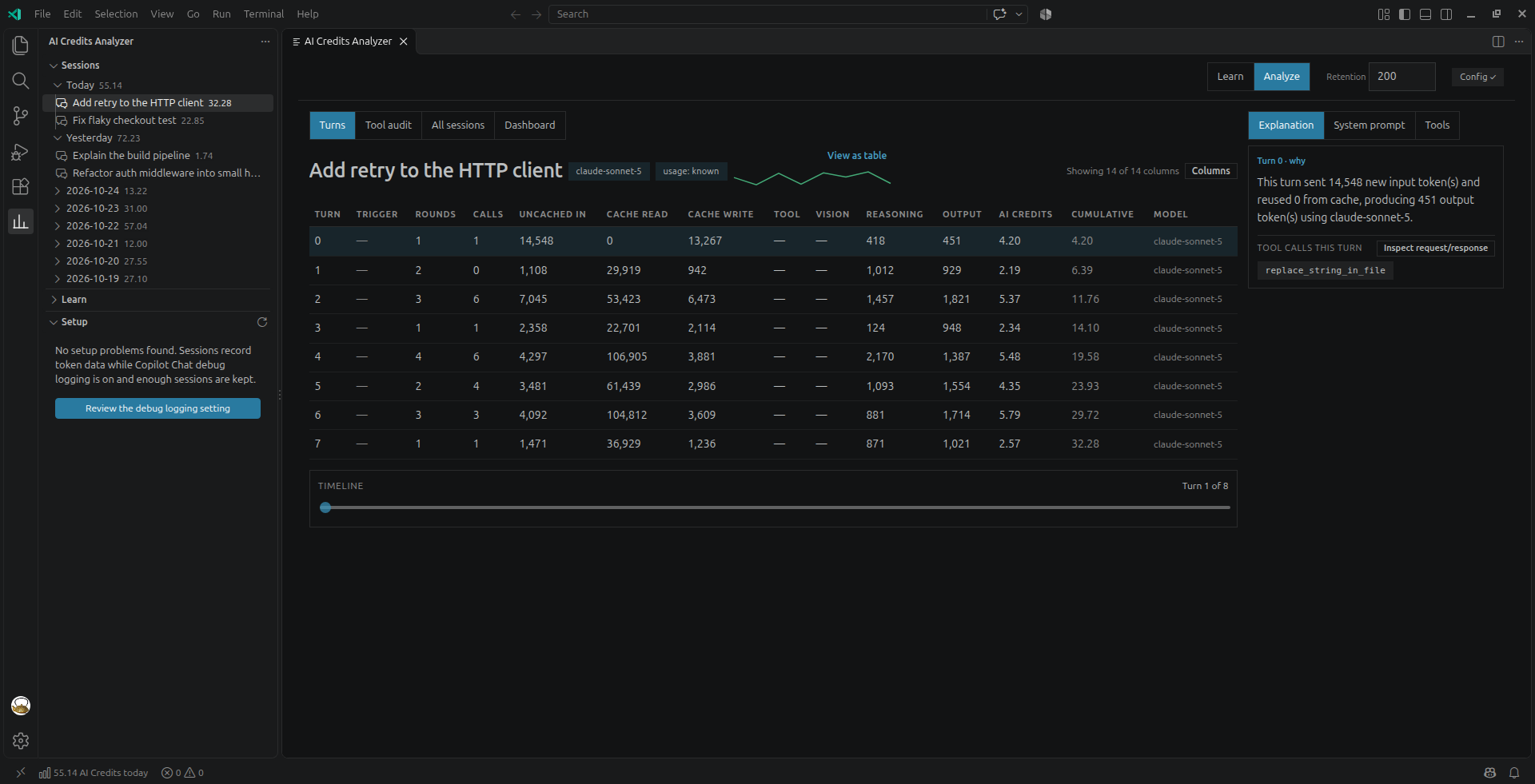
- Analyzer panel. Each session's turns in a table: uncached input,
cache read and write, tool, vision, reasoning and output tokens, AI
Credits per turn and a running total. A plain-language explanation of
each turn, the system prompt broken into its parts, the tools that were
loaded and used, and a request/response inspector per turn.
- Sessions, Learn and Setup side bar. Your Copilot Chat sessions
grouped by day with their AI Credits totals, and the Learn scenarios
grouped by topic; pick one to open it in the panel. Setup lists any
Copilot Chat logging setting that needs changing, with a Fix button that
opens it.
- Status bar. Today's AI Credits, with how many of today's sessions
have cost data.
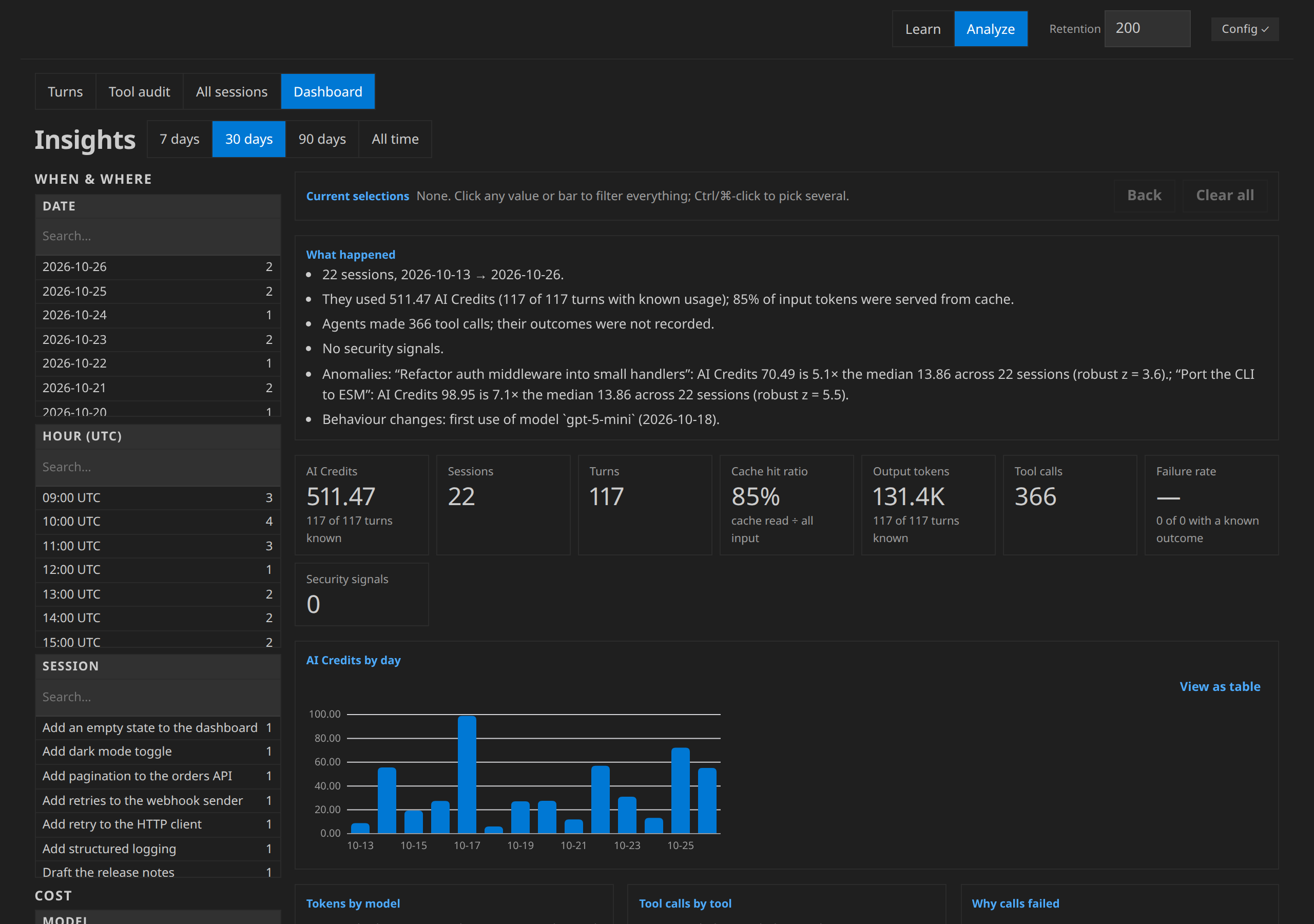
- Insights dashboard. Spend by day and model, cache hit ratio, tool
calls and failures, and signals to review: risky commands, unusual
sessions and first-time use of a tool or model.
- Tool audit. Every tool call in a session, why failed calls failed,
and retried commands, plus a roll-up across sessions.
- Learn mode. 18 sample sessions, in the Learn view, that show how
prompt caching, context compaction, model switches and other events
change what a turn costs.
- MCP server for Copilot agent mode (off by default). Ask Copilot Chat
"what did my last session cost?" and it answers from the same local logs
through nine read-only tools.
An unknown figure is shown as unknown, never as 0.
Getting started
- Install AI Credits Analyzer from the Extensions view.
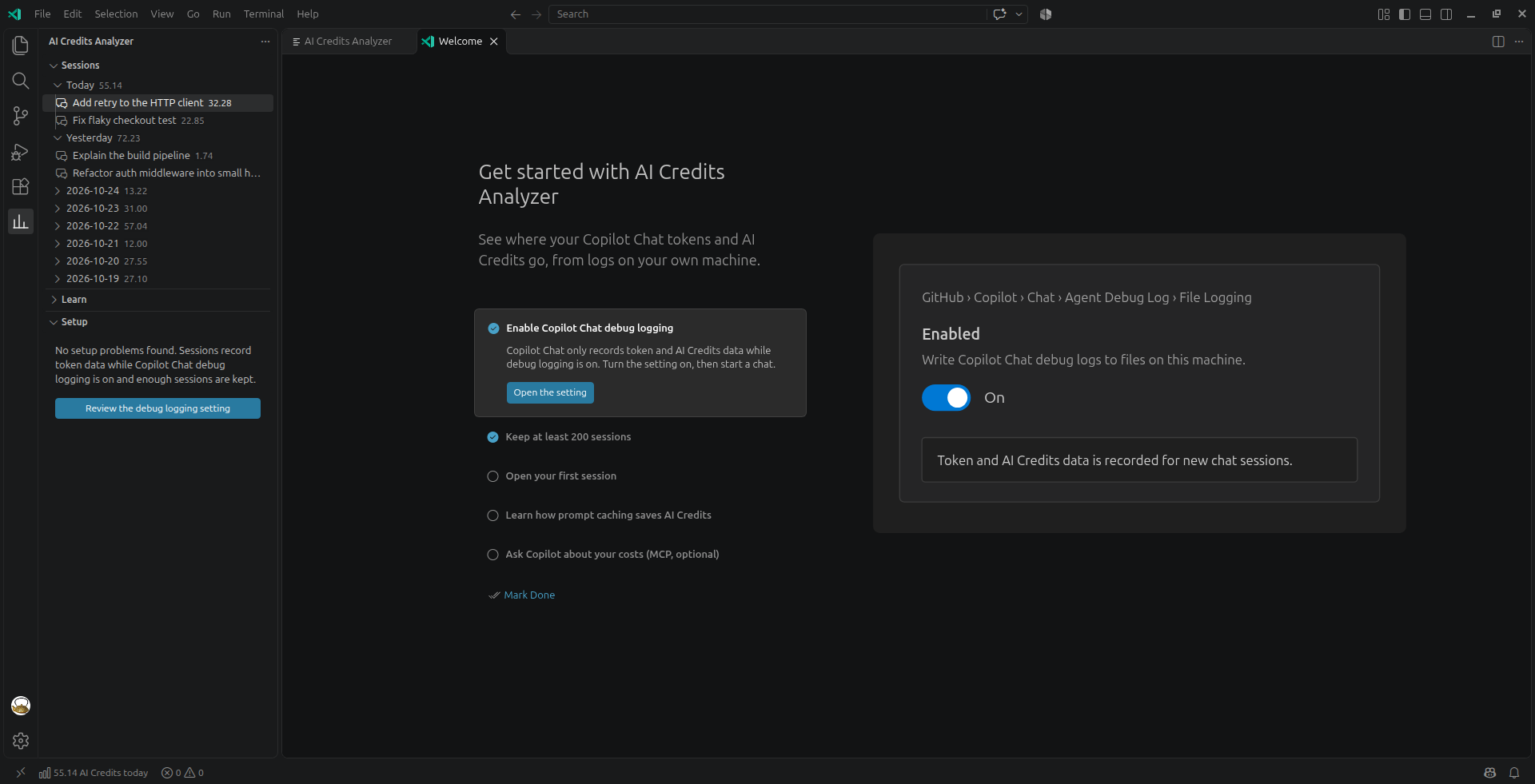
- The Get Started walkthrough opens once. It walks you through the
steps below. Reopen it any time with AI Credits Analyzer: Open Get
Started Walkthrough.
- Turn on Copilot Chat's debug file logging. Chats run with the Local
harness record token and AI Credits data only while it's on, and it's
off by default. Agent Host chats (below) don't need it.
- Open the Setup view in the AI Credits Analyzer side bar and
select Fix on the debug-logging row. It opens
github.copilot.chat.agentDebugLog.fileLogging.enabled in
Settings; turn it on.
- Set
github.copilot.chat.agentDebugLog.fileLogging.maxRetainedSessionLogs
to 200 or more, so older logs aren't deleted.
- Run Developer: Reload Window.
- Chat with Copilot as usual, then select Refresh in the Sessions
view and pick a session.
Logging isn't retroactive: sessions from before you turned it on show
their figures as unknown.
VS Code 1.143 and later make the Copilot harness the default for new chats,
and those run through the Agent Host. Their sessions are listed with their
tokens and AI Credits. Their prompt and response text, turn inspector, tool
calls and system prompt come from the Copilot CLI's event log, read locally.
Cache-write and reasoning tokens come from the same log's per-call usage
records, which Copilot CLI 1.0.95 and later write. They're used only when the
records add up to the turn's token totals; otherwise both show as unknown,
with the reason. Tool and vision tokens stay unknown.
The Tools tab stays unavailable, since the log records no tool definitions.
If a session's log is missing or unreadable, its text, tool calls and
system prompt show as not available, and its cache-write and reasoning
tokens as unknown, with the reason.
Once VS Code has an Agent Host store, Setup marks the two logging settings
optional: "Only affects chats run with the Local harness; Agent Host chats
are unaffected."
Commands
All commands are in the AI Credits Analyzer category.
| Command |
What it does |
| Open |
Opens the analyzer panel |
| Refresh |
Reloads the Sessions and Setup views and the status bar |
| Open Learn Mode |
Opens the panel in Learn mode |
| Open Get Started Walkthrough |
Opens the walkthrough |
| Open Session, Show Tool Audit, Copy Advice Bundle |
On a session in the Sessions view |
| Open Scenario |
On a scenario in the Learn view |
| Fix Setting |
On a row in the Setup view: opens that setting |
Settings
| Setting |
Default |
What it does |
aiCreditsAnalyzer.mcp.enabled |
false |
Offers Copilot Chat agent mode a read-only MCP server over your Copilot Chat sessions |
Privacy
- AI Credits Analyzer reads only Copilot Chat's log files on your machine
(or on the remote host, in a remote window).
- It makes no network requests and sends no telemetry.
- It never writes, moves or deletes your logs or Copilot Chat's settings.
Fix buttons only open a setting; you make the change.
- The MCP server is off until you turn on
aiCreditsAnalyzer.mcp.enabled.
When it's on, what its tools return goes to whichever model you chat
with: costs, tool calls and their outcomes, findings with excerpts, and
your prompts and the model's responses. Secrets in that text are
redacted and the text is truncated first. The server is read-only and
doesn't reach the network. In Restricted Mode, an untrusted workspace's
settings can't turn it on.
What the extension reads, file by file.
Requirements
- VS Code 1.144 or later. Each release of the extension requires the VS
Code version that was stable when it was published.
- GitHub Copilot Chat. Chats run with the Local harness also need debug
file logging turned on (see above).
Documentation
Using Claude Code, pi or mitmproxy?
This extension reads GitHub Copilot Chat's logs only. For Claude Code CLI
sessions, pi coding agent sessions or mitmproxy captures of LLM API
traffic, use
Agent Cost Analyzer,
the standalone app from the same repository. It has the same views and
reads VS Code Copilot Chat sessions too.
License
MIT
| |

