Ramonda CSS
Real CSS beside your markup, coloured as CSS.
A style block is @@( … ), and what goes inside it is CSS — properties, values, nested rules,
at-rules — with { … } holes for TypeScript expressions. This extension colours them, and formats
them on save.
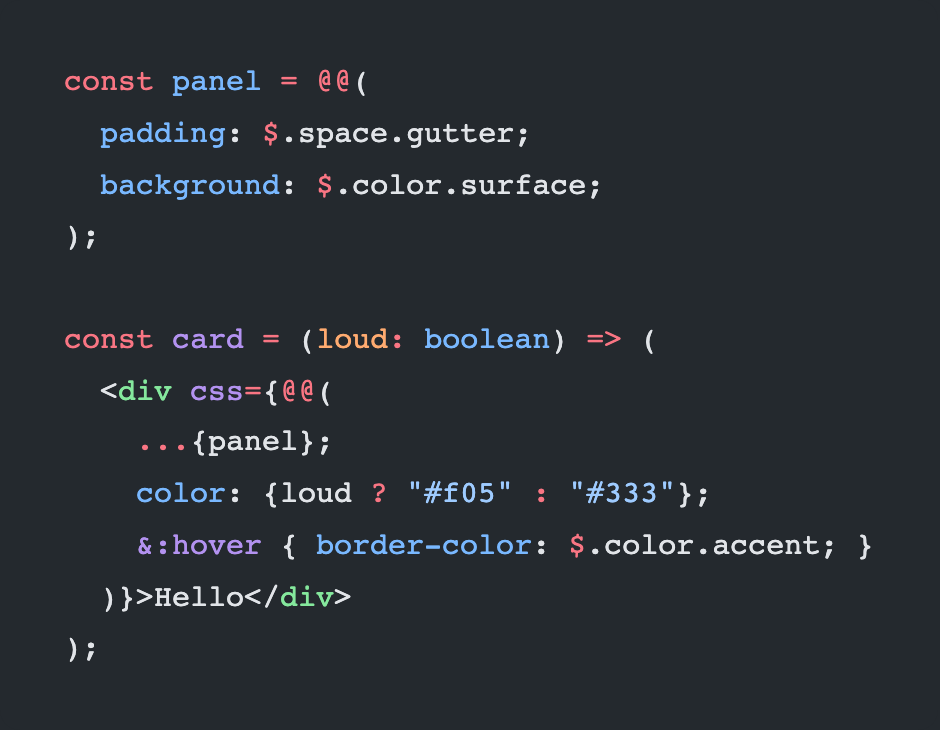
The picture is here because the code below cannot be: this page is rendered by the marketplace's own
highlighter, which has no way to load the grammars this extension is made of. It is generated from
those grammars, so it cannot drift from what you get.
<div className={@@(
  display: flex;
  gap: 8px;
  border-left: 4px solid $color.accent;
  color: $(this.loud) ? #f05 : [#333](https://github.com/NBlasko/ramonda/issues/333);
  &:hover {
    border-left-color: #00b37e;
  }
)}>
  <span>Panel</span>
</div>
The CSS is coloured as CSS, $(this.loud) as TypeScript, $color.accent as a token, and
&:hover as a selector.
Install
code --install-extension ramonda.css
Or search Ramonda CSS in the Extensions panel. Reload the window and the colours are there —
nothing to configure, and nothing to add to a project.
What you get
Colours work on their own, in .ts, .tsx, .js and .jsx.
Diagnostics and completions work too — the extension carries the compiler's language plugin, so
a misspelt property is underlined the moment you type it.
Building is the project's own. A style block is not TypeScript, and nothing in an editor can
compile one: without @ramonda/css in the project a build refuses the file outright. So where the
extension is answering on its own, it says that first, on the block, and goes on reporting the CSS
underneath it:
[no-compiler] nothing in this project compiles a style block, so a build will refuse this file.
Install @ramonda/css and name the plugin in
tsconfig.json. The line goes, and the editor answers with the version you pinned instead of the
one in here:
{ "compilerOptions": { "plugins": [{ "name": "@ramonda/css/plugin" }] } }
A plugin only loads when the editor is running the workspace's own TypeScript: TypeScript: Select
TypeScript Version → Use Workspace Version.
Both TypeScript servers see your blocks
VS Code runs two TypeScript servers, and one of them never opens your tsconfig.json — which is
where a project names this plugin. That is also the server that formats, folds and outlines your
file for as long as the editor is open, so on its own it reads a style block as plain TypeScript and
reformats it into something else.
This extension carries the plugin to both of them, so a block is left alone by Format Document and
folds where you would expect. There is nothing to configure for it.
Where a project has @ramonda/css of its own, the copy in here steps aside for it — so the checking
follows the version that project pinned, and the editor and the build agree about what is an error.
Using Prettier, keep Prettier. @ramonda/css ships a Prettier plugin, so your editor's usual
formatter handles these files with nothing else to configure:
{ "plugins": ["@ramonda/css/prettier"] }
Leave editor.defaultFormatter alone. Prettier formats the whole file, blocks and all.
Using biome, this extension is the formatter. biome has no plugin surface for a syntax it cannot
parse, so the formatting goes through ramonda-css, which runs your biome with your configuration.
Put this in the project's own .vscode/settings.json rather than in your global settings — it is a
choice about this project, and a workspace setting is what other people on the project get too:
{
  "[typescriptreact]": { "editor.defaultFormatter": "ramonda.css" },
  "editor.formatOnSave": true
}
editor.defaultFormatter names the one extension VS Code asks for that language, and it does not
fall through to another — so it reaches every project it is in scope for. In a project that formats
with Prettier it runs biome; in a project without @ramonda/css it has no command to run and returns
no edits, so format-on-save does nothing and neither Prettier nor biome is asked.
Inside a project that uses biome it covers a whole language rather than a folder: a file with no
block is passed straight to biome, with that project's own configuration.
TypeScript's own formatter steps aside for a file that holds a block, and that is what makes one
of the two above necessary. A style block is not TypeScript: asked to format one, the language
service rewrites it into something else. It could be left to guess, and an edit it computed would
land on the wrong characters and corrupt the file rather than merely look wrong — so it is refused
instead, for the whole file.
That is worth knowing before it surprises you: in a file with a block, Format Document and Format
Selection do nothing on their own, even on lines nowhere near the block. One of the two routes
above is what formats it.
Where the colours apply
Everywhere a block is a value, which since @ramonda/css@0.2.0 is everywhere a block can be
written — any attribute, any line, and outside JSX entirely:
<div
  id="panel"
  onclick={this.open}
  css={@@(
    display: flex;
  )}
>…</div>
Blocks outside JSX are coloured wherever they are:
const panel = @@( display: flex; );
Both are the same value and compile to the same class.
A bare css=@@( … ), with no braces, is still coloured here — this extension is a grammar and a
grammar does not decide what compiles. @ramonda/css refuses that spelling from 0.2.0: a block is
a TypeScript value and a bare attribute is the one shape only JSX has. The red line comes from the
language-service plugin, under the attribute name, and names the spelling to write.
Other editors
The grammars in grammar/ are plain TextMate JSON. Any editor that accepts a TextMate injection can
load them, keyed on source.ts, source.tsx, source.js and source.js.jsx — and source.css
for the holes.
Read next
Style blocks — the syntax in full, what a block compiles to,
and how to set up a build. Start there if you have not written one yet.

