Doclume — Five Themes. Zero Comic Sans.
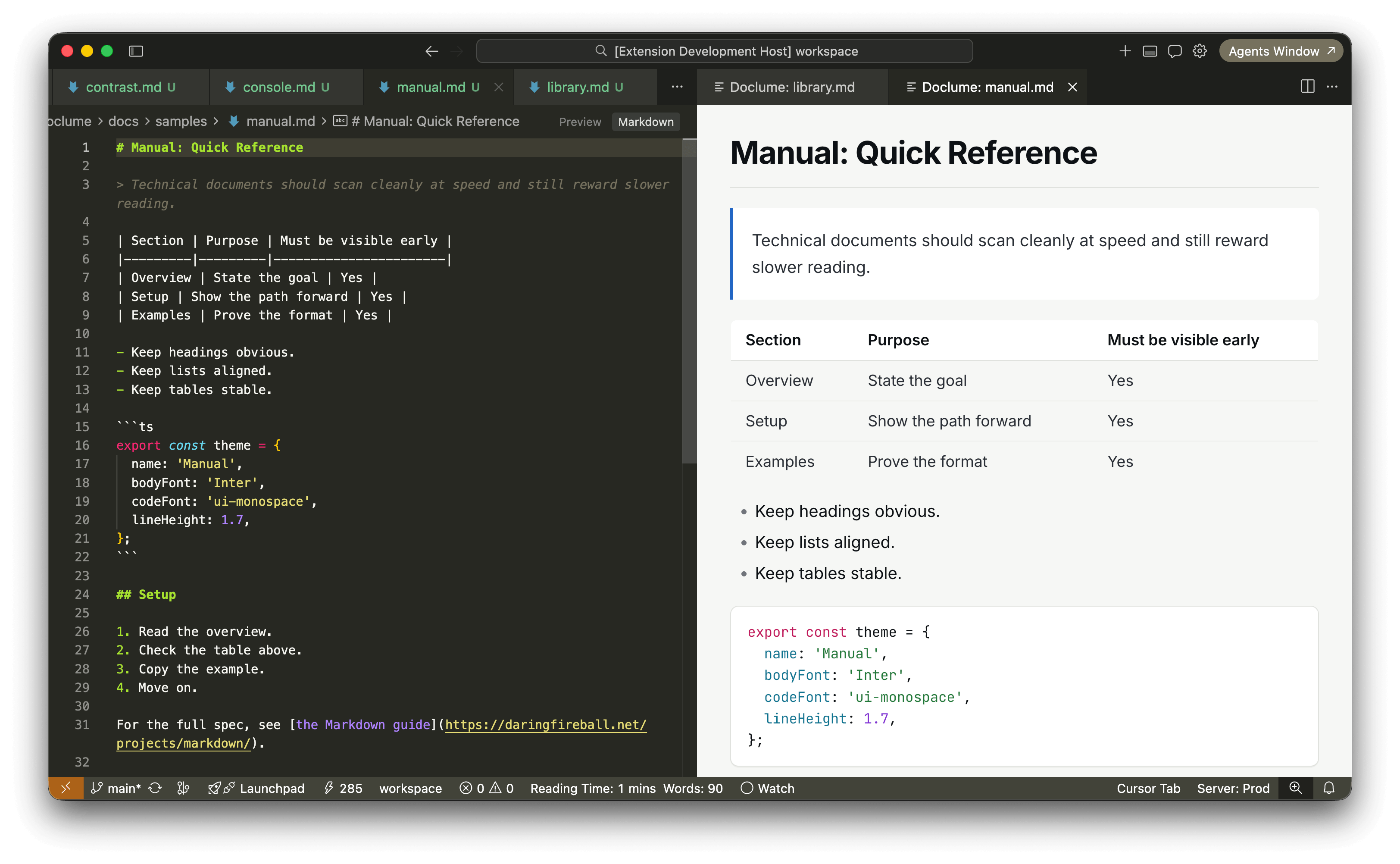
Library · Serif · light · warm cream
|
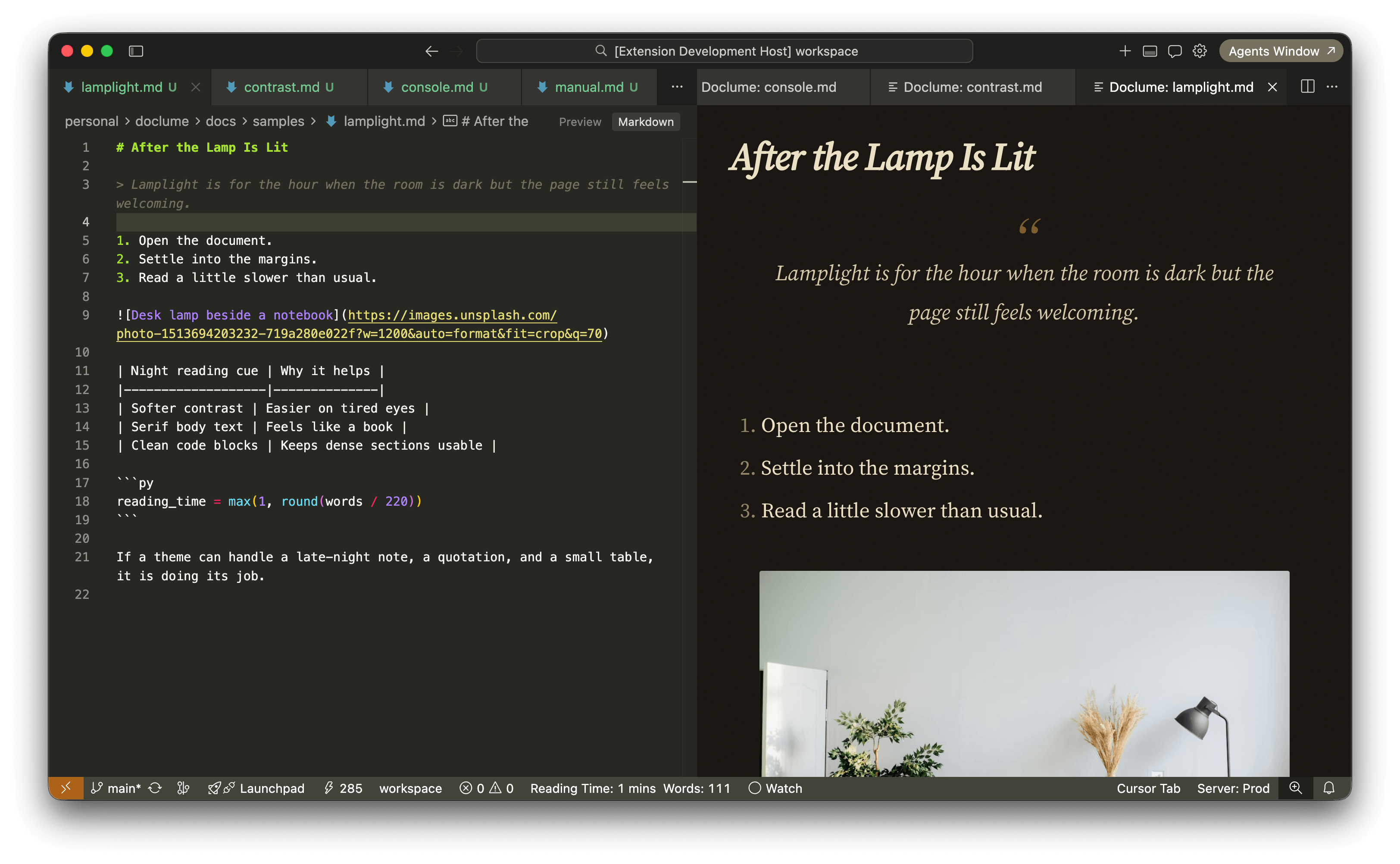
Lamplight · Serif · dark · amber
|
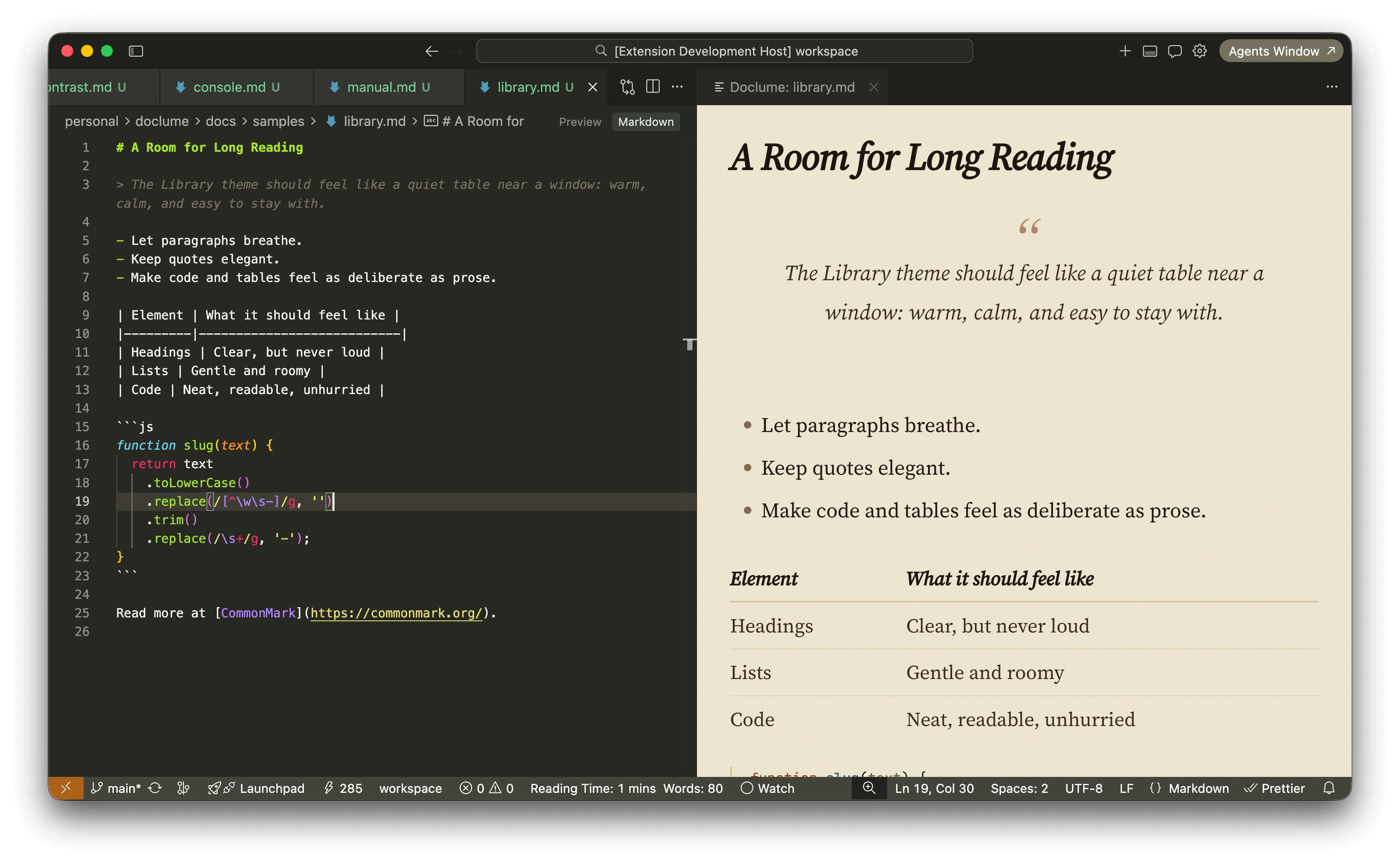
Manual · Sans · light · clean
|
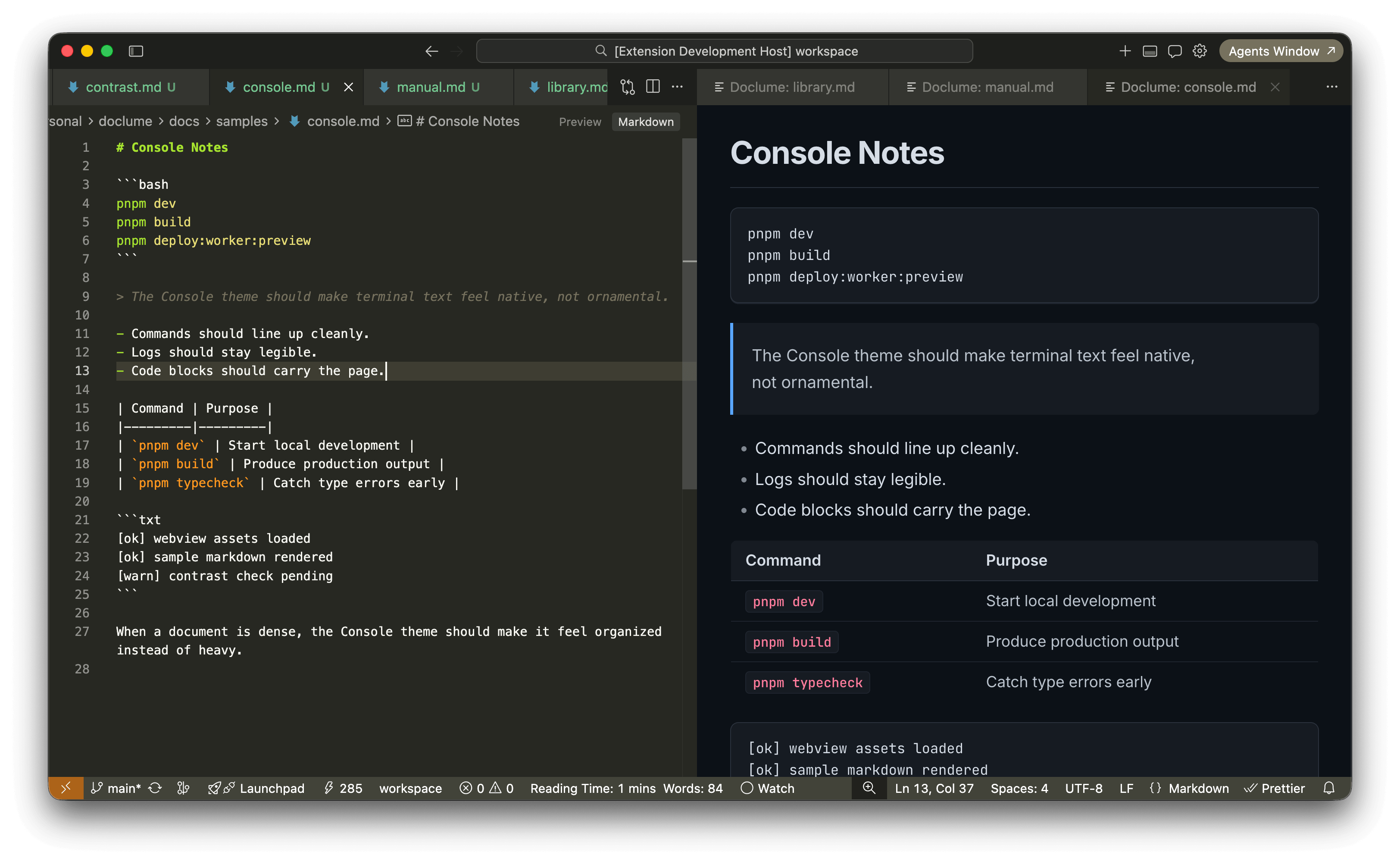
Console · Sans · dark · IDE-style
|
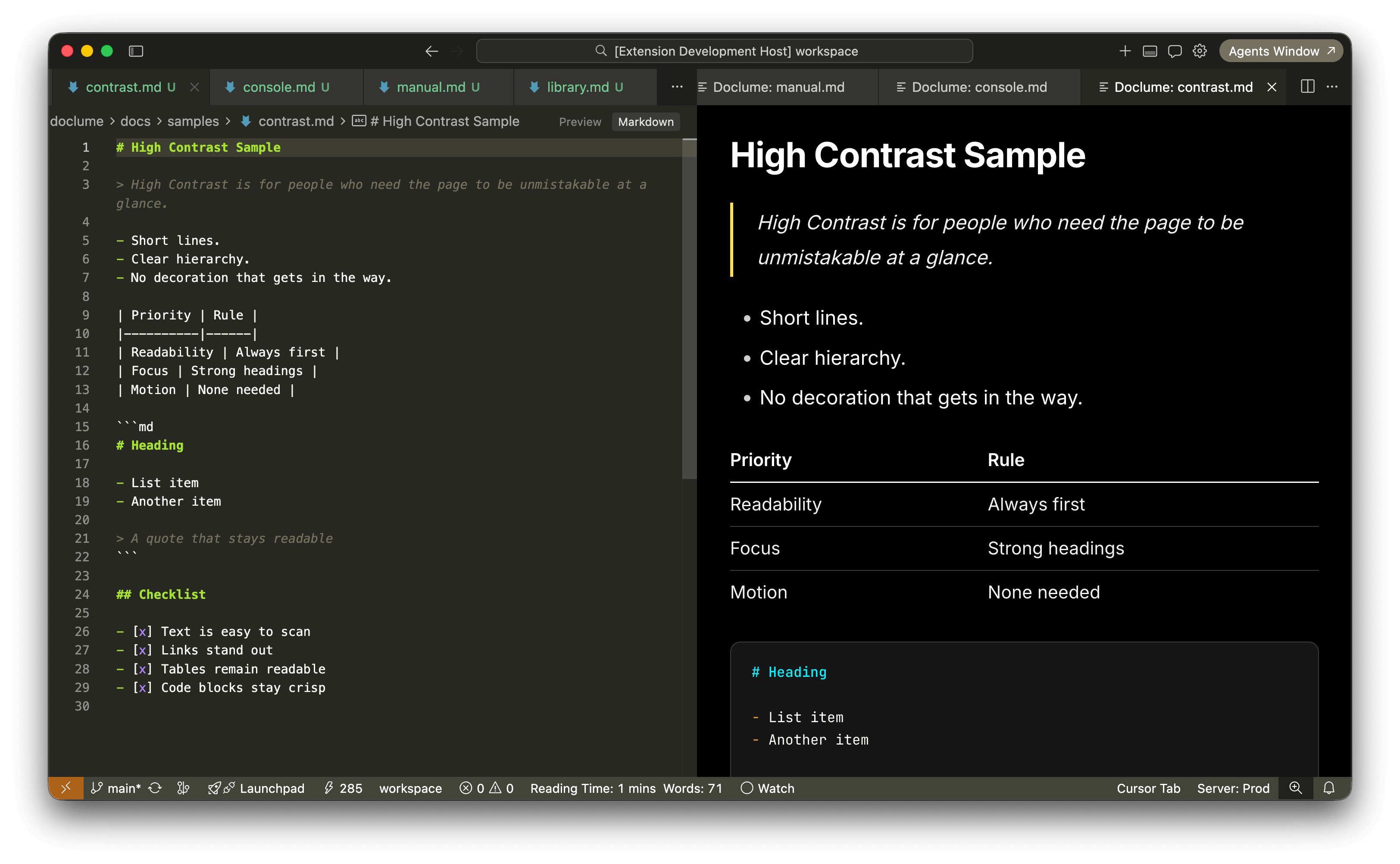
High Contrast · Sans · accessibility · WCAG
|
A markdown preview that respects typography. Same reader as the Doclume web app—tables, diagrams, math, and footnotes look the same in the browser and beside your editor. Five hand-crafted reading themes — serif for long-form, sans for technical docs, dark and light variants, plus high contrast for accessibility. Opens beside your editor; content updates as you edit. Reading fonts ship with the extension (no external font CDN in the webview).
→ GitHub
Markdown
The preview uses the same reader as the web app—what you see beside your editor matches the browser experience.
- Tables & tasks — ship specs and changelogs without fighting the layout
- Code blocks — syntax-colored fences that stay readable on every theme
- Diagrams — Mermaid in the preview, no round-trip to another tool
- Math — crisp formulas with KaTeX
- Notes & glossaries — footnotes and definition lists when the doc calls for them
Themes
Five reading themes, two font families, both sides of dark/light:
| Theme |
Mode |
Best for |
| Library |
Serif · light |
Long reads, essays, changelogs |
| Lamplight |
Serif · dark |
Late-night reading, warm amber tones |
| Manual |
Sans · light |
Specs, READMEs, API docs |
| Console |
Sans · dark |
Technical docs, IDE-style |
| High Contrast |
Sans |
Accessibility, WCAG |
Auto mode tracks your VS Code color theme — light workspace gets Manual, dark gets Console. Switch VS Code themes and the markdown preview follows instantly.
Usage
Open any .md, .prompt, .instructions, .chatagent, or .skill file and press:
- Mac:
Cmd+K Cmd+Shift+L (VS Code) · Cmd+Shift+Alt+L (Cursor — see below)
- Windows / Linux:
Ctrl+K Ctrl+Shift+L (VS Code) · Ctrl+Shift+Alt+L (Cursor)
Also available via:
- Book icon in the editor toolbar (VS Code; Cursor may hide it by default)
- Right-click in the editor or Explorer → Open in Doclume
- Command Palette → Doclume: Open in Doclume
Cursor IDE
Toolbar icon missing? From Cursor 2.1, editor title actions are hidden by default. Open the … menu on the editor tab → Configure Icon Visibility → enable Open in Doclume. The command still works via palette, context menu, or the shortcut below.
Cmd+K does nothing? Cursor binds Cmd+K to inline edit, so the VS Code-style chord Cmd+K then Cmd+Shift+L never reaches Doclume. Use Cmd+Shift+Alt+L instead (or rebind Doclume: Open in Doclume in Keyboard Shortcuts).
Preview opens as a tab in the active editor group and tracks edits (updates are batched briefly so typing stays smooth).
Commands
| Command |
What it does |
Doclume: Open in Doclume |
Open markdown preview in a new editor tab |
Doclume: Select Doclume Theme… |
Pick theme from quick-pick list |
Doclume: Cycle Doclume Theme |
Rotate through all themes in order |
Configuration
{
  // auto | library | lamplight | manual | console | contrast
  // auto follows VS Code light/dark: light → Manual, dark → Console
  "doclume.theme": "auto"
}
Settings apply workspace-wide when a workspace is open, globally otherwise.
Testing
Run the VS Code-specific checks with:
pnpm test:vscode:smokepnpm test:vscode:visualpnpm test:vscodepnpm --filter doclume build:webview
Supported file types
.md · .prompt · .instructions · .chatagent · .skill
Why Doclume
VS Code's built-in markdown preview is functional. Doclume is opinionated — it treats markdown as something worth reading, not just rendering. Serif fonts for prose, proper line lengths, themes that don't feel like an afterthought.
License
MIT · rabisnaqvi

