sftp sync extension for VS Code
This is a personal fork of Natizyskunk/vscode-sftp (itself a fork of liximomo's SFTP plugin), published as quendistudio.qsftp (Marketplace name must differ from upstream's sftp).
It focuses on making the file watcher safe to use together with Remote → Local and Sync Both Directions commands. See What's different in this fork.
It is not published on the VS Code Marketplace; install it from a VSIX (see Installation).
Upstream:
What's different in this fork
Upstream behaviour could push truncated or empty files to the server when watcher.autoUpload was enabled during a Remote → Local transfer that failed or was interrupted. This fork fixes the root causes:
- Atomic Remote → Local writes. Downloads are written to
<file>.sftp-part and renamed only once complete. If the transfer fails or the extension crashes, the original local file is left untouched and the temp file is removed (or ignored if a crash prevented cleanup).
- Watcher echo suppression, per file. After each local write performed by a Remote → Local transfer, the file size and modification time are recorded. Watcher events matching that signature (or files still being written, or directories created by the transfer) are skipped. Any real local edit changes the signature and uploads normally. No time windows, no global freeze of the watcher.
- Sync Both Directions fix. When the remote file is newer, the reverse-direction transfer now reads from the remote filesystem and writes to the local one (upstream kept the wrong filesystem pair).
- Listing errors are no longer swallowed. If the source directory cannot be listed (e.g. connection drop), the sync fails instead of treating the source as empty — which could otherwise delete local files with
syncOption.delete. A missing target directory (ENOENT) is still treated as empty.
*.sftp-part files are never synced in either direction.- Watcher queue deduplicated by path, and
uploadOnSave is skipped while a Remote → Local write is in progress for the same file.
- Intentionally empty files (e.g.
.gitkeep) upload normally.
- Works on recent editors (Node 23+).
ssh2 is upgraded to 1.17, which no longer calls the removed util.isDate (upstream's bundled ssh2@1.13 fails every SFTP transfer with isDate is not a function on current Cursor / VS Code).
- The VSIX ships its runtime dependencies.
ssh2 is a native-capable module kept outside the webpack bundle, so it must be packaged in node_modules; otherwise activation fails with Cannot find module 'ssh2' and every command reports command 'sftp.config' not found.
Known limitation (unchanged from upstream): if you edit a file locally while a Remote → Local transfer is writing that same file, the final rename overwrites your local edit. Nothing corrupted is sent to the server.
Issues for this fork: https://github.com/quendistudio/vscode-sftp/issues — for general extension issues, see upstream's templates.
ℹ UPSTREAM INFOS - 2025/03/13
I've tried to keep this extension up-to-date as much as I can and added a lot of new relevant features. Saddly, for the last year and a half I wasn't really able to work on the project because of personal reasons and I'm really not sure if and when I'll be able to get more time to work on it again. So for now consider the v1.16.4 as the latest official stable release available.
ℹ UPSTREAM INFOS - 2023/06/23
This is the main repository for the SFTP extension since @liximomo has set his own to deprecated in favor of this one in the VSCode marketplace.
There are also other forks that are available. Feel free to try them.
A lot of work as been brought to fix bugs, add new features and more than 50 updates have been released with a lot of improvements and stability fixes for almost two years now. 😎
I've been working hard to fix a lot of things and I've updated more than 50 new releases with a lot of improvements and stability fixes and I've brought new features for almost three years now.
VSCode-SFTP enables you to add, edit or delete files within a local directory and have it sync to a remote server directory using different transfer protocols like FTP or SSH. The most basic setup requires only a few lines of configuration with a wide array of specific settings also available to meet the needs of any user. Both powerful and fast, it helps developers save time by allowing the use of a familiar editor and environment.
Installation
Uninstall any other SFTP extension first (Natizyskunk.sftp, liximomo.sftp). Two SFTP extensions active at once means two watchers, and every change gets uploaded twice.
Build the VSIX
git clone https://github.com/quendistudio/vscode-sftp.git
cd vscode-sftp
npm ci
npm test
npm run package
This produces qsftp-<version>.vsix. Do not pass --no-dependencies: the VSIX must include node_modules/ssh2.
Install the VSIX
- Select Extensions (Ctrl + Shift + X).
- Open the "More Actions" menu (
... at the top) and click "Install from VSIX…".
- Select the generated
sftp-<version>.vsix.
- Run
Developer: Reload Window.
Or from a terminal (code or cursor):
cursor --install-extension qsftp-1.16.5.vsix
Your existing .vscode/sftp.json files work unchanged.
Documentation
Usage
If the latest files are already on a remote server, you can start with an empty local folder,
then download your project, and from that point sync.
- In
VS Code, open a local directory you wish to sync to the remote server (or create an empty directory
that you wish to first download the contents of a remote server folder in order to edit locally).
Ctrl+Shift+P on Windows/Linux or Cmd+Shift+P on Mac open command palette, run SFTP: config command.- A basic configuration file will appear named
sftp.json under the .vscode directory, open and edit the configuration parameters with your remote server information.
For instance:
{
    "name": "Profile Name",
    "host": "name_of_remote_host",
    "protocol": "ftp",
    "port": 21,
    "secure": true,
    "username": "username",
    "remotePath": "/public_html/project", // <--- This is the path which will be downloaded if you "Download Project"
    "password": "password",
    "uploadOnSave": false
}
The password parameter in sftp.json is optional, if left out you will be prompted for a password on sync.
Note: backslashes and other special characters must be escaped with a backslash.
- Save and close the
sftp.json file.
Ctrl+Shift+P on Windows/Linux or Cmd+Shift+P on Mac open command palette.- Type
sftp and you'll now see a number of other commands. You can also access many of the commands from the project's file explorer context menus.
- A good one to start with if you want to sync with a remote folder is
SFTP: Download Project. This will download the directory shown in the remotePath setting in sftp.json to your local open directory.
- Done - you can now edit locally and after each save it will upload to sync your remote file with the local copy.
- Enjoy!
For detailed explanations please go to wiki.
Example configurations
You can see the full list of configuration options here.
Simple
{
  "host": "host",
  "username": "username",
  "remotePath": "/remote/workspace"
}
Profiles
{
  "username": "username",
  "password": "password",
  "remotePath": "/remote/workspace/a",
  "watcher": {
    "files": "dist/*.{js,css}",
    "autoUpload": false,
    "autoDelete": false
  },
  "profiles": {
    "dev": {
      "host": "dev-host",
      "remotePath": "/dev",
      "uploadOnSave": true
    },
    "prod": {
      "host": "prod-host",
      "remotePath": "/prod"
    }
  },
  "defaultProfile": "dev"
}
Note: context and watcher are only available at root level.
Use SFTP: Set Profile to switch profile.
Multiple Context
The context must not be same.
[
  {
    "name": "server1",
    "context": "project/build",
    "host": "host",
    "username": "username",
    "password": "password",
    "remotePath": "/remote/project/build"
  },
  {
    "name": "server2",
    "context": "project/src",
    "host": "host",
    "username": "username",
    "password": "password",
    "remotePath": "/remote/project/src"
  }
]
Note: name is required in this mode.
Connection Hopping
You can connect to a target server through a proxy with ssh protocol.
Note: Variable substitution is not working in a hop configuration.
Single Hop
local -> hop -> target
{
  "name": "target",
  "remotePath": "/path/in/target",

  // hop
  "host": "hopHost",
  "username": "hopUsername",
  "privateKeyPath": "/Users/localUser/.ssh/id_rsa", // <-- The key file is assumed on the local.

  "hop": {
    // target
    "host": "targetHost",
    "username": "targetUsername",
    "privateKeyPath": "/Users/hopUser/.ssh/id_rsa", // <-- The key file is assumed on the hop.
  }
}
Multiple Hop
local -> hopa -> hopb -> target
{
  "name": "target",
  "remotePath": "/path/in/target",

  // hopa
  "host": "hopAHost",
  "username": "hopAUsername",
  "privateKeyPath": "/Users/hopAUsername/.ssh/id_rsa" // <-- The key file is assumed on the local.

  "hop": [
    // hopb
    {
      "host": "hopBHost",
      "username": "hopBUsername",
      "privateKeyPath": "/Users/hopaUser/.ssh/id_rsa" // <-- The key file is assumed on the hopa.
    },

    // target
    {
      "host": "targetHost",
      "username": "targetUsername",
      "privateKeyPath": "/Users/hopbUser/.ssh/id_rsa", // <-- The key file is assumed on the hopb.
    }
  ]
}
Configuration in User Setting
You can use remote to tell sftp to get the configuration from remote-fs.
In User Setting:
"remotefs.remote": {
  "dev": {
    "scheme": "sftp",
    "host": "host",
    "username": "username",
    "rootPath": "/path/to/somewhere"
  },
  "projectX": {
    "scheme": "sftp",
    "host": "host",
    "username": "username",
    "privateKeyPath": "/Users/xx/.ssh/id_rsa",
    "rootPath": "/home/foo/some/projectx"
  }
}
In sftp.json:
{
  "remote": "dev",
  "remotePath": "/home/xx/",
  "uploadOnSave": false,
  "ignore": [".vscode", ".git", ".DS_Store"]
}
Remote Explorer
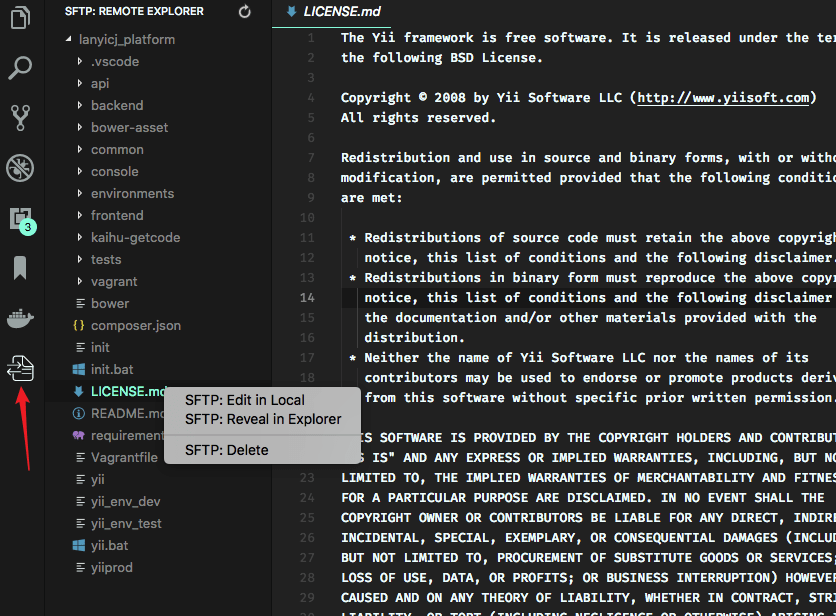
Remote Explorer lets you explore files in remote. You can open Remote Explorer by:
- Run Command
View: Show SFTP.
- Click SFTP view in Activity Bar.
You can only view a files content with Remote Explorer. Run command SFTP: Edit in Local to edit it in local.
Multiple Select
You are able to select multiple files/folders at once on the remote server to download and upload. You can do it simply by holding down Ctrl or Shift while selecting all desired files, just like on the regular explorer view.
Note: You need to manually refresh the parent folder after you delete a file if the explorer isn't correctly updated.
Files and folders in the Remote Explorer have an inline download button, shown when hovering an item, to quickly run Download File or Download Folder.
Refresh Active Remote File
When a remote file is open in the editor, click the refresh button in the editor title bar (or run SFTP: Refresh Active Remote File) to reload its content from the server.
Order
You can order the remote Explorer by adding the remoteExplorer.order parameter inside your sftp.json config file.
In sftp.json:
{
  "remoteExplorer": {
    "order": 1 // <-- Default value is 0.
  }
}
Debug
- Open User Settings.
- On Windows/Linux -
File > Preferences > Settings
- On macOS -
Code > Preferences > Settings
- Set
sftp.debug to true and reload vscode.
- View the logs in
View > Output > sftp.
FAQ
You can see all the Frequently Asked Questions here.
Support the original author
Almost all of this extension is the work of @Natizyskunk (and @liximomo before). This fork only adds the watcher-safety changes above. If the extension saves you time, consider supporting the upstream maintainer: