Develop, preview and publish pixograms for the PXL Clock directly in VS Code.
What is the PXL Clock?
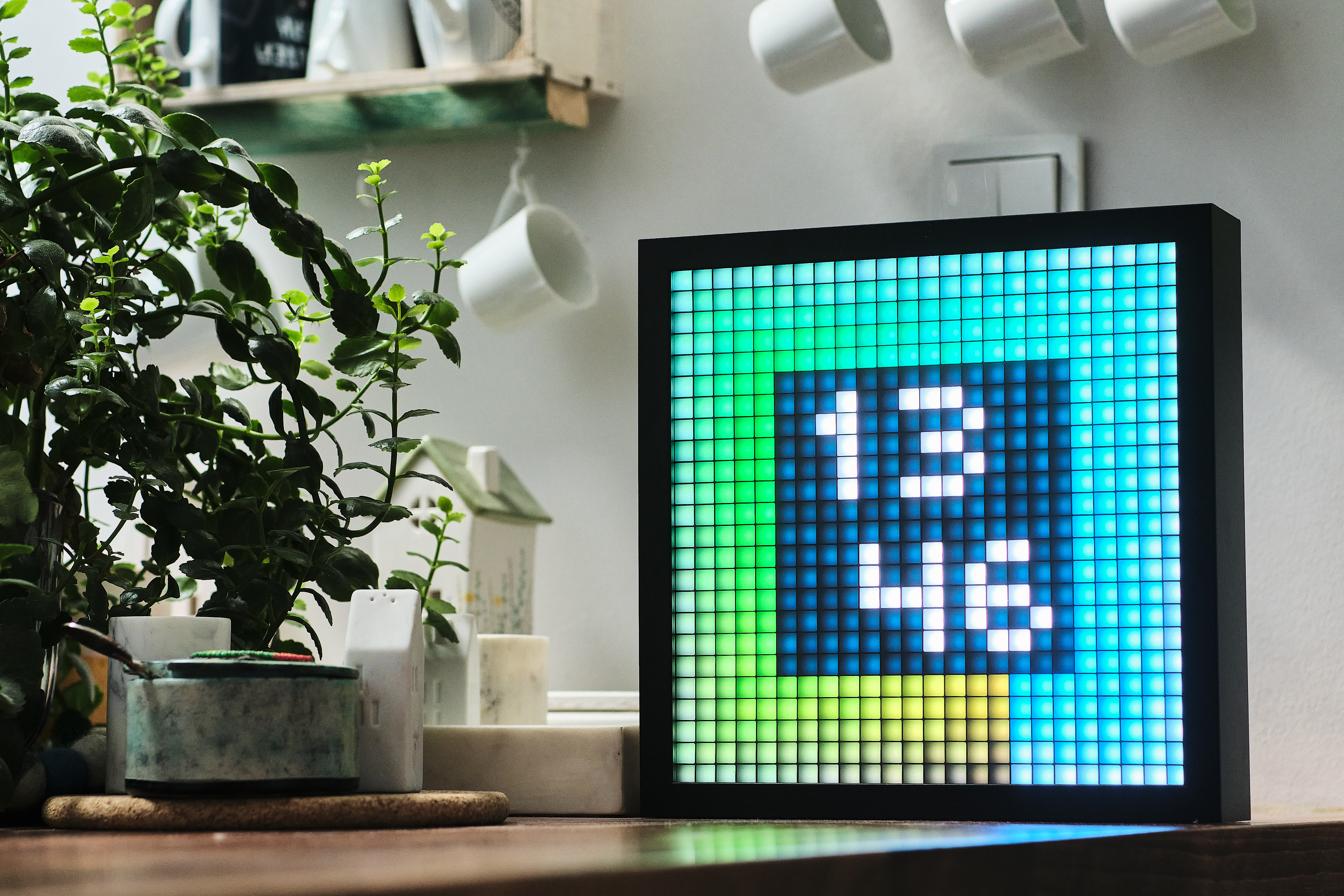
The PXL Clock is a programmable 24x24 RGB pixel display in a handcrafted frame with real glass. What makes it unique: you program it in C# using the Pxl NuGet package.
Features
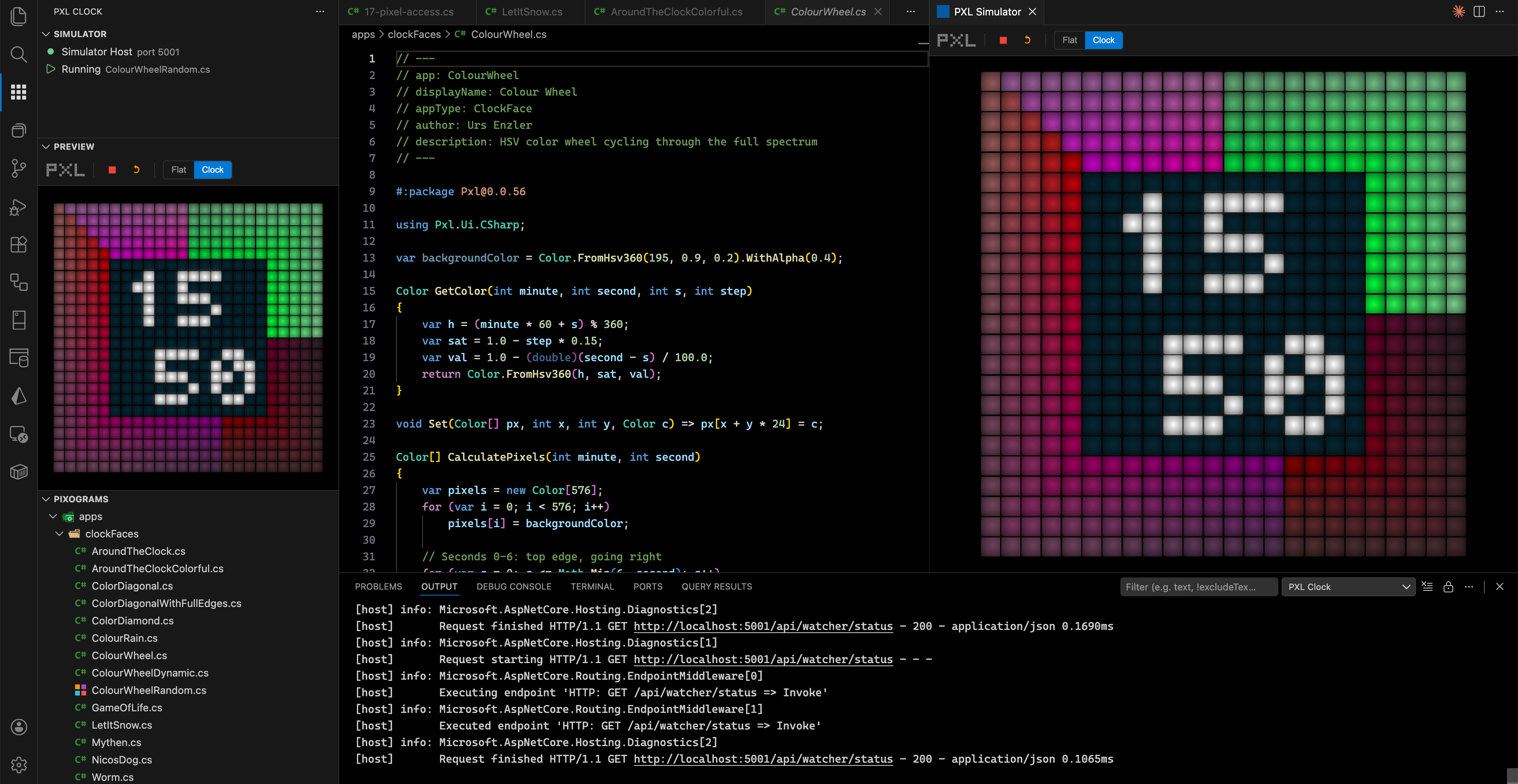
Built-in Simulator — the simulator host starts automatically in the background, no manual setup needed
Live Preview — see your pixel art directly in the VS Code sidebar or as a separate panel
Run & Stop — launch .cs pixogram scripts with one click from the editor toolbar or file tree
File Explorer — browse your pixograms in a dedicated sidebar tree view
Hot Reload — edit a running script and see changes instantly
Publish to Clock — deploy pixograms directly to your PXL Clock over the network
Simulator Status — monitor the simulator state and manage connected devices from the sidebar
Getting Started
Install the extension
Create a new folder for your pixograms and open it in VS Code
Run the command PXL Clock: Get Example Pixograms to download demo scripts and clock faces into your workspace
The simulator starts automatically in the background
Click a .cs file in the Pixograms panel and hit the play button
Watch the preview in the Preview sidebar panel, or open a full-size simulator with PXL Clock: Open Simulator
Commands
Command
Description
PXL Clock: Open Simulator
Open the simulator as a full editor panel
PXL Clock: Run Current Script
Run the active .cs file
PXL Clock: Stop Script
Stop the running pixogram
PXL Clock: Publish Pixogram
Publish the active .cs file to a PXL Clock
PXL Clock: Show Log
Show the output log
PXL Clock: Get Example Pixograms
Download demo scripts and clock faces into your workspace
Configuration
Setting
Default
Description
pxl.simulatorHost
http://127.0.0.1:5001
URL of the PXL Simulator Host
Writing Pixograms
Pixograms are C# scripts using the Pxl API. Here's a minimal example:
#: package Pxl

using Pxl.Ui.CSharp;

Color GetColor(int minute, int second, int x, int y, int step)
{
    var hue = (x + y + step) * 5.0 / 360.0;
    return Color.FromHSV(hue, 1.0, 1.0);
}