SFTP/FTP Upload on Save – Deploy to Remote Server
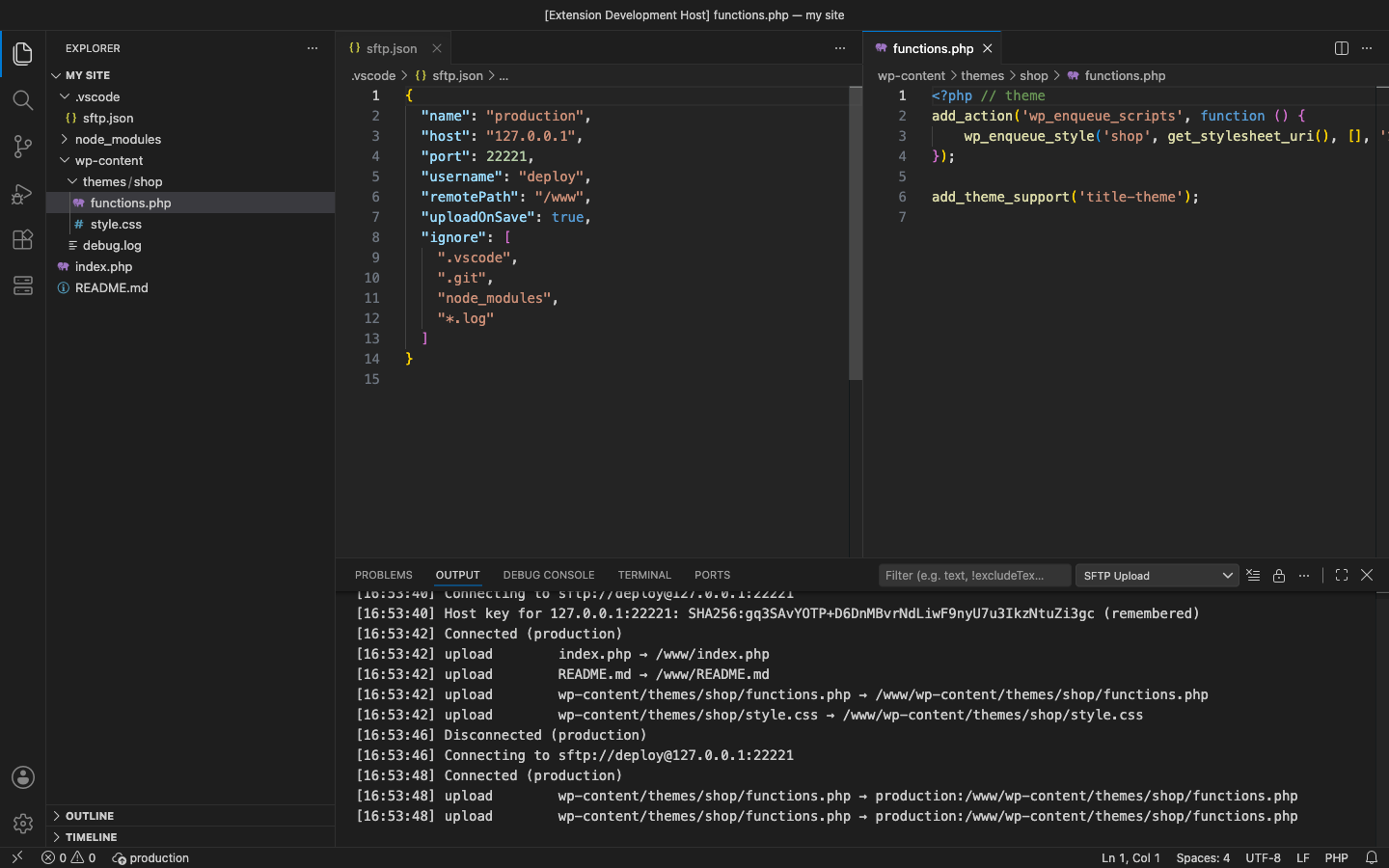
Save a file in VS Code and it is on your server. SFTP, FTP and FTPS. It reads the .vscode/sftp.json you already have from the SFTP extension you used before (same format, comments allowed), so switching takes no changes. Passwords and key passphrases are asked for once and kept in VS Code's SecretStorage, never in a project file.
Why this one
- It uploads. No "isDate is not a function", no silent failures: every transfer and every error is in the SFTP Upload log with the server's own message, and the status bar turns red until the next transfer works.
- Your sftp.json works as it is.
host, port, username, protocol (sftp, ftp, ftps or ftp + secure), remotePath, uploadOnSave, ignore, ignoreFile, privateKeyPath, passphrase: true, agent, context, arrays of servers, profiles + defaultProfile, hop, syncOption, remoteTimeOffsetInHours, connectTimeout, secureOptions. Keys it doesn't use (watcher, useTempFile…) are accepted and noted in the log.
- No passwords in files. Leave
password out and you are asked once; it is stored in SecretStorage (the OS keychain). A password already in an old sftp.json still works, with a note in the log. .vscode/sftp.json itself is never uploaded.
- Host keys are checked. The first connection remembers the server's key fingerprint; if it changes later you are asked before anything is sent.
Free features
- Upload on save (
"uploadOnSave": true), one server per workspace folder. Saves of the same file while an upload is running are combined.
- Upload and Download from the Explorer and editor context menus: files, several selected files, or whole folders (recursively, ignore rules applied).
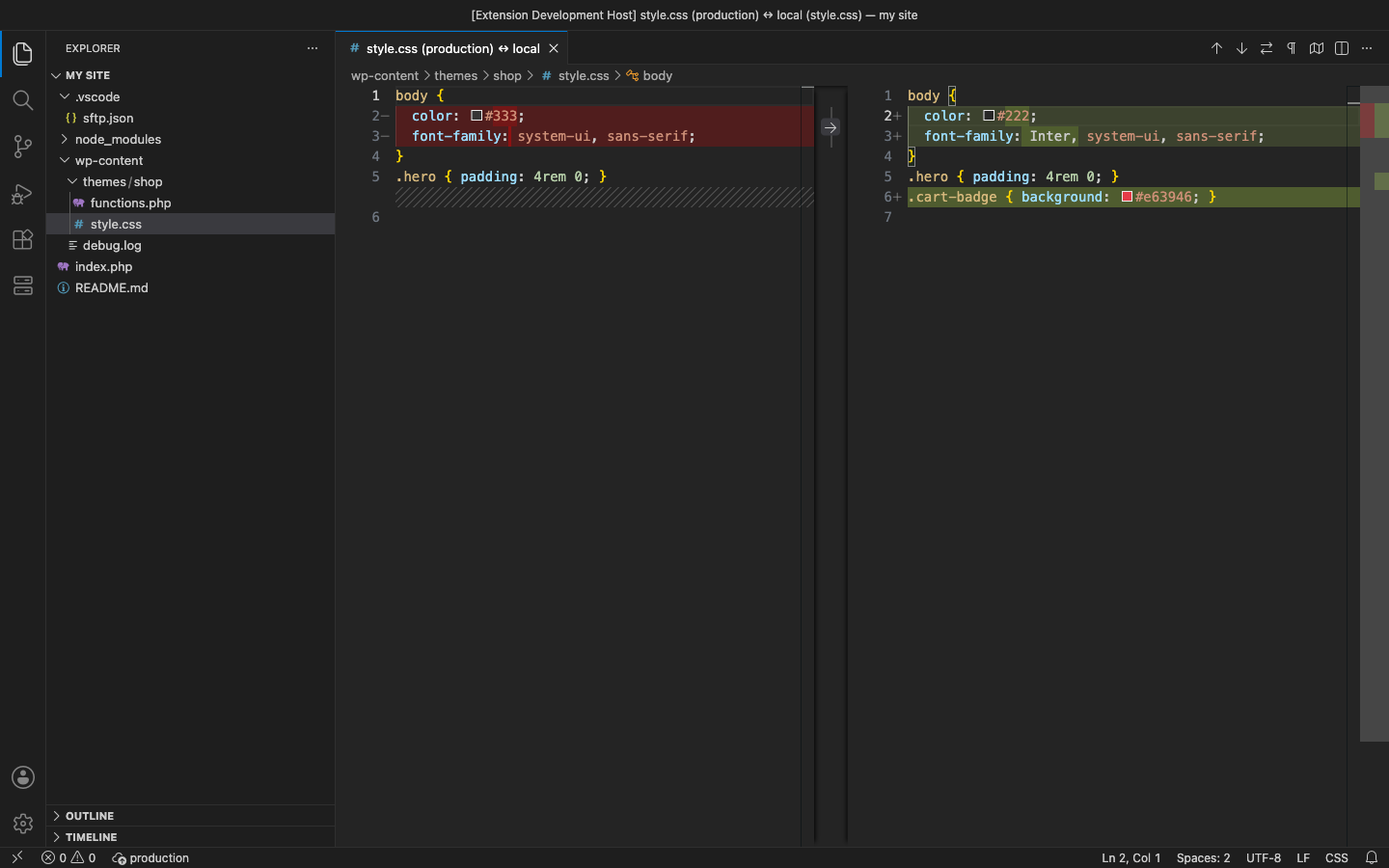
- Compare with Remote: the server copy next to your local file in VS Code's diff editor.
- Ignore rules with
.gitignore syntax: node_modules/, *.log, /dist, src/**/*.map, !keep.log, plus ignoreFile.
- SFTP with password, private key (with passphrase) or ssh-agent; FTP; FTPS explicit or implicit.
- Log (SFTP: Show Log) and status bar with the server name; click it for a menu.
- Forget Saved Passwords, Disconnect, and Create or Open Config with a commented template. sftp.json gets completion and validation.
Pro (licence key, checked offline)
$12 a year, or $36 lifetime, per developer. Everything above stays free. Pro adds:
- Several servers at once. Every entry in an sftp.json array is used, so one save goes to staging and production. Choose Upload Servers ticks which ones.
- Profiles. Switch Profile moves between
profiles (dev, staging, prod…) without editing the file.
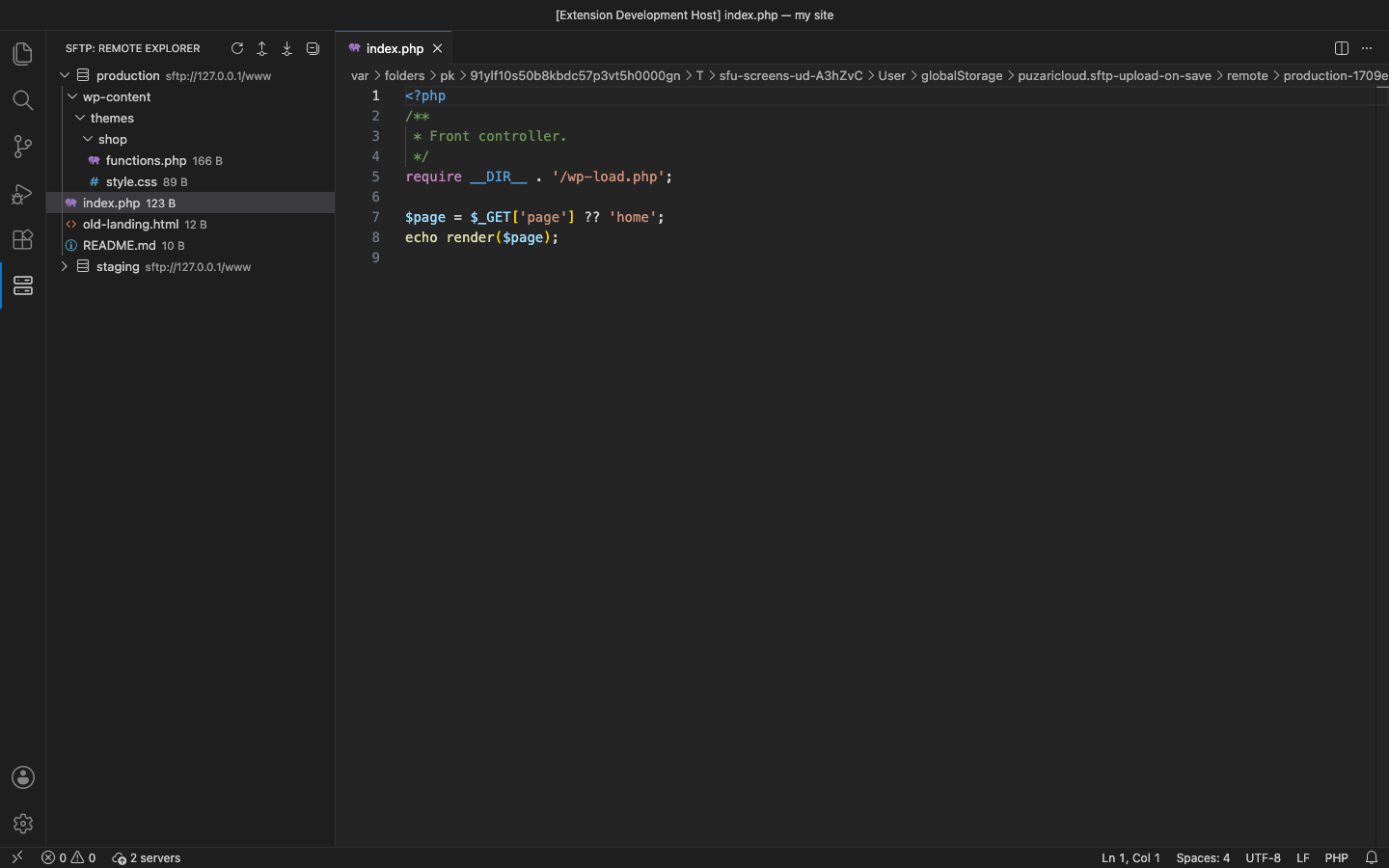
- Remote Explorer in its own side bar: browse each server, open a remote file and save it straight back, download files or folders into the workspace, rename, delete, copy the path.
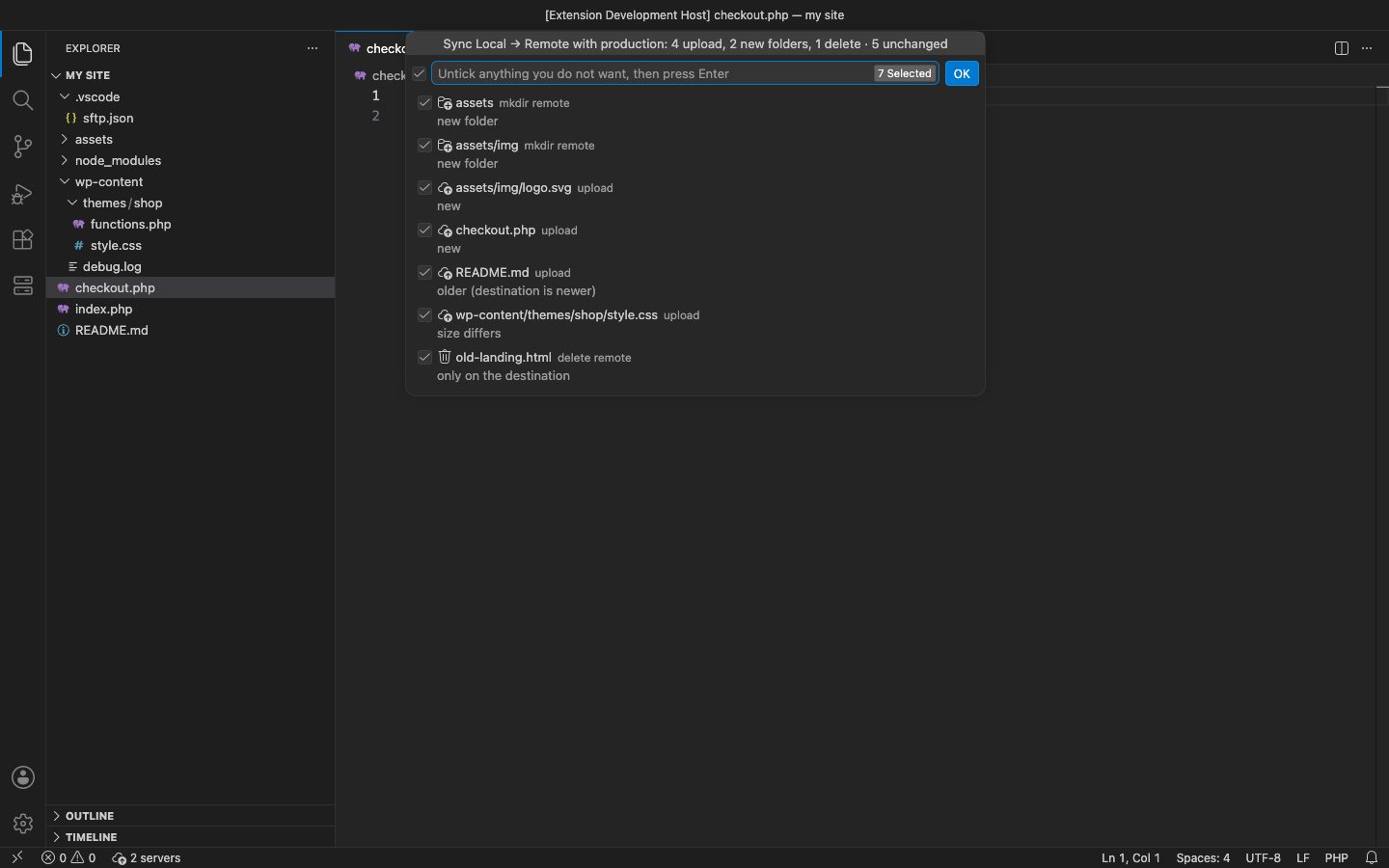
- Folder diff & sync, local → remote or remote → local, for the whole site or one folder. It compares size and modified time (ignore rules applied) and shows every upload, download, new folder and delete in a list you can untick before anything changes.
syncOption delete, update, skipCreate and ignoreExisting are honoured, and times are kept so the next diff says in sync.
- Jump hosts and proxies for SFTP:
hop (one or a chain of bastions) and proxy (SOCKS5 or HTTP CONNECT).
- Global config in your user settings:
sftpUpload.servers (with localPath) for projects without an sftp.json, and sftpUpload.defaults (username, key, ignore…) merged under every server.
In the free version the (Pro) commands, the Remote Explorer and the status bar (+1 (Pro) when your config lists more servers) say what Pro adds and offer Get Pro. There are no timed pop-ups.
sftp.json
{
  "name": "production",
  "host": "example.com",
  "protocol": "sftp",          // sftp | ftp | ftps
  "port": 22,
  "username": "deploy",
  "privateKeyPath": "~/.ssh/id_ed25519",
  "passphrase": true,          // asked once, kept in SecretStorage
  "remotePath": "/var/www/html",
  "uploadOnSave": true,
  "ignore": [".vscode", ".git", "node_modules", "*.log"],
  "syncOption": { "delete": false },
  // Pro: "hop": { "host": "bastion.example.com", "username": "jump" },
  // Pro: "proxy": { "type": "socks5", "host": "127.0.0.1", "port": 1080 },
  // Pro: "profiles": { "staging": { "host": "staging.example.com" } }, "defaultProfile": "staging"
}
Settings
| Setting |
Default |
|
sftpUpload.servers |
[] |
Pro. Servers kept in user settings; each needs localPath |
sftpUpload.defaults |
{} |
Pro. Keys merged under every server |
Requirements
VS Code 1.90+ (or VSCodium, Cursor, Windsurf). Nothing else to install. The workspace must be trusted, because sftp.json decides where files are sent.
Privacy
No account, no telemetry. The extension connects only to the servers in your config. See PRIVACY.md. Support: support@puzaricloud.in
| |

