Code Screenshots – Beautiful Code Images & SVG
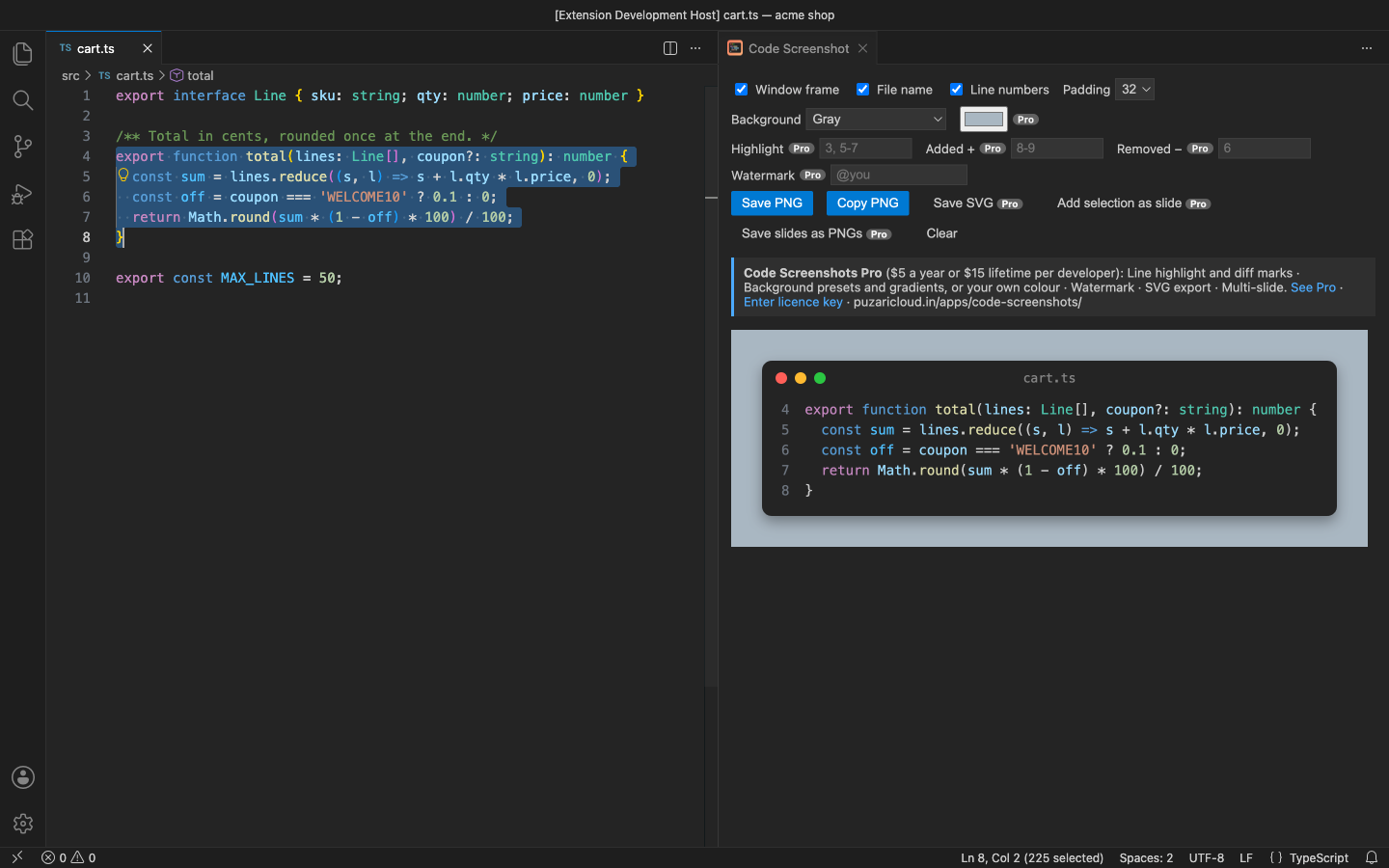
Select code, press Cmd+Alt+Shift+C (Ctrl+Alt+Shift+C on Windows and Linux) and get a clean image of it: your own theme's colours, a macOS-style window, line numbers and padding. Save it as a PNG or copy it straight to the clipboard to paste into Slack, a slide, a tweet or a blog post.
Why this one
- Exactly your editor's colours. The image uses the colours VS Code itself gives each token in your current theme, so it matches what you see, for every language and theme.
- Real line numbers. A snippet from line 120 starts at 120, not 1. Common indentation is removed, tabs are expanded.
- Maintained, works in current VS Code, VSCodium, Cursor and Windsurf.
- Offline. No account, no telemetry, no network calls, nothing to install. Your clipboard text is put back after the capture.
Free features
- PNG of the selection (or the whole file when nothing is selected), at 2× resolution by default (
codeScreenshots.scale).
- macOS-style window frame with the file name, line numbers, padding, gray or transparent background.
- Save PNG or Copy PNG to the clipboard.
- Right-click → Screenshot Selection, the shortcut, or the command palette.
Pro (licence key, checked offline)
$5 a year, or $15 for a lifetime licence, per developer. Everything above stays free. Pro adds:
- Line highlight (
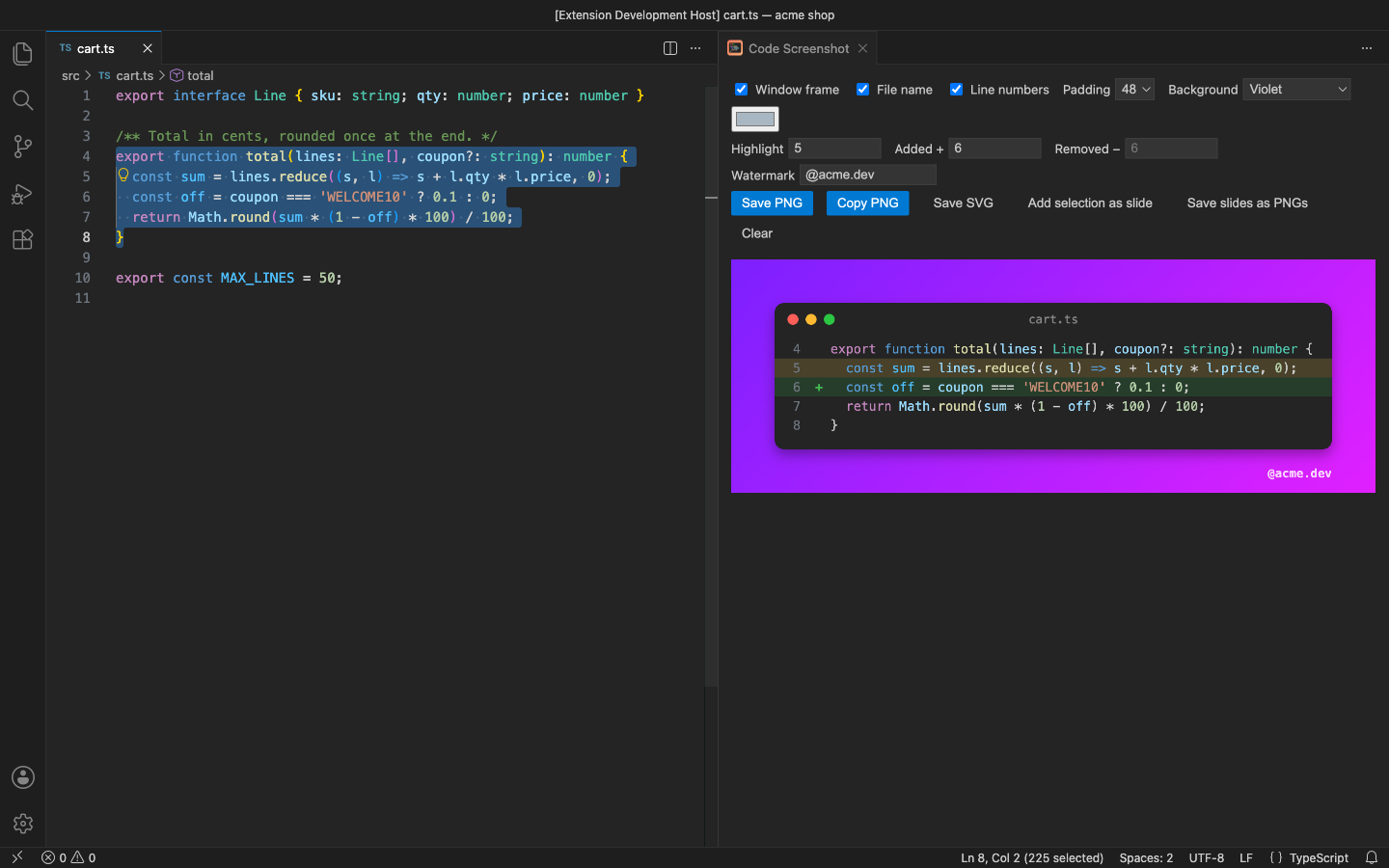
3, 5-7) and diff marks: lines marked as added (+, green) or removed (−, red).
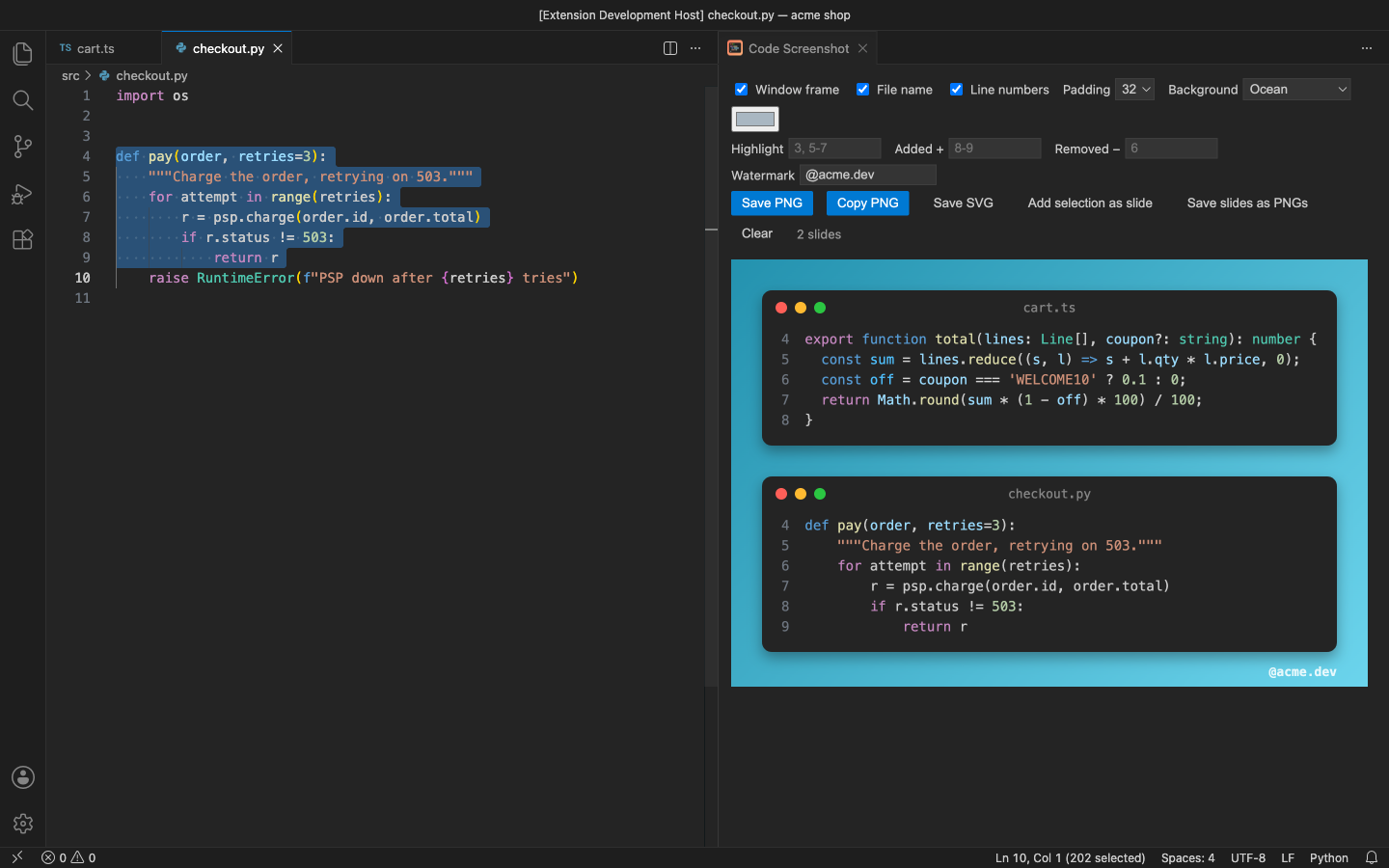
- Background presets and gradients (Sunset, Ocean, Violet, Mint, Candy, Sky, Midnight, White) or your own colour.
- Watermark: your name, @handle or site in the corner.
- SVG export with real, selectable text that stays sharp at any size.
- Multi-slide: Add Selection as Slide (
Cmd+Alt+Shift+A) collects snippets from several files; save them as one image or as one PNG per slide.
In the free version the Pro controls on the panel carry a Pro badge and say what they do when you use them. There are no timed pop-ups.
Settings
| Setting |
Default |
|
codeScreenshots.windowFrame / showFileName / lineNumbers |
true |
window look |
codeScreenshots.padding |
32 |
space around the window |
codeScreenshots.scale |
2 |
PNG resolution (1–4) |
codeScreenshots.fontSize |
0 |
0 = the editor's font size |
codeScreenshots.background |
gray |
gray, transparent; Pro: gradients, white, custom |
codeScreenshots.customColor / watermark |
empty |
Pro |
Changes made on the panel last for the session; the settings are the defaults.
Notes
- The colours come from VS Code's Copy with Syntax Highlighting. When a screenshot is started without a key press or click (for example from another extension), VS Code copies plain text only and the image uses your theme's text colour.
- The font is your
editor.fontFamily. An SVG shows in that font when the viewer has it installed.
Privacy
No account and no telemetry. Nothing is sent anywhere. See PRIVACY.md. Support: support@puzaricloud.in
| |

