Cursor Chronicle
English | 中文 · Marketplace
Backup Cursor AI conversations & Skills to GitHub — Markdown export, incremental sync, Skills install, and Remote-SSH.
将 Cursor AI 对话与 Skills 自动备份到 GitHub,支持 Markdown 导出、增量同步、Skills 安装和 Remote-SSH。
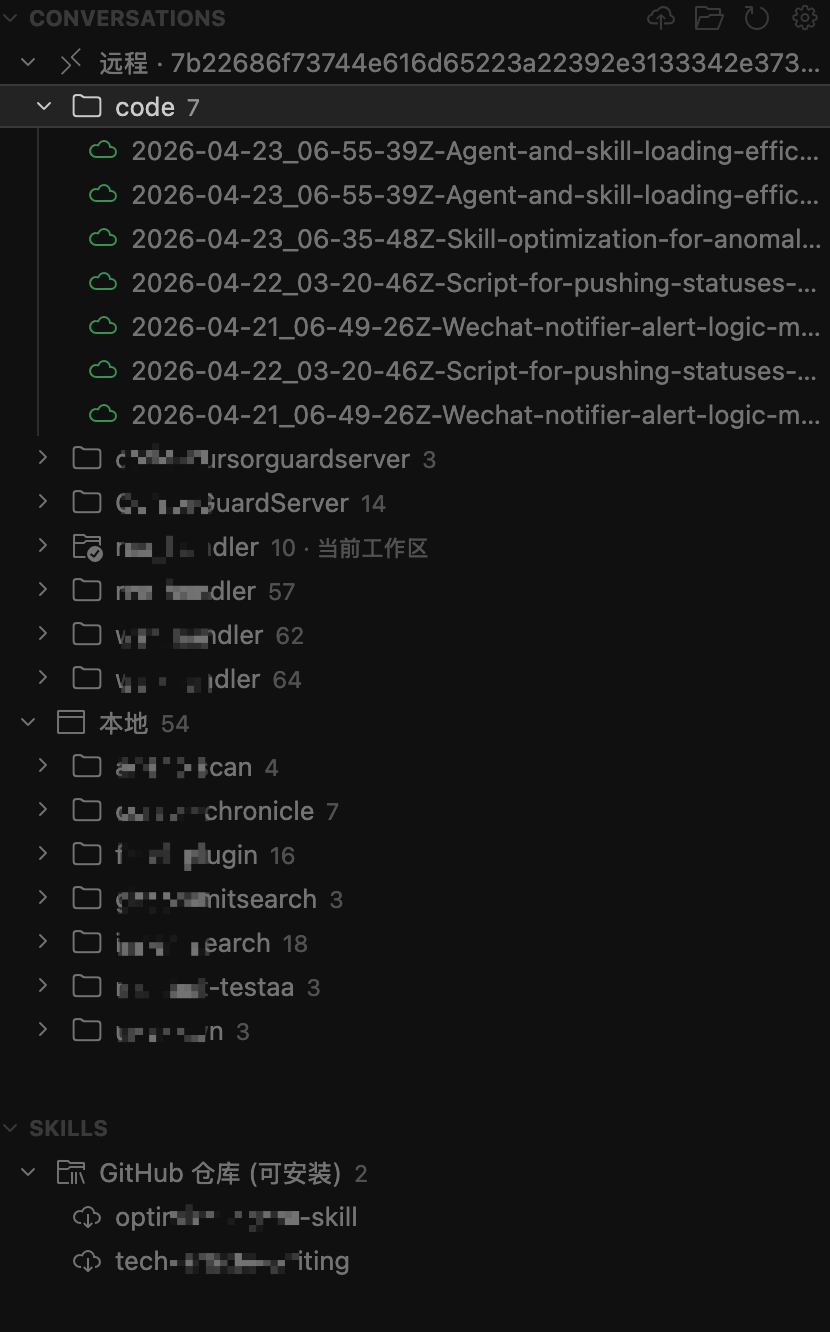
Conversations
|
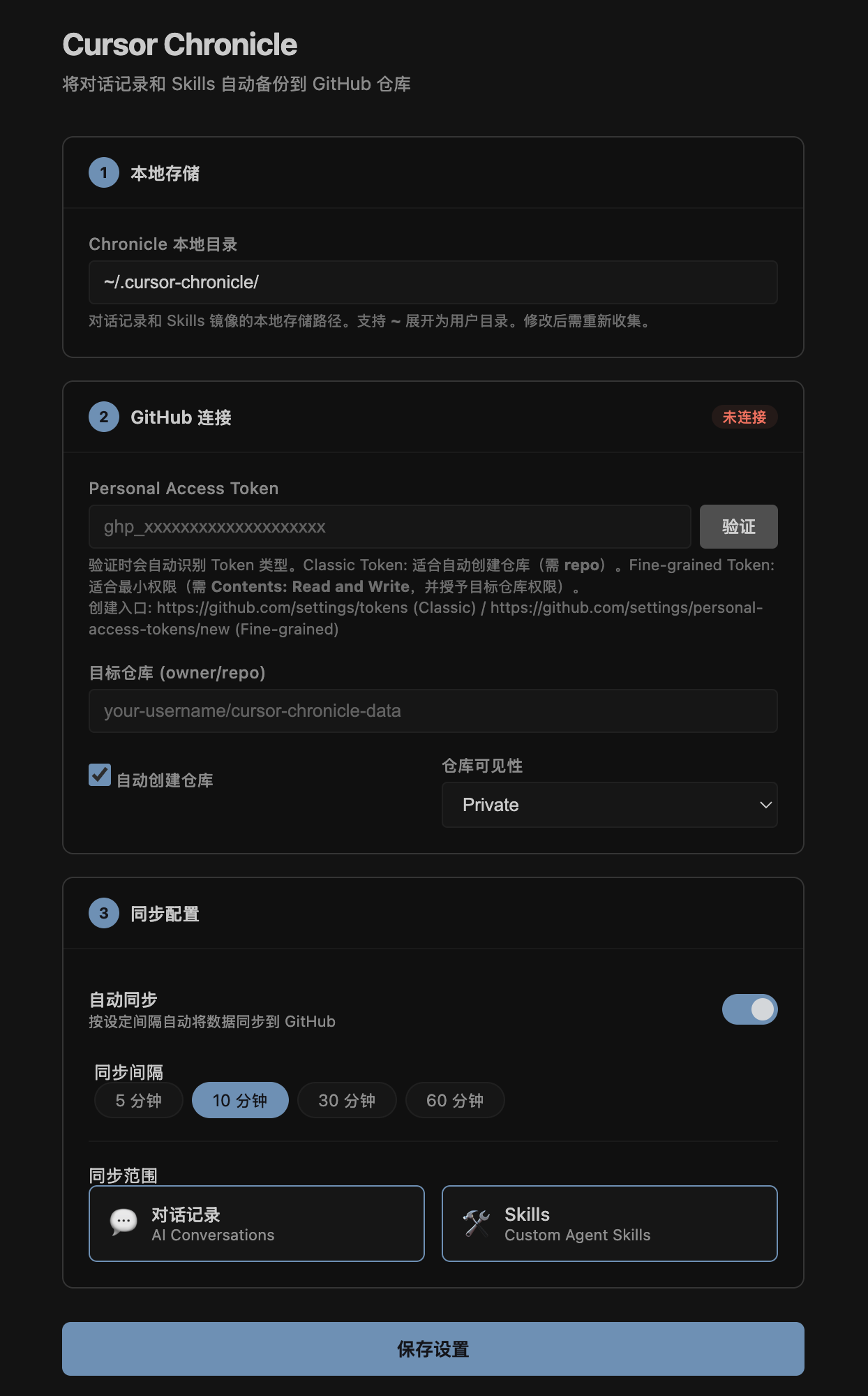
Settings
|
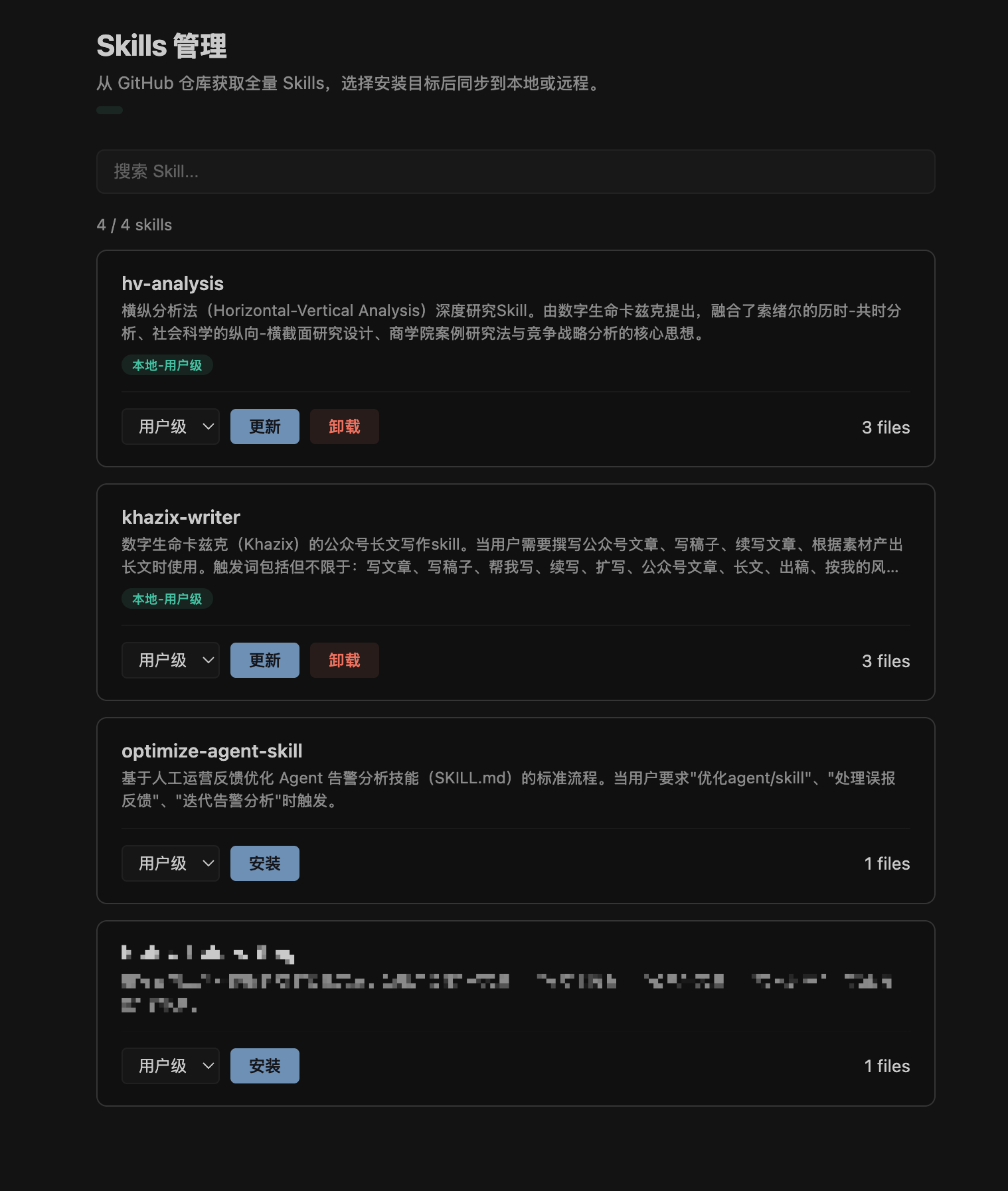
Skills
|
Quick Start · 快速开始
- Install — 在 Cursor / VS Code 扩展市场搜索
Cursor Chronicle Sync,或用下方命令打包后 Install from VSIX。
- Configure — 侧边栏 Cursor Chronicle → Configure GitHub:填入 Token(Classic 需
repo;Fine-grained 需 Contents: Read and Write)、owner/repo、分支(默认 master)后保存。
- Sync — 命令面板运行
Chronicle: Collect + Sync GitHub。
npm install
npm run release
English
Features
Conversation Collection & Export
- Auto-collect from Cursor's local SQLite database and JSONL transcript logs
- Markdown output — each conversation becomes a standalone
.md file with YAML frontmatter
- Project-based organization — conversations grouped by workspace / project name
- Incremental updates — only new or changed conversations are processed
- Import from MD — import external Markdown files as conversations via the sidebar toolbar
- Single & batch export — right-click to export one, or export all at once
Skills Management
- Local mirror — mirrors
~/.cursor/skills/ and workspace .cursor/skills/ automatically
- GitHub sync — uploads Skills with a
skills-index.json index
- Install from GitHub — browse and one-click install Skills from your repository
- Import from MD — import a Markdown file as a new Skill via the sidebar toolbar
- Management panel — card-based UI with search, install/uninstall, and status badges
- Multiple targets — install to user-level (
~/.cursor/skills/) or project-level (.cursor/skills/)
GitHub Sync
- Branch control — configurable target branch (default:
master); auto-clones existing repos on first sync to avoid branch conflicts across machines
- Multi-host awareness — conversations are tagged with hostname; sidebar groups by host so you can tell which machine each conversation came from
- Auto sync — configurable intervals (5 / 10 / 30 / 60 minutes)
- Manual sync — one-click collect + sync from the sidebar
- Auto-create repo — automatically create a new GitHub repository on first use
- Sync lock — prevents concurrent sync across multiple windows
Remote-SSH Support
- Remote conversation collection — reads
agent-transcripts from remote hosts via vscode.workspace.fs
- Remote Skills collection — auto-detects remote home directory
- Three install targets — local user, remote user, or remote project
Multi-language Settings
- Chinese / English toggle in the settings page — switch UI language with one click
Commands
| Command |
Description |
Chronicle: Collect + Sync GitHub |
Collect conversations & Skills, then push to GitHub |
Chronicle: Collect to Local Folder |
Collect to local Chronicle directory only |
Chronicle: Install Skills from GitHub |
Open Skills management panel |
Chronicle: Import Conversation from MD |
Import Markdown files as conversations |
Chronicle: Import Skill from MD |
Import a Markdown file as a new Skill |
Chronicle: Export All Conversations |
Batch export all conversations to workspace |
Chronicle: View Sync Status |
Show sync status info |
Configuration
| Setting |
Default |
Description |
cursorChronicle.github.repository |
"" |
GitHub repository (owner/repo) |
cursorChronicle.github.branch |
"master" |
Target branch for sync |
cursorChronicle.github.createRepoIfMissing |
false |
Auto-create repo if not found |
cursorChronicle.github.defaultVisibility |
"private" |
Visibility for auto-created repos |
cursorChronicle.autoSync.enabled |
false |
Enable periodic auto sync |
cursorChronicle.autoSync.intervalMinutes |
10 |
Auto sync interval (minutes) |
cursorChronicle.sync.conversations |
true |
Include conversations in sync |
cursorChronicle.sync.skills |
true |
Include Skills in sync |
cursorChronicle.export.localPath |
".cursor-chronicle/exports" |
Workspace-relative export path |
cursorChronicle.ignore.projects |
[] |
Project names to skip |
cursorChronicle.localProjectPath |
"~/.cursor-chronicle" |
Local Chronicle directory |
cursorChronicle.language |
"zh-CN" |
Settings page language (zh-CN / en) |
Local Directory Structure
~/.cursor-chronicle/<repo-name>/
├── conversations/
│   └── <project-name>/
│       └── <conversation>.md
├── skills/
│   ├── <skill-dir>/
│   │   └── SKILL.md
│   └── skills-index.json
├── chronicle-index.json
├── .gitignore
└── .git/
Troubleshooting
Open the Output panel (View > Output), select Cursor Chronicle from the dropdown to view detailed logs.
Security
- Token stored via VS Code
SecretStorage (encrypted)
- Webview enforces strict CSP (Content Security Policy)
- All HTML output is escaped
- SQLite queries use UUID-validated parameters
中文
功能特性
对话收集与导出
- 自动收集 — 从 Cursor 本地 SQLite 数据库与 JSONL 日志中提取对话
- Markdown 导出 — 每条对话导出为独立
.md 文件,包含 YAML frontmatter 元数据
- 按项目分目录 — 对话按所属工作区/项目名自动归类
- 增量更新 — 通过
chronicle-index.json 跟踪已处理的对话,仅处理新增或变更内容
- 从 MD 导入 — 通过侧边栏工具栏导入外部 Markdown 文件作为对话
- 单条/批量导出 — 右键菜单支持单条导出,或一键导出全部
Skills 管理
- 本地镜像 — 自动将
~/.cursor/skills/ 和工作区 .cursor/skills/ 镜像到 Chronicle 目录
- 同步到 GitHub — 将 Skills 上传到 GitHub 仓库,含
skills-index.json 索引
- 从 GitHub 安装 — 侧边栏浏览 GitHub 仓库中的 Skills,一键安装
- 从 MD 导入 — 通过侧边栏工具栏导入 Markdown 文件作为新 Skill
- Skills 管理面板 — 卡片式 UI,支持搜索、安装/卸载、状态徽章
- 多安装目标 — 支持安装到用户级(
~/.cursor/skills/)或项目级(.cursor/skills/)
GitHub 同步
- 分支控制 — 可配置目标分支(默认
master);首次同步时自动克隆已有仓库,避免多台机器分支冲突
- 多主机识别 — 对话标记主机名,侧边栏按主机分组显示,清晰区分各台机器的对话来源
- 自动同步 — 可配置定时自动同步(5/10/30/60 分钟间隔)
- 手动同步 — 侧边栏一键触发收集 + 同步
- 自动建仓 — 首次使用可自动创建 GitHub 仓库(Private / Public)
- 同步锁 — 多窗口同时打开时通过
sync.lock 防止冲突
Remote-SSH 支持
- 远端对话收集 — 通过
vscode.workspace.fs 读取远端 agent-transcripts
- 远端 Skills 收集 — 自动探测远端 home 目录,收集远端用户级 Skills
- 三目标安装 — Remote-SSH 模式下支持安装到:本地用户级、远端用户级、远端项目级
多语言设置
常用命令
| 命令 |
说明 |
Chronicle: Collect + Sync GitHub |
收集对话 + Skills 并同步到 GitHub |
Chronicle: Collect to Local Folder |
仅收集到本地 Chronicle 目录 |
Chronicle: Install Skills from GitHub |
打开 Skills 管理面板 |
Chronicle: Import Conversation from MD |
从 Markdown 文件导入对话 |
Chronicle: Import Skill from MD |
从 Markdown 文件导入 Skill |
Chronicle: Export All Conversations |
批量导出所有对话到工作区 |
Chronicle: View Sync Status |
查看同步状态信息 |
配置项
| 配置 |
默认值 |
说明 |
cursorChronicle.github.repository |
"" |
GitHub 仓库(owner/repo) |
cursorChronicle.github.branch |
"master" |
同步目标分支 |
cursorChronicle.github.createRepoIfMissing |
false |
仓库不存在时自动创建 |
cursorChronicle.github.defaultVisibility |
"private" |
自动创建仓库的可见性 |
cursorChronicle.autoSync.enabled |
false |
启用定时自动同步 |
cursorChronicle.autoSync.intervalMinutes |
10 |
自动同步间隔(分钟) |
cursorChronicle.sync.conversations |
true |
同步对话到 GitHub |
cursorChronicle.sync.skills |
true |
同步 Skills 到 GitHub |
cursorChronicle.export.localPath |
".cursor-chronicle/exports" |
批量导出路径(工作区相对) |
cursorChronicle.ignore.projects |
[] |
收集时跳过的项目名列表 |
cursorChronicle.localProjectPath |
"~/.cursor-chronicle" |
本地 Chronicle 目录 |
cursorChronicle.language |
"zh-CN" |
设置页语言(zh-CN / en) |
本地目录结构
~/.cursor-chronicle/<仓库名>/
├── conversations/
│   └── <项目名>/
│       └── <对话>.md
├── skills/
│   ├── <skill目录>/
│   │   └── SKILL.md
│   └── skills-index.json
├── chronicle-index.json
├── .gitignore
└── .git/
排查问题
打开输出面板(View → Output),在下拉列表中选择 Cursor Chronicle,可查看详细运行日志。
安全
- Token 使用 VS Code
SecretStorage 加密存储
- Webview 严格遵循 CSP(Content Security Policy)
- 所有 HTML 输出使用转义处理
- SQLite 查询参数经过 UUID 格式校验
Development
npm install          # Install dependencies
npm run build        # Dev build (with sourcemap)
npm run watch        # Watch mode
npm run typecheck    # TypeScript type check only
npm run release      # Full package: typecheck → clean → prod build → VSIX
License
MIT

