Extensions Bookmark
OVERVIEW
Extensions Bookmark is a Visual Studio Code (VSC) extension that allows you to bookmark other extensions. This makes it easy to keep track of your favorite or frequently used extensions, as well as those you are interested in but perhaps not ready to install yet.
DEMO
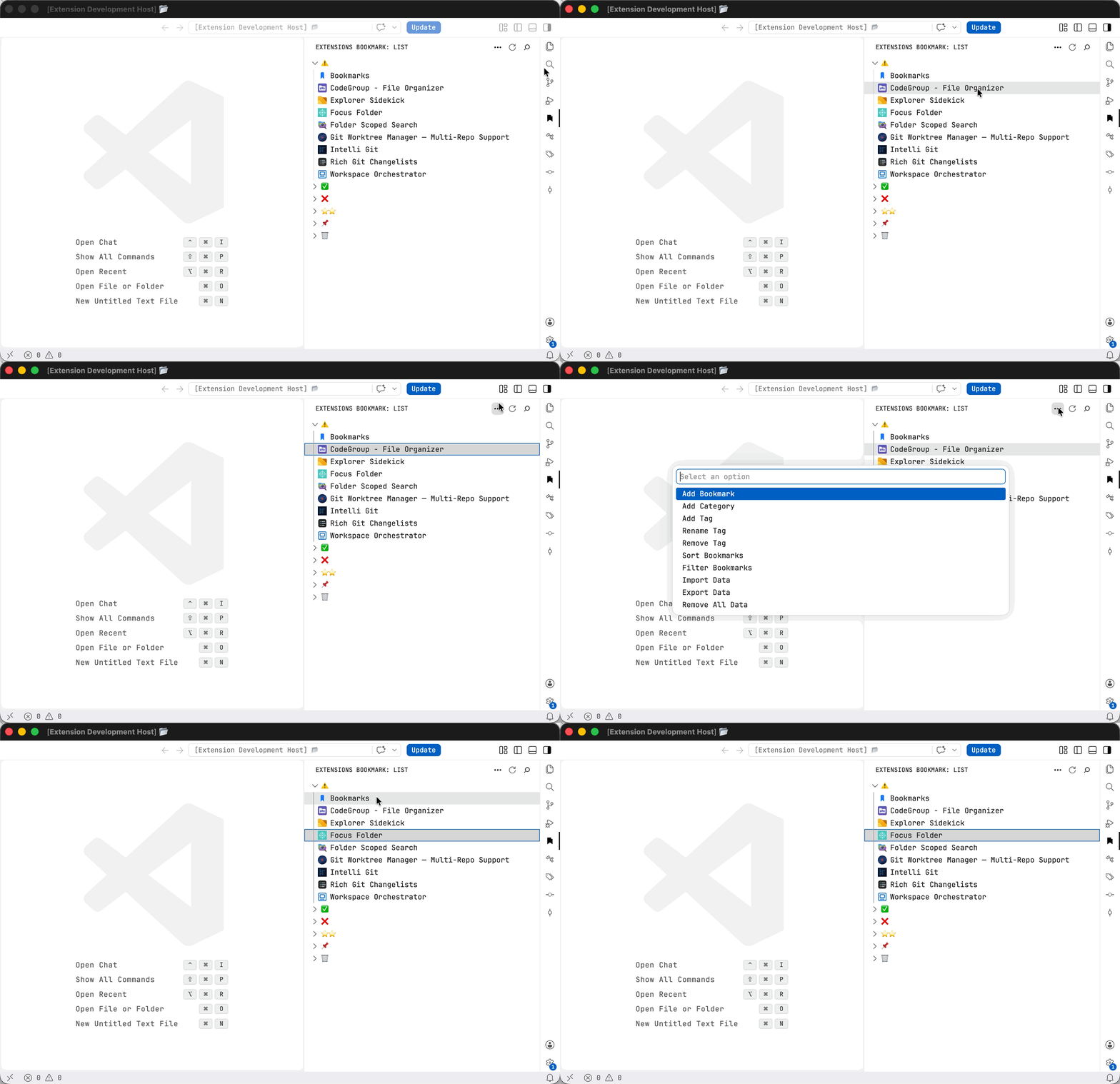
Note: When adding or removing bookmarks, make sure to copy the identifier exactly as shown, including the publisher and extension name (publisher.extensionname).
How to locate and copy an extension's identifier within the VSC Extensions Marketplace:
- Open the Extensions view in VSC by clicking on the "Extensions" icon in the Activity Bar on the side or by using the shortcut
Ctrl+Shift+X (Windows/Linux) or Cmd+Shift+X (Mac).
- In the search bar at the top, enter the name or keywords related to the extension you are looking for.
- From the search results, locate the extension you are interested in, right click on it and select "Copy Extension ID". The extension's identifier is now copied.
- Alternatively, from the search results, locate the extension you are interested in and click on it to open its details page.
- On the details page, you will find the extension's identifier listed under the extension's "More Info" section. Select the identifier and press
Ctrl+C. The extension's identifier is now copied.
CURRENT FEATURES
- Addition and Removal of Bookmarks: Add and remove bookmarks, as well as select a category to associate each bookmark with.
- View in Marketplace: Select a bookmark to open it in the VSC Extensions Marketplace.
- Categorization of Bookmarks: Add, rename, and remove categories (folders), as well as move bookmarks from one category to another. There is a permanent "Default" folder available for uncategorized bookmarks.
- Search Functionality: Search through your bookmarks.
- Import/Export Bookmarks: Import and export all your data.
- Tagging/Filtering System: Add, rename, and remove tags and assign them to your bookmarks for improved organization, filtering, and retrieval.
- Sorting Options: Sort bookmarks in alphabetical (A-Z, Z-A) or chronological (New-Old, Old-New) order.
- Bookmark Notes: Add, edit, and remove a personal note for each bookmark, providing added context and better recall.
- View Details: View that includes each bookmark's properties and note, as well as marketplace details such as: download count, rating, and last update date.
- Remove All Data: Ability to remove all data in one command (confirmation required).
- Standalone File Storage: Synced bookmark data is kept in a standalone JSON file under the extension's
globalStorage directory (User/globalStorage/pujie.extensions-bookmark/data.json) instead of polluting settings.json — easy to back up, edit, or track in version control. Bookmark icons are cached separately under globalStorage/icons and refreshed at most once every seven days.
- Wanted / Not Wanted Status: Mark each bookmark as wanted (you want it installed) or not wanted (you want it removed) via the right-click menu. Each bookmark also shows its actual install state, so you can see at a glance where expectation and reality diverge:
- ✓ green
installed — wanted and installed
- ↓ blue
not installed — wanted but not yet installed
- × red
to remove — not wanted but still installed
- ✓ green
not wanted — not wanted and not installed
- View Modes: Cycle the view from the title bar — group by category (default), group by status (Wanted / Not Wanted / Diff buckets, with counts), or a flat A-Z list.
- Status Filter: Filter the list to only installed, not wanted, or out-of-sync (diff) bookmarks.
- Sync to / from Data: From the Add menu, sync in either direction:
- Sync to Data — write the current actual install state into
data.json (great for initializing a fresh bookmark set).
- Sync from Data — install/uninstall extensions to match what
data.json says you want.
- Per-bookmark Sync is also available on the right-click menu.
UPCOMING FEATURES/IDEAS
- Bulk Add/Move/Remove Bookmarks: Ability to add, move, and remove bookmarks in bulk.
- Bulk Add/Rename/Remove Categories: Ability to add, rename, and remove categories in bulk.
- Bulk Add/Rename/Remove Tags: Ability to add, rename, and remove tags in bulk.
- Favorites and Prioritization: Mark bookmarks as favorites or assign them a priority level for easy access to important bookmarks. Prepend stars for favorites and colored circles for priority (red for lowest, yellow for middle, green for highest). Introduce a permanent nested folder, after "Default", to display favorite and priority bookmarks, ensuring only visual duplication.
- More by Publisher: View all extensions by a bookmarked extension's publisher.
- Expand/Collapse All Categories: Ability to expand or collapse all categories at once.
- Improved Bookmark Addition: Ability to add bookmarks using extension names in addition to identifiers. Revise the bookmark addition process to enhance sorted display and real-time updates when providing input.
- Enhanced Search Functionality: Expand search to include all data and details for more comprehensive results.
- Unified Input Instructions: Place all input instructions in a common location, either as a placeholder or below the input area.
- Drag-and-Drop Functionality: Enable drag-and-drop functionality for moving bookmarks between categories.
Support
If you encounter any problems or have suggestions for Extensions Bookmark, feel free to open an issue on the GitHub repository. Your feedback is always welcome and appreciated!
| |

