⚠️ Beta / Preview
- Most features are still experimental or incomplete.
- Feedback and bug reports are welcome.
Neo Git is a Visual Studio (2022+) extension that adds Git workflow tools to the IDE.
It was initially born to:
- Assist more complex operations such as bisect and interactive rebase.
- Better visualization (compared to native VS) of graphs.
- Experiment with other useful assistance tools.
Requirements
- Visual Studio 2022 or later.
- Git available on
PATH.
Installation
Extension Manager in Visual Studio (or download from MarketPlace).
Open Neo Git
In the Git menu of the main menu bar:
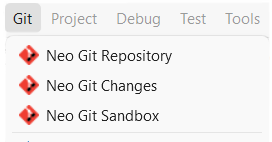
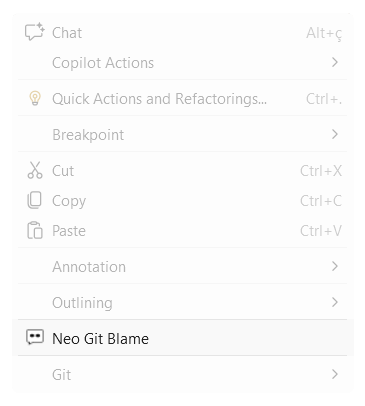
In the editor's right-click menu:
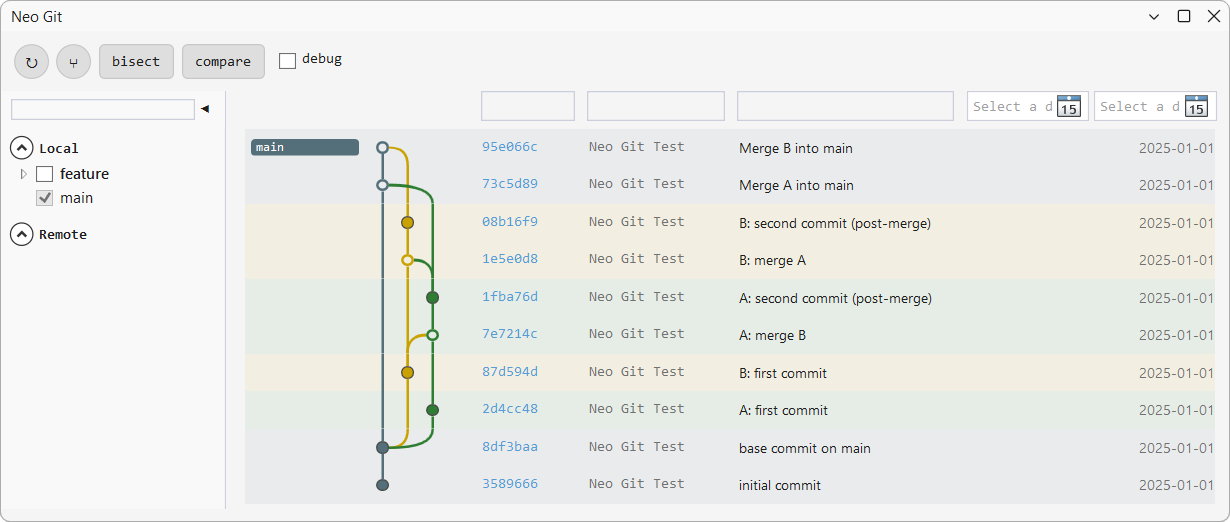
Neo Git Repository (branch graph)
Main window: commit history as a graph, branches on the left, commits on the right.
- Cherry-pick onto
<branch> — when applicable to the current branch.
- Interactive rebase (
N children) — when the commit has children.
Bisect
Guided git bisect, hosted inside the Repository window (bisect button).
- ← back, ↻, start, abort, reset.
- Mark a Bad and a Good commit, then start. Classify the highlighted (gold) commit as Good/Bad until the culprit is found (highlighted red).
Compare
Diff two branches, or two commits (Ctrl+click). compare button.
- Changed-file list (A/M/D) on the left, diff viewer on the right.
- search in changes + replace with / replace all across the diff.
Interactive rebase
Visual git rebase -i, via the Interactive rebase (N children) context menu item.
| Action |
Effect |
| pick |
Keep the commit as-is. |
| reword |
Edit the commit message. |
| squash |
Merge into the previous commit, keeping both messages. |
| fixup |
Like squash, but discard this commit's message. |
| drop |
Remove the commit. |
Adjust actions/order (drag rows), start, resolve conflicts and continue, or abort.
Neo Git Changes (staging & commits)
Syncs with the selection in Neo Git Repository. Empty state: "Select a commit in the Branches window."
New commit
Active when the working directory row is selected.
- Staged: ↓ unstage selected, ↓↓ unstage all.
- Working: ↑ stage selected, ↑↑ stage all, ↶ discard (⚠️ irreversible).
- Message, Commit, Commit & Push.
View / edit a commit
Read-only hash/author/date/branches/parents; editable message (except merge commits).
- Save message, Cancel, Split…
Split a commit
- Split…, then write the extracted commit's message.
- Check files to move (or expand ▶/▼ to pick individual hunks).
- Apply split — inserts a new commit before the original with the checked changes.
- Cancel to abort.
Checked items go to the new commit; everything unchecked stays in the original.
Neo Git Sandbox
Fully in-memory Git simulator — never touches the real repository.
- Left panel: branches (click to check out).
- Right panel: commit graph, same style as Neo Git Repository.
- Action row: commit, new branch, merge (into), rebase (onto) + OK.
The chosen action stays active after OK, so you can chain operations.
Neo Git Blame (editor margin)
- Open a Git-tracked file.
- Right-click → Neo Git Blame.
- A left margin shows author, hash, date, and message per line.
- ✕ closes the margin; drag its right edge to resize.
- ⊘ next to a commit ignores it (e.g. a bulk reformat) so its lines blame the real author; ⊘ N (top-right) clears all ignores.
- Untracked files show no margin.

