Rails Schema Navigator

Navigate Rails db/structure.sql and db/schema.rb visually — search tables, trace foreign keys, inspect PostgreSQL enums and views, compare columns, and jump to ActiveRecord models. Built for Ruby on Rails developers using VS Code and Cursor.
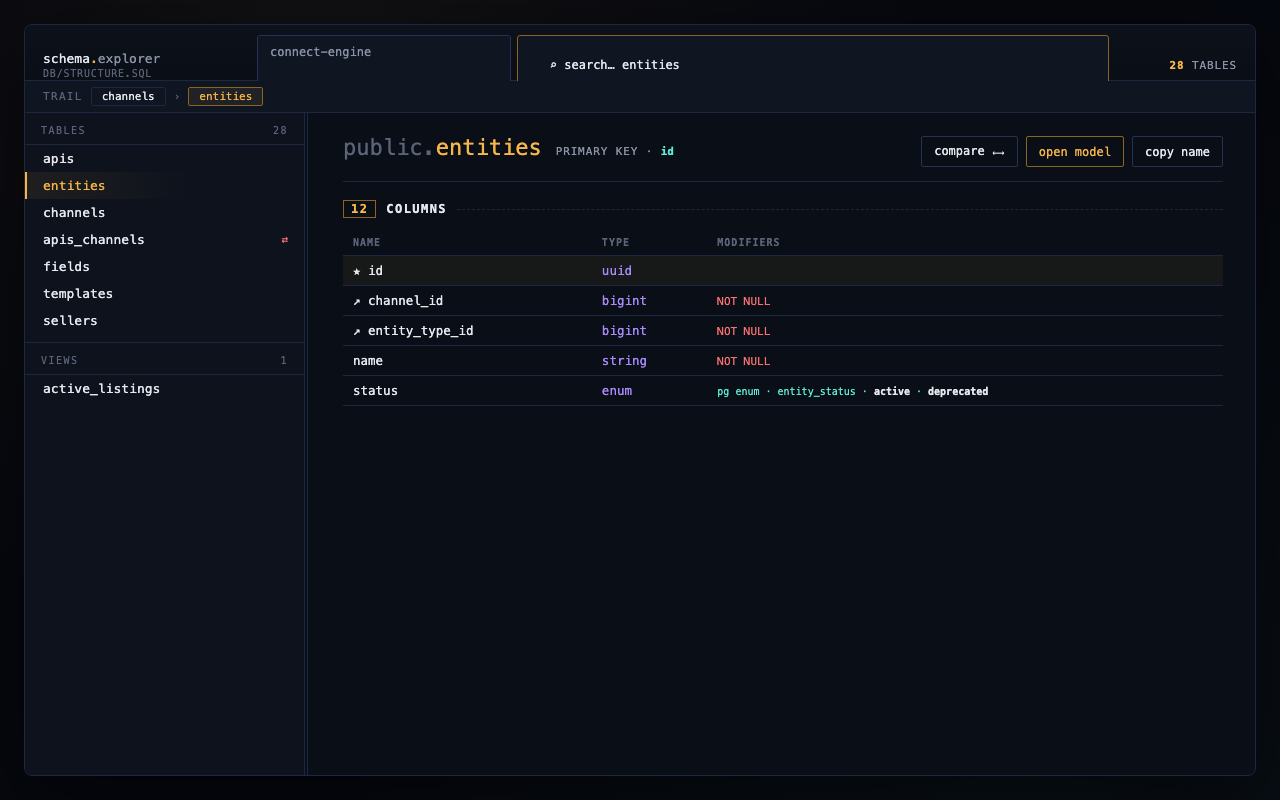
Turn a 2,000-line PostgreSQL dump or Rails schema file into a searchable UI — tables, columns, foreign keys, constraints, PostgreSQL enums, views, join tables, and one-click jumps to app/models.
Works in VS Code and Cursor. This extension is Rails-only (not Prisma, MySQL dumps, or generic SQL).
Why use it
| Problem |
How this helps |
Scrolling structure.sql to find a column |
Instant search across tables and columns |
| Tracing FK relationships by hand |
Click incoming/outgoing FK links to navigate |
| Spotting join / pivot tables |
Join tables show a ⇄ badge in the sidebar |
| Jumping between schema and models |
Open model from a table, or open explorer from a model file |
| Comparing two tables during a PR |
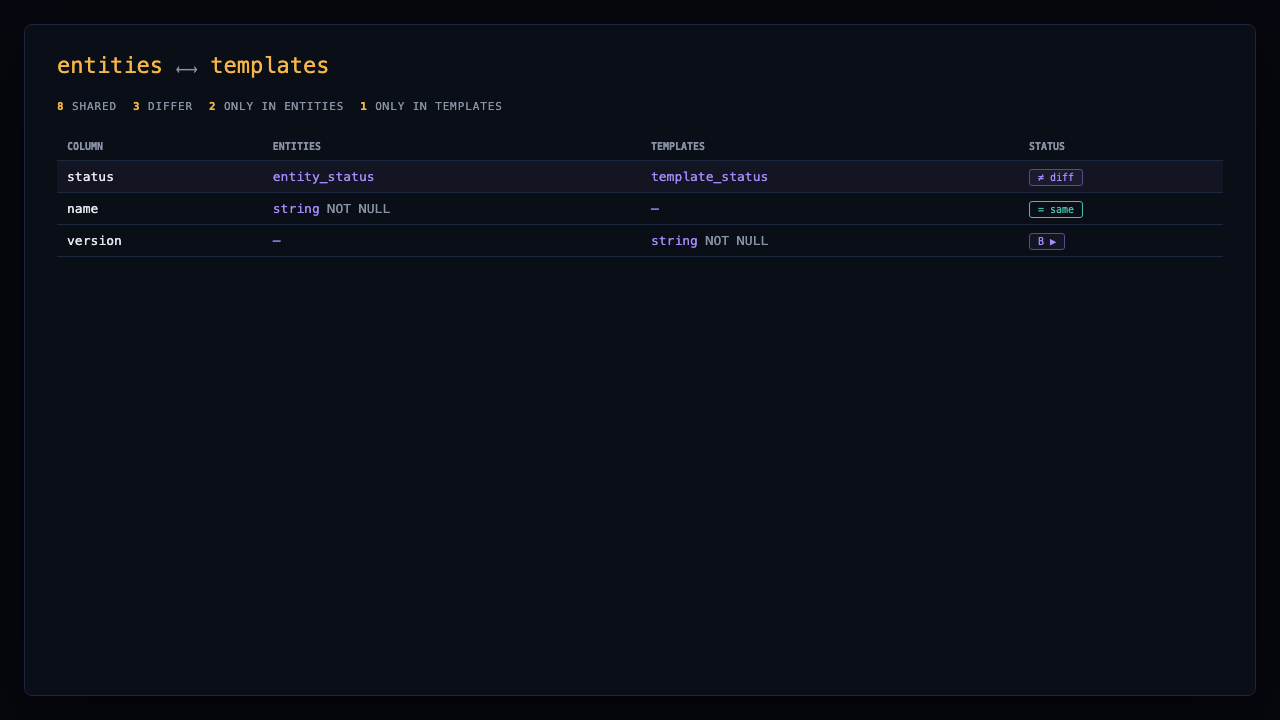
Built-in Compare mode with column-by-column diff |
| Stale schema after migrations |
Banner with dump command, open file, run in terminal, refresh |
Requirements
- VS Code 1.85+ or Cursor
- A Rails project with
db/structure.sql or db/schema.rb in the workspace
Install
From VS Code Marketplace
- Open Extensions (
Cmd+Shift+X / Ctrl+Shift+X)
- Search Rails Schema Navigator
- Click Install
- Open a Rails repo that contains a schema file
Or from the command line:
code --install-extension prashantbangar03.rails-schema-navigator
From VSIX (offline)
If you have a VSIX file:
code --install-extension /path/to/rails-schema-navigator.VSIX
Reload the window after installing.
Quick start
- Open a Rails app in VS Code / Cursor
- Press
Cmd+Alt+S (macOS) or Ctrl+Alt+S (Windows/Linux)
— or run Rails Schema Navigator: Open from the Command Palette
- Click a table in the sidebar to inspect columns, constraints, and FKs
From the editor
- Open
db/structure.sql or db/schema.rb → click the database icon in the editor title bar
- Open any
app/models/*.rb file (not concerns) → Open from Model jumps to that table
Features
Schema sources
db/structure.sql — PostgreSQL dump (tables, views, PG enums, domains, indexes, constraints)db/schema.rb — Rails schema DSL including create_enum / t.enum
- Tables — click to open detail view; join tables show ⇄
- Views — PostgreSQL views (from
structure.sql)
- Search — filter tables and columns; press
/ to focus search
Search prefixes:
| Prefix |
Filters |
t: |
Tables only |
c: or col: |
Columns only |
v: |
Views only |
Table detail
Collapsible sections per table (state saved per table):
- Columns — type, NOT NULL, DEFAULT, UNIQUE, index chips, enum values
- Table constraints — indexes, unique, partial indexes, CHECK, exclude
- Incoming / outgoing FKs — click to navigate to related tables
- Many-to-many — join tables linking two entities
Header actions
- Compare — side-by-side column comparison with another table
- Open model — opens
app/models/... when a model exists (including join/pivot models)
- Copy name — copies the table name
Rails integration
- Scans
app/models for Rails enums and shows them on columns
- Open model from table header
- Open explorer from model from the model editor title bar
- Join table detection (strict joins and named pivots like
apis_channels)
Multi-project workspaces
When several Rails apps are in one workspace:
- Header project picker (30% width) + table search (70%)
Rails Schema Navigator: Switch Project from Command Palette- Optionally follow the active editor (see Settings)
Stale schema banner
If the schema file is older than recent migrations:
- Copy
rails db:structure:dump (or equivalent) command
- Open schema file
- Run dump in terminal
- Refresh explorer
Keyboard shortcuts
| Action |
Command |
macOS |
Win/Linux |
| Open navigator |
Rails Schema Navigator: Open |
Cmd+Alt+S |
Ctrl+Alt+S |
| Find table |
Rails Schema Navigator: Find Table |
Ctrl+Shift+J |
Ctrl+Shift+J |
| Refresh |
Rails Schema Navigator: Refresh |
Cmd+Shift+R * |
Ctrl+Shift+R * |
| Switch project |
Rails Schema Navigator: Switch Project |
— |
— |
* When the explorer panel is focused.
Settings
| Setting |
Default |
Description |
schemaExplorer.followEditor |
true |
Active schema project follows the editor; disable to pin a project |
schemaExplorer.showStatusBar |
true |
Show active schema project in the status bar |
Open Settings and search for schemaExplorer.
Limitations
| Topic |
Details |
| Rails only |
Reads db/structure.sql or db/schema.rb — not Prisma, Sequelize, or generic SQL files |
| PostgreSQL (full) |
Enums, domains, views, and partial indexes are parsed from structure.sql PostgreSQL dumps |
schema.rb only |
Tables and Rails create_enum / t.enum work; PG views and custom types from dumps are not available |
| MySQL / SQLite |
Partial support via schema.rb; PostgreSQL-specific features do not apply |
| Remote / virtual workspaces |
Requires local schema files on disk (see virtualWorkspaces in package.json) |
| Very large schemas |
Parsing runs in-process; extremely large dumps may take a moment on first open |
Privacy
This extension:
- Reads schema and model files locally from your workspace
- Does not send data to external servers
- Does not include telemetry or analytics
- Stores UI preferences (sidebar width, collapsed sections) in webview localStorage only
Keyboard shortcut notes
Default shortcuts may conflict with other extensions or custom keybindings:
| Shortcut |
Possible conflict |
Cmd+Alt+S / Ctrl+Alt+S |
Other “save” or navigation bindings |
Ctrl+Shift+J |
Join lines / panel toggles in some setups |
Cmd+Shift+R / Ctrl+Shift+R |
Only active when the explorer panel is focused |
Rebind under Keyboard Shortcuts → search Rails Schema Navigator.
License
MIT License

