.NET Tool ExtensionThis extension installs and manages different versions of the .NET SDK and Runtime. Easily manage .NET installations for use with VS Code: download, update, and switch between SDK and runtime versions as your projects require. Supported on Windows, Linux, and macOS, for both extension authors and de Installation Launch VS Code Quick Open ( Ctrl+P), paste the following command, and press enter.Copied to clipboard |


.NET Tool Extension
VS CODE EXTENSION
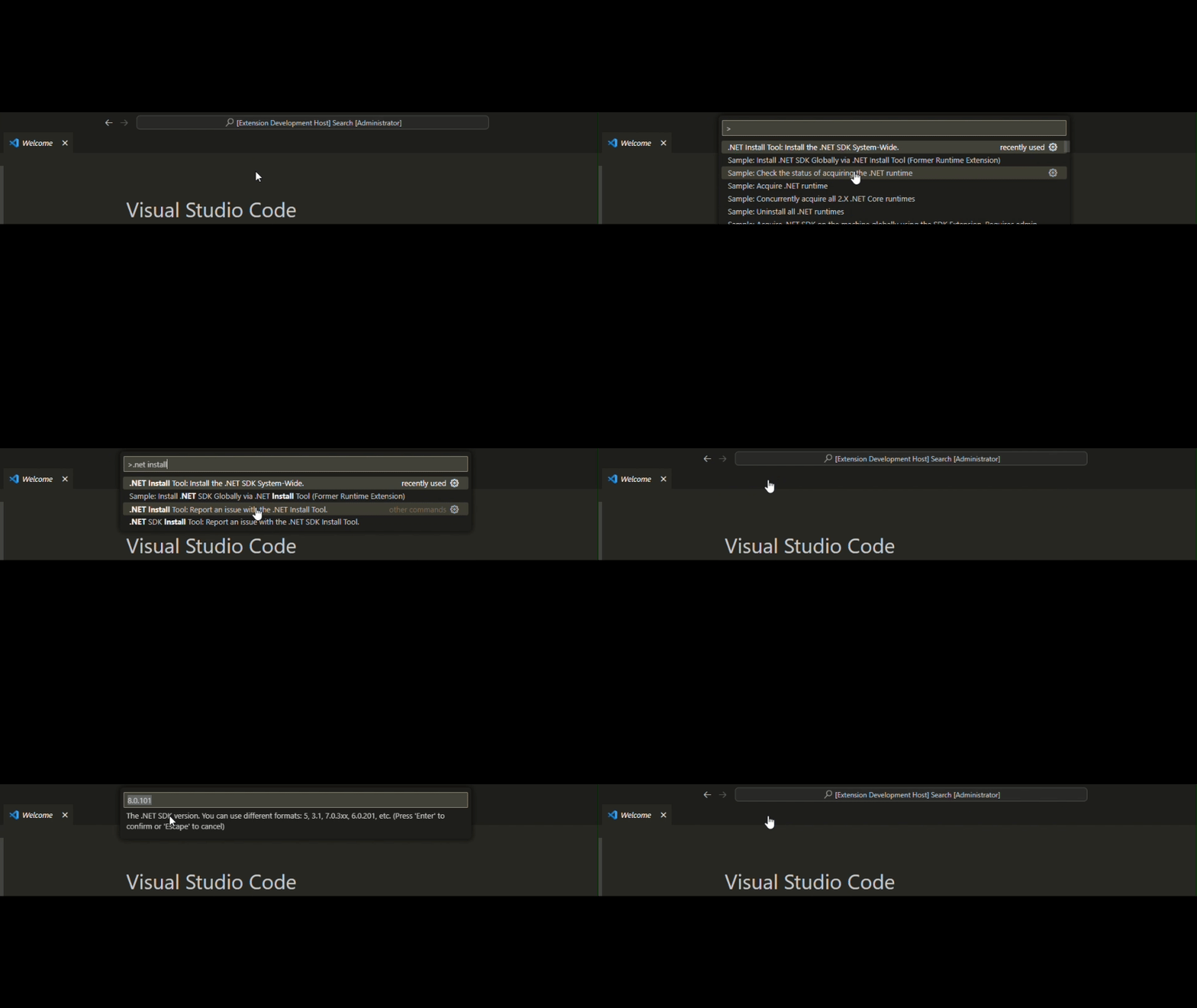
OverviewThe .NET Tool Extension provides a seamless solution for managing .NET SDKs and Runtimes. It empowers VS Code extensions such as C#, C# Dev Kit, Unity, .NET MAUI, CMake, and Bicep to acquire necessary .NET dependencies in a unified and efficient way. Whether you need to automatically install or update .NET SDKs/Runtimes for your projects or extensions, this tool streamlines the process so you can focus on your code. Why is this extension installed?You likely have this extension as a dependency of another extension, for example: They utilize .NET Tool Extension to manage .NET runtime and SDK installs reliably. To remove it, uninstall all dependent extensions first. How to Install the .NET SDKYou can install the .NET SDK system-wide using the VS Code command palette:
Configuring an Existing .NET InstallationYou can specify to use your pre-installed .NET for all or some extensions. 1. For all extensions: 2. For a specific extension: You'll need a separate entry for each extension. Extension IDs can be copied by right-clicking an extension in the pane. TroubleshootingDownload TimeoutIncrease download timeout if needed: Proxy IssuesIf behind a proxy, set it up as below: Contributor InformationBefore .NET Tool Extension, extension authors had to bundle their own runtimes, which led to duplication, outdated versions, and difficult cleanup. Now, this extension provides shared, up-to-date SDK/Runtimes with better reliability and disk usage. Project Info
Third-party noticesSee the notices. TrademarksThis project may use trademarks or logos for various projects and services. Follow respective trademark & branding policies. 
|