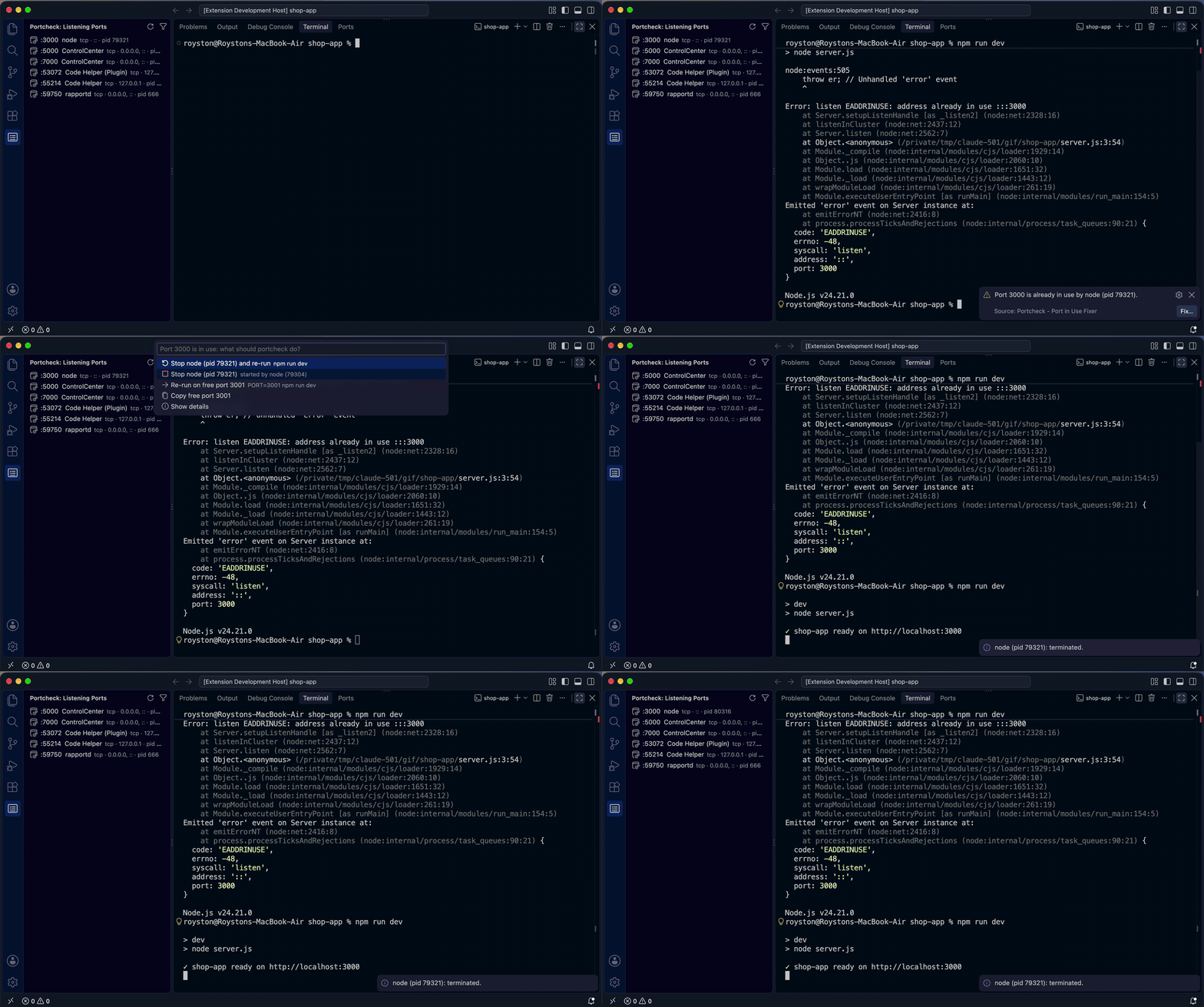
See what's using your ports, and free them safely, without leaving the editor.
"Port in use" → fixed in one click. When npm run dev, rails s,
python -m http.server, go run . (and many more) fail because the port is taken,
you're told who holds it and can stop it and re-run, or re-run on the next free
port, from the terminal.
Project ports: with a .portcheck.yaml, the status bar and Problems show which of
your project's ports are blocked, and how to fix them.
Listening ports view: every listening port with its process, who started it
(node ← npm ← zsh), and the Docker/Podman container or WSL distro behind it.
Stop a process from the view or the command palette. You confirm first, and
portcheck's safety guards apply: it never stops system processes or VS Code itself.
Container and WSL ports show the right command (docker stop web) instead of killing
the proxy.
Check a port and find a free port from the command palette.
Works in Remote-SSH, WSL and Dev Containers: it runs where your code runs.
The extension runs the portcheck CLI,
which is built in for macOS, Linux and Windows (x64 and arm64). To use another copy, set
portcheck.path. Needs VS Code 1.98 or later.